



Table of Contents
Below you'll find a table of contents for the Inbound Integrations journey.
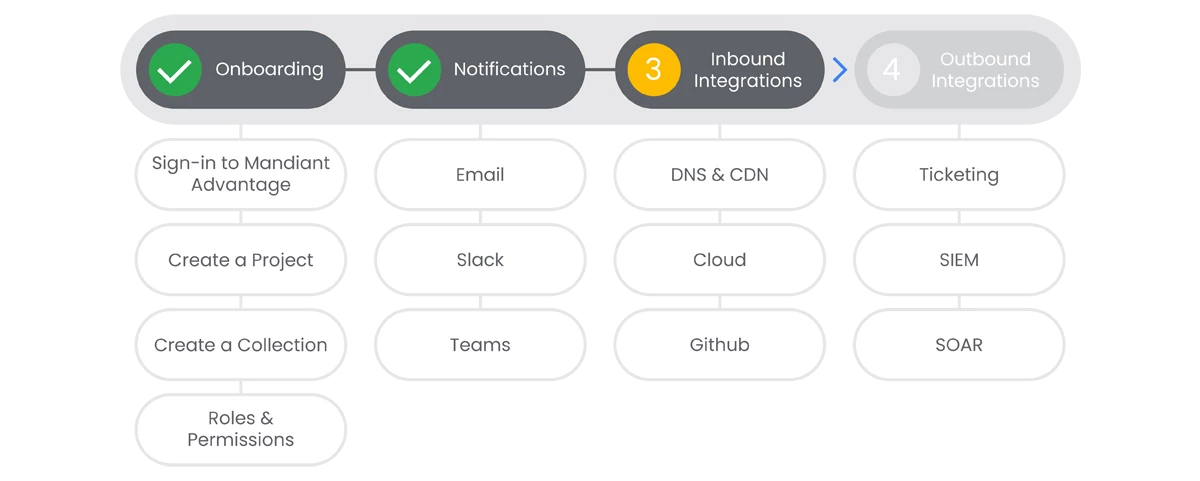 Inside of Collections in Attack Surface Management, our customers utilize Workflows to scan their assets for vulnerabilities. Those Workflows can use a number of internally available solutions for scanning, but there are a number of ways customers can utilize Inbound Integrations to gain better insight into their entire Attack Surface. In this section we will explore Inbound Integrations for DNS & CDN, Cloud, and Github.
Prerequisites
- Project Owner level access.
- Admin access to Integration platform.
Actions
 DNS & CDN
Cloud
In this section we will walk you through setting up Google Cloud as an Inbound Integration. In addition to Google Cloud, Attack Surface Management has integrations for AWS and Azure.
Prerequisites
See the Relevant Links section for more documentation regarding the prerequisites.
- Existing Project(s)
- Existing Collection(s)
- Project Admin rights for Project(s)
- Admin rights in Google Cloud
Steps
-
Create a Google Cloud Service Account by following the steps identified in the linked docs for this step. Ensure to note the email address associated with the Service Account that you create in these linked steps. | Docs
-
From the Attack Surface Management console, click Projects & Settings, choose a Project, click Account Settings.
-
Click the Integrations tab.
-
Under Inbound Integrations, click Add New for Google Cloud.
-
In the Email field, provide the email address associated with the Service Account, created in Step 1. Click Connect.
-
Click Collections, then click Collections Settings next to the Collection you'd like to connect the integration to.
-
Select the Integrations tab, select Connect Integration, then link the Google Cloud integration.
-
Close the window, then click Scan Collection to begin scanning utilizing the Google Cloud integration.
Relevant Links

Github
In this section we will walk you through setting up Github as an Inbound Integration.
Prerequisites
See the Relevant Links section for more documentation regarding the prerequisites.
- Existing Project(s)
- Existing Collection(s)
- Project Admin rights for Project(s)
- Admin rights in Github
Steps
-
Create a Github Access Token by following the steps identified in the linked documentation. Ensure to note the Access Token once created because it will not be displayed again. | Docs
-
From the Attack Surface Management console, click Projects & Settings, choose a Project, click Account Settings.
-
Click the Integrations tab.
-
Under Inbound Integrations, click Add New for Github.
-
In the Github Access Token field, provide the Access Token, created in Step 1. Click Connect.
-
Click Collections, then click Collections Settings next to the Collection you'd like to connect the integration to.
-
Select the Integrations tab, select Connect Integration, then link the Github integration.
-
Close the window, then click Scan Collection to begin scanning utilizing the Gtihub integration.
Relevant Links
