
Authors:
David Igal, Senior Security Consultant at Google Cloud
Omri Shamir, Senior Security Consultant at Google Cloud
Overview:
Dashboards in Google Security Operations are designed to provide comprehensive visibility into your environment's operational status and security posture, consolidating diverse monitoring information into a centralized single pane of glass to simplify oversight and analysis for security operations teams. They allow users to build visualizations over different data sources using YARA-L 2.0 properties, displaying insights into security events, detections, and related data.
In this blog post, we will guide you through the process of adding customized alerts on predefined or dynamic thresholds using SOAR playbooks.
Prerequisites:
Integrations:
In this section we will install and configure the relevant integrations.
-
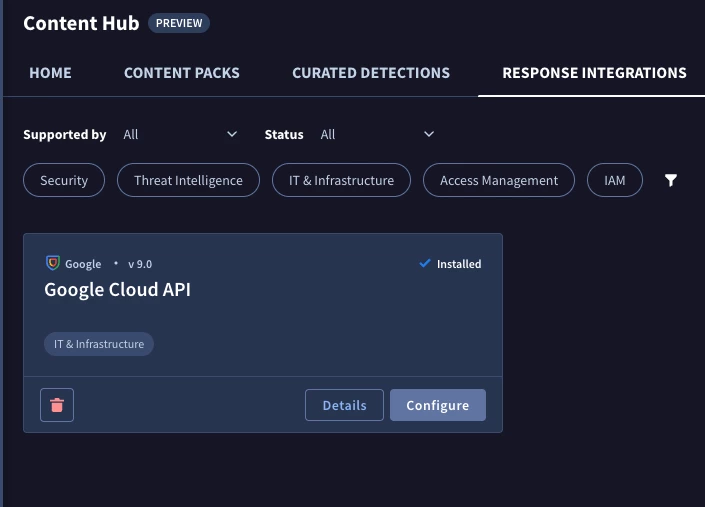
Navigate to Content Hub → Response Integrations
-
Search for the Google Cloud API integration
-
Click on Install
-
Go to integration setup menu
-
Choose the relevant environment you want the GoogleSecOps health will run at.
-
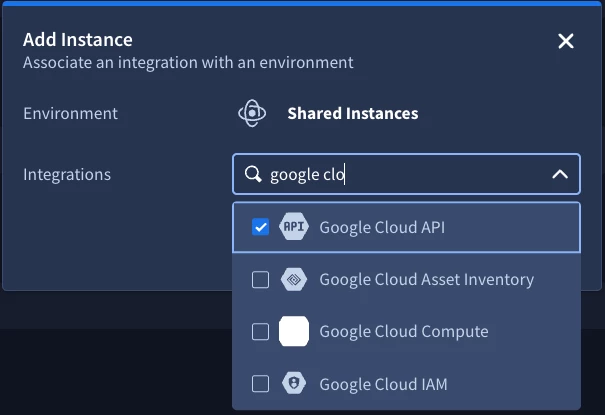
Click on the + icon on the upper right of the screen
-
Choose the Google Cloud API integration and click save
-
Follow the authenticate with Workload identity section:
https://docs.cloud.google.com/chronicle/docs/soar/marketplace-integrations/google-chronicle#authenticate-google-chronicle-with-wi -
Instance name: secops monitoring Workload Identity Email: you should use the service account you created in the previous step
Test url:
https://<location>-chronicle.googleapis.com/v1alpha/projects/<gcp project number>/locations/<location>/instances/<customerid>(both project id and customer id are listed under SIEM settings → Profile
Example:
https://us-chronicle.googleapis.com/v1alpha/projects/123456/locations/us/instances/fg78954-adfa-dfsgsg-dergs
-
Click Save → Test
-
Once the test is successful, a green checkmark will be displayed.
-
Navigate to the ContentHub → POWER UPS
-
Install and configure the Functions integration from power ups
Building the Widget (optional):
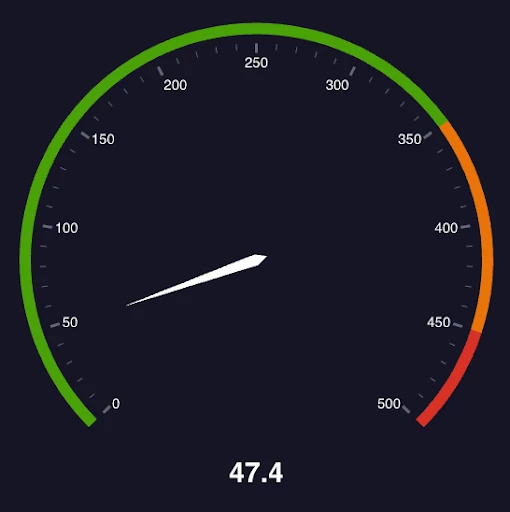
The use case we will use in this blog post will be creating a YTD (Year to Date) consumption and trigger alerts upon predefined thresholds:
Let’s start.
First, let’s build the query for our ingestion consumption based on the starting license date.
Navigate to Dashboard → New Dashboard → fill in the details
Click +Add
Paste the following (change the date to your starting license date cycle)
ingestion.log_type != ""
ingestion.log_type != "FORWARDER_HEARTBEAT"
ingestion.component = "Ingestion API"
ingestion.start_time > timestamp.as_unix_seconds("2025-12-15 00:00:00")


outcome:
$GB_Consumption = math.round(sum(ingestion.log_volume) / (1024 * 1024 * 1024), 1)
We will set 3 predefined thresholds:
70%, 90%, 100%
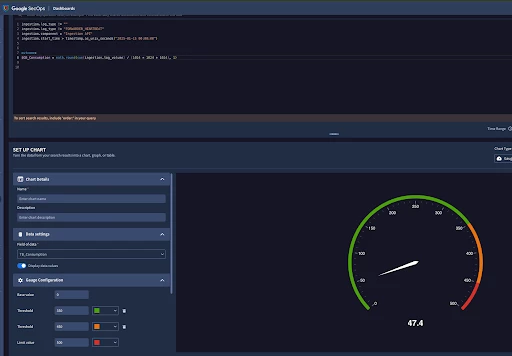
In order to get the api request we will use the developer tools to grab the body payload from it, in this case we will get:
Method: Post
URL Path:
https://us-chronicle.googleapis.com/v1alpha/projects/<project_id>/locations/<region>/instances/<customer_id>/dashboardQueries:execute
{
        "query": {
        "query": "ingestion.log_type != \"\"\ningestion.log_type != \"FORWARDER_HEARTBEAT\"\ningestion.component = \"Ingestion API\"\ningestion.start_time >[license date.ScriptResult] \n\noutcome:\n $gb = math.round(sum(ingestion.log_volume) / (1024 * 1024 * 1024), 1)\n\n",
        "input": {
            "relativeTime": {
                "timeUnit": "MONTH",
                "startTimeVal": "12"
            }
        }

}
Building the playbook:
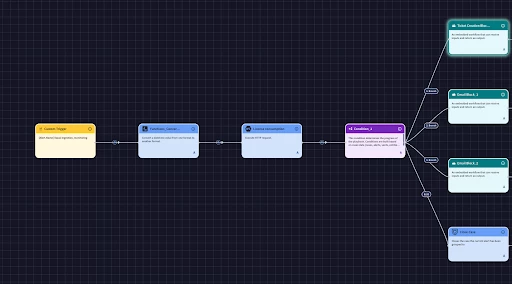
Now we will create a new playbook to continuously monitor the ingestion consumption.
Assumptions:
License starting date: 15/12/2025
License consumption: 500GB
We will use a custom trigger that we will configure later.
Use the ״Functions״ Power up integration to convert your license starting date to epoc time:
Input: license starting time: 15/12/2025
From Format: %d/%m/%Y
To Format: X
delta:0
Next, we will use the Google Cloud API - Execute http request that we configured and fill in the following values:
Method: Post
URL Path:
https://us-chronicle.googleapis.com/v1alpha/projects/<project_id>/locations/<region>/instances/<customer_id>/dashboardQueries:execute
{
        "query": {
        "query": "ingestion.log_type != \"\"\ningestion.log_type != \"FORWARDER_HEARTBEAT\"\ningestion.component = \"Ingestion API\"\ningestion.start_time >[license date.ScriptResult] \n\noutcome:\n $gb = math.round(sum(ingestion.log_volume) / (1024 * 1024 * 1024), 1)\n\n",
        "input": {
            "relativeTime": {
                "timeUnit": "MONTH",
                "startTimeVal": "12"
            }
        }

}
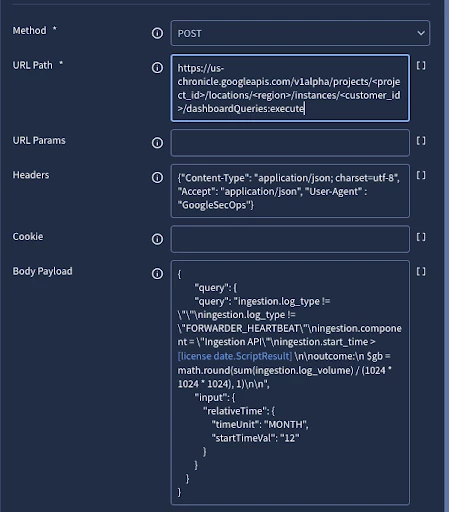
Now that we have the actual consumption rate we can compare it to the different predefined thresholds using the condition flow:
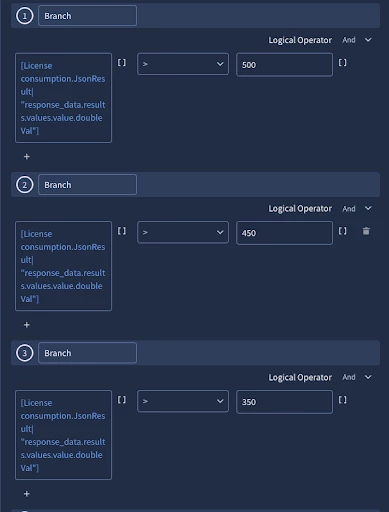
[License consumption.JsonResult| "response_data.results.values.value.doubleVal"] > 500
[License consumption.JsonResult| "response_data.results.values.value.doubleVal"] > 450
[License consumption.JsonResult| "response_data.results.values.value.doubleVal"] > 350
For each threshold we can set different notification channel (email, chat, ticket, alert etc)
Triggering the Playbook on a Schedule:
From the Power Ups menu, find and configure a Connectors integration. This connector's sole purpose is to create a simple, predictable alert at a regular interval.
Set the following parameters:
-
Run Every: 1 Days
-
Product Field Name: product_name
-
Event Field Name: event_type
-
Alert fields: {"product_name":"log_type_monitoring" , "event_type":"update"}
-
Alert name: Ingestion_monitoring
This configuration will automatically ingest a new, simple alert with the name Ingestion_monitoring precisely once every 24 hours.
Connect the Playbook Trigger
Now, let's go back to our playbook and open the Custom Trigger we added at the very beginning. We will configure this trigger to only start the playbook when it sees the specific dummy alert created by our new connector.
Set the trigger condition to:
alert name = Ingestion_monitoring