



As a Technical Security Consultant focused on Google Security Operations and Google Threat Intelligence (GTI), I spend a lot of time helping users transition from simple keyword monitoring to building highly precise rules. The single most common barrier I see is understanding how to leverage the Lucene Text Query (Advanced) feature in Digital Threat Monitoring (DTM) to target nested data. For many of our analysts, this may be the first time they have encountered Lucene syntax for advanced search query capabilities over large volumes of structured data like JSON documents in DTM.
We recommend reading through Monitor Matching Methodology to understand how we collect, ingest, normalize, and flatten “Documents” we find on the internet and dark web, and turn that into JSON.
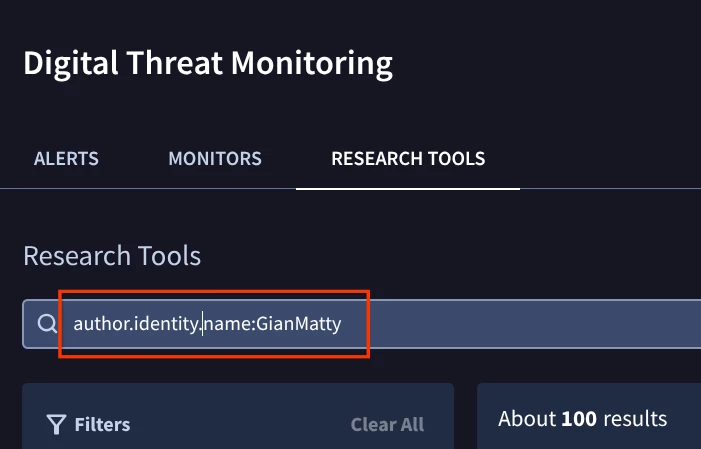
If you’ve ever seen a field like author.identity.name while reviewing DTM and wondered where that path comes from, this guide is for you.
The Core Principle: JSON Path is Your Lucene Field
Every time DTM ingests raw data from a source (like a dark web forum post, a paste site, or a shop listing), it converts that unstructured data into a standardized, structured JSON document.
The structure of the JSON output is a standardized wrapper that encapsulates a single source document (the doc object) along with various analytical metadata generated by DTM's processing pipeline. Although you will find several top-level keys, the entire structure is built around the main top-level key “doc”. Lucene searches can include the top-level field “doc” but is not required.
The key to advanced filtering is this simple principle:
The exact path of a key in the underlying JSON document is the field name you must use in your Lucene query, separated by a dot (.).
You don't need to be a programmer to use this. You just need to know where to find the "vocabulary" for your query.
Step 1: Discover the Raw JSON Structure
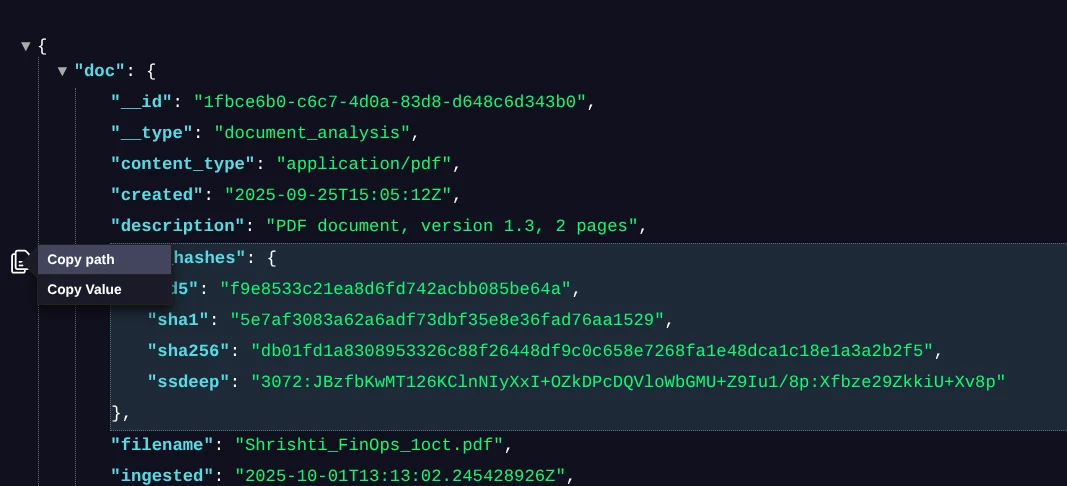
To use a specific field in your query, you must first verify its exact path in the JSON structure. This is accomplished using DTM Research Tools.
- Go to Research Tools: Navigate to the DTM section and click on Research Tools.
- Find a Sample Document: Run a broad search for a relevant term (e.g., your company name or a known threat actor).
- View the Raw Data: Click on a document from the search results, then select the < >Raw (JSON) tab.
The following DTM search example and JSON snippet below illustrates how the nested path is formed for an author's name:
JSON Snippet
{
	"doc": {
		"__id": "ddbe738f-a626-4610-a162-199d88b59624",
		"__type": "paste",
		"author": {
			"identity": {
				"name": "GianMatty"
			}
		},
Advice for Managing Large, Raw JSON in DTM
Raw JSON documents, especially those captured by Digital Threat Monitoring (DTM) from complex sources like forum threads or dark web listings, can be hundreds or thousands of lines long. For a human to manually trace a nested path like author.identity.name through a huge, unformatted block of text is extremely difficult and error-prone. The core strategy is to use the tools available within the Google environment that are designed for security analysts.
1. Utilize the DTM Platform's Built-in JSON Viewer
The DTM platform itself provides basic viewing capabilities that are much safer than pasting to an external public site for formatting or beautifying the JSON to make it easier to read. Particularly the Fold Line Option: The arrows next to the line number in JSON output is the feature that allows you to "fold" lines or collapse JSON objects. This allows you to collapse high-level objects like the entire author block or metadata block. You can then quickly navigate down the tree structure, expanding only the relevant sections until you find the path you need. This is a crucial first step for reducing visual clutter. It’s not perfect and for very complex JSON documents option 2 may be better.
2. Use a Local/Offline Tool (The Safest Option)
For clients handling highly sensitive data, the only acceptable option is a local, client-side tool that never transmits the data over the internet. There are many options especially for developers but to keep this simple a browser plugin like JSON Viewer Pro is a simple and effective option. It offers a dedicated "Input area" to write/paste custom JSON. It also includes JSON Path navigation on hover. It is Completely Free and is designed for advanced use cases (like JSONPath) while operating locally for high privacy.

Step 2: Build Your Lucene Query
Now that you have the exact paths from the JSON structure, you can construct a precise Lucene query using the dot notation (.) as the separator.
| Goal (What You Want to Filter) | JSON Path | Lucene Query |
| Target a specific author: | author.identity.name | author.identity.name:purplefox422 |
| Filter by the source forum: | author.service_name | author.service_name:raidforums.com |
| Search the main body: | body | body:"password dump" AND -body:test |
| Search for a specific Telegram Channel | channel.name: channel.channel_id: | if the channel id is negative, escape the minus sign with a “\”, like this: channel.channel_id:\-1001693270042 |
| Excluding a Single Author on GitHub | service.id author.identity.name | -(service.id:gist_github_com AND author.identity.name:gianmatty) |
Why This is Better Than Free Text Search
When you use a simple text query (like purplefox422), you are searching all indexed fields, which creates noise. By using the JSON path (author.identity.name:purplefox422), you are precisely targeting only the field for the poster's username, which dramatically reduces false positives.
Advanced Example: Targeting a Specific Entity
To build a high-fidelity monitor that looks for a specific seller on a specific type of platform, you can combine nested fields with standard Lucene operators:
To INCLUDE something with Lucene and using the plus sign in front of the query.
batch.name:Wrei15_Dusty +listing_id:3920575
 author.identity.name:"Joe Smith"
To EXCLUDE something with Lucene and using the minus in front of the query.
-service_account.profile.contact.email_domain:gmail.com
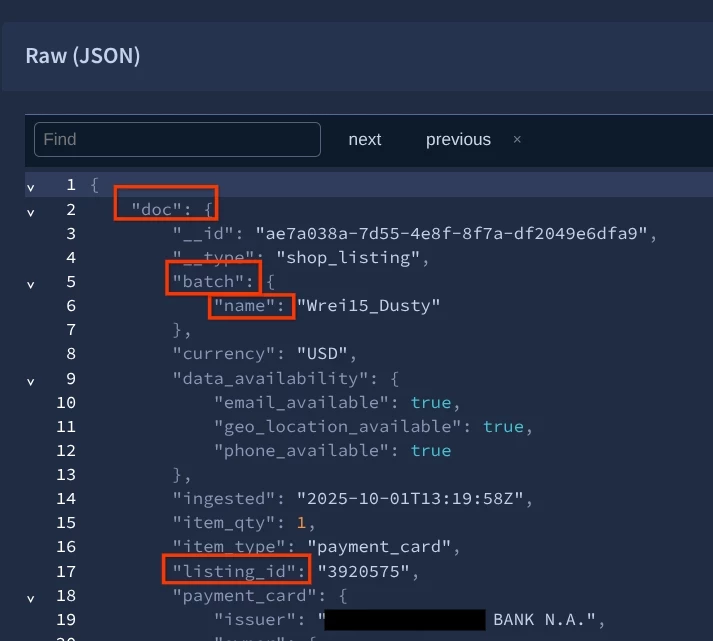
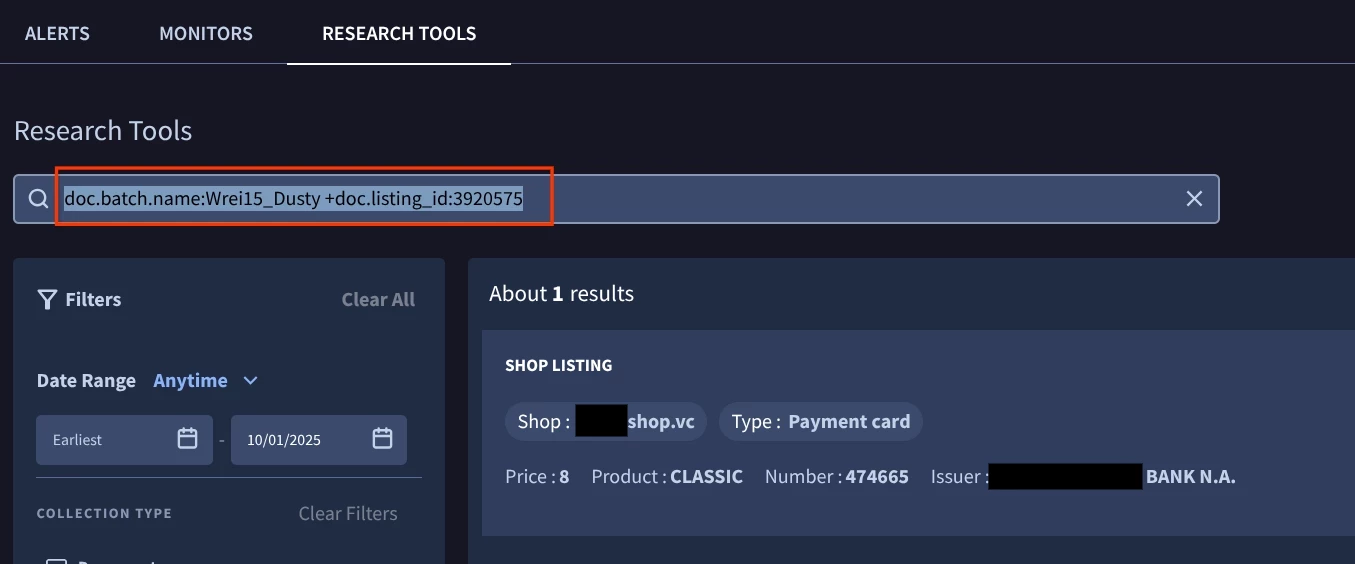
By linking these structured fields, your DTM Monitor will only fire on highly relevant content, keeping your noise level low and your security operations focused.
Next Steps
- Familiarize yourself with the Research Tools and the < >Raw (JSON) tab. It is your ultimate reference guide for every complex query.
- Consult the high-level [Monitor Fields] documentation for a list of common, top-level entities you can build rules around.
- Practice translating the raw JSON structure into your Lucene queries. This skill is critical to maximizing the value of your Google Threat Intelligence investment! This will help you to use a scalpel to tune and trim alerts instead of a hand-ax which may be too broad.
- Review the additional capabilities of Lucene within our documentation page. There are additional powerful functionalities that we will cover in the next part of this series.
In the next part of this series, we’ll look at how we can add RegEx searches into the mix, utilize proximity filters, and other additional filtering for you to have even more powerful and precise searches.


