We’ve just launched (into preview) a remote Model Context Protocol (MCP) server for Google SecOps! This significantly simplifies the setup and usage of MCP and provides the built-in security and observability features from Google Cloud out of the box. SecOps customers can now simply point their AI agents or standard MCP clients like Gemini CLI to a globally-consistent and enterprise-ready endpoint for Google and Google Cloud services. Now users can focus on building AI agents that interact with their security tools and data, not managing infrastructure.
The remote MCP server adds to the list of services that were announced last month:
Announcing Model Context Protocol (MCP) support for Google services
If you are thinking, “You’ve had that for months, what is new?”, I’ll define some terms:
Local MCP servers typically run on your local machine and use the standard input and output streams (stdio) for communication between services on the same device.
Remote MCP servers run on the service's infrastructure and offer an HTTP endpoint to AI applications for communication between the AI MCP client and the MCP server.
https://docs.cloud.google.com/mcp/overview#local-vs-remote-mcp-servers
I’ve been contributing to, using, and writing about our open-source, self-hosted, local MCP servers for the past nine months and I can tell you: they can be a bit of a pain for users to configure and to self-host. Ideally, `uvx run google-secops-mcp` hides much of the complexity from the users but there is a Python virtual environment in there and there-be-dragons.
The remote MCP servers make that local configuration much easier and since it is essentially software-as-a-service, users aren’t responsible for that execution environment.
While the users get those benefits, the system administrators get the production readiness that they crave. The remote MCP server for SecOps inherits the rigorous scalability, security, and observability standards of the broader Google Cloud ecosystem, including governance via Google Cloud IAM, Model Armor, Cloud Armor, Organization Policy, and comprehensive audit logging. This ensures that when your agents reason over security data or execute complex tasks, they do so with the production-grade stability and protection required for enterprise environments.
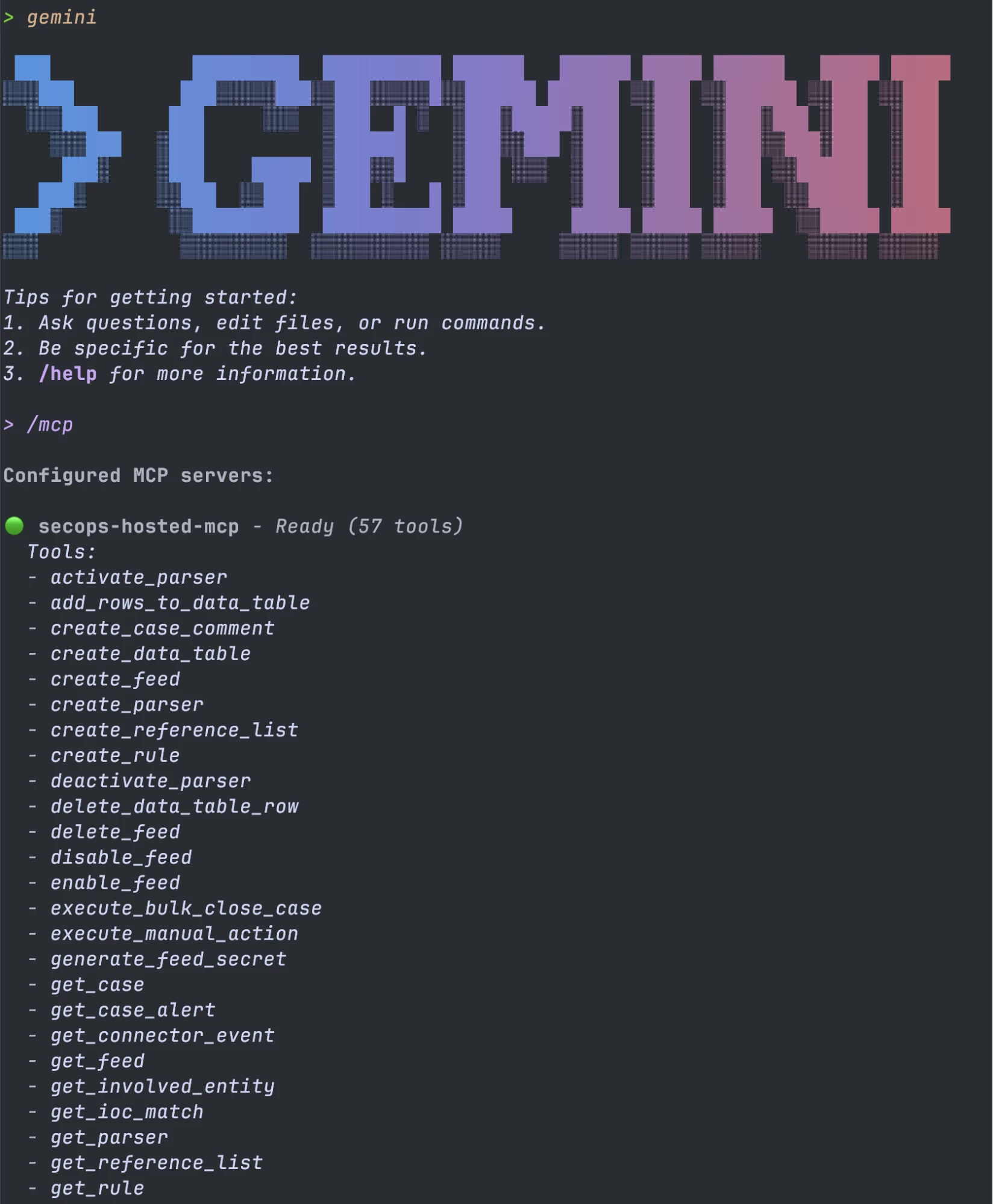
Let’s see it in action! Here is an example of the new, remote MCP server configured in Gemini CLI listing its first page of tools.
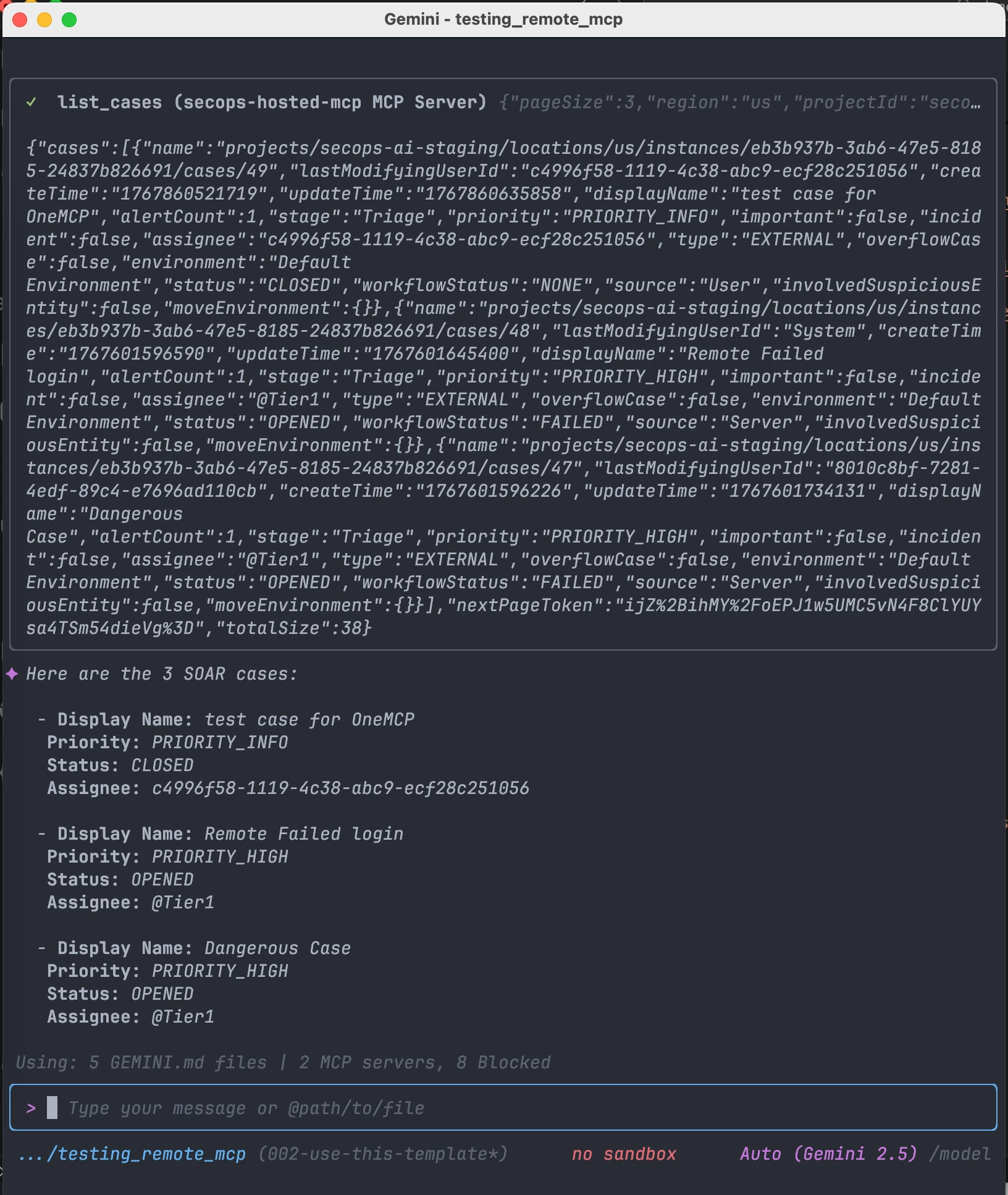
Next, my go-to “smoke test” for SecOps MCP tools, “list 3 SOAR cases”
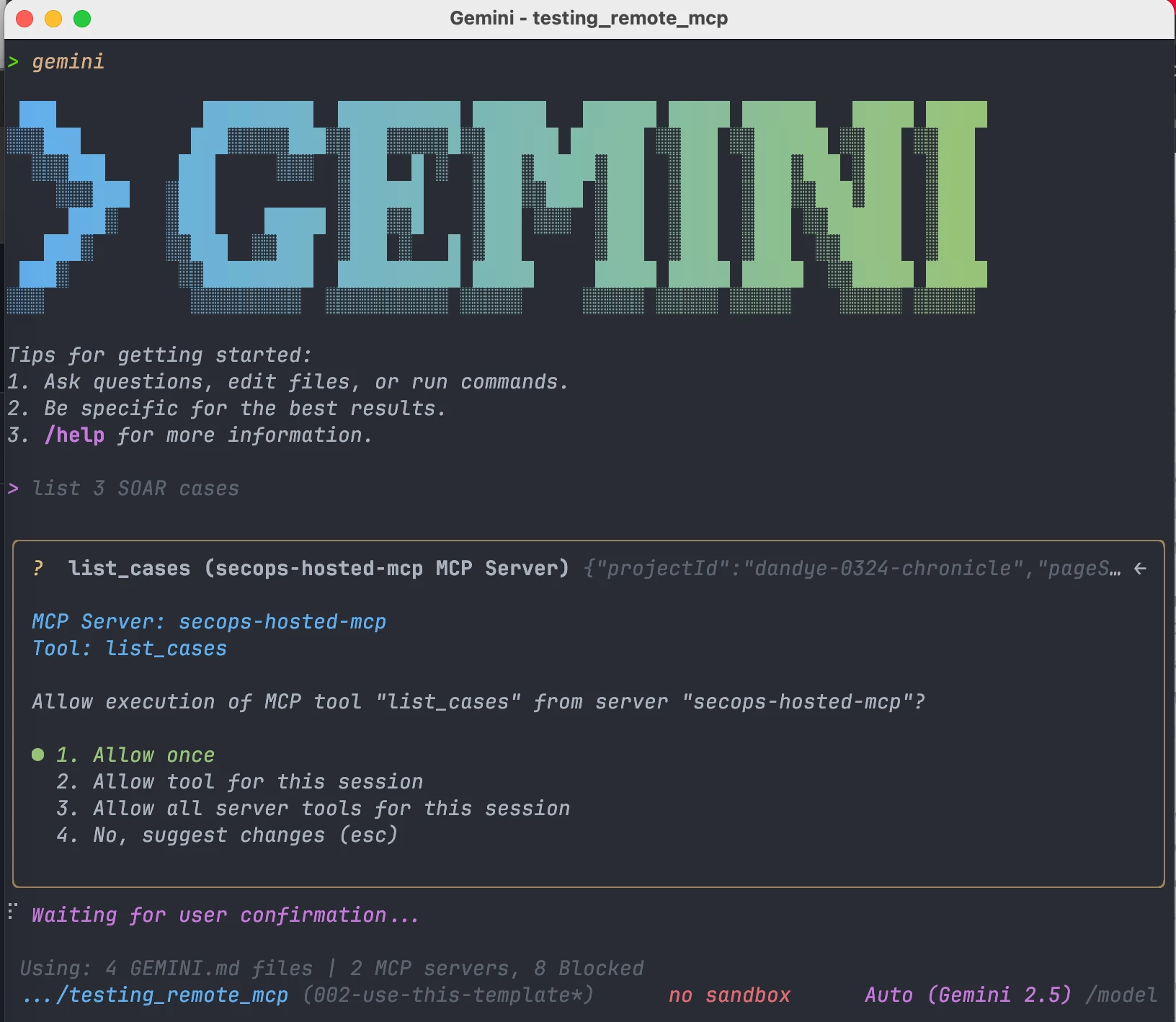
And…it works!
Onboarding
To get started with the remote MCP, there are a few setup steps to work through.
Authentication and Authorization
If you’ve previously used the local SecOps MCP Server (for SIEM tools) or the SecOps Wrapper SDK, the same authentication method is available: Application Default Credentials (ADC).
The canonical documentation for this is:
- Set up Application Default Credentials
- Authenticate to Google and Google Cloud MCP servers
- Manage MCP servers
For initial testing, I recommend using your own user account credentials via Application Default Credentials (ADC). You then have the same entitlements as if you were using the Chronicle REST API. You do need the role rcp.oles/mtoolUser and the administrator adding that role needs roles/serviceusage.serviceUsageAdmin. This is described in more detail along with production configuration recommendations (like Agent identity) in Manage MCP servers.
Enable the service
The needed service names are described in:
ttps://docs.cloud.google.com/mcp/supported-products
The official documentation for enabling the services:
https://docs.cloud.google.com/mcp/configure-mcp-ai-applicationenable-remote-mcp-server
In brief:
PROJECT_ID=<your-gcp-project-id-as-string>
gcloud components install beta
gcloud beta services mcp enable chronicle.googleapis.com --project=$PROJECT_ID
Environment Configuration
In the open-source MCP Servers, we had a constant struggle to get the MCP clients to consistently provide the required environment configuration (SecOps Customer ID, Project ID, and Region) when calling the MCP tools. That struggle continues. The best method I’ve found so far with the remote/hosted MCP servers is to include these in a context file (e.g.
GEMINI.md) with this instruction:
When using the secops-hosted-mcp MCP Server, use these parameters for EVERY request:
Customer ID: <UUIDv4 for your tenant> Region: <your-region> Project ID:
<your-gcp-project-id-as-string>
SOAR API Migration
Rather than the old SOAR APIs, which used api keys, the hosted MCP servers have standardized to use the Chronicle (REST) APIs. That allows you to use Application Default Credentials (ADC) and it allows you to specify users entitlements via IAM. The migration from SOAR API to Chronicle API is fully described in: SOAR migration overview but you CAN use the OneMCP tools before migrating: the SIEM tools do NOT require this migration, so you can use those right away.
Governance
Remember how I mentioned governance via the Google Cloud ecosystem? Here is a high level overview for that with links into the Google Cloud documentation, where you can read more.
Model Armor
You can optionally enable Model Armor, which helps secure your agentic AI applications by sanitizing MCP tool calls and responses. This process mitigates risks such as prompt injection and sensitive data disclosure.
It really deserves its own complete blog post, so I cannot do it justice here. Instead, I refer you to this document, which shows you how to configure Model Armor to help protect your data and secure content when sending requests to Google Cloud services that expose Model Context Protocol (MCP) tools and servers.
https://docs.cloud.google.com/model-armor/model-armor-mcp-google-cloud-integration
Cloud Armor
While Model Armor protects the content of your AI interactions, Google Cloud Armor protects the endpoint itself. By applying Cloud Armor security policies to your Remote MCP server, you can utilize enterprise-grade Distributed Denial of Service (DDoS) protection and Web Application Firewall (WAF) capabilities. This allows you to restrict access to your MCP server based on IP allowlists, geo-blocking, or custom security rules, ensuring that only authorized traffic reaches your agents.
https://docs.cloud.google.com/chronicle/docs/soar/marketplace-integrations/google-cloud-armor
IAM
Access to the remote MCP server is managed via standard Google Cloud IAM, eliminating the need to manage dispersed API keys. To interact with the MCP server, the calling identity—whether a human user for testing or a Service Account for production agents—requires the roles/mcp.toolUser role.
This integration ensures your AI agents adhere to the same rigorous access controls as your human analysts. Because the hosted MCP server standardizes on the Chronicle REST APIs, it respects the existing granular entitlements assigned to that identity. Consequently, an agent can only access the specific data and tools (like SIEM search or SOAR case management) that its identity is explicitly authorized to use.
https://docs.cloud.google.com/mcp/access-control
Organization Policy
Use of the MCP server can be restricted like other Google Cloud resources using organization policy. For example, this policy disables all MCP services for a GCP Organization except for the MCP server for SecOps:
ORG_ID=<your-org-id>
{
  "name": "organizations/$ORG_ID/policies/gcp.managed.allowedMCPServices",
  "spec": {
    "rules": [
      {
        "enforce": true,
        "parameters": {
          "allowedServices": [
              "chronicle.googleapis.com/mcp"
          ]
        }
      }
    ]
  }
}
Among other benefits, I like that this can work as a global kill switch for tool access in case those reasoning agents revolt 😉.
Organization Policy has many more options for granular control, which you can read about in:
https://docs.cloud.google.com/mcp/control-mcp-use-organization
Observability
As a native Google Cloud service, the remote MCP server generates audit logs that record administrative and access activities within your Google Cloud resources.
For more information about Cloud Audit Logs for remote MCP, see:
https://docs.cloud.google.com/mcp/audit-logging
Client/Host Configuration
I’d like to start by defining some terms that are sometimes confusing:
- MCP server: A program that exposes capabilities of a service, like an API or database, to AI applications through standardized MCP interfaces.
- MCP host: The main AI application that you're using or building—for example, Claude, VS Code, Gemini CLI, or Cursor IDE.
- MCP client: A software component within the MCP host that handles communication between your AI application (MCP host) and the MCP server.
I often say “client” when I mean “host” because the LLM client (like Gemini CLI) is acting as the MCP host. So, I conflate the terms but I endeavor to improve.
I showed Gemini CLI configured as the host above but there are MANY options. I favor the Google stack, so I use Gemini CLI, Antigravity, and Agent Development Kit (ADK) extensively. I’ve also had success with the VS Code extensions like Cline (or Roo/Kilo) and I used to favor Claude Code and before that Windsurf. It is tough to provide configuration for all of these hosts because, although the Model Context Protocol is a standard, the JSON configuration for it is not standardized. So, I’m going to provide the config JSON for Gemini CLI and ADK and leave it as an exercise to the reader to adapt to the host of choice.
Configure Gemini CLI
The Google Cloud docs for Gemini CLI have a fillable template for configuration, which is shown here with the fillable placeholder values in ALL CAPS:
{
 "name": "EXT_NAME",
 "version": "1.0.0",
 "mcpServers": {
   "MCP_SERVER_NAME": {
     "httpUrl": "MCP_ENDPOINT",
     "authProviderType": "google_credentials",
     "oauth": {
       "scopes": ["SCOPE"]
     },
     "timeout": 30000,
     "headers": {
       "x-goog-user-project": "PROJECT_ID"
     }
   }
 }
}
Those fillable templates are fantastic for one-off use, but I personally juggle multiple configuration files across different environments (staging, sandbox, prod) and want to reduce friction when switching. I prefer reusable shell code snippets because I find copy/pasting variable values into JSON templates too fiddly and error-prone—missing a comma or breaking a quote is too easy. Instead, by using scripts with variable substitution, we can separate the data from the structure and ensure perfectly valid JSON every time 😎.
(
  source ~/.ssh/.env.remote.mcp.secops
  jq -n \
    --arg name "$MCP_SERVER_NAME" \
    --arg url "$MCP_ENDPOINT" \
    --arg scope "$SCOPE" \
    --arg project "$PROJECT_ID" \
    '{
      mcpServers: {
        ($name): {
          httpUrl: $url,
          authProviderType: "google_credentials",
          oauth: { scopes: [$scope] },
          timeout: 30000,
          headers: { "x-goog-user-project": $project }
        }
      }
    }' > ./settings.json
)
If you are living-off-the-land and don’t have jq, this works without it:
# 1. Export your variables first
export MCP_SERVER_NAME="secops-hosted-mcp"
export MCP_ENDPOINT="https://chronicle.us.rep.googleapis.com/mcp"
export SCOPE="https://www.googleapis.com/auth/cloud-platform"
export PROJECT_ID="my-gcp-project-id"

# 2. Generate the file using heredoc
cat <<EOF > settings.json
{
  "mcpServers": {
    "${MCP_SERVER_NAME}": {
      "httpUrl": "${MCP_ENDPOINT}",
      "authProviderType": "google_credentials",
      "oauth": {
        "scopes": ["${SCOPE}"]
      },
      "timeout": 30000,
      "headers": {
        "x-goog-user-project": "${PROJECT_ID}"
      }
    }
  }
}
EOF
If you think your configuration is valid but the MCP server still isn’t working, you might find that the LLM client/MCP host is swallowing the error message that would help you to debug. A Pro Tip is to try it outside of an MCP host: you can cURL an MCP tool directly as shown in the next section.
Testing with cURL
This is essentially what the LLM client does behind the scenes to get the list of tools from the MCP server. Note that I’m using Application Default Credentials (ADC) here.
This is my config. There are many like it but this one is mine. To make it your own, you need to update the location, x-goog-user-project, project_id, customer_id, and region.
curl --location 'https://chronicle.us.rep.googleapis.com/mcp' \
  -H "Authorization: Bearer $(gcloud auth application-default print-access-token)" \
  -H 'content-type: application/json' \
  -H 'accept: application/json, text/event-stream' \
  -H 'x-goog-user-project: secops-ai-staging' \
  -d '{
    "method": "tools/call",
    "params": {
      "name": "list_cases",
      "arguments": {
        "project_id": "secops-ai-staging",
        "customer_id": "eb3b937b-3ab6-47e5-8185-24837b826691",
        "region": "us"
      }
    },
    "jsonrpc": "2.0",
    "id": 29
  }' -s
Configure Gemini CLI as extension
Since September 2025, another way to configure MCP servers for Gemini CLI is with extensions:
https://geminicli.com/docs/extensions/#extension-creation
Similar to the earlier script, this one allows you to edit your environment at the top and then it saves the extension to the correct location. Please note that it will overwrite whatever is currently at that location.
#!/bin/bash

# Define variables
HTTP_URL="https://chronicle.us.rep.googleapis.com/mcp"
PROJECT_ID="<your-project-id>" # Replace this with your actual Project ID

# Ensure the directory exists
mkdir -p ~/.gemini/extensions/secops

# Write the JSON file using heredoc for variable expansion
cat > ~/.gemini/extensions/secops/gemini-extension.json <<EOF
{
  "name": "secops",
  "version": "1.0.0",
  "mcpServers": {
    "remote-secops-mcp": {
      "httpUrl": "${HTTP_URL}",
      "authProviderType": "google_credentials",
      "oauth": {
        "scopes": ["https://www.googleapis.com/auth/chronicle"]
      },
      "timeout": 30000,
      "headers": {
        "x-goog-user-project": "${PROJECT_ID}"
      }
    }
  }
}
EOF

echo "File created at ~/.gemini/extensions/secops/gemini-extension.json"
Configure Agent Development Kit (ADK)
I’ve tried to make the most simple ADK agent possible that demonstrates how to use the remote MCP for SecOps. Since this simple python module doesn’t do any .env loading, I tested this simple agent by supplying the needed environment variables when calling adk run:
GOOGLE_GENAI_USE_VERTEXAI=True \
GOOGLE_CLOUD_PROJECT=secops-ai-staging \
GOOGLE_CLOUD_LOCATION=us-central1 \
remote_mcp_agent/venv/bin/adk run remote_mcp_agent
Here is that simple agent:
# remote_mcp_agent/main.py (
import logging
import google.auth
from google.auth.transport.requests import Request
from google.adk.agents import Agent
from google.adk.tools.mcp_tool import McpToolset, StreamableHTTPConnectionParams

# Configure logging
logging.basicConfig(level=logging.INFO)

# 1. Setup scopes
SCOPES = ["https://www.googleapis.com/auth/chronicle"]

def get_access_token():
   creds, _ = google.auth.default(scopes=SCOPES)
   auth_req = Request()
   creds.refresh(auth_req)
   return creds.token

# 2. Configure Toolset
toolset = McpToolset(
   connection_params=StreamableHTTPConnectionParams(
       url="https://chronicle.us.rep.googleapis.com/mcp",
       headers={
           "Authorization": f"Bearer {get_access_token()}",
           "Accept": "text/event-stream",
           "x-goog-user-project": "secops-ai-staging"
       }
   )
)

# 3. Create Agent
root_agent = Agent(
   name="remote_mcp_soc_agent",
   model="gemini-2.5-pro",
   description="ADK Agent to test the Remote SecOps MCP Server",
   instruction="""You are an Agent that tests the remote MCP server's tools.

   When using the SecOps MCP, use these parameters for EVERY request:
   Customer ID: eb3b937b-3ab6-47e5-8185-24837b826691
   Region: us
   Project ID: secops-ai-staging
   """,
   tools=[toolset],
)
Note: you also need a “dunder init” file and a Python virtual environment in that directory, both of which you can create with:
touch remote_mcp_agent/__init__.py
python -m venv remote_mcp_agent/venv && \
 source remote_mcp_agent/venv/bin/activate &&
 pip install google-adk
Chronicle REST API
The tools in the new remote MCP are direct 1:1 wrappers for a strategic subset of Chronicle REST API methods. Note that the Chronicle REST API now also includes SOAR methods but you will need to Migrate SOAR APIs to Chronicle API before you can use those (you can use the SIEM methods in the interim).
There are hundreds of methods and only a strategic subset of them are exposed as MCP Tools. Which API methods have MCP tools? We’ve aimed for feature parity with the open-source MCP Servers for SecOps SIEM and SOAR. To get the most current information, perform a list_tools call. At the time of writing, the list includes:
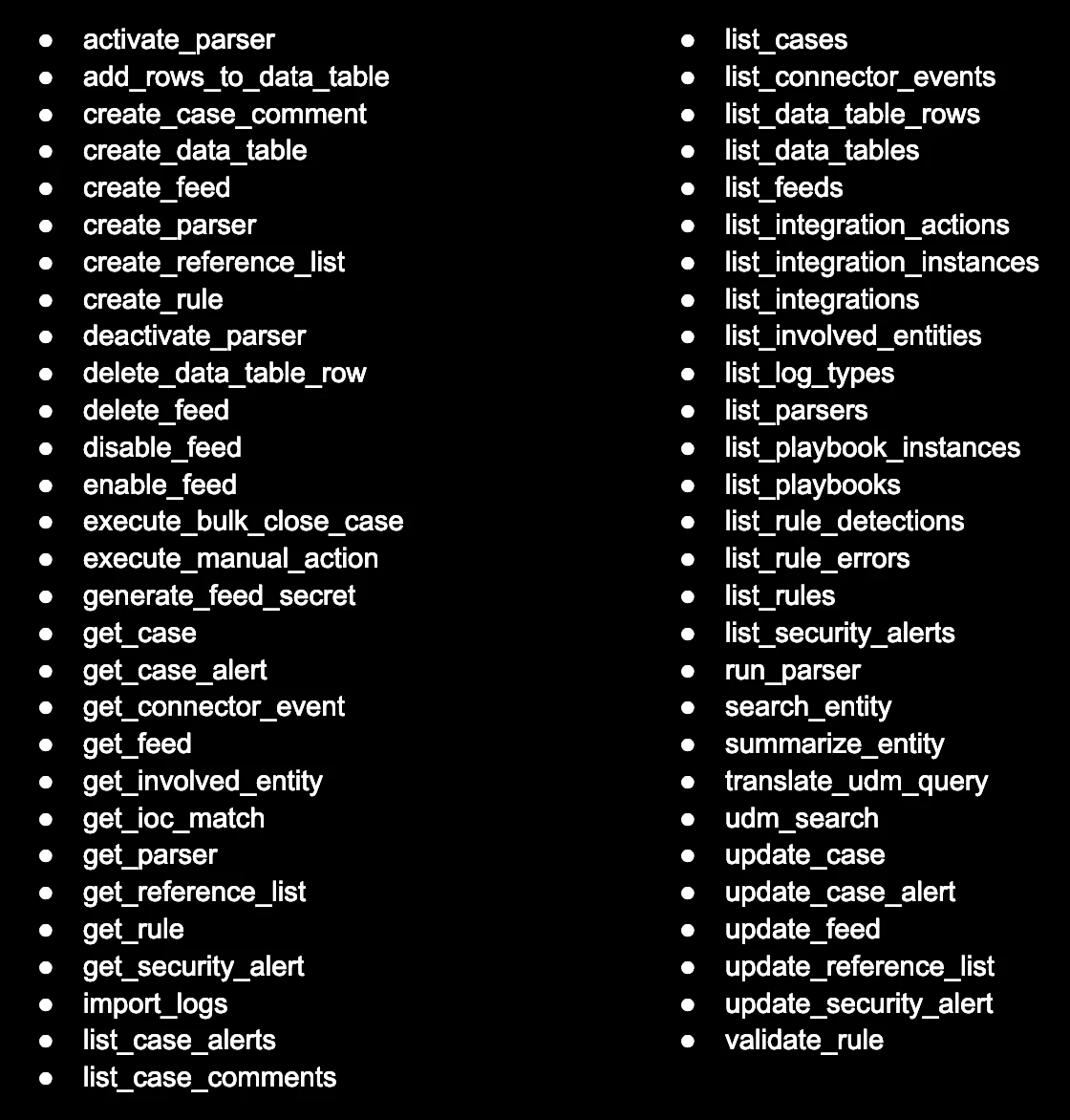
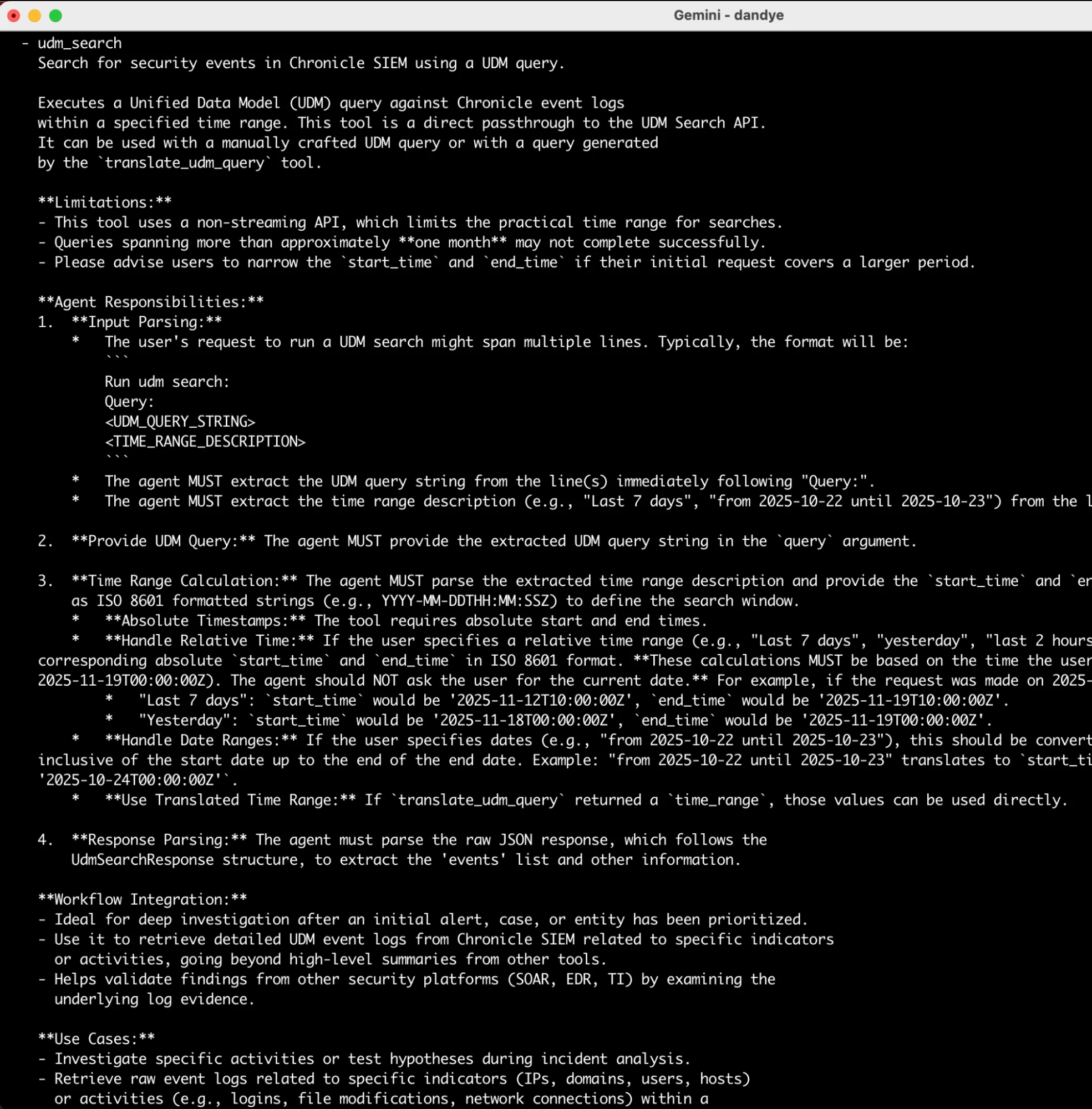
You may also get the details for each tool using the /mcp desc command.

For example, here is the first page of details for the udm_search tool.
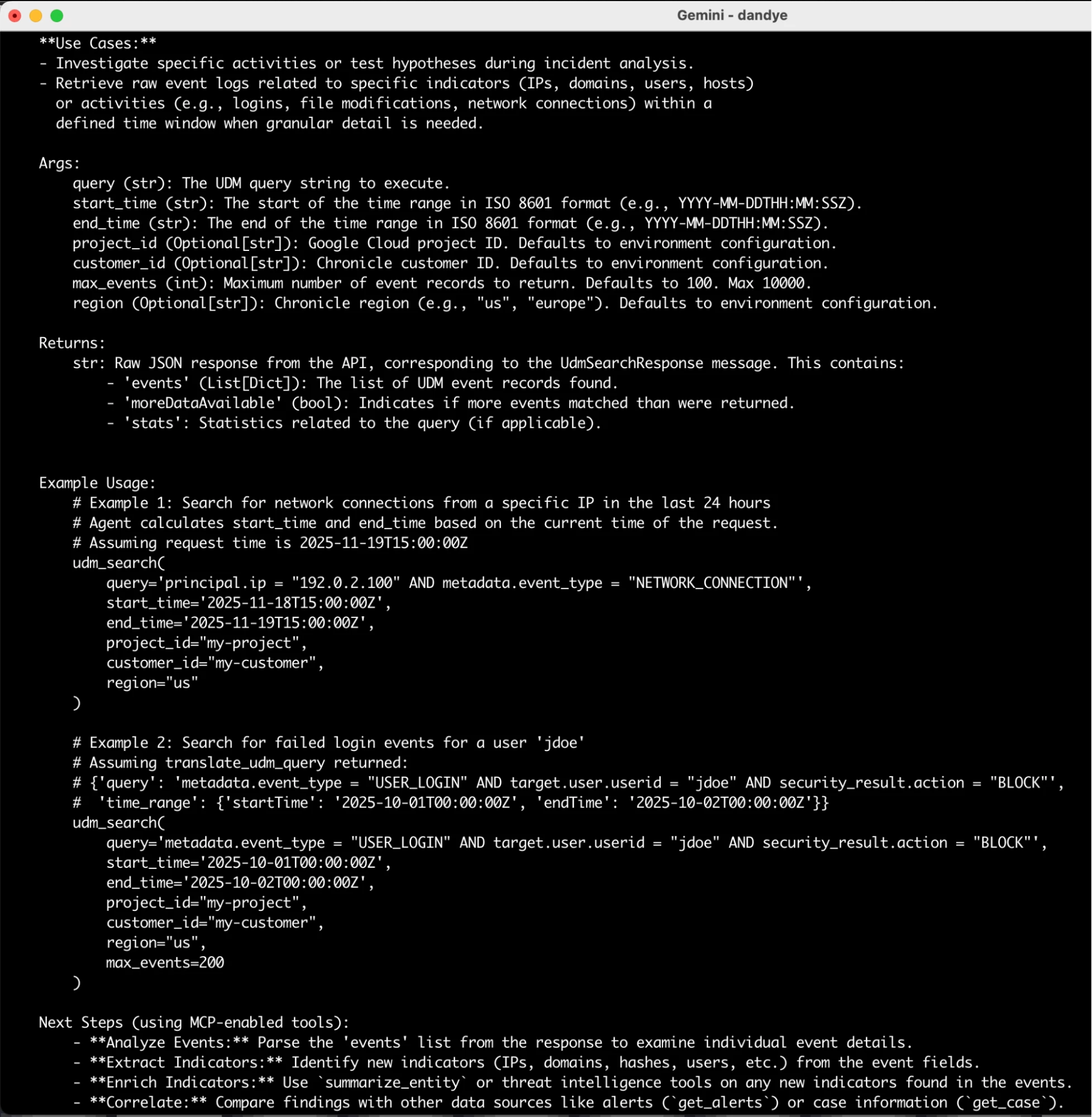
The second page of that description contains the args/returns and example usage. Interestingly, the description also has Next Steps, which help a reasoning agent decide how to chain together multiple tool calls for more sophisticated analysis! Prompt engineering for MCP tools is both an art and a science and you have full visibility into these. You can also augment them with prompts in your GEMINI.md file (or equivalent in other clients).
Conclusion
While there are many benefits to Remote MCP, you can continue to use the open-source Local MCP servers for SecOps. These will continue to be useful when there is a bug or a missing feature and you want to implement the fix/feat yourself rather than waiting for the next release. You can also mix and match the remote and local MCP servers—just be sure to use meaningful names for the servers, so you can tell which is which!
I’ll share a YouTube video soon to show you how I’m putting this new server through its paces. In the meantime, please do share your own experience with the Remote MCP server for SecOps here in the Google Cloud Community forums. I’d love to hear from you!
References
- https://docs.cloud.google.com/mcp/access-control
- https://docs.cloud.google.com/mcp/audit-logging
- https://docs.cloud.google.com/mcp/authenticate-mcp#agent-identity
- https://docs.cloud.google.com/chronicle/docs/soar/marketplace-integrations/google-cloud-armor
- https://docs.cloud.google.com/mcp/configure-mcp-ai-application#gemini-cli
- https://docs.cloud.google.com/mcp/configure-mcp-ai-application#enable-remote-mcp-server
- https://docs.cloud.google.com/mcp/control-mcp-use-organization
- https://docs.cloud.google.com/model-armor/model-armor-mcp-google-cloud-integration
- https://docs.cloud.google.com/mcp/supported-products