



Authors:
Sumit Patel, Regional Security Architect
Yazan Mughrabi, Security Practice Lead
In today’s rapidly evolving threat landscape, security teams are challenged by a persistent talent shortage and an overwhelming volume of data. Integrating Google Security Operations with Gemini Enterprise creates an "Agentic SOC" that allows defenders to move at machine speed by combining human rigor with AI-driven productivity.
Gemini Enterprise brings significant benefits to companies looking to leverage GenAI and low code agents to streamline operations. A big part of these operations involves the intersection of Observability and Security. Being able to bring in the context of Security to the other parts of the business allows customers to have a good overall view of the data and tools needed.
By leveraging the Model Context Protocol (MCP), organizations can connect Google SecOps directly to Gemini Enterprise without the need for custom coding or complex agent creation. This integration makes Gemini the "front door" for the SOC, allowing users to perform complex tasks like triaging alerts, summarizing cases, and querying IOCs through simple natural language. Furthermore, MCP enables the seamless unification of diverse data sources, such as BigQuery and external security tools, providing a single interface for comprehensive correlation and investigation.
Designed for the enterprise, this solution is built on Gemini Enterprise Agent Platform, offering the security, compliance, and reliability required for mission-critical operations. This architecture supports multi-tenant, IRAP-protected, and federated models, ensuring that global organizations can scale their security visibility and control without limits.
This guide walks through connecting Google SecOps directly to the main Gemini Enterprise chat using the managed Remote MCP endpoints and the new Custom MCP Data Store feature. This method requires no coding, no custom agent creation, and no dedicated reasoning engines.
Prerequisites
-
Ensure remote MCP is enabled for your Google SecOps environment as per: Use the Google SecOps MCP server | Google Security Operations
-
Disable any Org Policies that will prevent custom MCP servers from being created.
Step 1: Setting up OAuth 2.0 Web Application
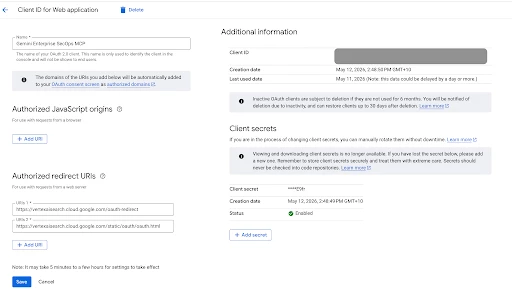
Before configuring Gemini Enterprise, you must create an OAuth 2.0 Web Application in the GCP project tied to your SecOps instance.
-
Navigate to Google Cloud Console > APIs & Services > Credentials.
-
Click + CREATE CREDENTIALS > OAuth client ID.
-
Select Web application as the application type.
-
Name it (e.g., "Gemini Enterprise SecOps MCP").
-
Under Authorized redirect URIs, add both of these URLs:
-
https://vertexaisearch.cloud.google.com/oauth-redirect
-
https://vertexaisearch.cloud.google.com/static/oauth/oauth.html
-
-
Click Create and securely copy the generated Client ID and Client Secret.
Note: Ensure the users who will be authenticating have the roles/mcp.toolUser, Service Usage Consumer, and Chronicle API Viewer IAM roles in this GCP project.
Step 2: Add the SecOps Data Store in Gemini Enterprise
An administrator must configure the Custom MCP connector globally.
-
Open Gemini Enterprise and navigate to the app or create a new Gemini Enterprise app. .
-
Go to Connected Data Stores and click +New Data Store.
-
Select Custom MCP and fill out the configuration as follows:
| Field | Value |
|---|---|
| MCP Server URL | https://chronicle.us.rep.googleapis.com/mcp (Replace with your specific SecOps region if not US multi-region) |
| Authorization URL | https://accounts.google.com/o/oauth2/v2/auth |
| Token URL | https://oauth2.googleapis.com/token |
| Client ID | (Paste from GCP Prerequisite) |
| Client Secret | (Paste from GCP Prerequisite) |
| OAuth Scopes | https://www.googleapis.com/auth/cloud-platform https://www.googleapis.com/auth/chronicle (Separate with a single space) |
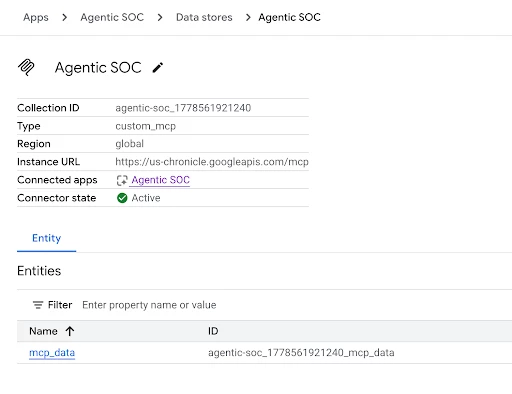
- Save the Data Store (e.g., Name it "Agentic SOC" for example).
-
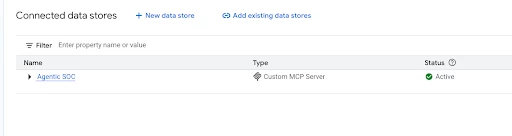
Go to your Gemini Enterprise App and click on ‘Connected Data Stores’ → Make sure your new connected data store is listed and select it.
-
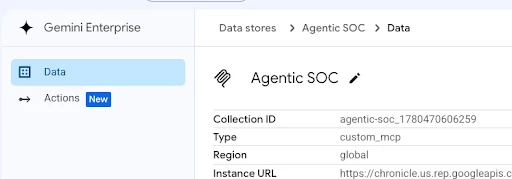
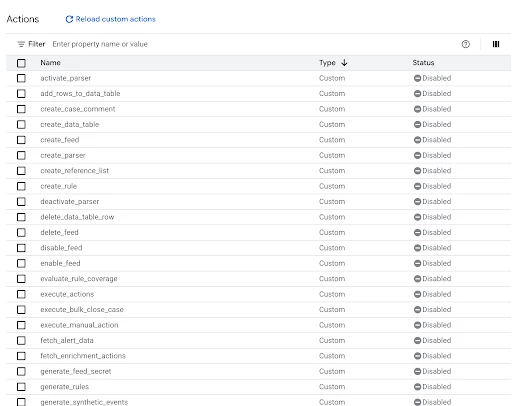
Select Actions in the menu and click ‘Reload Custom Actions’
-
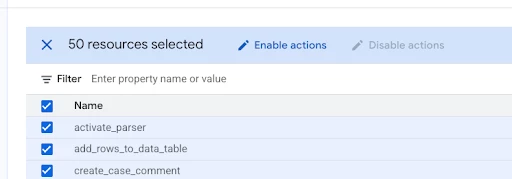
Select the list of actions you’d like your users to use, and choose Enable Actions.
Step 3: Authenticate the Connector in Chat
Before using the connector for the first time, each user must authorize Gemini to act on their behalf.
-
Open the main Gemini Enterprise chat.
-
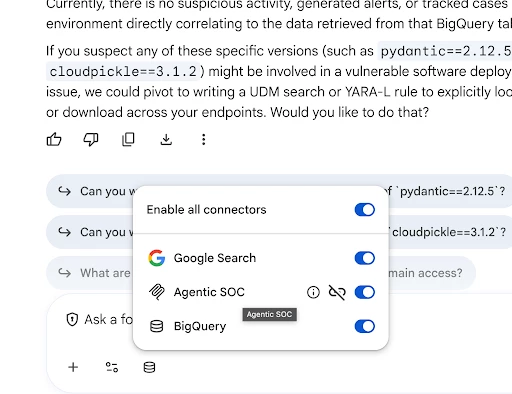
Look at the bottom of the chat window for your connected Data Stores.
-
Locate the Agentic SOC connector and toggle it ON.
-
If prompted: complete the Google sign-in prompt to grant Gemini the necessary OAuth permissions. Once successful, the broken chain icon will disappear.
Step 4: Set Up Gemini Memory for SecOps Context
Because you are using the main Gemini chat instead of a dedicated Agent with hardcoded instructions, Gemini needs to know your specific SecOps environment details to route API calls correctly. You can use Gemini's Memory feature to save this permanently.
Send the following prompt to Gemini (replace the bracketed values with your actual data):
"Remember that for all Google SecOps and Agentic SOC queries, my Customer ID is [CUSTOMERID], my Region is [REGION], and my GCP Project ID is [PROJECTID]."
Gemini will acknowledge that it has saved these facts to your memory.
Step 5: Start Querying
You are now ready to use SecOps via the main chat! Since Gemini remembers your environment context, you can simply ask security questions.
Example Prompts:
-
"Using the Agentic SOC connector, find logon attempts from the last 3 days."
-
"Summarize the latest open cases in SecOps."
-
"Check for any IOC matches related to IP address 8.8.8.8."
Closing out
This guide has demonstrated how to seamlessly integrate Google SecOps with Gemini Enterprise using the Custom MCP method. By establishing Gemini as the "front door" for security operations, organizations can realize a true Agentic SOC where analysts perform complex tasks like triaging alerts and querying IOCs through natural language. This no-code setup significantly boosts productivity—enabling faster queries and detections—while driving cost efficiency through the unification of diverse security data sources.
