


We’re back with part two of our Entra ID and Office 365 integration into Google SecOps blog. In our previous blog, we focused on creating an application in Entra ID and gathering key values that we will use to set up our feeds.
While we created our application in our tenant and created a secret to connect to the application, we don’t have permissions to access APIs for the data we need. For Entra ID and Office 365, there are two APIs that are of interest to us; Graph API and Office 365 Management API, respectively.
Now, we could just dive into APIs and turn all the APIs permissions on, but the danger is that if anyone gains access to the tenant ID (easy to find), the application (client) ID and the secret, they have access to data associated with the API(s) granted in the application, so we want to choose wisely and only assign permissions to the APIs we want our application to have access to.
Yes, gaining access to some permissions may not be as problematic as others, but we are trying to approach this from a perspective of least privilege, so stick with me.
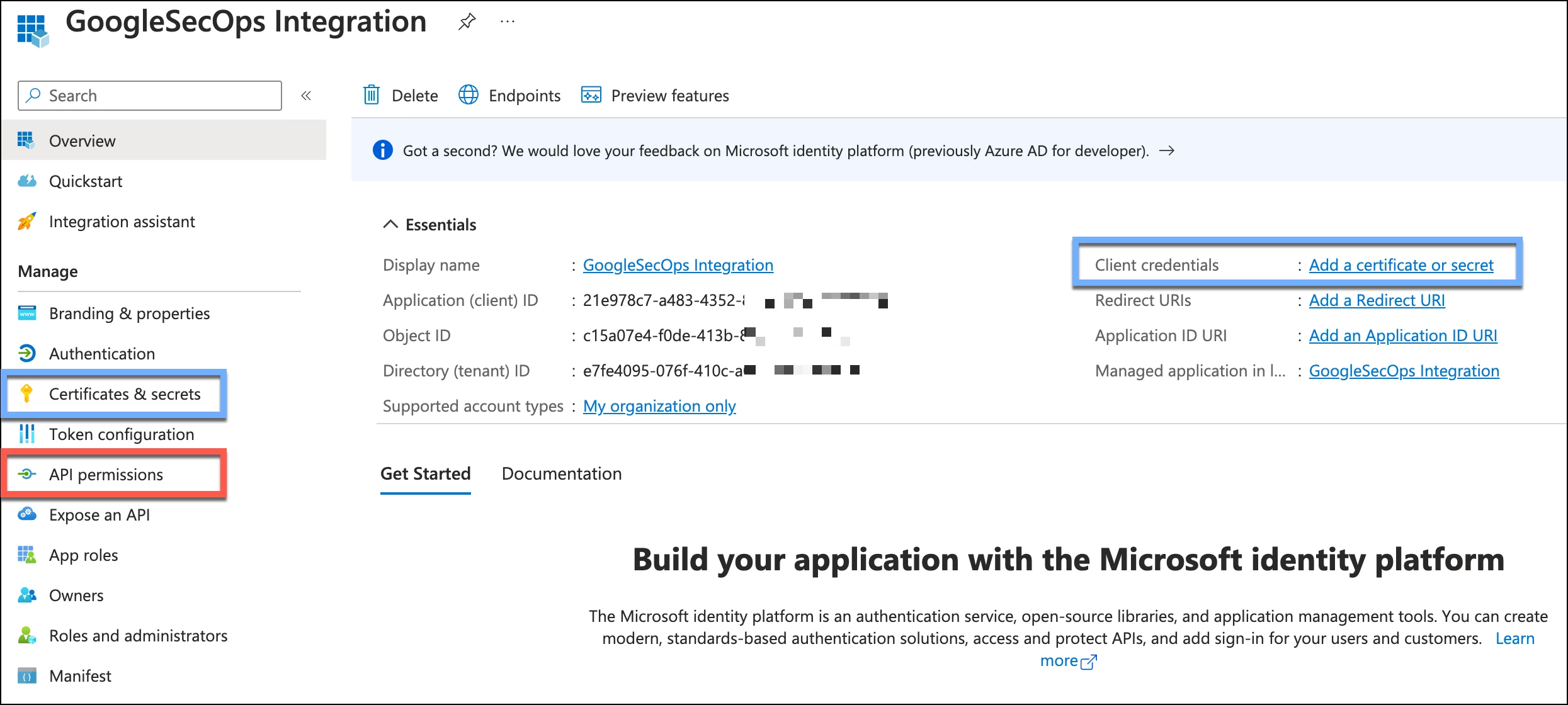
To view our current permissions, click API permissions within the application, using the list on the left. When we first create an application, a delegated user.read permission is created. Per Microsoft, user.read “allows users to sign-in to the app, and allows the app to read the profile of the signed-in users. It also allows the app to read basic company information of signed-in users.” Anything above and beyond that requires us to add permissions to the application. We can do this by clicking Add a permission in the configured permissions section.
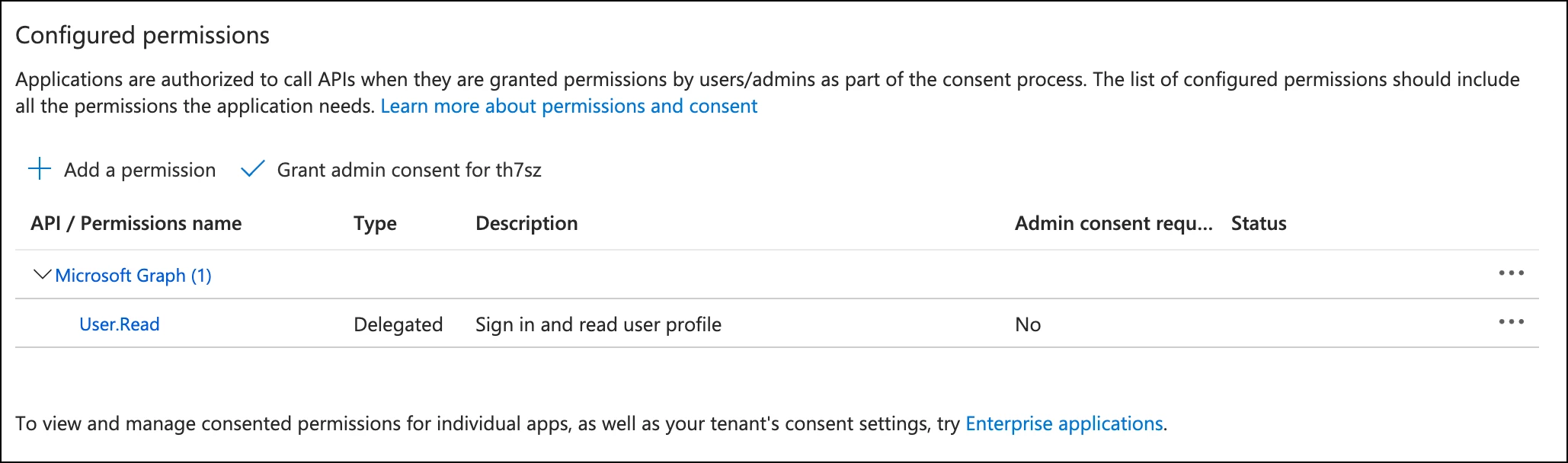
There are hundreds of permissions within the APIs and the more you add to an application, the more programmatic access you have. We mentioned this in the previous blog, but a single application with loads of permissions for many different applications could be difficult to track, so be mindful of that. It’s tricky, one application per integration also requires more secrets to update and maintain.
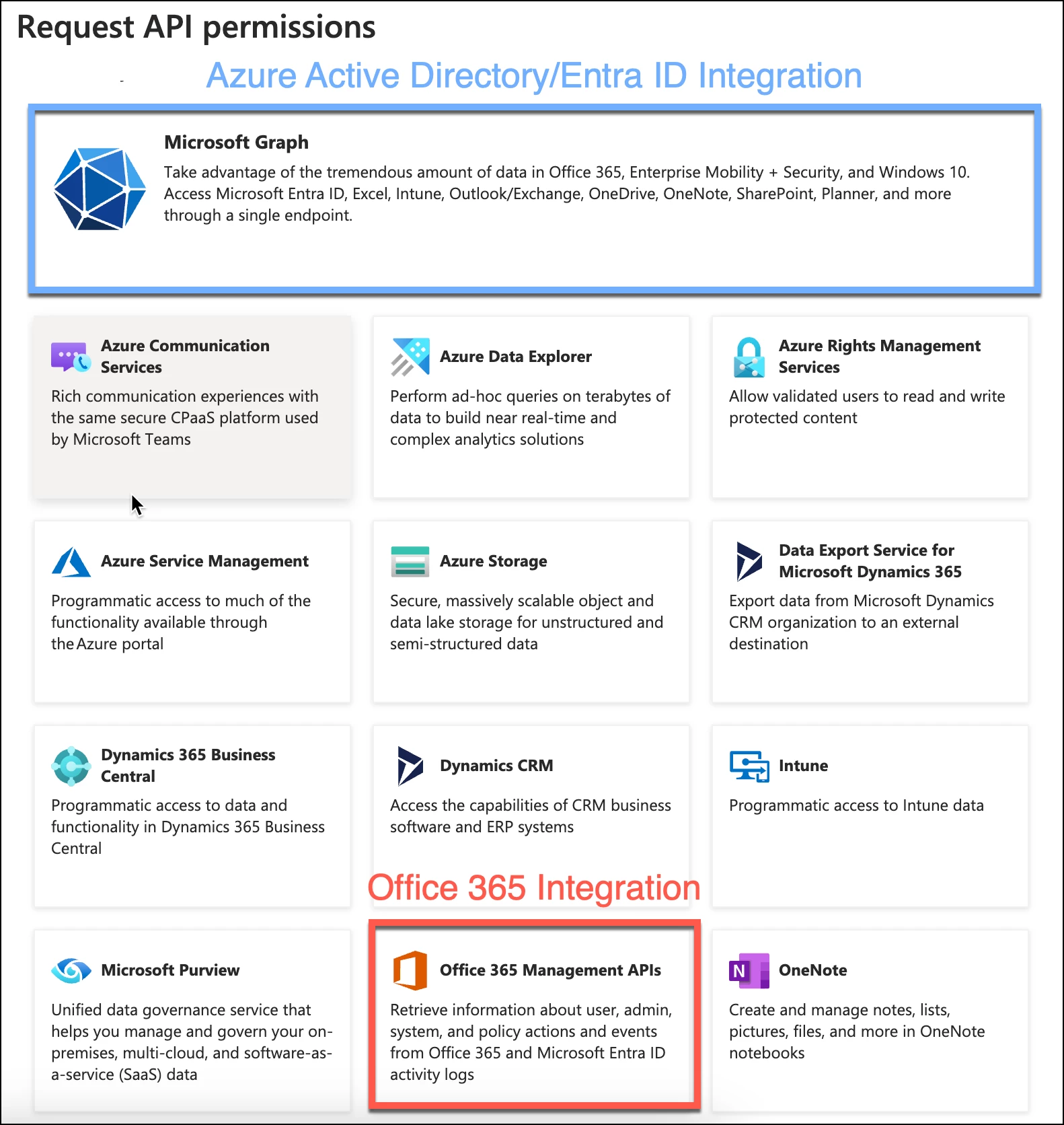
As previously mentioned, we only care about two APIs in the list for Entra ID and Office 365. Let’s start with Office 365 integration. Office 365 has its own management APIs and it can be found towards the bottom of the API listing in Entra ID. Start by selecting the API in red. If you decide to integrate Entra ID, we are going to perform a similar series of steps, but instead we will click on the Microsoft Graph API in blue.
Once we’ve selected the API of interest, we are presented with a listing of permissions. The Office 365 Management API is pretty straightforward as there are not many options. The first question we need to ask ourselves is if we need delegated or application permissions. Delegated permissions are those that the signed-in user would have access to, whereas the application permissions would function like a daemon without a signed-in user. All of the permissions we are going to assign for this exercise will be application permissions, so select that.
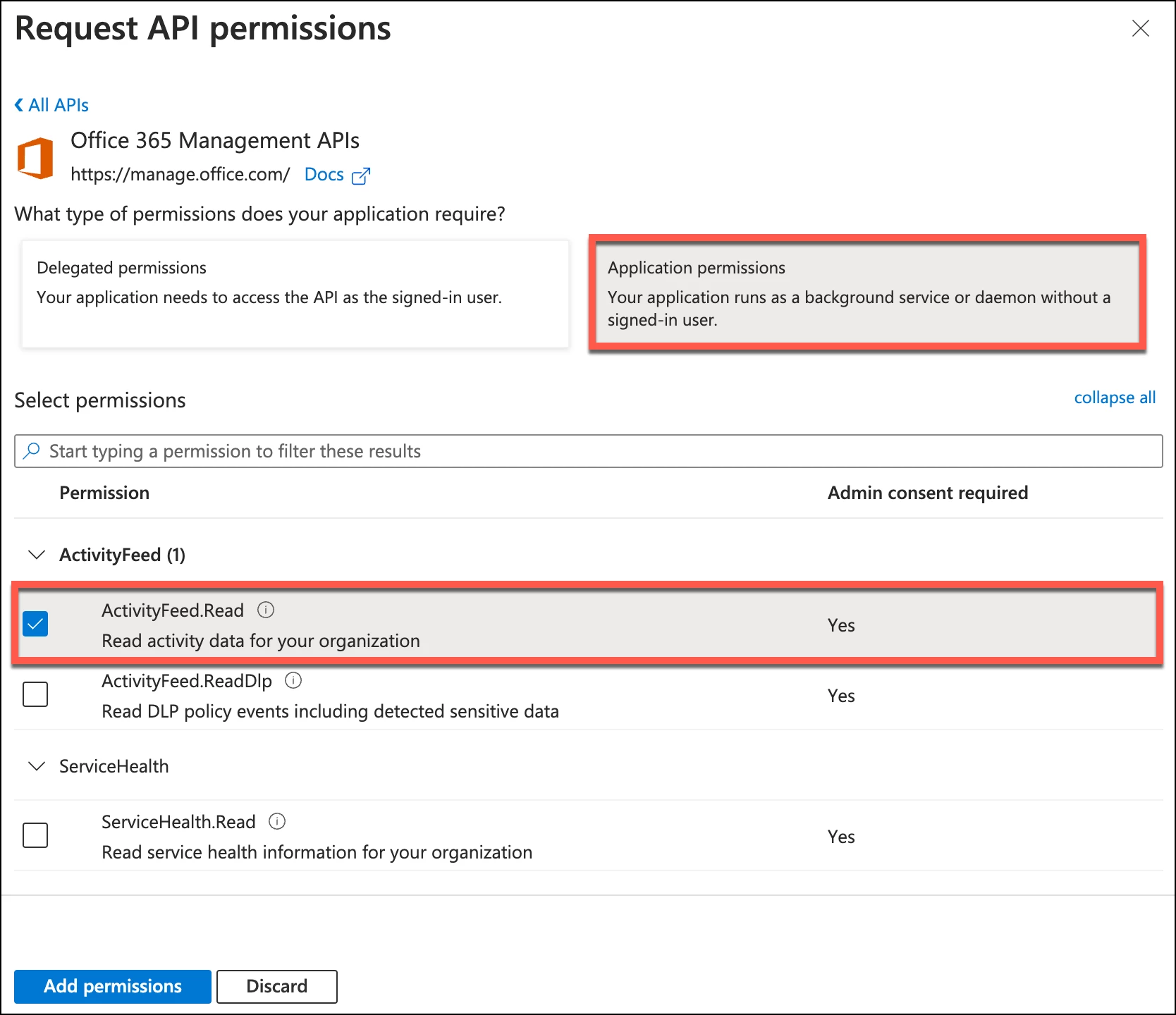
For nearly all Office 365 events, we just need the ActivityFeed.Read permission. Go ahead and click the checkbox next to that permission and then click the Add permissions button.
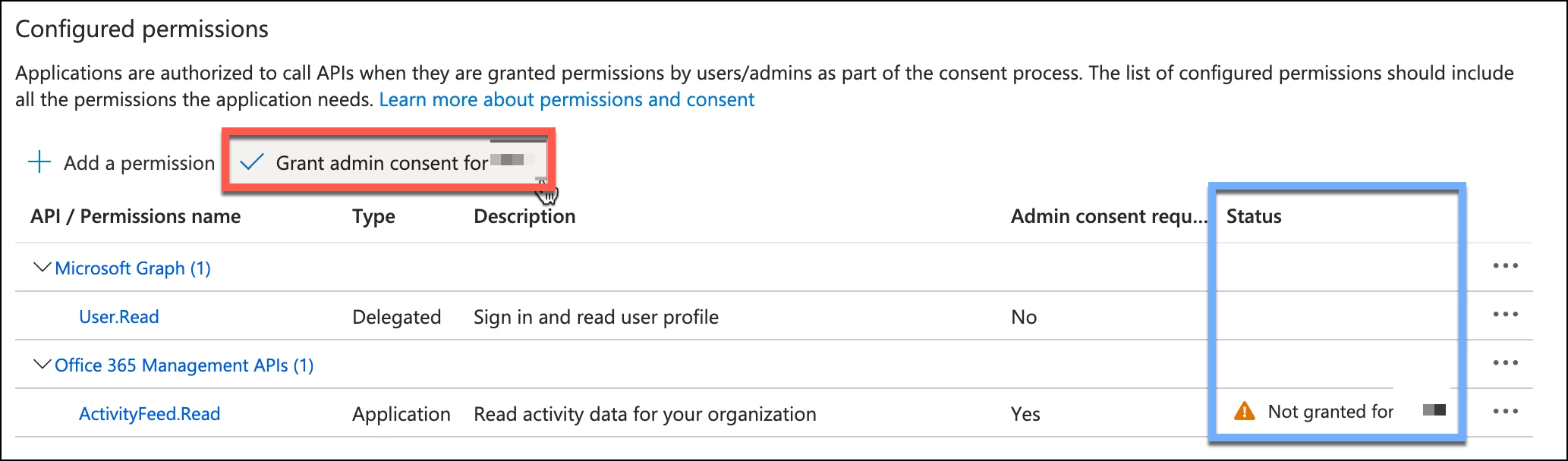
Once a permission is added to our application, we will see the API and the associated permission(s) listed. If the permission has the word Yes under the column of Admin consent required, we will need to click the Grant admin consent for <tenant>. All of the permissions required to set up our Office 365 and Entra ID logging will require this and it will work across all permissions assigned in the application, so you can assign all of your permissions first and then grant admin consent.
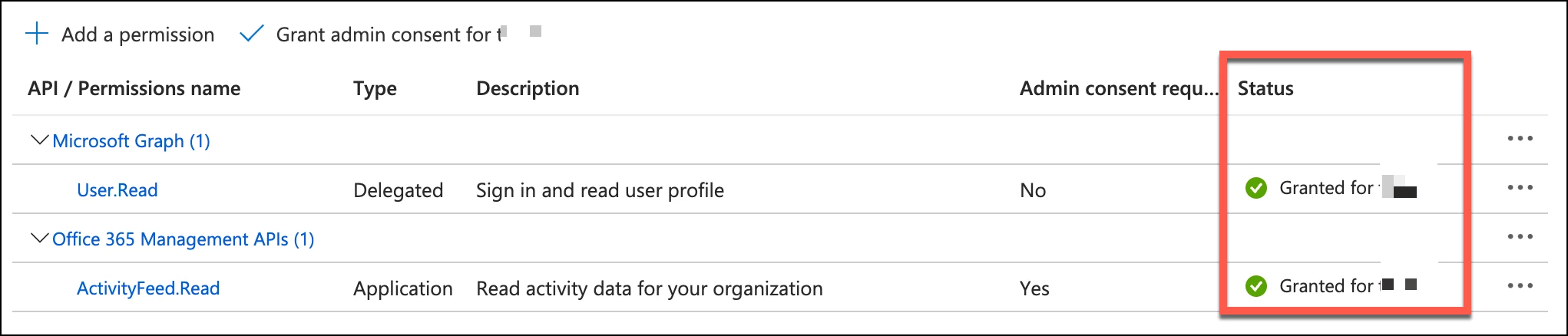
Once admin consent is granted, the status will be updated to look like this. Because it performs a blanket admin consent, event permissions with a No will show the updated status.
While we’ve just walked through the permission assignment for a subset of the Office 365 feed, the remaining permissions follow this same process. I’ve gone through and tested the following permissions as I wrote this blog and like anything else, permissions may change over time, but based on my testing, here is a reference of the minimal permissions needed based on log type and content that I found worked.
| Log Type | Content Name / Description | API | Permission Type | Permission |
| Office 365 | Audit.Exchange | Office 365 Management API | Application | ActivityFeed.Read |
| Audit.SharePoint | ||||
| Audit.AzureActiveDirectory | ||||
| Audit.General | ||||
| Office 365 | DLP.All | Office 365 Management API | Application | ActivityFeed.ReadDlp |
| Azure AD Directory Audit | Audit Logs | Graph | Application | AuditLog.Read.All |
| Azure AD | Interactive Sign-in Logs | Graph | Application | AuditLog.Read.All |
| Azure AD Organizational Context | Users from Entra ID tenant | Graph | Application | AuditLog.Read.All / Directory.Read.All |
In our final blog of this mini-series, we will take the permissions assigned above and apply them to our feeds in Google SecOps.