




Today we are going to take a look at using joins within a search. For long time readers of this blog, you may recall we covered joins when working with multiple events in rules. The good news is that many of the concepts in rules apply to search, so for some of you, this may be a snap. For those less familiar with this concept, that’s alright, we are going to dive in and look at building a search using a join.
Currently, there are a few different datasets that can be joined within search. We can join events to the entity graph and of course we can join events to a data table. This blog will focus on joining a subset of events to another subset of events.
Now, you might be thinking, I can build a search with OR operators and get a set of rows and filter the results and review. Why do I need a join? A join will return events that have a relationship to one another based on one or more common values.
Let’s use successful and failed login events as the basis for our example today. We are going to use Microsoft login events, specifically event codes 4624 and 4625. For those not familiar with these event codes, 4624 denotes a successful login and 4625 is a failed login. We are going to build a search that helps inform us of the number of successful and failed login events our users have had and their association to one another.
Building Searches for Each Subset of Events
Before we start building our query with a join, a process that I’ve found to be useful is to take the elements of each section of the query and build them separate from one another and then bring the components together. That way you have the tabular view of each subset of data readily available to review.
Our initial search for the failed login events is below. To summarize, we want Microsoft user login events that have a failed login event of 4625. These events will have an security_result.action value of block. The intermediary.hostname is where the parser is storing the hostname of the system that is being authenticated to. For our example, we only want to include the hostnames that are part of the stackedpads.local domain.
metadata.event_type = "USER_LOGIN"
metadata.vendor_name = "Microsoft"
security_result.action = "BLOCK"
metadata.product_event_type = "4625"
intermediary.hostname = /stackedpads\.local$/
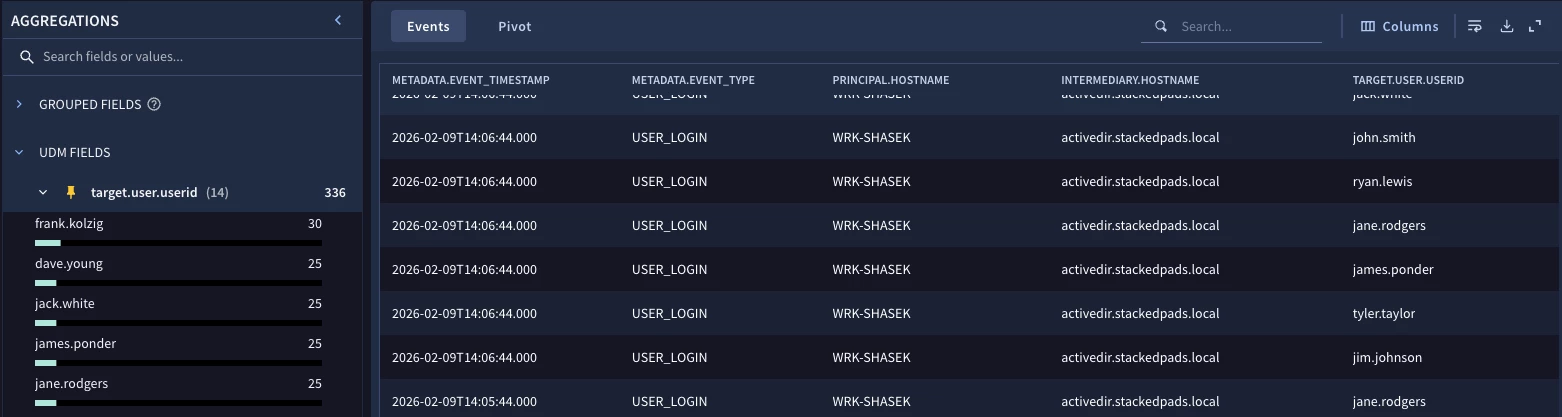
Here we can see that during the search window, we have 336 failed login events. The field target.user.userid displays the users who were attempting to login to the system in the intermediary.hostname field and the principal.hostname is the system the login attempt originated from.
For successful logins, we are performing a very similar search but this time we are searching for the Windows event code of 4624 and an action of allow, which denotes a successful login.
metadata.event_type = "USER_LOGIN"
metadata.vendor_name = "Microsoft"
security_result.action = "ALLOW"
metadata.product_event_type = "4624"
intermediary.hostname = /stackedpads\.local$/
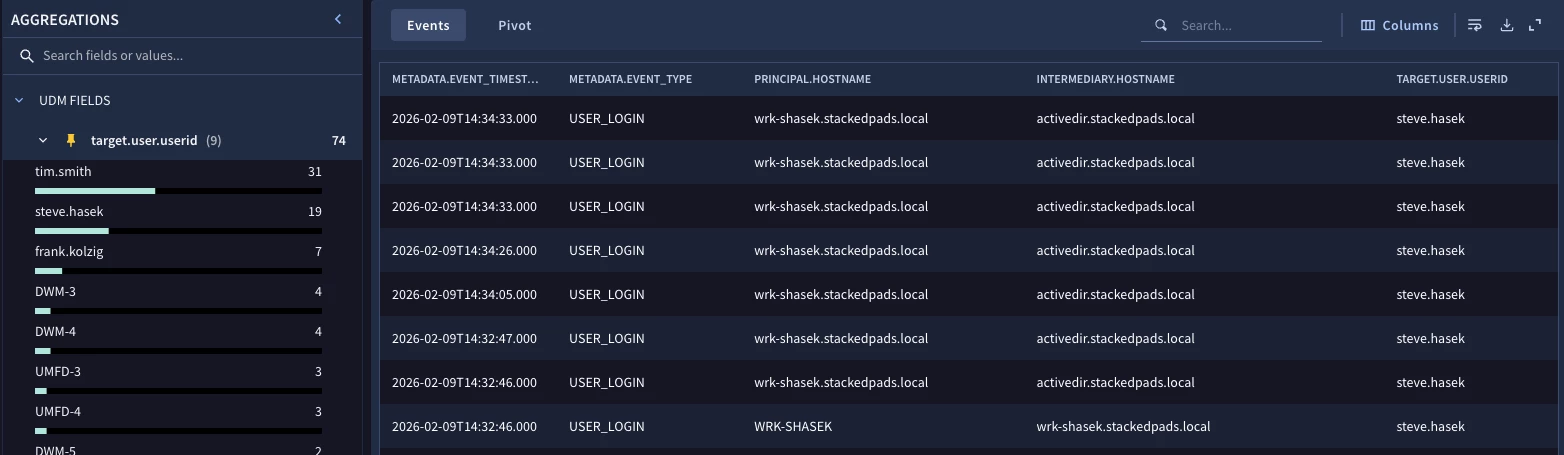
Not surprisingly, we see fewer successful logins in our result set. Now, we could easily combine these two searches with an OR operator and try to find data of interest. Instead, we are going to bring these two subsets of data together with a join.
Before we start joining data, I have a quick confession. I added some additional logic to my initial searches that excluded SYSTEM users as well as accounts that end with $. These don’t materially change what we are doing, they just make the data set a little smaller. You will likely do similar things in your environment but I wanted to mention that so that if you see these other events you aren’t wondering why you have them and I don’t.
Adding Event Variables
When we start joining data in search, we will need to add some additional logic to the query. The first thing we need to do is separate the failed login logic from the successful login logic. We can do this by prepending what is called an event variable to each. For this search, all of the logic associated with the failed logins will have $fail before each field and all logic associated with successful logins will have $success.
$fail.metadata.event_type = "USER_LOGIN"
$fail.metadata.vendor_name = "Microsoft"
$fail.security_result.action = "BLOCK"
$fail.metadata.product_event_type = "4625"
$fail.intermediary.hostname = /stackedpads\.local$/
$success.metadata.event_type = "USER_LOGIN"
$success.metadata.vendor_name = "Microsoft"
$success.security_result.action = "ALLOW"
$success.metadata.product_event_type = "4624"
$success.intermediary.hostname = /stackedpads\.local$/
Creating a Join
The next step is to join these two subsets of events together. In our example, we need to join the failed and successful logins. In this case, I would like to see the relationship between the user who is trying to login and the system they are attempting to authenticate to. Those values are stored in the target.user.userid and intermediary.hostname fields. The logic for this join can occur in a few different ways.
Join Syntax Example #1
A join where the events must exist on both sides of the join is called an inner join. However, the term join or inner join is not required. We can simply have the failed field equal to the success field.
$fail.intermediary.hostname = $success.intermediary.hostname
$fail.target.user.userid = $success.target.user.userid
If you want to use the keyword join (or inner join) you can do that as well.
join $fail.intermediary.hostname = $success.intermediary.hostname and $fail.target.user.userid = $success.target.user.userid
inner join $fail.intermediary.hostname = $success.intermediary.hostname and $fail.target.user.userid = $success.target.user.userid
Join Syntax Example #2
Alternatively, we can define a placeholder variable and associate it with both the failed login field and the successful login field. If you are joining on more than one field, then repeat this for other fields as well.
$fail.intermediary.hostname = $authenticated_hostname
$fail.target.user.userid = $user


$success.intermediary.hostname = $authenticated_hostname
$success.target.user.userid = $user
Because both intermediary hostnames have a placeholder variable of $authenticated_hostname, they will be joined.
Search with Join Syntax Added
I’m going to use the most verbose syntax this time. Notice that I placed the join between the two sets of logic, not because it is required to be in that position, but because it reads in a logical manner.
$fail.metadata.event_type = "USER_LOGIN"
$fail.metadata.vendor_name = "Microsoft"
$fail.security_result.action = "BLOCK"
$fail.metadata.product_event_type = "4625"
$fail.intermediary.hostname = /stackedpads\.local$/

inner join $fail.intermediary.hostname = $success.intermediary.hostname and $fail.target.user.userid = $success.target.user.userid

$success.metadata.event_type = "USER_LOGIN"
$success.metadata.vendor_name = "Microsoft"
$success.security_result.action = "ALLOW"
$success.metadata.product_event_type = "4624"
$success.intermediary.hostname = /stackedpads\.local$/
Syntactically, this search will execute but you probably won’t get a ton of value from the results. Let’s look at aggregating the events and then creating some aggregated outcomes to start getting some insights.
Adding Aggregation and Calculations
Aggregating events, using the match section of a search, provides us a way to group events by like values and then generate aggregated outcome variables such as counts, sums and arrays of data.
With searches that use joins, we need to specify a match variable for the match section. In statistical searches, we previously had the option of using the UDM field names when we wanted to aggregate. When building a search with a join, we need to use a match variable. To do this, create a placeholder variable in the filter logic before the match section..
It’s worth noting that you do NOT need to use the same fields for joining and aggregating in the match section. However, in this example we are using these two fields for both, so here are the additional lines that I will add to the filtering statement.
$fail.intermediary.hostname = $authenticated_hostname
$fail.target.user.userid = $user
We don’t need to add placeholder variables for the successful login events as well because they are the same and both must exist for the search to return results.
With the placeholder variables defined, we can create a match section that includes both. We have the option of specifying a time range after the match variable. Time windows are really a separate topic, so for now, we are going to create tumbling time windows of five minutes that group events by the target.user.userid and intermediary.hostname.
match:
  $user, $authenticated_hostname by 5m
Finally, let’s output an array of the hosts that the logins originated from, the number of failed logins and the number of successful logins within that five minute window.
outcome:
  $origin_hostname = array_distinct($success.principal.hostname)
  $failed_attempts = count_distinct($fail.metadata.id)
  $successful_attempts = count_distinct($success.metadata.id)
When we put it all together, here’s our search.
$fail.metadata.event_type = "USER_LOGIN"
$fail.metadata.vendor_name = "Microsoft"
$fail.security_result.action = "BLOCK"
$fail.metadata.product_event_type = "4625"
$fail.intermediary.hostname = /stackedpads\.local$/
$fail.intermediary.hostname = $authenticated_hostname
$fail.target.user.userid = $user

inner join $fail.intermediary.hostname = $success.intermediary.hostname and $fail.target.user.userid = $success.target.user.userid

$success.metadata.event_type = "USER_LOGIN"
$success.metadata.vendor_name = "Microsoft"
$success.security_result.action = "ALLOW"
$success.metadata.product_event_type = "4624"
$success.intermediary.hostname = /stackedpads\.local$/

match:
  $user, $authenticated_hostname by 5m

outcome:
  $origin_hostname = array_distinct($success.principal.hostname)
  $failed_attempts = count_distinct($fail.metadata.id)
  $successful_attempts = count_distinct($success.metadata.id)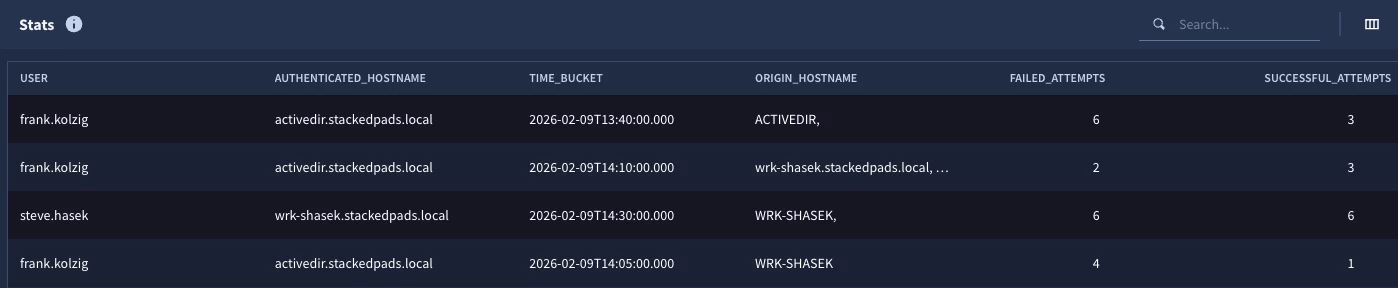
When we test the search, we can see two logins that had both successful and failed logins for the time range as well as the results. Notice that there is also a field named time_bucket that we didn’t specify. This is a system generated field that provides the starting time of the tumbling window.
Enhancing the Search
We just went through the process of building a search with a join between two types of events. The results may be sufficient for an inquiry about login attempts during a specific time frame, but with a few additional modifications, we can build a more robust search that could be used to identify outliers that might require additional investigation. Let’s take a quick look at a few additional things I can do to enhance this search.
Let’s start by adding an expectation that we want to generate these counts of successful and failed attempts, but we only want events where the failed events occurred before successful attempts. We can do this by placing an expression like this in the filtering statement.
$fail.metadata.event_timestamp.seconds < $success.metadata.event_timestamp.seconds
While we are at it, let’s adjust the time window that we are aggregating data within and broaden it to a 60 minute window.
match:
  $user, $authenticated_hostname by 60m
Finally, once we have performed our counts, let’s only bubble up the user and host combinations that have more than eight failed login attempts during a 60 minute window.
condition:
  $failed_attempts > 8
There are a few other ways to express this condition statement but to me, this is the simplest and most straightforward, so we will use that. Here is the whole search.
$fail.metadata.event_type = "USER_LOGIN"
$fail.metadata.vendor_name = "Microsoft"
$fail.security_result.action = "BLOCK"
$fail.metadata.product_event_type = "4625"
$fail.intermediary.hostname = /stackedpads\.local$/
$fail.intermediary.hostname = $authenticated_hostname
$fail.target.user.userid = $user

$fail.metadata.event_timestamp.seconds < $success.metadata.event_timestamp.seconds

inner join $fail.intermediary.hostname = $success.intermediary.hostname and $fail.target.user.userid = $success.target.user.userid

$success.metadata.event_type = "USER_LOGIN"
$success.metadata.vendor_name = "Microsoft"
$success.security_result.action = "ALLOW"
$success.metadata.product_event_type = "4624"
$success.intermediary.hostname = /stackedpads\.local$/

match:
  $user, $authenticated_hostname by 60m

outcome:
  $origin_hostname = array_distinct($success.principal.hostname)
  $failed_attempts = count_distinct($fail.metadata.id)
  $successful_attempts = count_distinct($success.metadata.id)

condition:
  $failed_attempts > 8

With the changes we made, we can see that the user frank.kolzig authenticated to the activedir.stackedpads.local host from different hosts and succeeded four times and failed eleven times during the time window of February 9, 2026 between 14:00 and 15:00. Based on that information, we could easily pivot back and investigate Frank’s activity during that window.
I hope you have a better understanding of how to build queries using event data joined with other event data. As you start doing this yourself, here are a few things to keep in mind:
- Event variables are required to prepend fields to separate the logic for the types of event; in our example we used $fail for failed login and $success for successful login logic
- Match variables are required in the match section, a field name will generate a syntax error
- There are a few ways to build the join; use the examples above
- The fields that are part of the join do not need to be the same fields that are found in the match section and used for aggregation
There’s more to cover but we are going to stop here for now. I hope you give joined searches a try and we will be back with additional examples and guidance that you can use in your own searches!
