




In our previous blog, we introduced the WHERE pipe operator and discussed how it can be used to filter rows from a data set. Today, we are going to take a look at the SELECT pipe operator to reduce the number of columns returned in a query.
Using the SELECT and WHERE pipe operators together immediately shrinks a data set as vast as UDM events into a much smaller data set that can then be further refined.
Notice I am using the word columns rather than fields. This is intentional because as we evolve our queries, we are going to transform the data to create new columns of data that are derived from fields.
While the SELECT pipe’s functionality may seem fairly obvious, it’s important to make sure the fundamentals are covered before we get into more advanced queries, so stick with me.
A Basic Search
In a YARA-L search, we don’t need to take into account the columns being returned when we are exploring the data within the UI:
principal.hostname = "win-server.lunarstiiiness.com"
In traditional SQL, the same query must be formatted in a manner where the SELECT statement is always expected.
SELECT * FROM events WHERE principal.hostname = "win-server.lunarstiiiness.com"
Using SQL pipes, this search doesn’t require the SELECT pipe to achieve the same results as the previous two examples.
FROM events
|> WHERE principal.hostname = "win-server.lunarstiiiness.com"
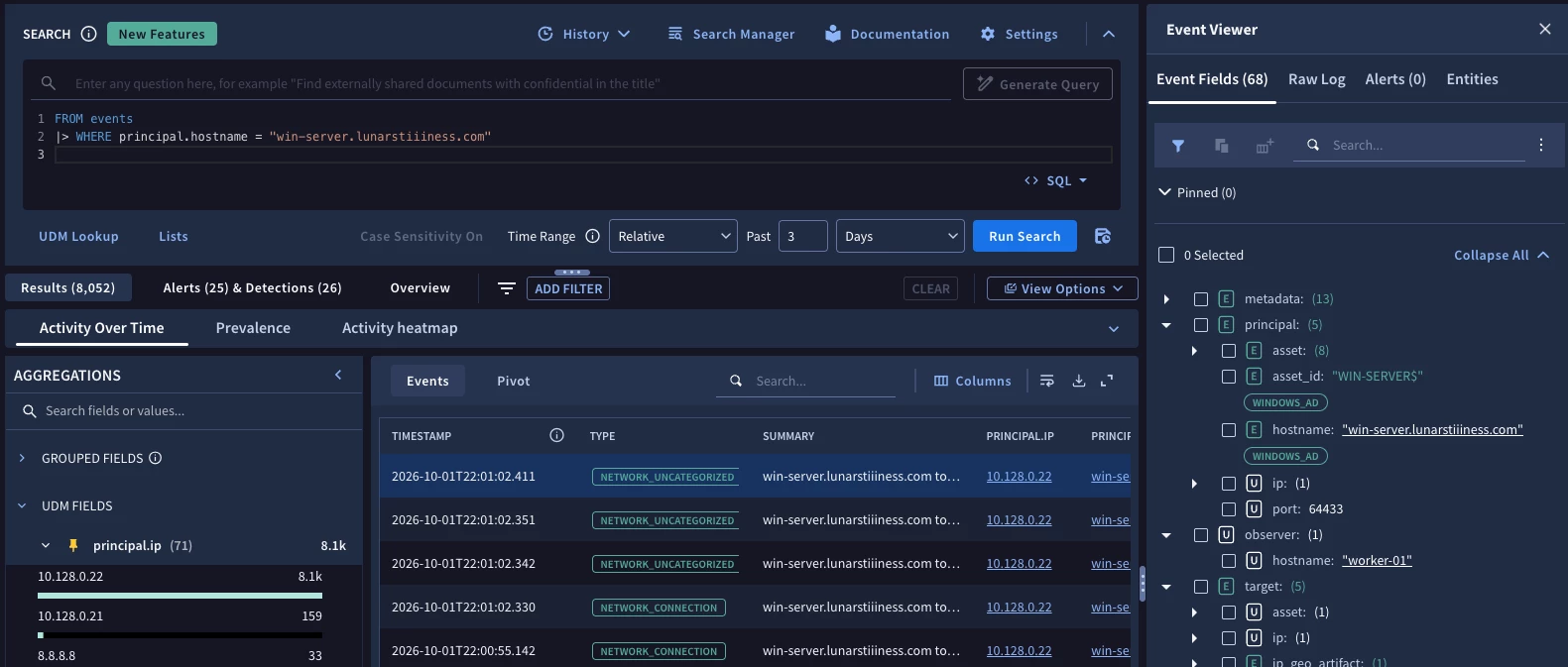
All three of these examples result in a user having access to the histogram, event viewer and aggregation pane as well as all of the fields in UDM to explore the data via the user interface.
When we start building queries that require specific columns to be returned, we can add the SELECT pipe operator to the query to focus the results on just the columns of interest.
In this example, the event data is filtered to just events with the hostname in the WHERE pipe and the only columns being returned are the UDM fields metadata.log_type and metadata.event_type.
FROM events
|> WHERE principal.hostname = "win-server.lunarstiiiness.com"
|> SELECT metadata.log_type, metadata.event_type
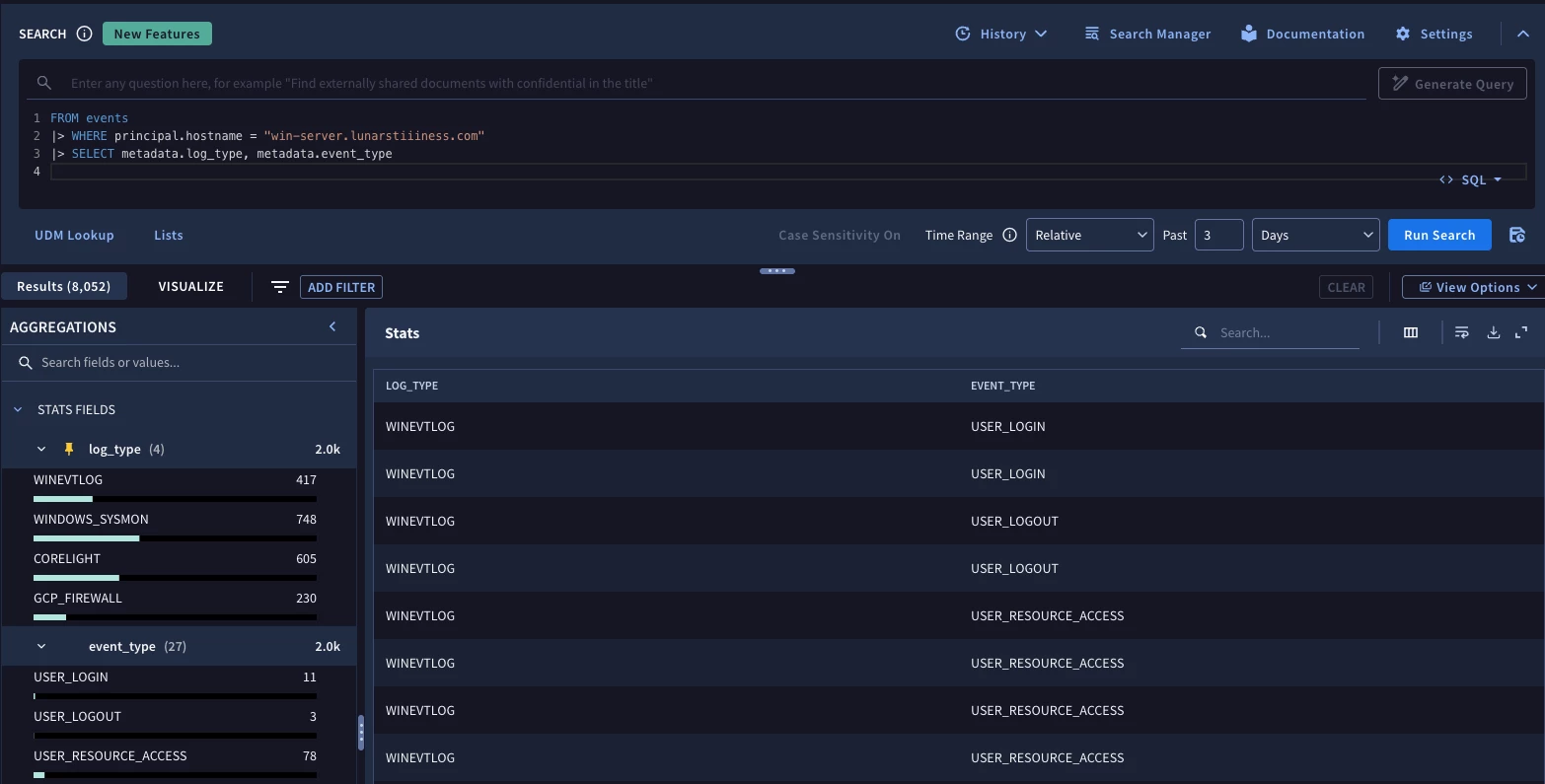
It’s important to note that with the addition of the SELECT pipe, the output changes to a “Stats” view. This means that the event viewer and histogram are no longer available and the aggregation pane will only display columns that are part of the query. It’s also important to understand that subsequent pipe operators will only have access to these two fields.
I prefer to use the WHERE pipe before the SELECT pipe because it immediately reduces the number of rows in the result set and I can continue to explore my data set until I’ve identified all of the columns I want to include in the query.
Column Naming
There may be times when you decide to use a SELECT pipe first. It’s entirely up to you, but here is something else you need to be aware of when it comes to addressing fields in UDM.
As you are probably aware, UDM fields follow a stem and leaf (or folder and file, if you prefer the analogy) layout where a userid, for instance, is referred to as target.user.userid or principal.user.userid. The noun at the front of the field carries significance within the event. Is the userid performing the authentication, for instance? There are other attributes associated with a user besides the userid and these are stored in a “subfolder” called user along with fields pertaining to department, title, first_name and email_addresses. This nesting occurs throughout UDM for items like process, file, asset and more.
When the SELECT pipe is used with a field like principal.user.userid, the resulting column name by default is the last element of this field name. Notice when I run the following query, the outputted column names are just the last portion of the field name
from events
|> where metadata.event_type ="USER_LOGIN"
|> select metadata.log_type,
       metadata.event_type,
       principal.user.userid
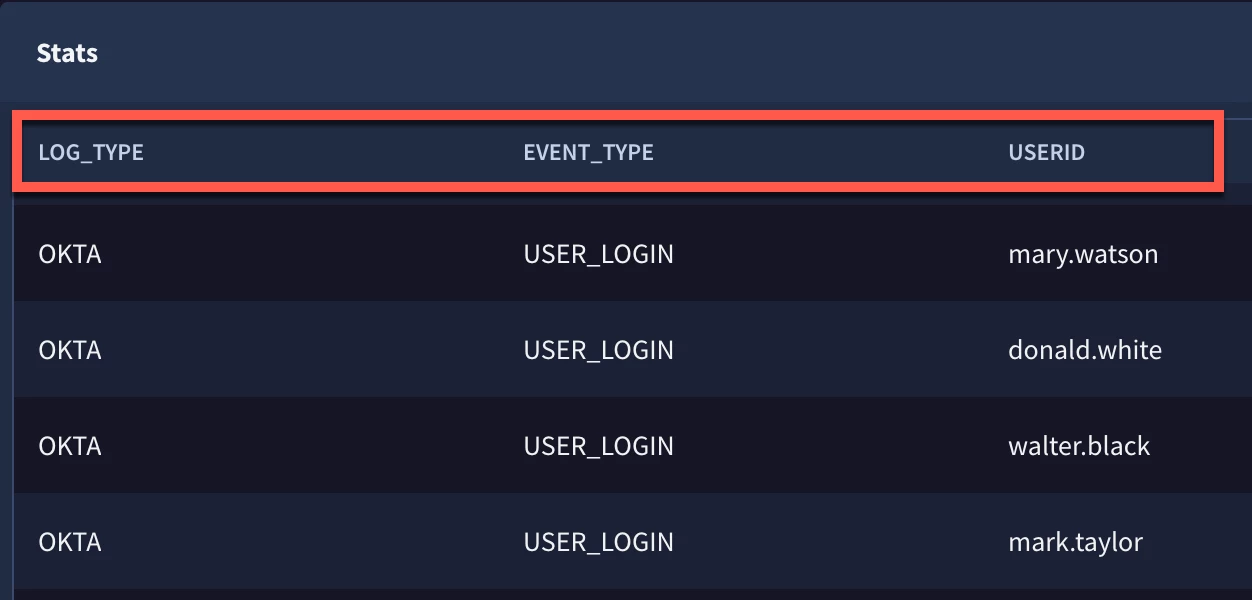
This is perfectly fine for this query. What happens if I add the field target.user.userid to the query?
from events
|> where metadata.event_type ="USER_LOGIN"
|> select metadata.log_type,
        metadata.event_type,
        principal.user.userid,
        target.user.userid
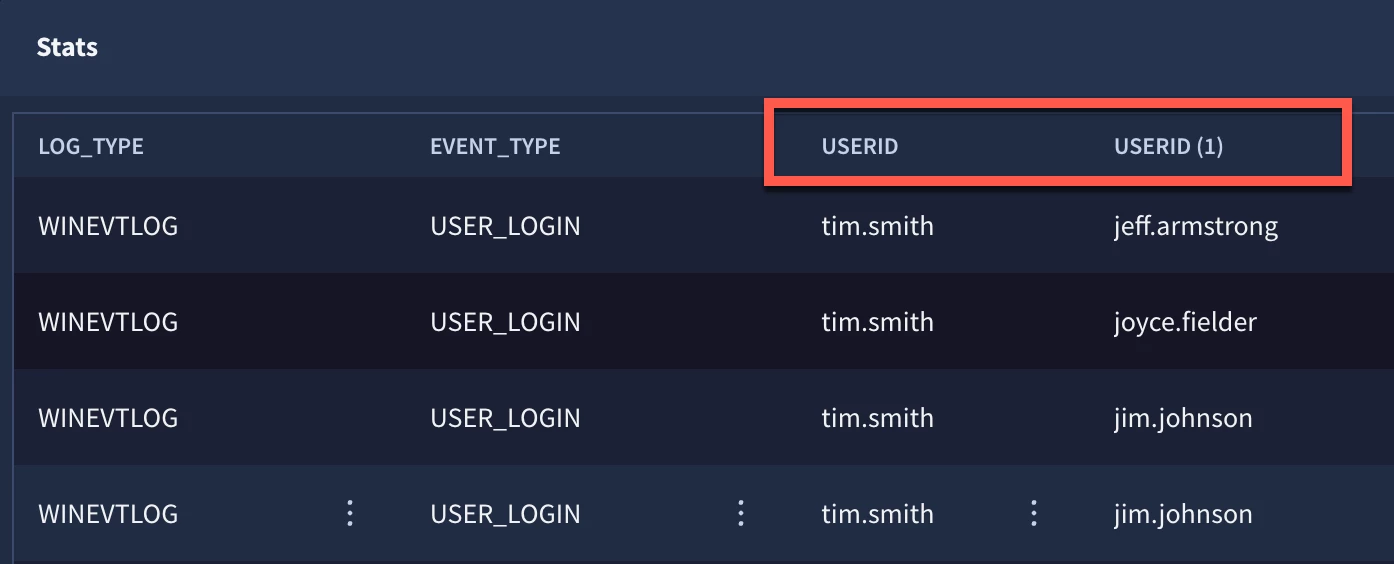
Notice the name associated with the target.user.userid column. Because userid is already a column name, we get userid(1). This isn’t very descriptive but maybe I can live with it. However, when we start getting into additional pipe operators to further refine the data set, referencing userid(1) isn’t great. To resolve this, within the SELECT pipe, we can use the keyword AS to rename the fields as they are being selected, like this:
from events
|> WHERE metadata.event_type ="USER_LOGIN"
|> SELECT metadata.log_type,
      metadata.event_type,
      principal.user.userid AS principal_userid,
      target.user.userid AS target_userid
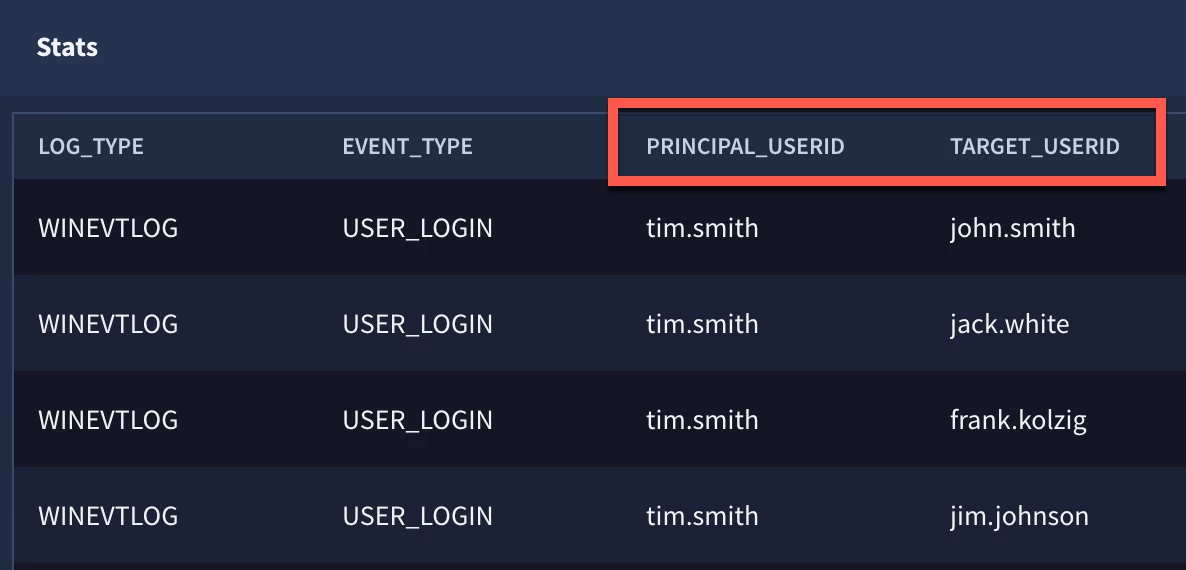
Now the columns are named in a descriptive manner and can be used in subsequent pipe operations.
Date and Time Values
Oftentimes, we need a date or time value in a query. When using the SELECT pipe, these time values are displayed by default as the epoch time value. Using the previous query but adding the metadata.event_timestamp.seconds field to the query will result in a less than friendly formatted time value as well as a column name of seconds.
from events
|> where metadata.event_type ="USER_LOGIN"
|> select metadata.event_timestamp.seconds,
      metadata.log_type,
      metadata.event_type,
      principal.user.userid AS principal_userid,
      target.user.userid AS target_userid
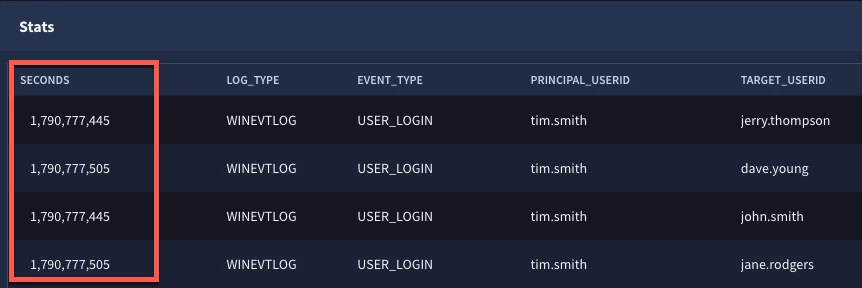
The easy way to solve this problem is to use the function TIMESTAMP_SECONDS to convert that epoch value in seconds to a nicely formatted timestamp. Because I don’t want the column to be named seconds, I can use the AS keyword again in the SELECT pipe to change the name of the column to timestamp.
from events
|> where metadata.event_type ="USER_LOGIN"
|> select TIMESTAMP_SECONDS(metadata.event_timestamp.seconds) AS timestamp,
      metadata.log_type,
      metadata.event_type,
      principal.user.userid AS principal_userid,
      target.user.userid AS target_userid
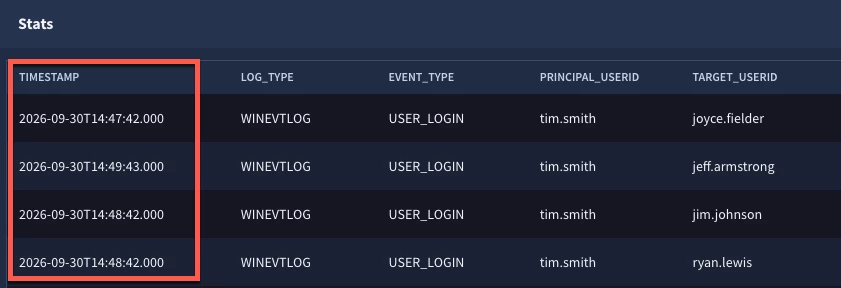
Now we have the time in a nice readable format with a column name that is clear. If we wanted the time to be formatted in a different manner, like this for example, 01 Oct 2026 08:50, we could append the FORMAT_TIMESTAMP function to the TIMESTAMP_SECONDS and field name like this and specify the format elements to get the desired format.
FORMAT_TIMESTAMP("%d %b %Y %R", TIMESTAMP_SECONDS(metadata.event_timestamp.seconds)) AS timestamp
Deduplication
Another keyword that can be used within a SELECT pipe operator is DISTINCT. In a future blog we will review the AGGREGATION pipe operator and other methods to return distinct values, but this is a quick and easy way to generate rows that contain a unique combination of values for the columns in the SELECT pipe.
We are going to go back to the query before we added the timestamp to it and add the keyword DISTINCT after the pipe operator of SELECT.
from events
|> WHERE metadata.event_type ="USER_LOGIN"
|> SELECT DISTINCT metadata.log_type,
      metadata.event_type,
      principal.user.userid AS principal_userid,
      target.user.userid AS target_userid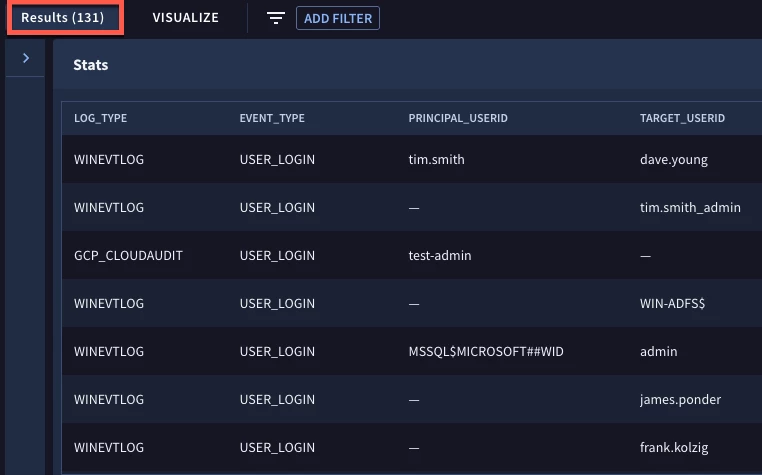
This query returns a distinct combination of the log_type, event_type, principal_userid and target_userid. It will not generate a count or additional columns of information, it will just condense the rows to the unique combinations of these four columns for the time range specified.
Today we took a look at the SELECT pipe operator and added it to a query that first filtered the rows using the WHERE pipe operator and then reduced the number of columns available using SELECT.
When using the SELECT pipe operator, here are a few things to keep in mind:
- SELECT is not required for all searches, so if you are exploring the data set, you likely won’t need it
- If you do use a SELECT pipe, only the columns specified will be available in the results and for subsequent pipe operations
- Timestamps will revert to epoch time so use functions like TIMESTAMP_SECONDS and TIMESTAMP_FORMAT to format the time in an easy to read layout
- The AS keyword provides the ability to rename fields which is handy with UDM fields where the last portion of the field is retained which will alleviate confusion when two hostnames or userids (for instance) are in the result set
- The DISTINCT keyword quickly reduces the results to just the unique combination of the columns specified in the SELECT pipe
I hope you continue to use SQL pipes in Google Security Operations (SecOps) and try out these new capabilities. I will have more tips on other SQL pipe operators in the coming weeks!
