



Authors: Simone Bruzzechesse, Strategic Cloud Engineer
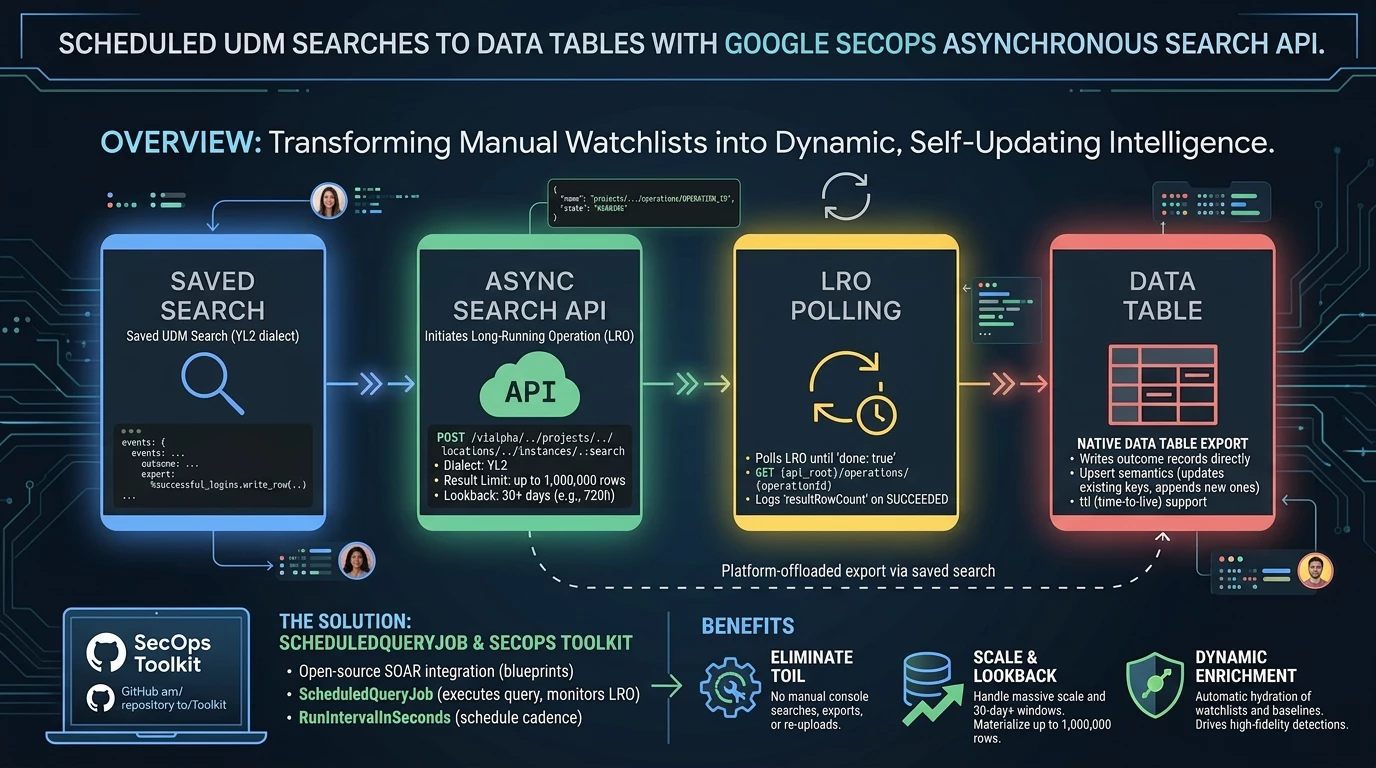
In any modern Security Operations Center (SOC), contextual data is the lifeblood of high-fidelity threat detection and rapid incident response. Whether you are tracking privileged users, maintaining dynamic allowlists of corporate egress IPs, or baselining network behavior across thousands of endpoints, Data Tables in Google Security Operations (SecOps) provide a powerful mechanism to enrich telemetry and drive multi-event YARA-L detection rules.
However, maintaining these tables often introduces operational friction when watchlists depend on historical log patterns, such as identifying all hosts that have communicated with a rare external ASN over the past 30 days, or calculating statistical baselines across multi-terabyte datasets. What these have in common is that the query is stable and the data is not. Security teams frequently fall back on manual workflows: running ad-hoc UDM searches in the console, exporting CSVs, and re-uploading them via scripts. Worse yet, attempting to automate heavy, long-term queries through traditional synchronous REST endpoints can result in a different set of limitations, which is where the Asynchronous Search API comes in.
In this article, we will explore how to eliminate this manual overhead and transform static Data Tables into dynamic, self-updating intelligence tables. First, we will dive into the new Google SecOps Asynchronous Search API (search-lro-api), which enables long-running searches, 30+ day lookback windows, multi-stage YARA-L queries, and direct backend export into Data Tables. Next, we will introduce ScheduledQueryJob, an open-source Google SecOps SOAR job available in the secops-toolkit repository, and walk through a step-by-step guide to deploying and testing it in your environment.
The Google SecOps Asynchronous Search API
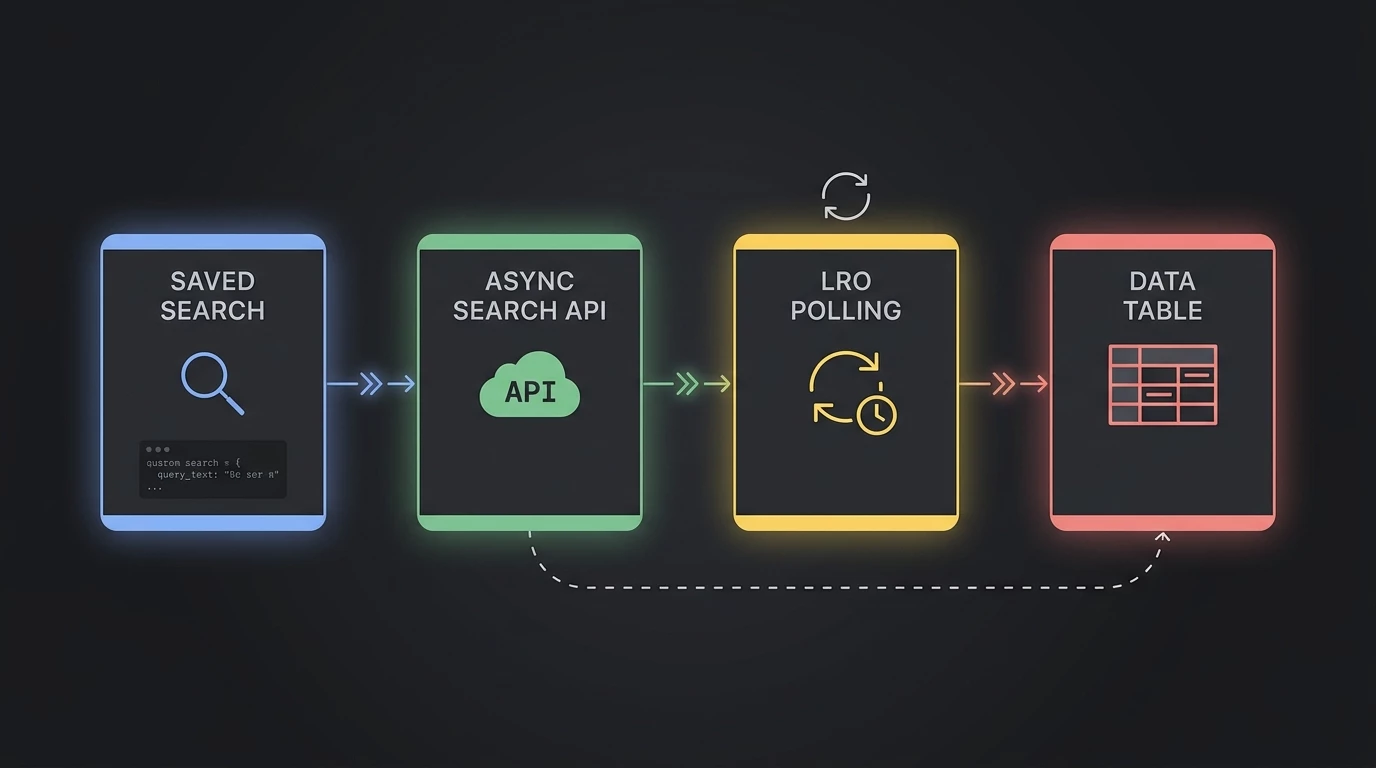
The Asynchronous Search API, often referred to as the Search LRO API, models a UDM search as a long-running operation rather than a request/response call. You submit the search, you get back an operation handle, and you poll it. The caller is never blocked waiting for a result set to be assembled.
Key capabilities of the Asynchronous Search API
-
Massive scale and extended lookbacks: The endpoint seamlessly processes extended historical windows—such as 30-day or 720-hour lookbacks—across UDM logs, detection events, Data Tables, and the Entity Context Graph (ECG), pulling or materializing up to 1,000,000 rows per execution using the resultLimit field.
-
Multi-stage YARA-L support: Setting the dialect to YL2 unlocks advanced multi-stage logic. You can sequence up to four discrete intermediate blocks (stage <name> { ... }) into a root query to perform complex cross-joins, extract unaggregated variables, and calculate statistical baselines like z-scores within a single execution.
-
Native data table export via export: syntax: Rather than fetching massive result sets over HTTP to ingest them back into another endpoint via custom code, appending an export: block with %<table_name>.write_row(...) offloads the work entirely to the SecOps engine, writing outcome records directly to your destination Data Table.
Executing an asynchronous search involves two primary REST operations: initiating the search session and polling the Long-Running Operation.
Initiate the Search (POST :search)
Endpoint: POST https://{region}-chronicle.googleapis.com/v1alpha/projects/{project}/locations/{location}/instances/{instance}:search
Required IAM Permission: chronicle.searchSessions.search
{
  "parent": "projects/PROJECT_NUMBER/locations/LOCATION/instances/INSTANCE_ID",
  "query": "events:\n  $e.metadata.event_type = \"USER_LOGIN\"\n  $e.security_result.action = \"ALLOW\"\noutcome:\n  $user = $e.principal.user.userid\n  $ip = $e.target.ip[0]\n  $timestamp = $e.metadata.event_timestamp.seconds\nexport:\n  %successful_logins.write_row(user: $user, ip: $ip, first_seen: $timestamp)",
  "timeRange": {
    "startTime": "2026-08-17T00:00:00.000000Z",
    "endTime": "2026-09-16T00:00:00.000000Z"
  },
  "dialect": "YL2",
  "resultLimit": 10000
}
The query field carries the UDM search text in the YL2 dialect. Note that it is a single JSON string, so the multi-line YARA-L body is newline-escaped. The timeRange field takes RFC 3339 startTime and endTime values, and resultLimit caps how many rows are materialized. That last field is the headline difference from the synchronous path: resultLimit defaults to 10,000 and accepts up to 1,000,000 (100,000 in case of export to Data Table). Because this query ends in an export: block, the search does not just return rows, it populates the successful_logins Data Table as a side effect, which is what makes the operation payload in the next section interesting. The response will be the following:
{
  "name": "projects/PROJECT_NUMBER/locations/LOCATION/instances/INSTANCE_ID/operations/s-lro-078d4f48-9c6b-4b5c-8d10-2863c62f5f50",
  "metadata": {
    "@type": "type.googleapis.com/google.cloud.chronicle.v1main.SearchOperationMetadata",
    "state": "RUNNING"
  }
}
Tracking the operation
The call returns a google.longrunning.Operation. You poll it until it reports completion:
GET /v1alpha/projects/{project}/locations/{location}/instances/{instance}/operations/{operationId}

{
  "name": "projects/PROJECT_NUMBER/locations/LOCATION/instances/INSTANCE_ID/operations/s-lro-078d4f48-9c6b-4b5c-8d10-xxxxxx",
  "metadata": {
    "@type": "type.googleapis.com/google.cloud.chronicle.v1main.SearchOperationMetadata",
    "state": "SUCCEEDED",
    "startTime": "2026-09-21T12:56:06.974424501Z",
    "endTime": "2026-09-21T12:56:17.968530971Z",
    "expireTime": "2026-09-22T12:56:17.968531461Z",
    "progress": 100,
    "datatableExportMetadata": {
      "dataTable": "successful_logins",
      "resultMetadata": {
        "datatableExportOperationId": "dt-a7144761299349439741271a3d672148-1-xx",
        "rowsCount": 3397
      }
    }
  },
  "done": true,
  "response": {
    "@type": "type.googleapis.com/google.cloud.chronicle.v1main.SearchSession",
    "name": "projects/PROJECT_NUMBER/locations/LOCATION/instances/INSTANCE_ID/searchSessions/s-lro-078d4f48-9c6b-4b5c-8d10-xxxxxx",
    "metadata": {
      "operationId": "s-lro-078d4f48-9c6b-4b5c-8d10-xxxxxxx",
      "resultRowCount": 10000,
      "moreDataAvailable": true
    }
  }
}
metadata.state moves from RUNNING to one of SUCCEEDED, FAILED or CANCELLED, and when done flips to true at the terminal state. On success, response.metadata.resultRowCount tells you how many rows were materialized, the single most useful number to log. If you need results before the operation finishes, streamSearch streams from an in-progress or completed operation, and ListOperations with the filter name: "operations/s-lro" lists search LROs from the past 24 hours.
Exporting results to a Data Table
The part that makes this pattern work is that the search can write its own output. Adding an export: block as the final action of the query writes results straight into a Data Table:
outcome:
  $user = $e.principal.user.userid
export:
  %successful_logins.write_row( user: $user )
Outcome variables map onto Data Table columns. Critically, write_row has upsert semantics: existing keys are updated and new keys are appended. There is no separate write API call to make and no duplicate-handling logic to build.
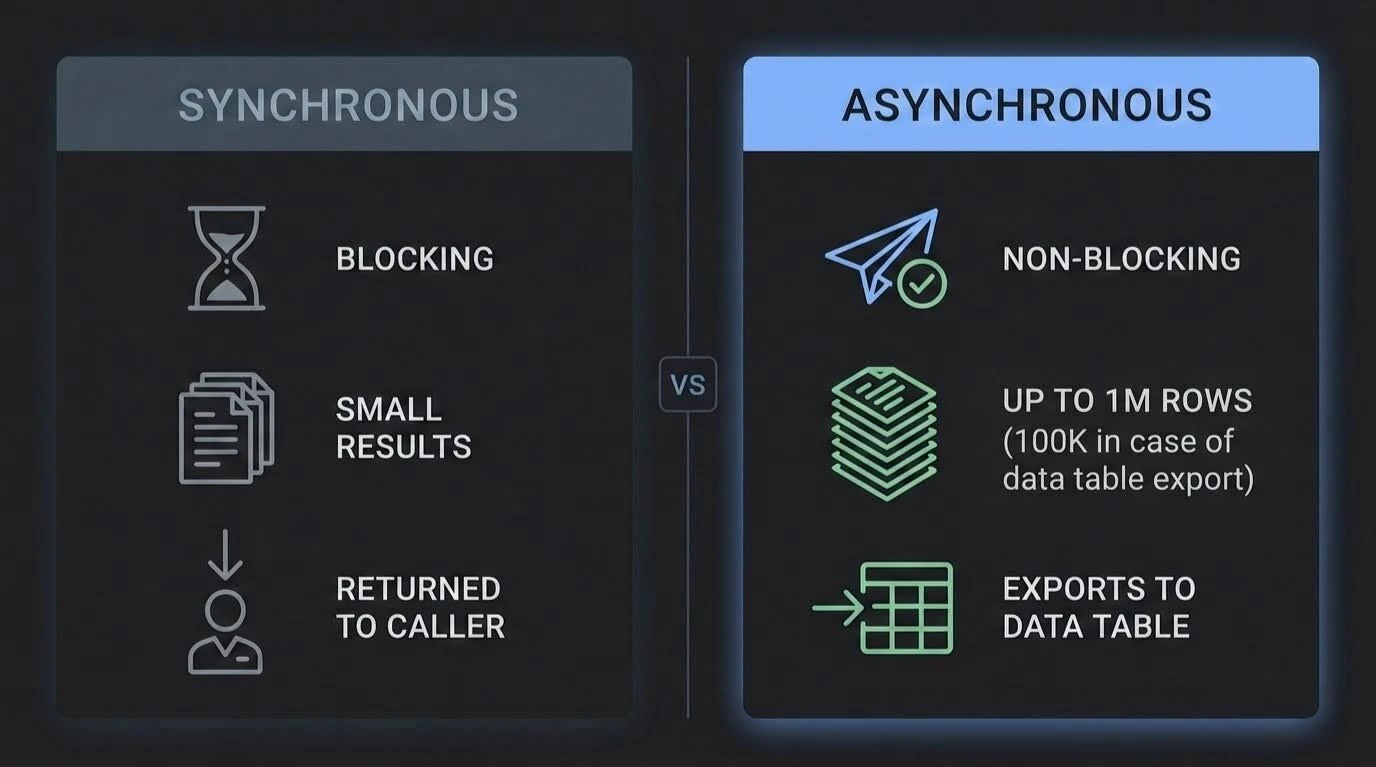
So the platform gives us long-running execution, large result sets and a native export sink. What it does not give us is a scheduler and that's the gap the SecOps Toolkit fills.
SecOps Toolkit Official SOAR integration
The secops-toolkit is an open-source repository from the Google Cloud Professional Services team containing blueprints and automation for Google SecOps environments. Its integrations/ directory ships SecOpsToolkit, a custom SecOps SOAR integration with utilities for Google SecOps platform administrators.
The integration exposes a single Ping action for connectivity and authentication testing, plus three jobs: ScheduledQueryJob, which is our subject here, alongside RulesMonitoring (which watches for detection rules that have moved to PAUSED or LIMITED) and BindplaneAgentsExportSync (which synchronizes BindPlane agent inventory into BigQuery and a Data Table).
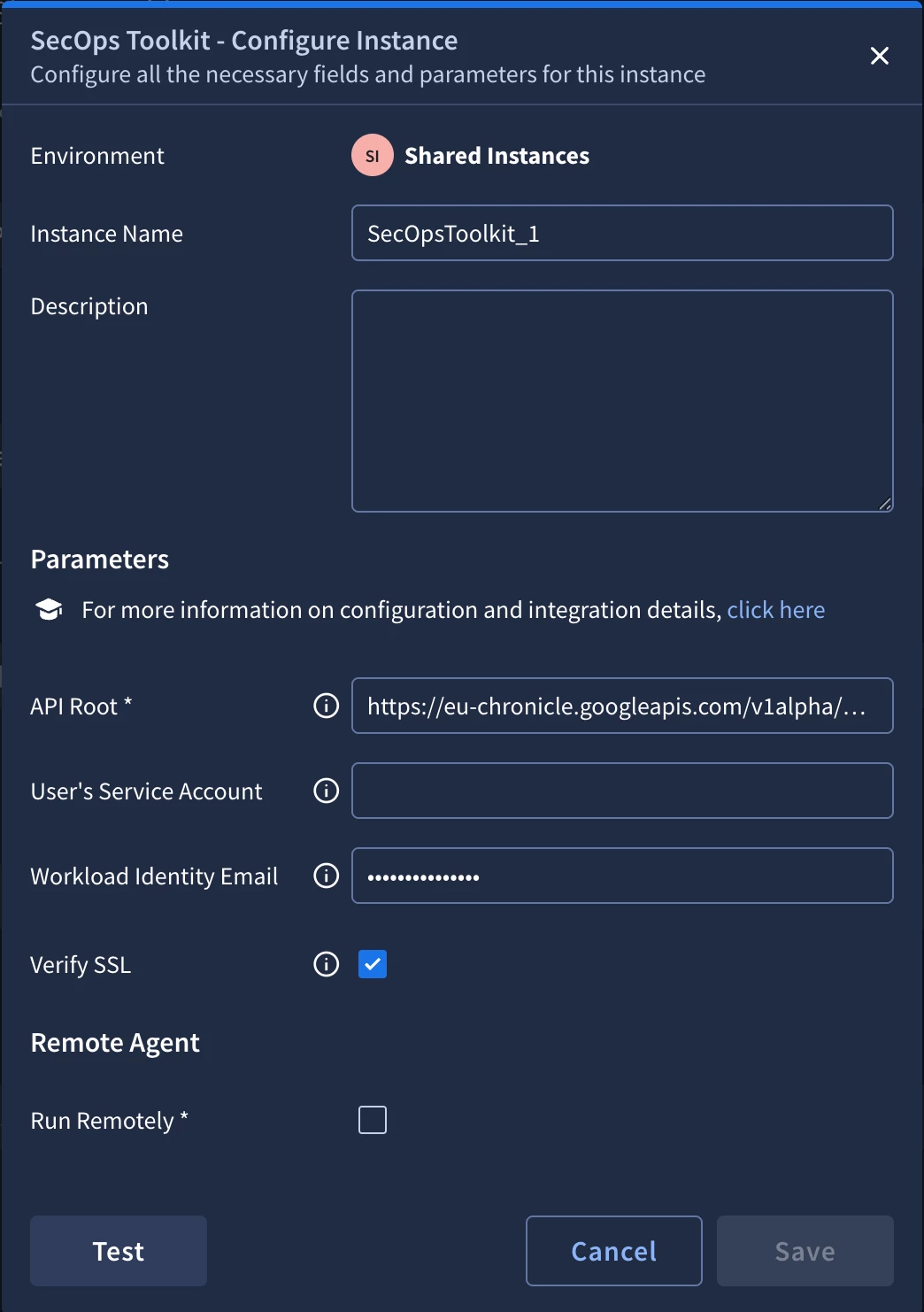
Configuration is deliberately small:
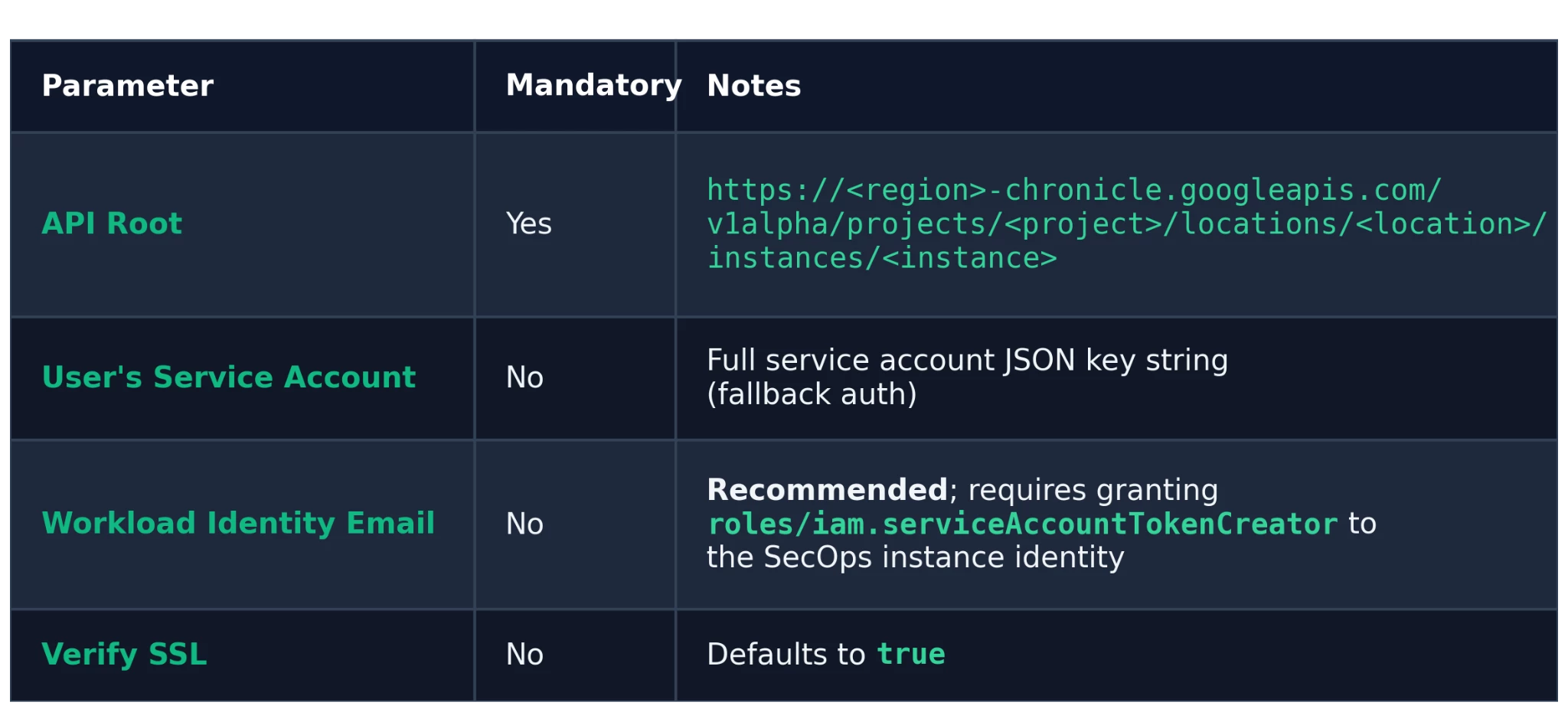
Workload Identity Federation is the recommended authentication method — it issues short-lived tokens through impersonation and avoids storing a long-lived private key in the integration configuration. A service account JSON key remains available as a fallback. If neither parameter is set, the SecOps instance default service account is used.
For IAM, a custom least-privilege role is preferable to a broad grant. The permissions this job actually exercises are:
-
chronicle.instances.get
-
chronicle.searchQueries.get
-
chronicle.searchQueries.list
-
chronicle.searchSessions.search,
-
chronicle.legacies.legacyFetchUdmSearchView
-
chronicle.operations.get
-
chronicle.operations.list
-
chronicle.operations.wait
-
chronicle.dataTables.*
-
chronicle.dataTableRows.*
Otherwise roles/chronicle.admin works as a fallback if you hit permission issues while bringing the integration up.
With the integration configured, the job itself is where the scheduling logic lives.
Inside the ScheduledQueryJob
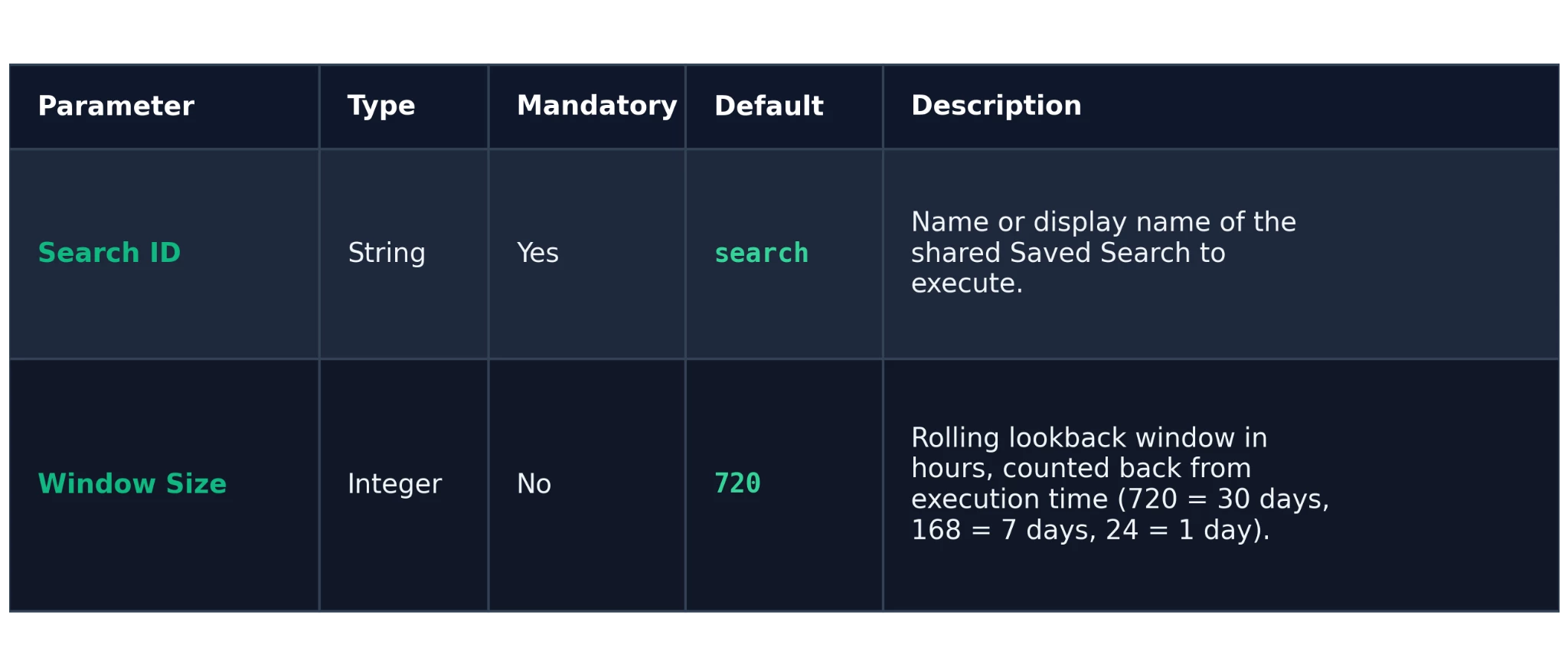
The ScheduledQueryJob executes a saved UDM search over a rolling window and tracks the resulting LRO to completion. Its job definition describes it as "Executes search query and populates target data table with LRO monitoring," and ships with RunIntervalInSeconds set to 900; the effective cadence is whatever you configure when you schedule the job in SOAR.
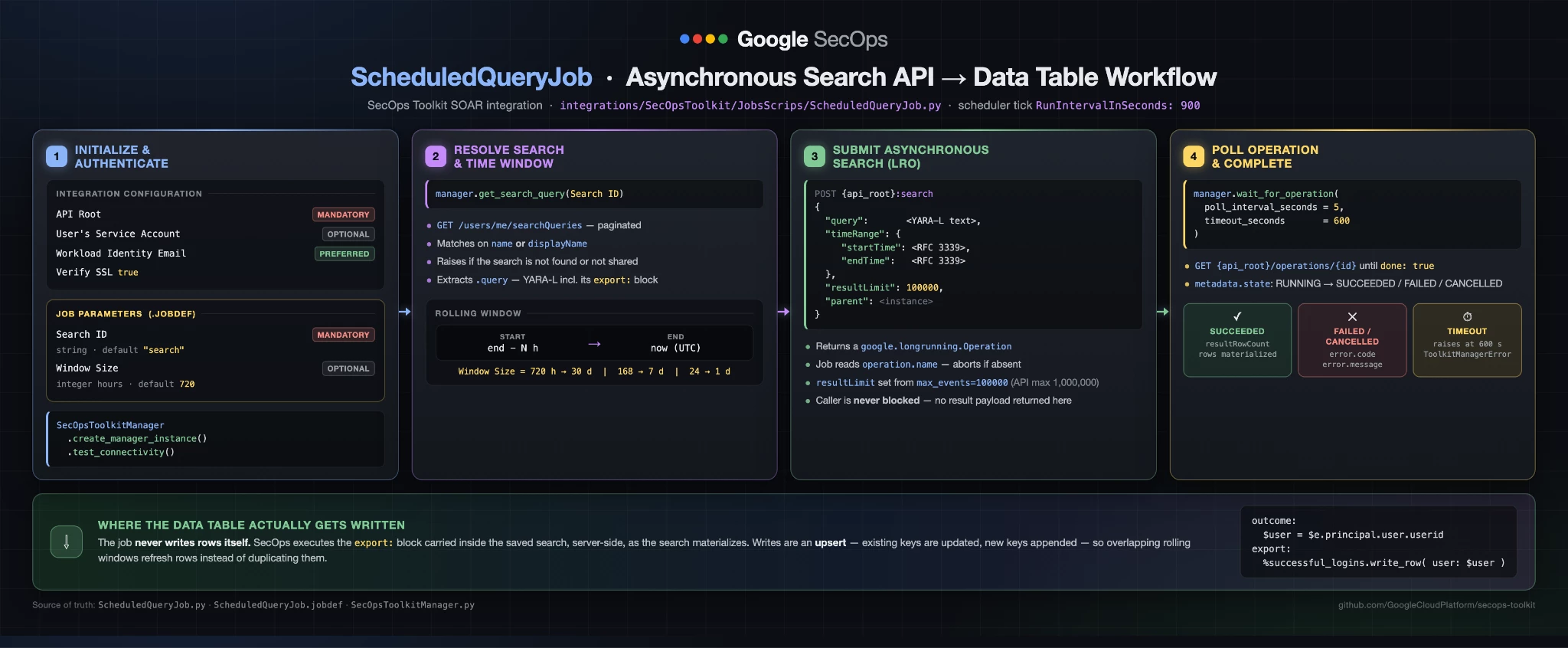
The execution flow is straightforward:
-
Parse the integration configuration (API Root, credentials or WIF, Verify SSL) and the job parameters, construct a SecOpsToolkitManager, and call test_connectivity().
-
Call get_search_query(search_id), which lists /users/me/searchQueries with pagination and matches on either name or displayName, raising if nothing matches. The saved search's query field — including its export: block — is extracted.
-
Compute the window considering the end time the midnight of the previous day (with respect to the data the job gets executed) and then call the Asynchronous Search API which returns the LRO ID.
-
Call wait_for_operation(...), which polls GET {api_root}/operations/{id} every 5 seconds with a 600-second timeout, logging done and metadata.state on each tick.
-
Handle the terminal state: surface error.code and error.message if present, fail the job on FAILED or CANCELLED, and on success log the state along with response.metadata.resultRowCount as "Materialized N rows".
-
The job never writes Data Table rows itself. The table is populated by SecOps as an effect of the export: block inside the saved search. This is the most commonly misunderstood part of the design — if your table stays empty, the problem is almost always in the saved search (such as mismatch between data written and type of columns in the data table), not in the job.
A few design notes worth internalising before you put this in production:
-
Overlapping windows are safe: because export: upserts by key, a rolling window that overlaps previous runs refreshes existing rows rather than duplicating them.
-
The 600-second timeout is a job-side guard, not an API limit: very wide windows on high-volume tenants may warrant revisiting the polling interval and timeout in the job script, in case the search takes longer than 10 minutes, ignore failure of the Job or remove the check.
-
Pair it with a TTL: setting row_time_to_live on the destination Data Table lets stale rows age out on their own.
With the mechanics understood, let's deploy it.
Getting Started with the SecOps Toolkit integration
The newly released Google SecOps Toolkit Integration within the SecOps Toolkit provides a powerful open-source framework for security teams to automate operational workflows and streamline environment administration.
Prerequisites
Git, Python 3, a Google Cloud service account within the Google SecOps project to use with Workload Identity Federation, SecOps SOAR admin access, and a destination Data Table (either already created or created as part of step 6).
Step 0: Clone the Repository
To begin, you need the SecOps Toolkit integration code locally or in your Cloud Shell or terminal. So please run:
git clone https://github.com/GoogleCloudPlatform/secops-toolkit.git
cd secops-toolkit/integrations
pip install -r requirements.txt
Step 1: Deploy the integration — Method 1 (recommended)
The upload_integration.py script packages the integration and pushes it via the Integrations Import API. First update the .env file used to load target instance details such as Customer ID, Region and Project for Google SecOps.
cp .env.example .env
Set SECOPS_PROJECT_ID, SECOPS_LOCATION and SECOPS_INSTANCE_ID in .env, plus GOOGLE_APPLICATION_CREDENTIALS if you are not using Application Default Credentials (which is the case if you are using the Cloud Shell).
Then:
python upload_integration.py --integration SecOpsToolkit
Use python upload_integration.py --list to see everything available in the repo. You can also bypass .env entirely with explicit flags:
python upload_integration.py \
  --integration SecOpsToolkit \
  --project my-secops-project \
  --location europe \
  --instance xxxxx-xxx-xxxx-xxxx-xxxxxxxxxx \
  --service-account /path/to/sa-key.json # optional
Step 2: Deploy the integration — Method 2 (manual)
Zip the contents of the integration directory — the archive root must contain Integration-SecOpsToolkit.def — then upload it through SOAR Settings → Integrations → Upload Integration.
cd SecOpsToolkit
zip -r ../SecOpsToolkit.zip . -x "*.DS_Store" "*__pycache__*" "*.pyc"
Step 3: Configure the integration instance
Set API Root (https://eu-chronicle.googleapis.com/v1alpha/projects/xxxx-prod-secops-0/locations/eu/instances/xxxxxxx-xxxx-xxxx-xxxx-xxxxxxxx), either Workload Identity Email (recommended) or User's Service Account, and Verify SSL. Save, then run the Ping action to confirm authentication works before going further.
Step 4: Create and share the sample saved search
In the SecOps console, open Search and the click on the Search Manager button, a screen like the following will pop-up:
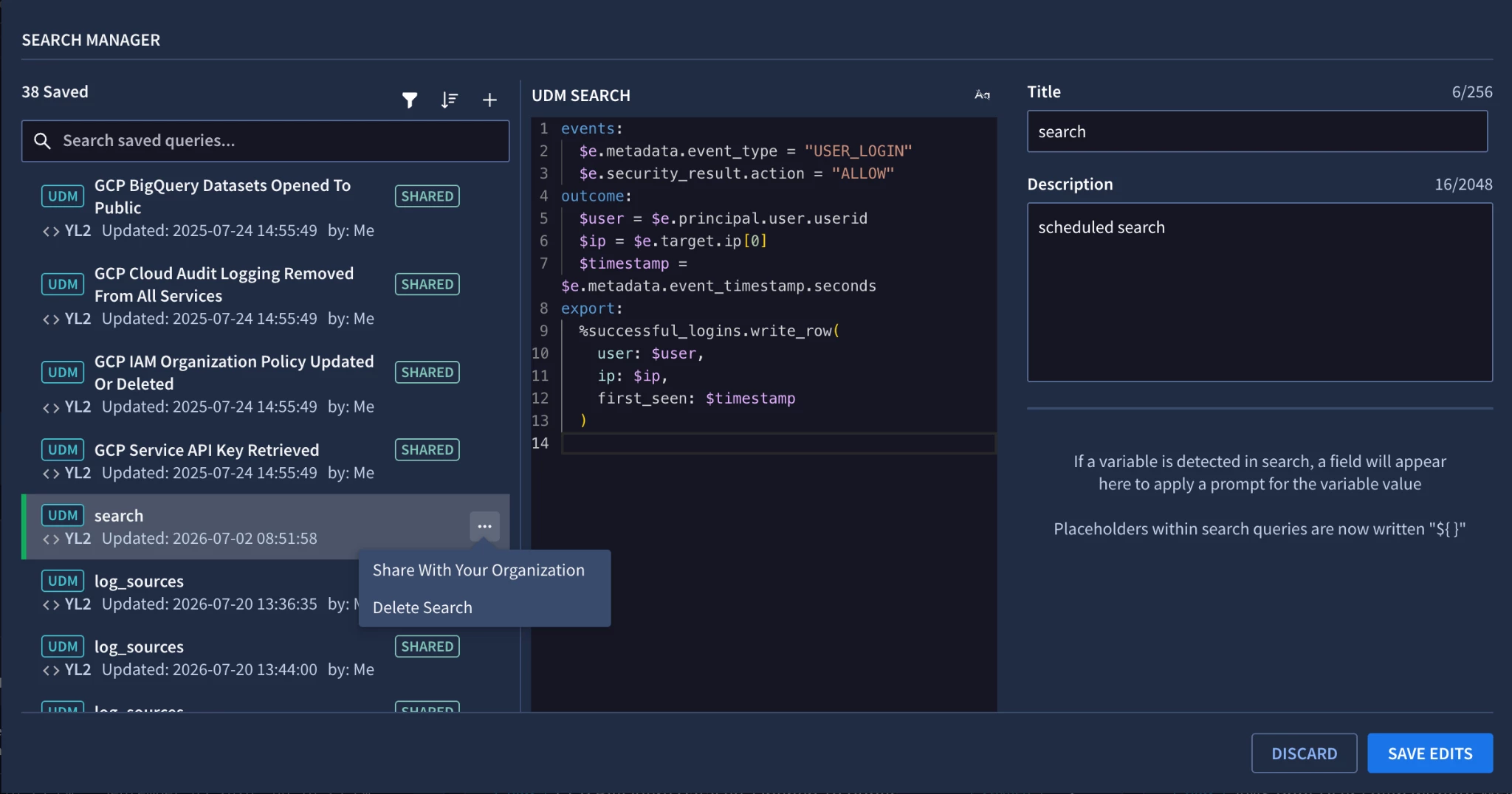
Insert the following search or any other search containing the export section to populate the data table. The destination Data Table, successful_logins here, either already exists with columns matching the write_row arguments or will be created with proper column format (without keys definitions). Save the search and note its title.
events:
  $e.metadata.event_type = "USER_LOGIN"
  $e.security_result.action = "ALLOW"
outcome:
  $user = $e.principal.user.userid
  $ip = $e.target.ip[0]
  $timestamp = $e.metadata.event_timestamp.seconds
export:
  %successful_logins.write_row(
    user: $user,
    ip: $ip,
    first_seen: $timestamp
  )
Saved searches are private to their author by default. The SOAR service account or workload identity cannot read a private search, and the job will fail with a 403 or 404, that is it needs to be shared with the Organization. In the search row click on the overflow menu (⋮) and choose Share With Your Organization. Confirm the dialog and verify the Shared tag appears on the row.
Step 5: Schedule the job
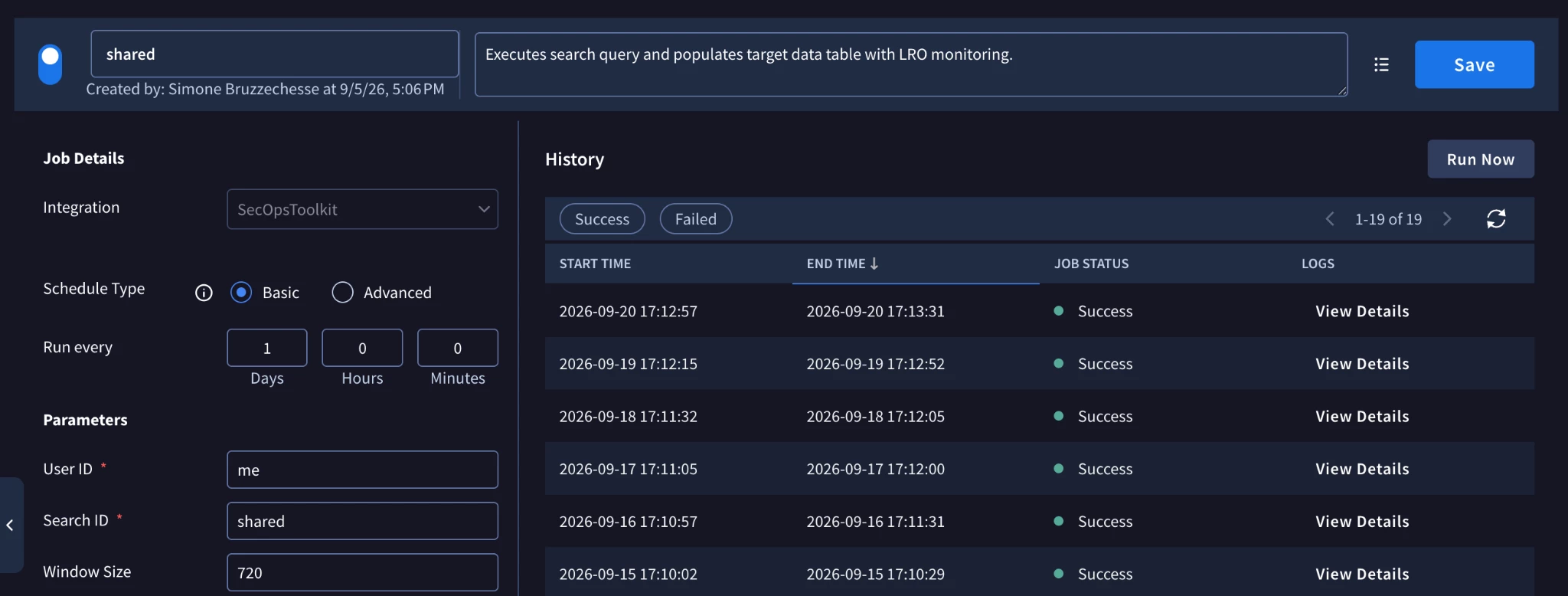
In SOAR Settings → Jobs, add ScheduledQueryJob, select your integration instance, set Search ID to the saved search name and Window Size to your chosen lookback in hours, set the run interval, and enable it.
Step 6: Test and verify
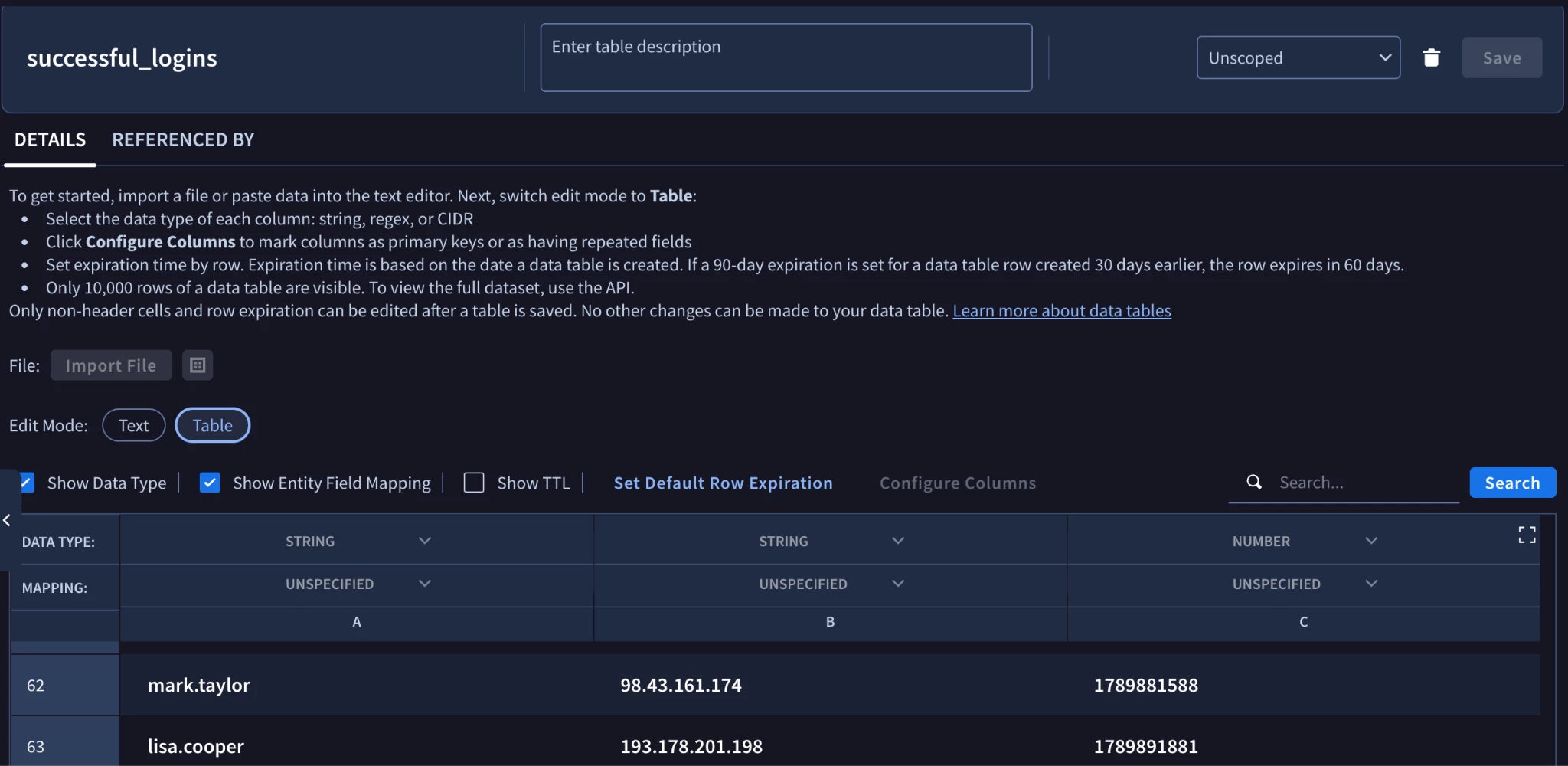
Run the job on demand and read the logs. You are looking for Search operation started: 'operations/...', then the per-poll done= / state= lines, and finally Materialized N rows. Then open SIEM Settings → Data Tables → successful_logins and confirm the rows are there.
Troubleshooting
Below are common issues that may arise during the deployment and execution of the SecOps Toolkit integration, along with their root causes and recommended resolutions:
| Symptom | Likely cause | Fix |
|---|---|---|
| Search query not found | Search is not shared, or Search ID does not match the name / displayName | Share the search with your organization; copy the exact title |
| 403 on chronicle.searchSessions.search | Missing IAM permission on the service account | Add the permission to the custom role, or fall back to roles/chronicle.admin |
| Operation times out | Window too wide for the 600-second job-side guard | Lower Window Size, or raise the timeout in the job script |
| Job succeeds, zero rows materialized | export: block missing, or Data Table columns do not match write_row arguments | Re-check the saved search; align column names and types |
Conclusions
In modern security operations, maintaining high-fidelity enrichment data or lookup table is often stalled by operational overhead, analysts running ad-hoc console searches, exporting CSVs, and managing manual update scripts. The Google SecOps Asynchronous Search API dismantles this administrative burden by turning complex, historical correlation into a continuous, autonomous background pipeline. By offloading row assembly, statistical baselining, and upsert operations directly to the SecOps engine, ScheduledQueryJob seamlessly bridges cold telemetry and live YARA-L detections without recurring manual intervention.
Data Table hydration is just one facet of eliminating platform toil. Within the open-source secops-toolkit repository, you can also deploy complementary automations such as RulesMonitoring (to proactively track detection rules entering PAUSED or LIMITED states) and BindplaneAgentsExportSync (to synchronize collector fleet inventory into BigQuery and Data Tables). Together, these modular jobs transform routine maintenance into an automated, self-healing SecOps ecosystem. Explore the repository, test the deployment, and share your feedback with the community!
