
In the fast-paced world of security operations, consistency and speed are paramount. SOC analysts often find themselves running the same set of searches for specific alert types—looking for user logins after a suspicious authentication or checking Windows Event Logs for specific error codes.
What if you could standardize these searches, store them centrally, and have your playbook automatically run them before an analyst even opens the case?
By utilizing Data Tables in Google Security Operations (SecOps), you can store predefined searches—both static UDM queries and Natural Language prompts—that trigger automatically based on a keyword submitted to a playbook block. This approach creates a reproducible, efficient workflow that aggregates critical data into a single, powerful widget.
The Strategy: Data Tables as a Search Repository
The core of this solution is the Data Table. Instead of hardcoding queries into individual playbook blocks or actions, you treat the Data Table as a repository of knowledge. You map a specific "keyword" (which could be an alert type, a user role, or a threat category) to a list of searches.
Designing the Data Table
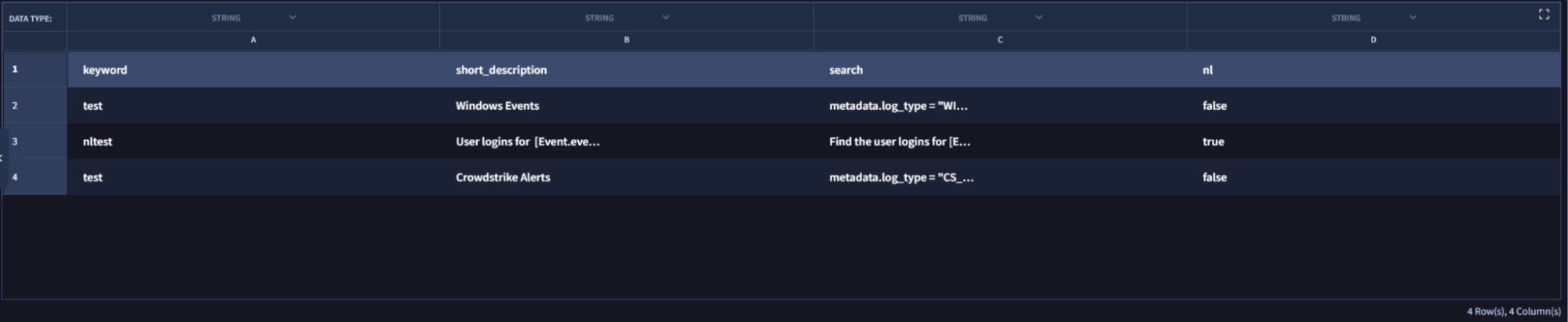
To set this up, your Data Table should generally follow this structure:
- Keyword: The identifier the playbook uses to look up the search (e.g., identity or ioc_crowdstrike_idp_detections).
- Short Description: A label for the search results in the widget.
- Search: The actual UDM query or the Natural Language prompt to be generated.
- NL: Whether or not the search is Natural Language or a static search.
Data Table Example
Here is an example of how the rows in your Data Table might look. Note how a single keyword (identity) can trigger multiple different searches, and how you can mix static queries with Natural Language prompts.
| keyword | short_description | search | nl |
| identity | User Logins for [Event.event_principal_user_userDisplayName] | Find the user logins for [Event.event_principal_user_userDisplayName] | true |
| identity | Typical IP Address for [Event.event_principal_user_userDisplayName] | false |
Data Table Example
Dynamic Placeholders in Saved Searches
One of the most powerful features of this workflow is the ability to use SecOps placeholders within your stored searches. This allows you to create dynamic queries that adapt to the specific context of the alert.
- Static UDM Queries: You can store hardcoded UDM syntax with placeholders, such as metadata.event_type = "USER_LOGIN" user = [Event.event_principal_user_userDisplayName]
- Natural Language (NL) Generation: You can also store a Natural Language prompt that the playbook converts into UDM syntax on the fly. For example, if you store the string Find the user logins for [Event.event_principal_user_userDisplayName], the system will generate the query for you with the appropriate placeholders filled in.
This allows for reproducible searches that are specific to the entities involved in the current case without manual intervention.
The Block Logic
The automation logic is handled by a playbook block that accepts a "Search Identifier" (the keyword) as input.
- Lookup: The system checks the Data Table (e.g., table name "UDM_Searches") to see if the submitted keyword exists.
- Iterate: If multiple rows match the keyword (as seen with identity in the example above), the playbook loops through every matching search.
- Execute:
- For Static Searches, the system executes the UDM query directly.
- For NL Searches, the system first passes the prompt to the Google Chronicle Generate UDM Query action in the Chronicle integration to construct the complex UDM syntax automatically, and then executes it.
- Consolidate: The results from all searches are then gathered and formatted into an “Alert” context value (e.g., search_results).
- Output: The block then outputs a JSON with the results from each search in the following format:
{

"short_description": [{"results"}],

"short_description_2": [{"results"}]

}
Block Example

The Table Widget: A Single Pane of Glass
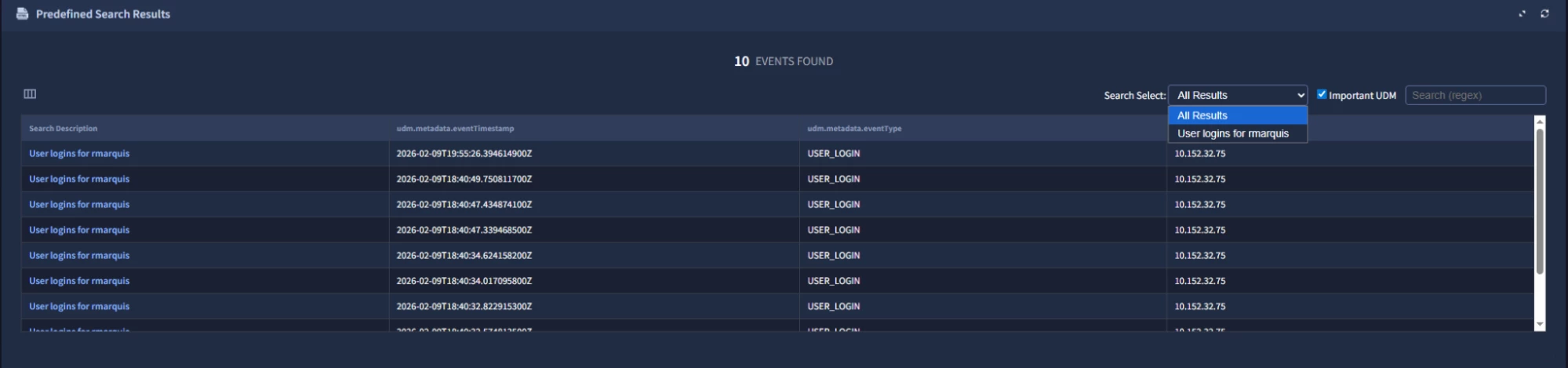
Once the searches are run, the results are presented in a unified widget. This viewer is designed to help analysts parse large volumes of data quickly without leaving the case queue.
Key Widget Features
- Important UDM Field Toggle: A "Quick Toggle" checkbox allows analysts to instantly filter the view to show only the most relevant UDM fields, stripping away noise and metadata. The specific fields are configurable in the widget code.
- Regex Search: The widget supports Regular Expression (regex) searching, allowing analysts to find specific patterns (like IP subnets or specific error codes) within the returned search results.
- Field Selector: Analysts can customize their view by selecting specific columns to display, tailoring the table to the specific investigation needs.
- Search Select: A dropdown populated with the search “short_description” from the blocks output allowing the user to toggle between the different predefined searches that were run for the case.
Widget Example
Why This Implementation is Helpful
Implementing this workflow provides immediate ROI for the SOC:
- Reproducible Searches: It ensures that every analyst, regardless of seniority, runs the exact same containment and investigation searches for a given alert type.
- Singular Widget for Case Queue: Instead of having five different browser tabs open with different Chronicle searches, all relevant data is aggregated into a single widget within the case view.
- Efficiency and Automation: By using placeholders and Data Tables, you separate the content (the search logic) from the process (the playbook). You can add new searches to the Data Table without ever having to edit the playbook code itself.
By moving your search logic into Data Tables, you transform your playbooks from static scripts into dynamic playbooks that adapt.