
The Tools Power Up is a set of utility actions developed by Siemplify Professional Services for the Siemplify Community to assist in building advanced playbooks.
The growing list of features, called “Actions” within the Siemplify SOAR platform, allow you to perform a wide variety of tasks. In this article, we’ll be covering each in more depth.
Getting Started
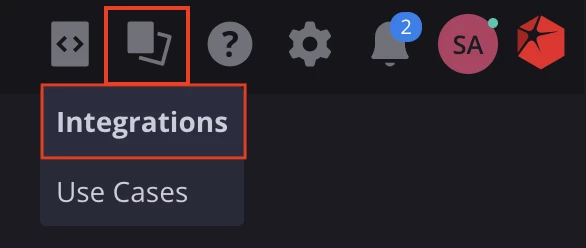
To Install the Tools integration, you’ll want to visit your Siemplify instance and click on the “Marketplace” tab and select “Integrations”.
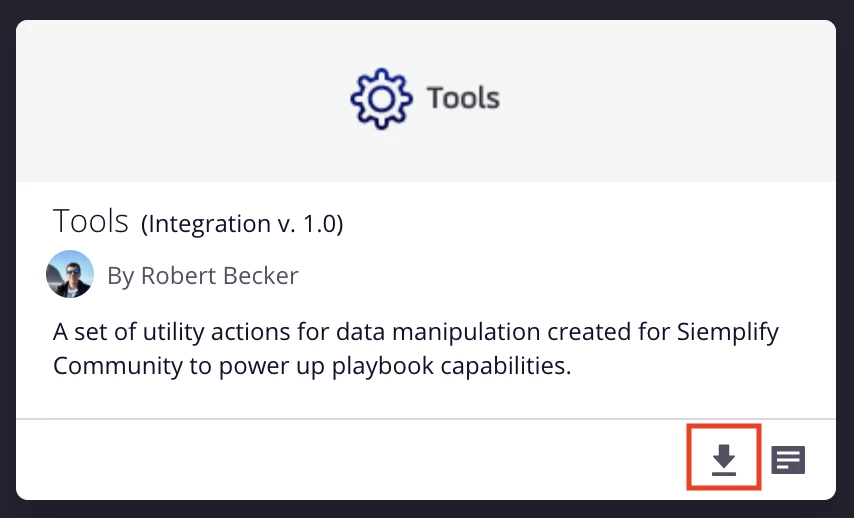
Then, in the search bar type “Tools”, locate the integration as seen below and click the install button.
Then, in the search bar type “Tools”, locate the integration as seen below and click the install button.
The Art of the Possible
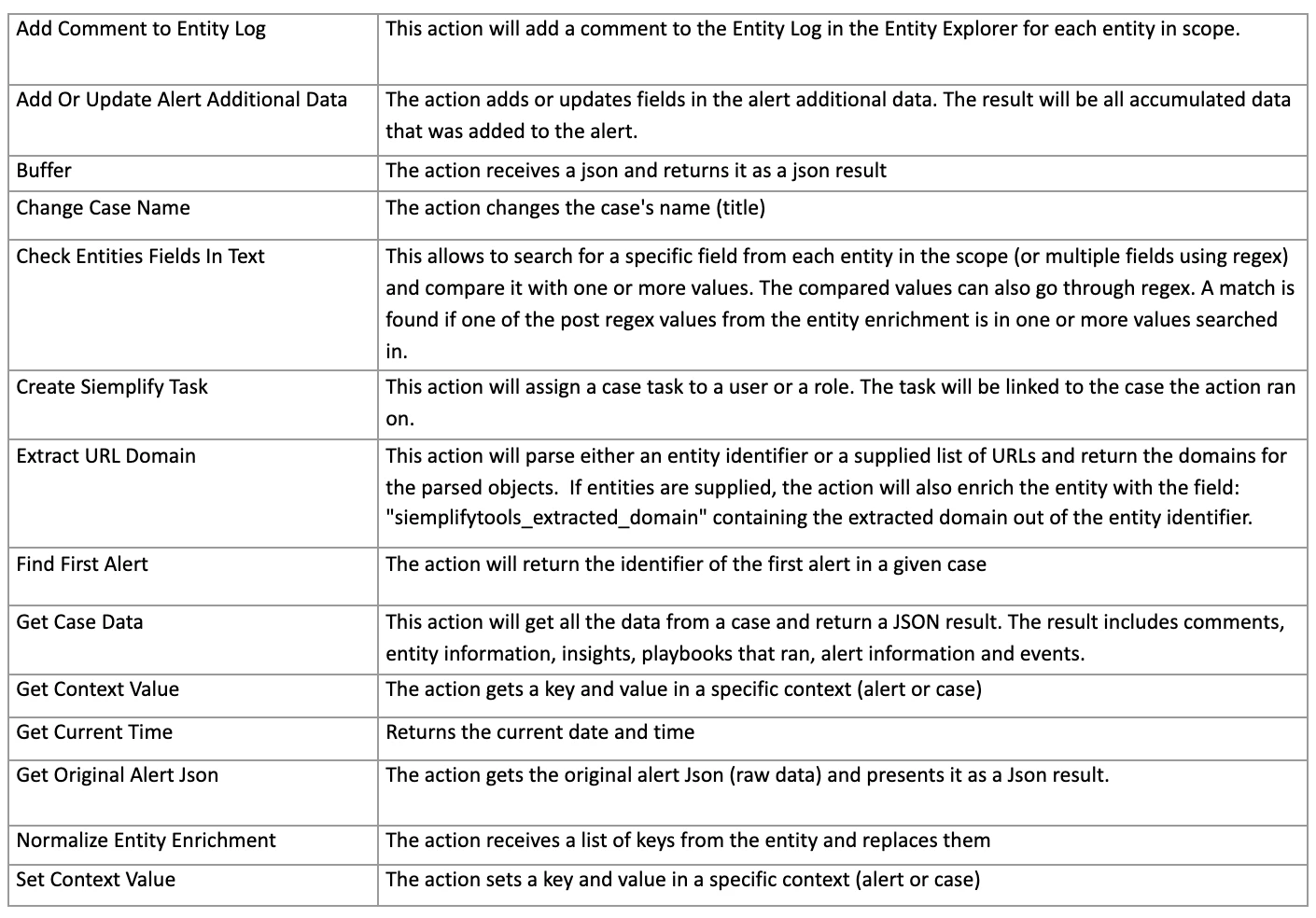
Now that we’ve installed the Tools integration, let’s discuss what you can do with it. Here are all of the actions provided in this integration:
Now that we have the full list of Actions, let’s get to know how each of these really work with some real-world examples.
Alerts
Add Or Update Alert Additional Data
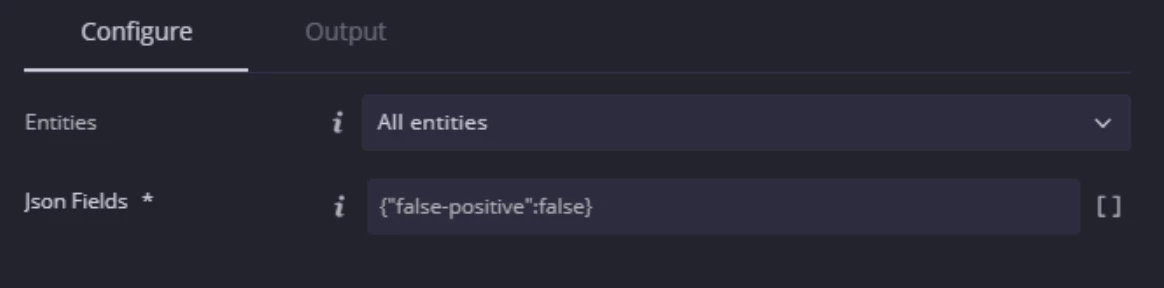
If you are ever in a situation where you’re looking to add or update enrichment information for an alert, this is the command you’ve been looking for.
Example Use:
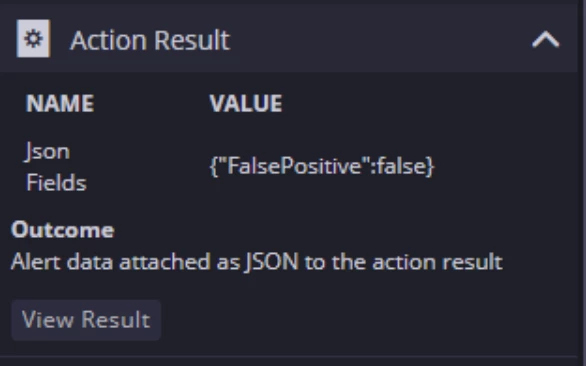
A new alert has come through Siemplify and has been attached to a case. You want to perform enrichment on the alert and assign a value of whether or not the alert was a False-Positive.
After running the command on a specific alert, you’ll see the following on the case view:
Find First Alert
The action will return the identifier of the first alert in a given case.
Example Use:
If multiple alerts are attached to a case, you may want to only grab the initial alert that triggered the case creation.
Cases
Change Case Name
The action changes the case's name (title) with a simple action.
Example Use:
You want to dynamically insert placeholders into the Action to make the case title more easily identifiable.

Get Case Data
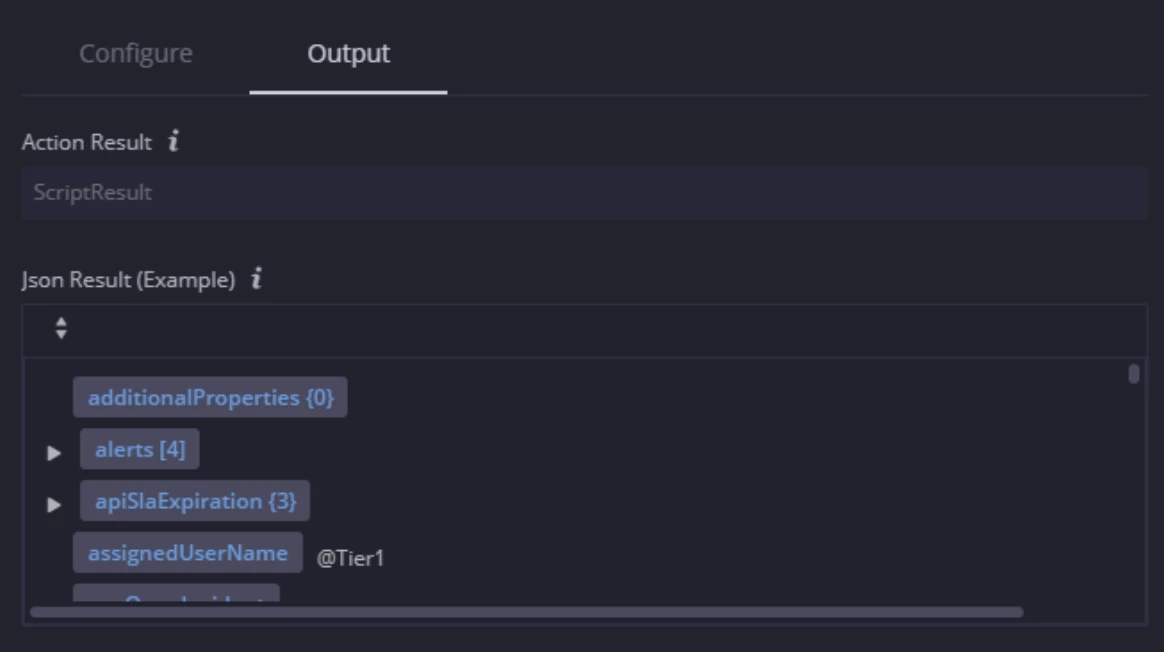
This action will get all the data from a case and return a JSON result. The result includes comments, entity information, insights, playbooks that ran, alert information and events.
Example Use:
A new case has come through and you want to export the case, alert & entity information to an external ticketing system for tracking.
The output of this action would look like the following and would also allow you to pivot accordingly in the playbook:
Additional Use Case:
We want to only output the analyst comments from a given case. We can use the expression builder to select comments from the case wall that are not created by the system.
We would use the following in the expression builder:
| wallData | filter(creatorUserId, "!=", "System") | filter(type, "=", 5)
Breaking it down, we:
- Grab the wall data
- Filter the data that is not output by the system
- Filter by a type of 5 (comment)
You’ll be presented with the following data that you can now feed into your next action!
