



Table of Contents
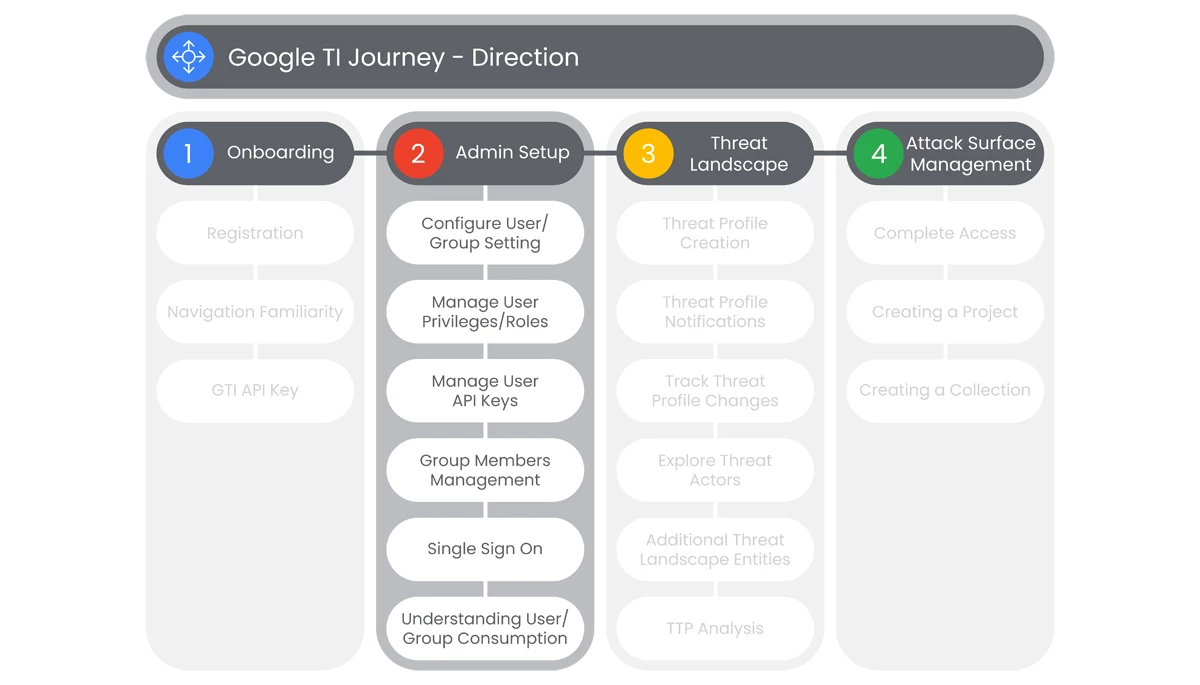
This section of Google Threat Intelligence Onboarding, will go over the Administrators’ steps in setting up accounts, configurations, management of roles, and establishing privileges.
Prerequisites
Access to the Homepage and its features, requires the user to have access, and a valid authentication. Users must be provided access and authentication from the organization’s administrator(s).
Actions

Configure User/Group Settings
Google Threat Intelligence has two types of premium users. They consist of regular users, known as “Members” and “Admins”. Administrators have additional privileges to manage their organization’s Google Threat Intelligence Group.
Prerequisites
Access to My Group Section under User Menu requires having a valid account and access.
Steps
- In the section of the User Menu, users must click My Group in the drop down menu on the top right corner.
- In the My Group section, all actions are restricted to administrators.
- Once in My Group, users can find the following information in the Group Preferences section:
- Organization
- Group ID
- Agreement Company Name
- Domain Name
- Auto Add Emails
- Administrators can only edit the following sections under the Group Preferences section:
- Organization
- Domain Name
- Auto Add Emails
- Administrators can change all five fields under the Settings tab of the My Groups page.
Relevant Documentation Links

Manage User Privileges/ Roles
Google Threat Intelligence has two types of premium users. They consist of regular users, known as “Members” and “Admins”. Administrators have additional privileges to manage their organization’s Google Threat Intelligence Group.
Prerequisites
Access to My Group Section under User Menu requires having a valid account and access.
Steps
- In the section of the User Menu, users must click My Group in the drop down menu on the top right corner.
- In the Users tab, under the Group Members section users can see the entire list of group members.
- Additionally, in the Group Members section, users can search for members from the Search Query bar.
- To the right of the Search Query bar, shown members can be filtered by security settings in the All Security Settings dropdown menu which provides three filtering options:
- All Security Settings
- 2FA Active
- 2FA Inactive
- Next to this filtering option is another dropdown menu with other two filtering options:
- All Member
- Group Admins
- If a user’s role needs to be changed, Admins can go to the User sub-section in the Group Members section. Admins can edit a user’s role (Group role) by clicking on its current role and selecting the appropriate one between Member and Admin.
Relevant Documentation Links

Manage User API Keys
Google Threat Intelligence API Notions on the web interface. There Admins can see a set of API v3 endpoints designed to automate most administrative tasks.
Prerequisites
- Access to Users and Groups Administration documentation.
- Usage requires authentication/authorization through the admin's API key.
Steps
- In the User Menu, users can select API Key from the drop down menu.
- In the API Key menu, users will see their API Key blurred at the top section titled Google Threat Intelligence Key. Users can select to:
- Show API Key
- Copy to Clipboard
- Here users can access their API Key and select many integrations, tests, and scripts for allowances, in the section titled API Quota Allowances For Your User, displayed to the right of the Group Allowances:
- API Reference
- Python Client
- Golang Library
- Command-line Interface
- Go Premium
- Use in Browser
- Discovery Feeds
- Other Services
- Additionally, there is an option for upgrading users’ API, by selecting Upgrade API.
Relevant Documentation Links
- All Steps: https://gtidocs.virustotal.com/docs/admins-guide#api-notions
- Additional Documentation: https://www.virustotal.com/gui/my-apikey

Group Member Management
Google Threat Intelligence has a User and Group management section to add and edit account information.
Prerequisites
Access to My Group Section under User Menu requires having a valid account and access.
Steps
- In this section, Users and Service Accounts can be added and removed.
- To add a new service account, go to the top right of the platform page, to the User Menu, and select My Group from the drop down menu.
- In same section, Admins can see important information about their Group Accounts. These tabs include:
- Users
- Usage
- API
- Settings
- Under the Users tab, there will be a button titled Add.
- Once clicked, a dropdown menu will appear, that allows users add a User or a Service Account, dependent on the type of account admins want to add.
- For User accounts, admins must specify the user's email address and user Group Role as a common User or an Admin before saving the request.
- For Service Accounts, admins must enter and specify a name for the Service Account.
- Once a user or service account name is entered, select Save.
Relevant Documentation Links
- All Steps: https://gtidocs.virustotal.com/docs/admins-guide#121-adding-new-user-to-an-existing-google-threat-intelligence-group
- Additional Documentation: https://gtidocs.virustotal.com/docs/admins-guide#131-adding-a-new-service-account-to-an-existing-google-threat-intelligence-group

Single Sign On
Administrators need to be able to configure the Identity Provider for the Single Sign-on (SSO).
Prerequisites
- Access to My Group Section under User Menu requires having a valid account and access.
- Google Threat Intelligence currently supports SSO authentication with the following services: (Google, GitHub, Twitter, Microsoft)
Steps
- Under User Menu, select My Group from the drop down menu.
- Select the Settings tab, on the page.
- In the sections below in the Single Sign-on section.
- Here admins can select an Identity Provider from the drop down menu.
- The options available are:
- *google.com
- *github.com
- *twitter.com
- *microsoft.com
- Other (SAML)
- For configuring SAML administrators, additional documentation can be found at:
https://gtidocs.virustotal.com/docs/saml-okta
https://gtidocs.virustotal.com/docs/saml-ping
Relevant Documentation Links
- All Steps: https://gtidocs.virustotal.com/docs/admins-guide#222-single-sign-on---sso
- Additional Documentation: https://gtidocs.virustotal.com/docs/saml-okta\\
- Additional Documentation: https://gtidocs.virustotal.com/docs/saml-ping

Understanding User/ Group Consumption
Users of Google Threat Intelligence need to have a certain allowance based on the service that their organization subscribed to. The monthly consumption metrics is displayed so admins can keep track of both group and individual user consumption.
Prerequisites
Access to My Group Section under User Menu requires having a valid account and access.
Steps
- Under the User Menu tab, users will select My Group option from the drop down menu.
- On the My Group page, select the Usage tab.
- Directly below, the overall Group Usage of each Feature is displayed under the Usage tab, as Consumption Current Month.
- Here, users can observe several sections that breakdown the Group Usage by Feature. These sections are broken down into:
- Searches
- Downloads
- LiveHunt Rules
- RetroHunt Rules
- Diff (Threat Differentials)
- Private Scanning Files
- Private Scanning URLs
- Below the Consumption Current Month, users of a Group can see the Consumption by User based on the usage of each Feature, by individual users.
Relevant Documentation Links
Next Step: Google Threat Intelligence: Step 1.3 - Direction | Threat Landscape
Previous Step: Google Threat Intelligence: Step 1.1 - Direction | Onboarding
