



Table of Contents
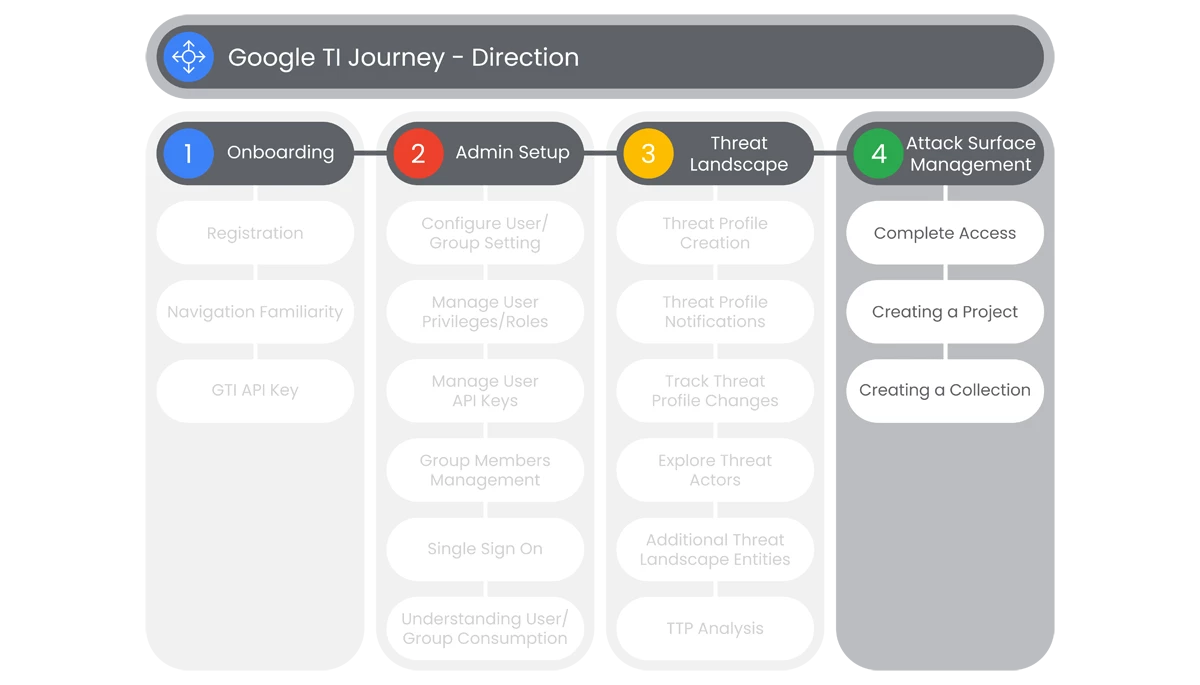
This section of Google Threat Intelligence Onboarding is going to cover the administration of Google TI’s Attack Surface Management. Understanding your environment is an important function of Threat Intelligence, so your organization can identify risks in the environment caused by potential threats.
Prerequisites
Access to the Homepage and its features, requires the user to have access, and a valid authentication. Users must be provided access and authentication from the organization’s administrator(s).
Actions

Complete Access
Google Threat Intelligence’s Attack Surface Management offers a user-friendly interface with customizable reporting to help organizations understand their external attack surface and assess their external digital assets from an adversarial perspective.
Prerequisites
Access requires users have access, and a valid authentication. Users must be provided access and authentication from the organization’s administrator(s).
- On the main page of Google Threat Intelligence Platform, go to the Left Navbar to select Attack Surface Management.
- Administrators are able to access the Attack Surface Management feature.
- This is available only for administrators and from here admins can start an organization infrastructure security assessment.
Relevant Documentation Links

Creating a Project
Google Threat Intelligence’s Attack Surface Management offers a user-friendly interface with customizable reporting to help organizations understand their external attack surface and assess their external digital assets from an adversarial perspective.
Prerequisites
Access requires users have access, and a valid authentication. Users must be provided access and authentication from the organization’s administrator(s).
Steps
- On the main page of Google Threat Intelligence Platform, go to the Left Navbar to select Attack Surface Management, and chose any available option.
- Administrators are able to access the Attack Surface Management feature.
- On the top right of the screen, to the right of the Collections button, users will hover (Projects and Settings) over the dropdown button titled with the user’s organization name.
- In the drop down menu, select My Projects from the options available.
- There users will be able to start creating a new project, by selecting Create New Project.
- In the new pop up called Create Project, users will enter a name for their project and select Create.
- The project will appear under My Projects in the Dashboard.
- The new Project will be automatically selected in the Projects and Settings selection box, so users can make associated Collections.
Relevant Documentation Links

Creating a Collection
Google Threat Intelligence’s Attack Surface Management offers a user-friendly interface with customizable reporting to help organizations understand their external attack surface and assess their external digital assets from an adversarial perspective.
Prerequisites
- Access requires users have access, and a valid authentication. Users must be provided access and authentication from the organization’s administrator(s).
- Collection configuration is available for paid Attack Surface Management customers.
Steps
- On the main page of Google Threat Intelligence Platform, go to the Left Navbar to select Attack Surface Management, and chose any available option.
- Administrators are able to access the Attack Surface Management feature.
- On the top right of the screen, users will click the button titled Collections. The popup will display a Settings button. Users will select Settings.
- Users will select Create New Collection.

- User will see a new window on right side of the screen appear named Create a New Collection.
- Users can name a Collection, under the section titled Set Up Collection, in a text box named Collection Title.
- If name is left empty, a title will be auto-generated when workflow is selected.
- When users create a new Collection, users are required to select a Workflow.
- Below the Set Up Collection section, users will see a section titled Choose Scan Workflow.
- In the section Choose Scan Workflow, users will select a pre-defined Workflow template.
- Various Scan Workflow templates are provided to guide users toward the setup that best suits their needs.
- Depending on the template selected, users are prompted to supply Seeds and Integrations relevant to that selection.
- Each Workflow accepts specific Seed or Integrations types depending on the Workflow selected.
- Once a Workflow template is selected, users will select the Next button on the bottom right section on the Create a New Collection section.

- A new page will appear under the Create a New Collection page titled with the name of the selected Workflow.
- Users will be prompted to enter a Seed or Integration. User will select the Seed Type or Connect Integration from the drop-down. Users can add multiple Seeds using + Add Another.
- Users can upload a CSV file with multiple Seeds, along with capability to download a Template CSV for proper format.
- Once a Seed(s) is selected and Add Seeds is selected, users will setup Integrations, under Connect Integrations title.
- Users will have a list of possible Integrations. To select an Integration, users will click on Setup

- A pop-up will appear to redirect to set up Integrations, and select Go To Integration Page.

- Users will be asked to fill in sections, such as API Key, API Token, API Endpoint and API Secret.
- When an Integration is complete, users will be asked to click Connect and go back to the original window.
- Lastly, users will click Create Collection to save without starting a scan right away or click Create & Run Collection to initiate the first scan for this new Collection.
- Users can modify an existing Collection by selecting Settings in the Active Collections section.
* Third Party Monitoring Workflow follows a different set of steps. For more information, see the Create a Collection for Third Party Monitoring section of Third Party Monitoring Workflow.
Relevant Documentation Links
- All Steps: https://gtidocs.virustotal.com/docs/create-a-collection
- Additional Documentation: https://gtidocs.virustotal.com/docs/understanding-attack-surface-management-seeds
Next Step: Google Threat Intelligence: Step 2 - Collection Overview
Previous Step: Google Threat Intelligence: Step 1.3 - Direction | Threat Landscape