


I speak with customers daily. A challenge many security teams face isn't just finding vulnerabilities—it is mapping those vulnerabilities to compliance frameworks in a way that satisfies both internal security teams and external auditors.
The monitoring and auditing capabilities of Compliance Manager in Security Command Center can fundamentally change how you define, monitor, and enforce your cloud compliance postures.
What is Compliance Manager?
Compliance Manager is a native SCC capability that uses software-defined cloud controls to assess, monitor, and actively enforce compliance across your Google Cloud infrastructure. https://docs.cloud.google.com/security-command-center/docs/compliance-manager-overview
Instead of relying on disconnected compliance dashboards, Compliance Manager maps Security Health Analytics (SHA) detectors directly to specific regulatory requirements, allowing you to see exactly where your workloads stand in real time.
Three Operational Modes of Cloud Controls
Compliance Manager allows you to operationalize your security frameworks using three distinct modes:
- Detective Mode: Monitors your resources for violations and generates alert findings when drift is detected. This mode does not block any actions and serves as your continuous monitoring baseline.
Detective Mode - Preventive Mode Actively blocks API transactions or infrastructure changes that violate your defined cloud controls, using guardrails to prevent non-compliant infrastructure from being deployed in the first place.
Preventive Mode - Audit Mode Used specifically to audit your environment against your strict compliance obligations, serving as your single source of truth to collect evidence for external auditors.
Audit Mode
Step-by-Step: Deploying a Compliance Framework
To start monitoring your organization against a framework (such as CIS Controls 8.0 or PCI-DSS 4.0), follow this deployment path.
⚠️ IAM Best Practice (Least Privilege): To manage postures and compliance configurations, ensure your administrators are only granted the Security Posture Admin (roles/securityposture.admin) role at the Organization level. Avoid granting broad Owner or Editor primitive roles.
Step 1: Access Compliance Manager
- In the Google Cloud Console, navigate to Security Command Center > Compliance > Monitor.
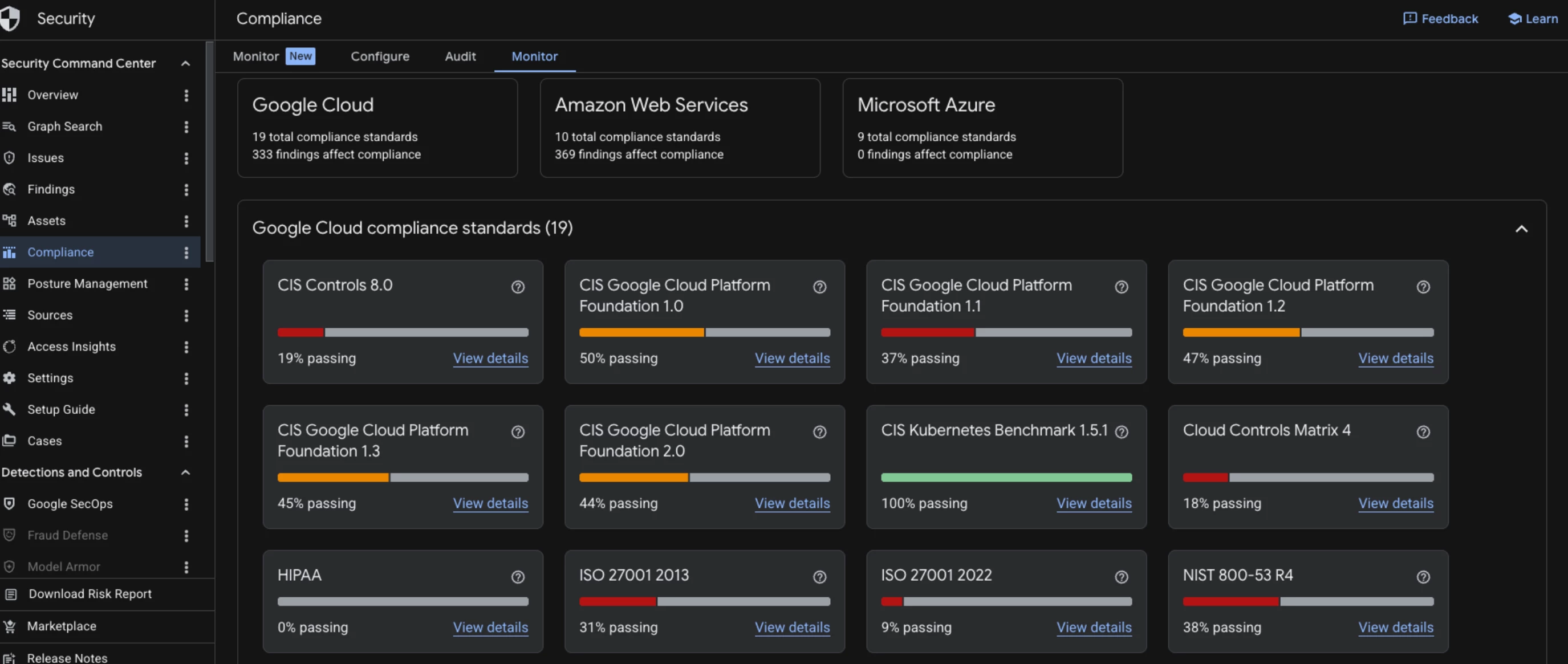
Assess compliance in Google Cloud console
- Review the pre-loaded Security Essentials framework (enabled by default for all tiers) Security Command Center > Compliance > Configure.
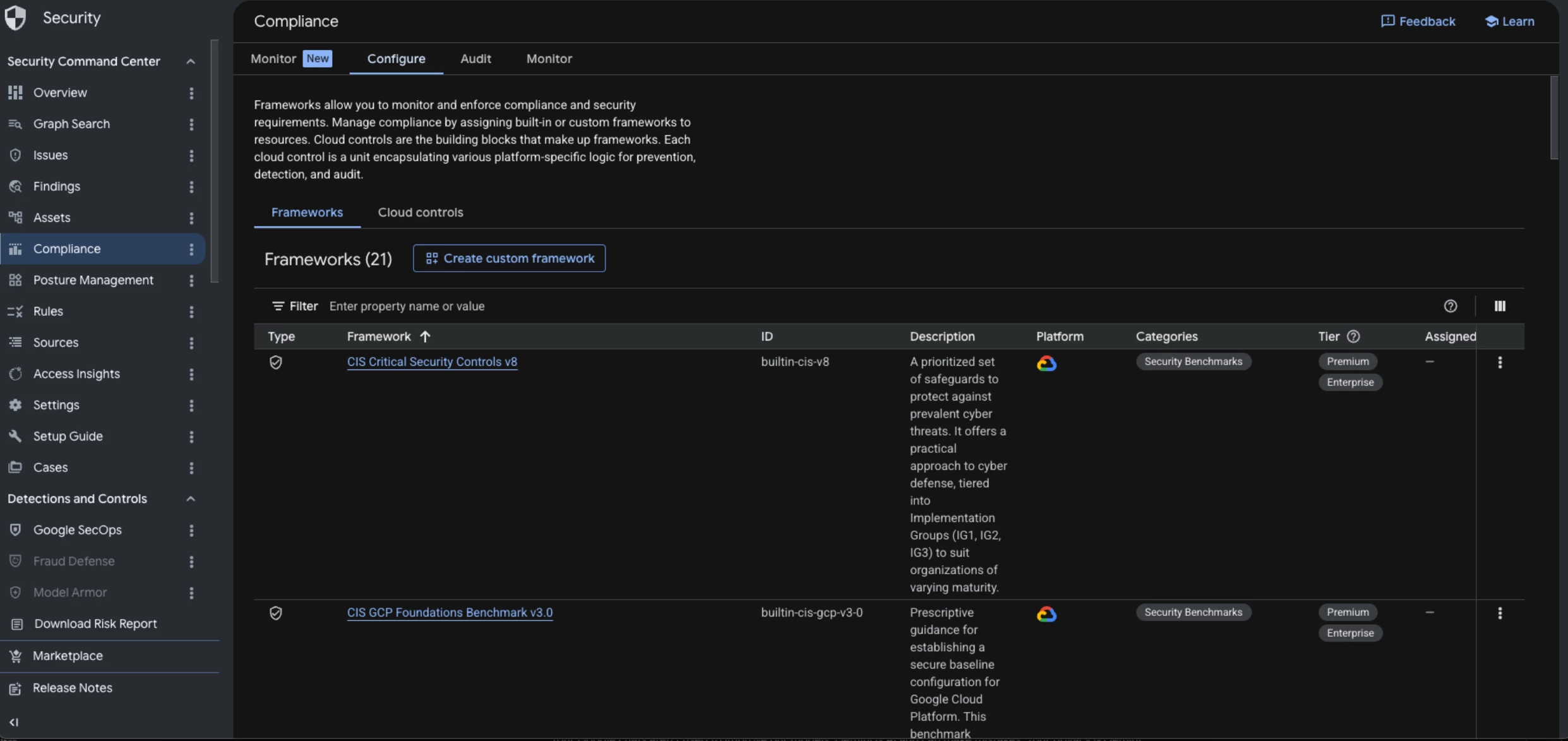
Step 2: Define and Customize Your Posture
- Navigate to the Security Posture service inside SCC Security Command Center > Posture Management > Templates
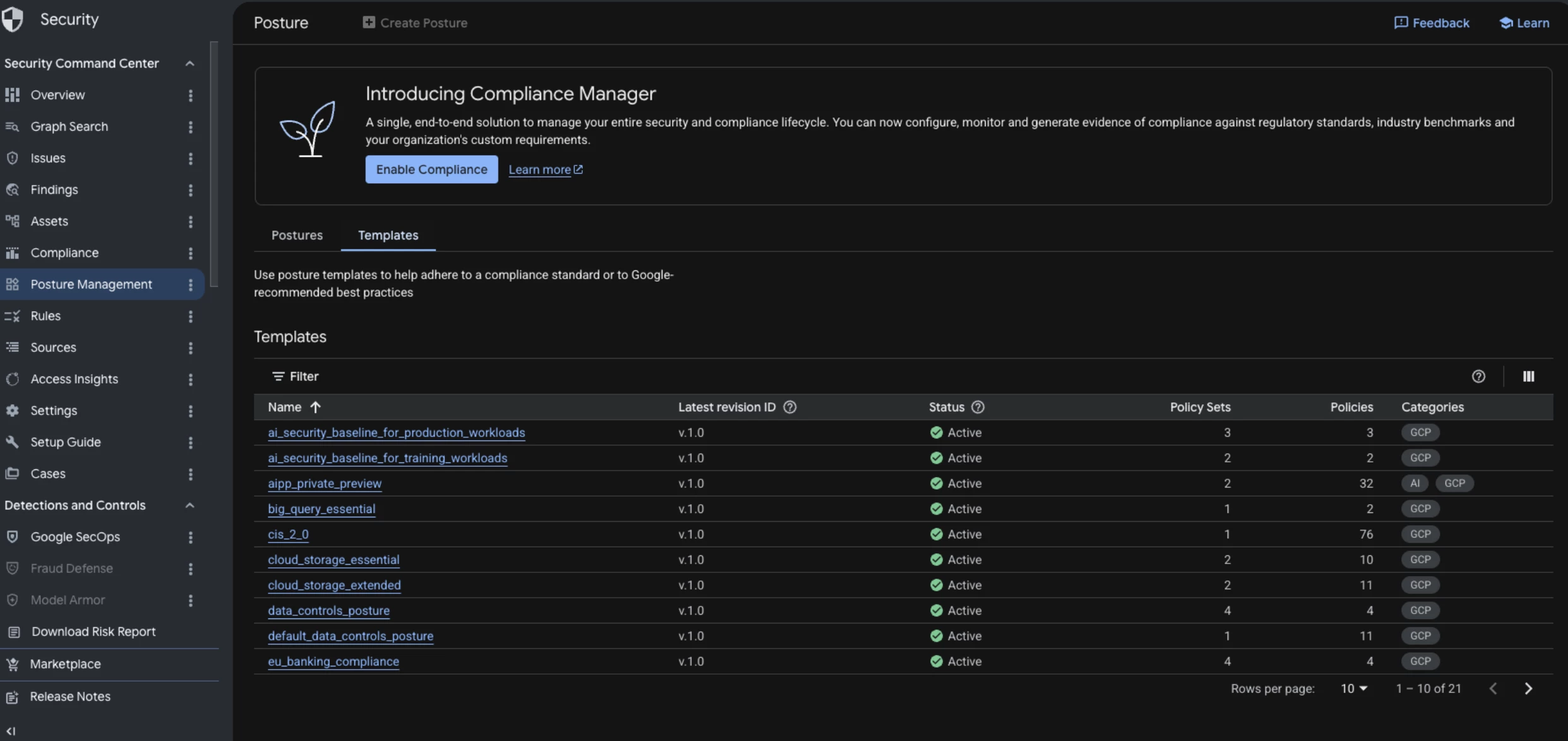
- Select Create Posture and choose to either build a custom posture or use a predefined template (such as the CIS Google Cloud Computing Foundations Benchmark)

Create a Posture - Map your chosen Compliance Manager cloud controls into your posture policy sets.
- Select the level of your resource hierarchy where you want to enforce or audit compliance (Organization, Folder, or Project). Note that child folders and projects will inherit this posture.
Step 3: Monitor and Remediate Drift
- Once a framework posture is deployed, Compliance Manager and the underlying Security Posture Service begin continuous evaluation of your cloud assets. Note: Initial findings can take approximately six hours to populate in the dashboard after a fresh posture deployment.

Monitor Posture Drift - Any configuration change that violates a control will be flagged as a Compliance Drift Finding in the SCC dashboard.
Reducing the Noise: Configuring Smart Mute Rules
We know that a common hurdle for security operations is "alert fatigue." If you have legacy systems or intentionally isolated testing environments that violate a compliance control by design, you must manage these findings efficiently to focus on real risks.
If both Security Health Analytics (SHA) and Compliance Manager evaluate the same resource, duplicate findings with different provider IDs can occur. To keep dashboards clean and maintain reliable audit tracking, you should write specific Mute Rules to programmatically silence these duplicate or expected findings:
Technical Step: Creating a Compliance Mute Rule
- Go to the Findings page in SCC.
- Filter the findings to isolate the compliance false positive. For example:
category="AUDIT_LOGS_NOT_ENABLED" AND resource.project_ids = "my-test-sandbox-123" - Click Create Mute Rule.
- Define the mute rule:
- Scope: Select whether the rule applies at the organization, folder, or project level.
- Condition: Use Common Expression Language (CEL) to target the exact resource and compliance category:
Common Expression Language (CEL) - Mute State: Select Muted (retains the finding for auditing but hides it from active dashboards).
Using CEL-based mute rules ensures your compliance scores remain accurate for production environments while keeping sandbox noise out of your analyst queues.
Official Documentation Reference List
Here are the direct, updated URLs to share with customers or technical teams looking to implement these capabilities:
- Compliance Manager Overview
https://docs.cloud.google.com/security-command-center/docs/compliance-manager-overview - Compliance Manager Cloud Controls Reference
https://docs.cloud.google.com/security-command-center/docs/compliance-manager-cloud-controls - Security Posture Service Overview
https://docs.cloud.google.com/security-command-center/docs/security-posture-overview - Assess Compliance in SCC
https://docs.cloud.google.com/security-command-center/docs/compliance-management - Security Command Center Primary Documentation Portal
https://docs.cloud.google.com/security-command-center/docs
