



Author: Vasken Houdoverdov
Introduction
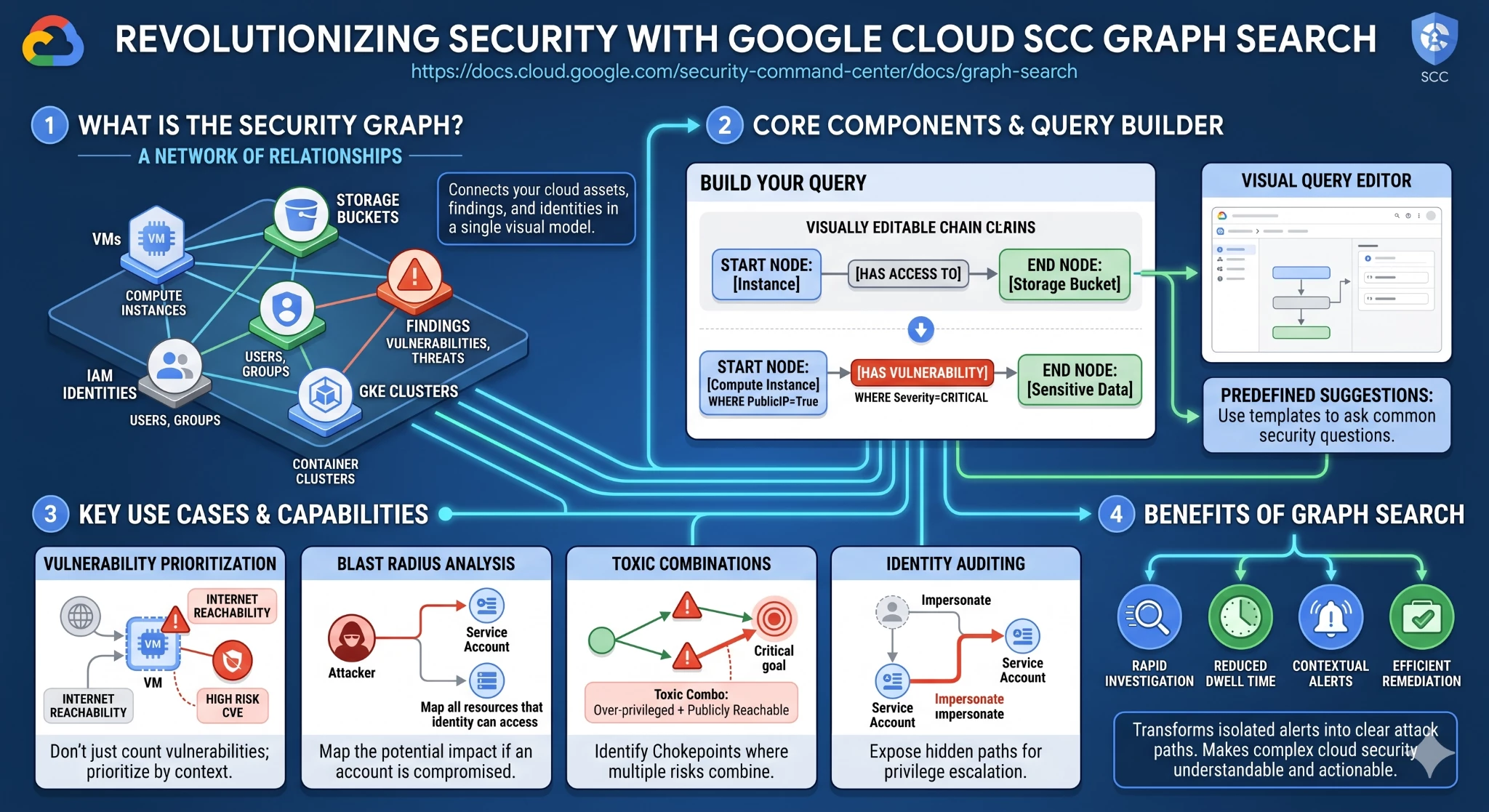
Graph Search is a powerful new capability introduced in Security Command Center (SCC) that fundamentally changes how security teams discover and investigate high-risk issues in Google Cloud. It allows you to explore the security graph—a relationship-aware database that continuously maps your cloud resources, their configurations, and associated risk indicators such as vulnerabilities, access permissions, data sensitivity, and network exposure.
Instead of looking at isolated alerts, Graph Search allows you to discover risks using natural-language queries. You can quickly ask and answer complex questions such as:
"Which external identities have access to sensitive data?"
"Where do IAM misconfigurations create lateral movement risk?"
This adoption guide will provide a deep dive into understanding query components, building advanced custom queries, utilizing predefined rules, and troubleshooting your results.
Note: Graph Search is available for organization-level activations of Security Command Center at either Premium Tier or Enterprise Tier. To use Graph Search, you need a role like Security Center Admin Viewer at the organization level. To remediate findings at the organization level or perform other administrative actions in SCC, you may need other privileges, like those found in the Security Center Admin role at the organization level.
Understanding Query Components
To effectively pinpoint potential security concerns, you need to understand the building blocks of a Graph Search query. Security graph queries consist of three main components:
1. Node A node represents the core subject of your investigation: either a specific cloud resource or a security finding. Nodes are organized logically by categories such as Compute, Kubernetes, Identity, and Databases. Some common examples of nodes include:
-
CVE Vulnerability: A Common Vulnerabilities and Exposures vulnerability (defined by MITRE).
-
Virtual Machine (GCE): A Compute Engine instance.
-
GKE Deployment: A Google Kubernetes Engine resource.
-
IAM Service Account: An Identity and Access Management service account.
-
BigQuery Dataset: A dataset within BigQuery.
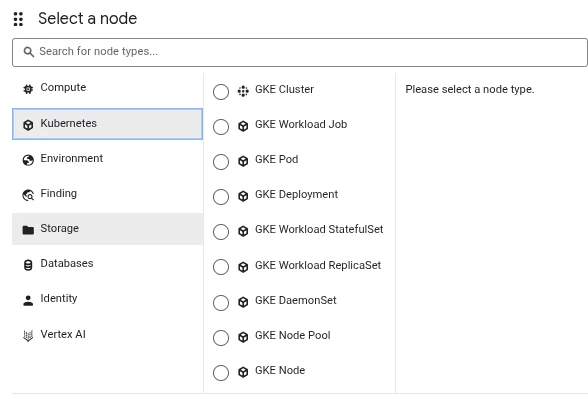
A selection of available nodes in Graph Search related to Kubernetes.
2. Where clause (filter) A where clause is a context-aware filter applied to a specific node to refine your search based on that node's properties. The interface will dynamically show you only the filters that are relevant to the selected node type. Examples of filters include:
-
Severity = Critical (useful for filtering CVE nodes)
-
Has Full API Access = True (useful for identifying over-privileged nodes)
-
Exploitation Activity = Confirmed (identifies vulnerabilities currently being exploited in the wild)
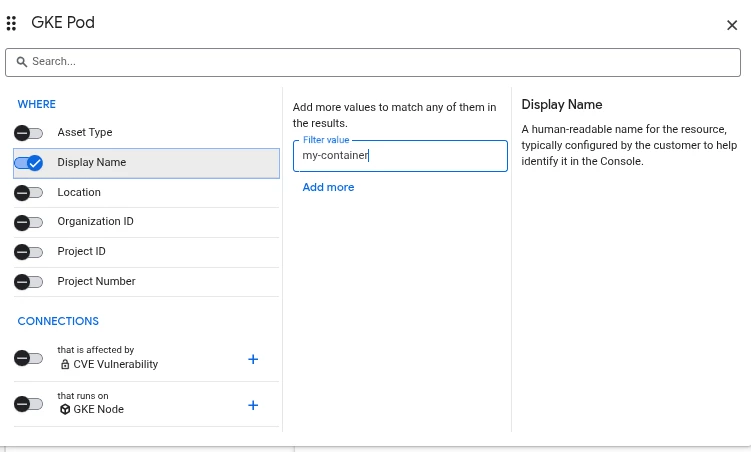
A selection of available options for the where clause in Graph Search.
3. Connection A connection defines the directional relationship between two different nodes. Like filters, connections are context-aware, meaning the query editor will only show valid relationships for the specific node type you have selected.
Note that populating the value for a Connection takes place after adding the connection to the graph search. This is done by clicking the “add” icon (the ‘plus’ sign) next to the connection after adding it to the graph search.
Examples of connections include:
-
that is affected by: Links a finding to a resource, such as a CVE Vulnerability that affects a Virtual Machine (GCE).
-
that uses: Links resources together, such as a Virtual Machine (GCE) that uses an IAM Service Account.
-
that hosts: Used for identifying nodes hosted in a GKE cluster.
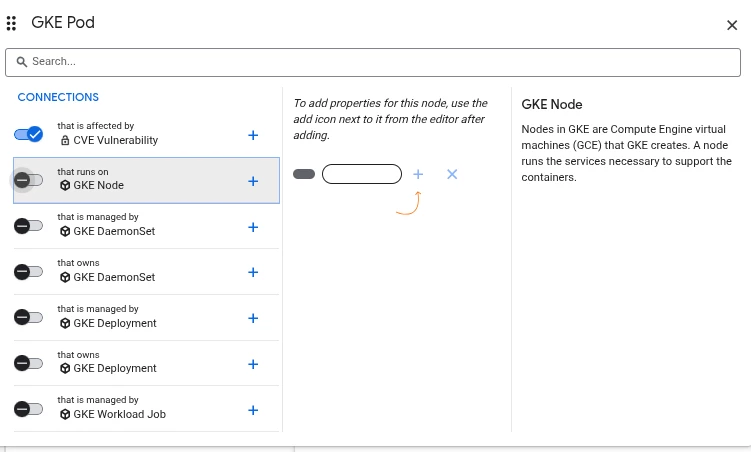
A selection of available connections in Graph Search. These connections represent relationships between nodes.
Step-by-Step: How to Build Custom Queries
Building a query allows you to explore your environment based on the specific security criteria that matter most to your organization. You can begin by either modifying a predefined search suggestion or starting entirely from scratch to build a custom query.
To create a custom query in the Google Cloud console:
-
Navigate to the Security Command Center Graph search page.
-
In the Show field, click Add to select a resource or finding as your primary node, then click Continue.
-
Refine your node: Click the Where toggle for a specific property. In the Filter value field, enter or select the value that the property must contain (e.g., setting a severity level).
-
Link nodes: Click the toggle next to a valid connection type (like that affects or that uses) to establish a relationship with a second node.
-
To further customize, you can click Add next to a node or connection to introduce new components, or click Close to remove a component.
-
Click Run query to execute the search and update your results.
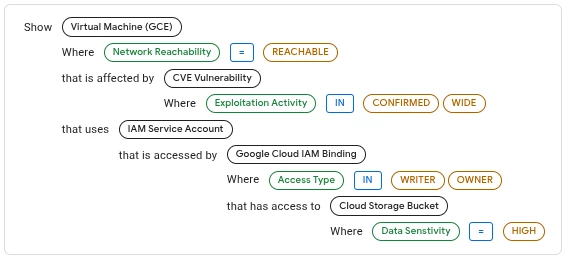
The Graph Search for “Externally Reachable VMs with Exploitable CVEs and access to Sensitive GCS Buckets”
Leveraging Predefined Security Graph Rules
In addition to manual Graph Search queries, Security Command Center continuously evaluates the security graph against predefined rules to automatically generate an "Issue" when a relationship risk is discovered.
These predefined rules automatically look for toxic combinations of vulnerabilities, external exposure, and identity misconfigurations. Notable examples of predefined rules include:
-
External Exposure & Critical CVEs: Rules instantly flag externally exposed GCE Instances or GKE Workloads with high-risk CVEs where an exploit is available. This includes specific rules for actively exploited vulnerabilities like CVE-2025-49844 in Redis, CVE-2025-32433 in Erlang SSH, CVE-2023-46604 in Apache ActiveMQ, and CVE-2025-59287 in Windows WSUS.
-
Identity Impersonation: SCC flags Compute Engine instances or GKE Node Pools that have a high-risk CVE and the ability to impersonate a service account (SA) that has access to high-value resources or sensitive data.
-
AI Workload Risks: Rules protect AI infrastruture by identifying Vertex AI Workbench instances with high-risk CVEs, particularly those using over-privileged service accounts, which could lead to the exfiltration of training data and model source code.
-
Key Misconfigurations: SCC identifies service accounts using unrotated, long-lived keys, or user-managed keys that have excessive permissions, which dramatically increases the risk of credential compromise and privilege escalation.
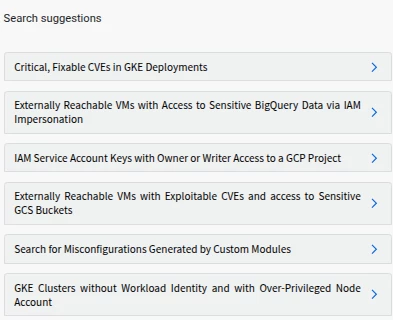
A selection of predefined Graph Search queries
Analyzing Results and Troubleshooting
Once your query executes, you can review the results in a table, customize the view by selecting specific columns, and sort the data. If you need to perform offline analysis or share findings with other teams, you can export your query results as a CSV file (limited to up to 1,000 rows).
If your custom query returns no results, use the following troubleshooting checklist:
-
Simplify your query: Avoid combining too many constraints, which can unintentionally exclude results. Try removing or reducing filters to broaden your search scope, or query a single asset type to validate that data is flowing.
-
Test with a predefined suggestion: Try running one of the predefined search suggestions provided in the console. These are designed to return results in a variety of environments and can help validate that your graph is populated.
-
Allow time for data sync: If you recently deployed new resources or updated IAM policies, it can take a few minutes or even hours for those changes to populate in the security graph.
-
Verify access permissions: Ensure you have the necessary IAM permissions to view the data you are querying. Without the correct access, specific assets and their relationships will be hidden or excluded from your results.
-
Check graph coverage: Depending on your environment, certain data types or relationships might not be supported or available in the security graph.
Adoption Tip: The "Build-Up" Strategy
To ensure adoption success, start with one of the Predefined Suggestions and verify that it returns data. Then, incrementally add filters or connections one by one. This makes it easier to identify exactly why a query isn’t returning results.
Troubleshooting Empty Graph Search Results
During your initial usage of Graph Search, you might encounter empty results due to the underlying query being specified. You can use the below guidance for navigating queries that return no results in Graph Search.
When a query returns no results, follow these four diagnostic steps to identify the cause:
1. Query Optimization (Scope & Complexity)
Often, "No Results" is the result of an overly specific or misconfigured query.
-
Simplify the Query: Remove or reduce "Where" filters to broaden the scope.
-
Validate Single Properties: Test the query by looking for a single asset type or a specific property known to exist (e.g., a specific VM name) to confirm the data is reachable.
-
Avoid Constraint Overload: Combining too many directional connections (e.g., "Resource X -> affects -> Finding Y") can unintentionally exclude valid results if the specific relationship path isn't perfectly matched.
2. Access & Permissions
Graph Search respects IAM boundaries. If you cannot see an asset, it won't appear in the graph.
-
Verify IAM Roles: Ensure you have the roles/securitycenter.adminViewer or roles/securitycenter.adminEditor roles.
-
Resource Visibility: Permissions must be granted at the appropriate level (Organization, Folder, or Project). If a user only has Project-level access, they will not see cross-project relationships in the graph.
3. Data Synchronization Latency
The Security Graph is not always "real-time" for brand-new changes.
-
Sync Window: Recently created resources or updated IAM policies may take minutes to several hours to appear in the graph database.
-
Wait and Retry: If you have just performed a remediation or deployed a new resource, allow time for the SCC backend to crawl and index the change.
4. Graph Coverage Limitations
Not every Google Cloud resource or relationship is currently indexed in the security graph.
-
Supported Types: If data is missing, check if that specific resource type or relationship (connection) is supported by SCC Graph Search.
-
Predefined Suggestions: Use a "Predefined Search Suggestion" (provided in the UI) as a baseline. If a predefined suggestion for a similar resource works but your custom query doesn't, the issue is likely in your query logic.
Exporting Results to Other Tools
To operationalize your findings, Graph Search provides export functionality to bridge the gap between discovery and remediation.
You can utilize the CSV export (limited to 1,000 rows) to pipe results into an external SIEM or other technology for long-term historical analysis. Furthermore, these results can be ingested by a SOAR platform to trigger automated remediation actions, such as automatically revoking an external IP address from a vulnerable VM or stripping an over-privileged role from a compromised service account.
Putting it to Use: Prioritizing the React Vulnerability
To understand the power of Graph Search, let's look at a critical, real-world scenario. Your organization needs to identify its exposure to the React vulnerability, CVE-2025-55182, which carries a CVSS score of 10 and is actively being exploited in the wild.
While simply finding the vulnerability is powered by the agentless scans of the Vulnerability Assessment for Google Cloud feature, determining what to patch first requires context. You can use reachability context in Graph Search to prioritize remediation, focusing on workloads that are both vulnerable and externally reachable.
In SCC, network exposure from the public internet is determined by two reachability statuses:
-
Reachable: The resource is fully accessible from the public internet.
-
Partially reachable: The resource is reachable from a subset of public IP ranges (even if other ranges are explicitly blocked).
Using Graph Search, you can build a query connecting a CVE Vulnerability node to a Virtual Machine (GCE) or GKE Deployment node, filtering for the specific React CVE, and filtering the resource node for external reachability.
Temporary Mitigations: If your query reveals exposed assets but immediate vendor patching is not possible, Graph Search has successfully identified the workloads where you must apply temporary workarounds. These include removing external reachability by configuring the instance to use only a Private IP, or creating a Google Cloud Armor WAF security policy to block exploitation attempts.
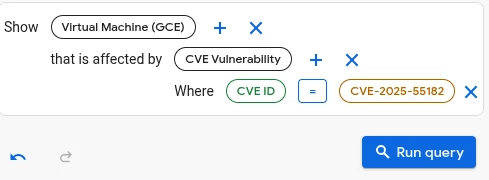
The Graph Search for virtual machines affected by CVE-2025-55182 (React2Shell)
Putting it to Use: Prioritizing Supply Chain and Runtime Identity Risk
-
Scenario: You need to prioritize GKE workloads that are both running vulnerable code and have access to high-value resources due to an over-privileged service account.
-
Query Focus: CVE Vulnerability (Node, filtered for a critical score) that affects a GKE Deployment (Node, filtered for external reachability) that uses an IAM Service Account (Node, filtered for excessive permissions like Has Full API Access = True).
-
Value: It targets the worst-case scenario: an externally exposed GKE cluster, running a high-risk CVE, where the associated service account can be immediately leveraged for lateral movement or data exfiltration if compromised.
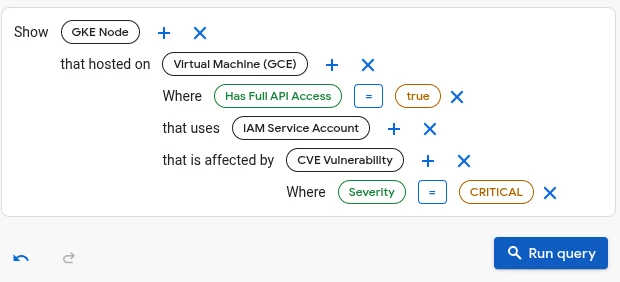
A sample Graph Search configuration for this use case.
Putting it to Use: Mapping Data Exfiltration Risk from Key Compromise
-
Scenario: An analyst wants to find the highest-risk data assets (Cloud Storage Buckets, BigQuery Datasets) that could be compromised if an unrotated, long-lived service account key is leaked.
-
Query Focus: Key Misconfiguration Finding (Node, filtered for unrotated user-managed keys) that affects an IAM Service Account (Node) that has access to a Cloud Storage Bucket (Node, filtered by label/tag for Sensitive Data).
-
Value: This directly maps identity hygiene issues to data security, providing a clear, business-critical justification for immediate key rotation and remediation.
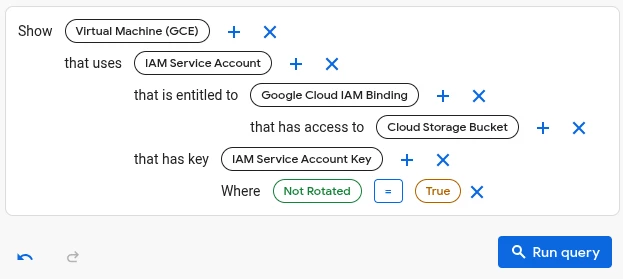
A sample Graph Search configuration for this use case.
Putting it to Use: Hunting for Shadow Admins
-
Scenario: You can hunt for service accounts with excessive permissions that are not actively used by building a query that focuses solely on the IAM Service Account (SA) node:
-
Query Focus: An IAM Service Account (Node) that has Has Full API Access = True (Filter), or that holds a highly privileged role (e.g., roles/owner or roles/iam.serviceAccountAdmin).
-
Goal: This query identifies "shadow admins"—Service Accounts that possess powerful permissions but may be overlooked in regular reviews, presenting a critical target for attackers seeking to escalate privileges.
-
Value: Identity and Access Management (IAM) is a complex area in cloud security. While predefined rules cover common issues like Identity Impersonation and Key Misconfigurations, custom queries are essential for hunting high-risk, non-standard configurations like "shadow admins."
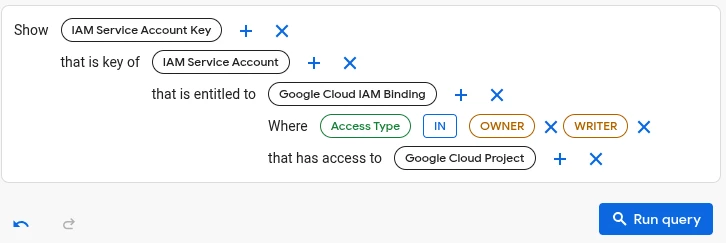
A sample Graph Search configuration for this use case.
Conclusion
Graph Search dramatically transforms how security teams investigate cloud environments. By moving beyond isolated alerts and allowing you to explicitly query the relationships between vulnerabilities, identities, and externally exposed resources, SCC helps you pinpoint and act on the most critical risks in Google Cloud.
With the deep dive information in this adoption guide, you are fully equipped to start building custom graph queries, understanding reachability contexts, and prioritizing your remediation efforts effectively!
