


Table of Contents
Below you'll find a table of contents for the Deployment journey.
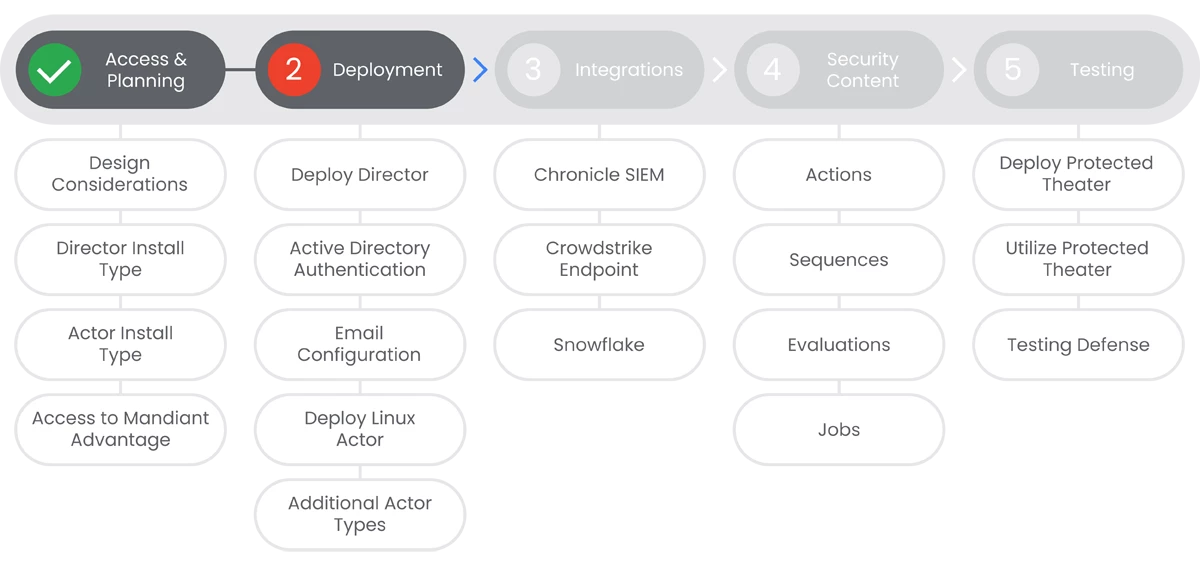
Deploying Mandiant Security Validation (MSV) is a multi-step process that involves deploying the Director and Actors, and finally, configuring the Actors. In this section, we will walk you through the deployment process for the Director and Actors.
Prerequisites
- Entitlement to Mandiant Security Validation.
- Access to Mandiant Advantage.
- Performed Access & Planning steps.
Actions


Active Directory Authentication
You can configure the Security Validation Director to authenticate users against an Active Directory server. This allows you to use your existing Active Directory users and groups to manage access to the Director.
Prerequisites
See the Relevant Links section for more documentation regarding the prerequisites.
- Entitlement to Mandiant Security Validation.
- Access to Mandiant Advantage.
- Successfully deployed the Director.
- Administrative access to Active Directory.
- Network connectivity between the Director and Active Directory
Steps
-
In the Director console, navigate to Settings > User Settings. Select Authentication, then Active Directory + Google Authenticator.
-
Fill out the required fields, including AD Server - Address, AD Server - Port, AD Server - Encryption, and AD Server - Local User.
-
If you would like to sync User Groups from Active Directory and map them to Groups in MSV Directory, select True for Enable Active Directory User Group Sync.
-
In order to automatically add new users who match group mapping from AD to MSV on first login, select True for Auto Add New Users.
-
Enter the Active Directory Username. This account should have read access to AD to query users and groups. This is commonly referred to as a bind account.
-
Enter the Active Directory Password for the account entered in step 5.
-
Enter the Active Directory Tree Root. Set the highest common level in the AD tree where users and groups are needed for MSV AD Authentication.
-
Click Update Authentication Settings.
Relevant Links

Email Configuration
Alert emails are sent from MSV utilizing system email. It is recommended to utilize a dedicated email account to send alerts from MSV.
Prerequisites
See the Relevant Links section for more documentation regarding the prerequisites.
- Administrative access to MSV Director.
- Credentials for email account to send alerts from.
Steps
-
In MSV Director Console, navigate to Settings > Director Settings. Select Email.
-
Fill out the email settings for with the details relative to your email configuration. | Docs
-
Follow the linked documentation for more information about settings for common email providers. | Docs
-
Click Update Email Settings.
Relevant Links
- All Steps: https://docs.mandiant.com/home/msv-email-settings
- 2: https://docs.mandiant.com/home/msv-email-settings-for-common-email-providers

Deploy Linux Actor
One of the most common Actor types is the Linux Actor. In this section, we will walk you through the steps of deploying a Linux Actor utilizing the Virtual Appliance.
Prerequisites
See the Relevant Links section for more documentation regarding the prerequisites.
- Administrative access to MSV Director.
- Appropriate OVA deployment access in virtualization environment.
- Network connectivity between MSV Director and Actors. | Docs
Steps
-
-
Complete the pre-installation checklist and ensure you have the necessary system requirements. | Docs
-
Download the OVA from Mandiant Advantage. | Docs
-
Deploy the OVA into your virtualization environment, or install from a tar.gz file.
-
Add the Actor to the Director by following the steps in the linked documentation. | Docs
-
Relevant Links
- Network Communication Requirements: https://docs.mandiant.com/home/msv-network-comm-req
- 1: https://docs.mandiant.com/home/msv-actor-before-you-begin
- 2-3: https://docs.mandiant.com/home/msv-actor-installers
- 4: https://docs.mandiant.com/home/msv-linux-actor-installation#ova-interactive-

Additional Actors
Mandiant Security Validation has a wide variety of Actors to esnure that you're able to deploy the right Actor for your environment. In this section, we will point you to the documentation for the MacOS, Windows, and Cloud Actors.
Prerequisites
See the Relevant Links section for more documentation regarding the prerequisites.
- Administrative access to MSV Director.
- Administrative access to the platform for which you are deploying the Actor(s).
Steps
-
In order to properly deploy the MacOS Actor, please follow the linked documentation below. | Docs
-
In order to properly deploy the Window Actor, please follow the linked documentation below. | Docs
-
In order to configure the AWS Actor, please follow the linked documentation below. | Docs
Relevant Links
- 1: https://docs.mandiant.com/home/mac-actor-installation#easy
- 2: https://docs.mandiant.com/home/msv-windows-actor-installation#easy
- 3: https://docs.mandiant.com/home/configuration-for-actors-in-the-cloud
Next Step: Mandiant Security Validation: Step 3 - Integrations
Previous Step: Mandiant Security Validation: Step 1 - Access & Planning
