




Back in December 2025, I wrote a blog titled This Charming Span - Bucketing Events in Time Windows. In it, I discussed how to add time windowing into a windowed stage of a multi-stage search but mentioned that time windowing probably merits its own blog post. Today is the day that we attempt to tackle the different windowing options that Google Security Operations (SecOps) can provide an analyst.
Windowing Types
Let’s start with the basics. There are three window types supported with Google SecOps; hop, sliding and tumbling. If you are a long time reader of this blog, you may have already read a bit about hop and sliding in the context of rules. That foundation is helpful, but not mandatory. The examples we will use in this blog will center around search and dashboard charts, because a search can easily be used to create a visualization.
For all three window types, additional fields are created at search time that provide time boundaries, named window_start and window_end. These values can be used within the condition, order and outcome sections of the search. We will use these in our examples to more easily visualize the time windows.
Tumbling Window
The first window we will cover is the tumbling window. This is probably the simplest because tumbling windows have a fixed duration and are not overlapping, that is an event can only exist within a single tumbling window.
The keyword that denotes a tumbling window is by and is used in the match section of a search. Depending on the query, the match section can accept UDM field names or a placeholder variable, like this.
match:
  target.user.userid by 5m
match:
  $user by 5m
In the following example, we are going to generate a count of the number of times Jeff Armstrong generated a user login event on the system activedir.stackedpads.local. The example events are actually part of a password spray that is occurring every minute for a period of time and then cease. The time range for the entire search is across a day, but with the tumbling window set to 5 minutes, the events will be placed into 5 minute time buckets.
metadata.event_type = "USER_LOGIN"
target.hostname = "activedir.stackedpads.local"
target.user.userid = "jeff.armstrong"
target.user.userid = $user
match:
  $user by 5m
outcome:
  $count = count(metadata.id)
  $start_time = window_start
  $end_time = window_end
order:
  $start_time asc
Within the outcome section of the search, we are generating a count of the number of events within each 5 minute bucket and by leveraging the reserved keywords of window_start and window_end, we can also output the start and end time of each bucket. Notice that these are timestamp values and do not require aggregation functions like count, array or sum.
The other important item to call out is that in the results below, there are fields called time_bucket and time_bucket_end. When using tumbling windows in a search without the window_start and window_end keywords, the time_bucket column will appear, but we can’t use it for sorting or other actions. My advice is to add the window_start and/or window_end as outcome variables to the search and then use these fields for sorting and other search tuning as you see fit.
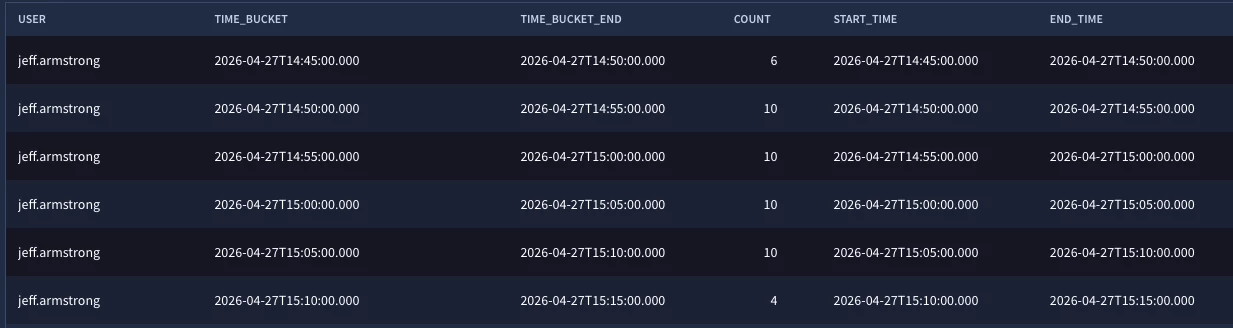
In the results, we can see that Jeff had 6 logins to the server between 14:45 and 14:50 and then 10 logins between 14:50 and 14:55 and so forth. When we visualize this in a bar graph, we get the following output.
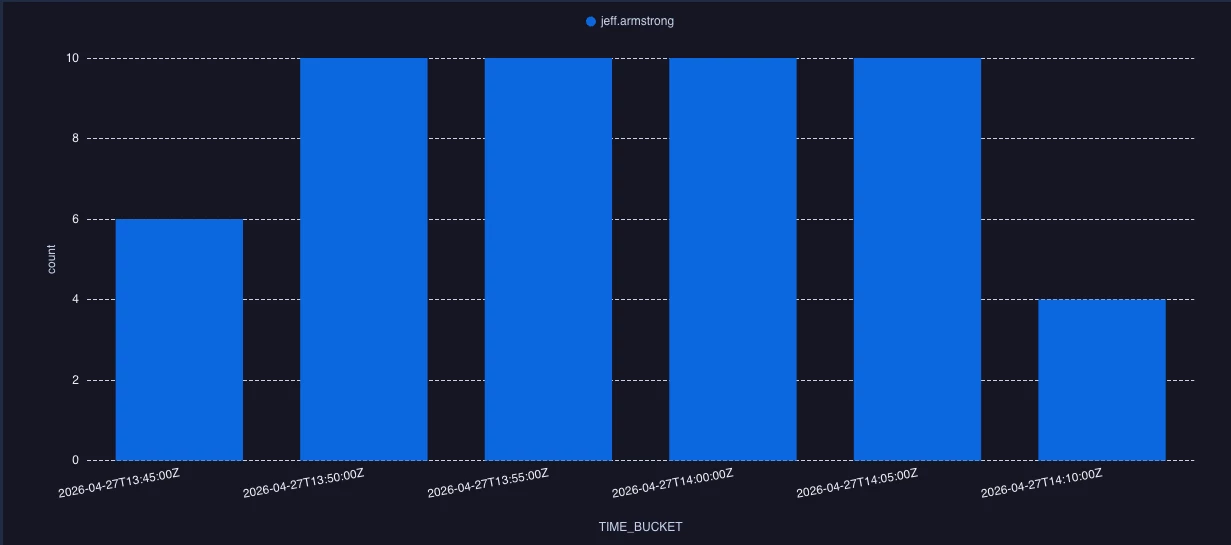
Tumbling windows provide us a nice bucketized view of events and is often the most frequently used type of window when wrangling data into time buckets and generating statistical outputs because of its non-overlapping nature.
Hop Window
A hop window also has a fixed time window, but while an event can only exist within a single tumbling window, an event can exist in multiple hop windows. Hop windows overlap with one another.
The frequency of the hop window is associated with its duration. For instance, a hop window with a duration of 5 minutes, or 300 seconds, has a 30 second window frequency which means that a new window is being created every 30 seconds. For a 30 minute hop window, the frequency is 3 minutes. So, the easy rule of thumb is that the window frequency is 1/10 of the hop window duration. This logic extends up to 10 hours and when the window duration is above 10 hours the frequency becomes hourly.
So, what does all that really mean? In the case of a 30 minute hop window that has a search time range starting at 01:00 and ending at 02:00, the same event could exist in multiple hop windows because there will be multiple windows created during that time including the ones shown below. So if an event occurs at 01:14, it would exist in time windows bolded below.
| Window Start | Window End |
| 01:00 | 01:30 |
| 01:03 | 01:33 |
| 01:06 | 01:36 |
| 01:09 | 01:39 |
| 01:12 | 01:42 |
| 01:15 | 01:45 |
| 01:18 | 01:48 |
| 01:21 | 01:51 |
| 01:24 | 01:54 |
| 01:27 | 01:57 |
| 01:30 | 02:00 |
The keyword to denote a hop window is over and is used in the match section of a search. Unlike the tumbling window, the match section only accepts placeholder variables that are defined in the filtering statement.
Here is the same query we previously used for the tumbling example, except we are now running it as a hop window with the over keyword.
metadata.event_type = "USER_LOGIN"
target.hostname = "activedir.stackedpads.local"
target.user.userid = "jeff.armstrong"
target.user.userid = $user
match:
  $user over 5m
outcome:
  $count = count(metadata.id)
  $start_time = window_start
  $end_time = window_end
order:
  $start_time asc
In the results, notice we have more rows in the results. As we review the start and end times, notice that the frequency of windows is 30 seconds. Again, this is because the window frequency is 1/10th of the window duration.
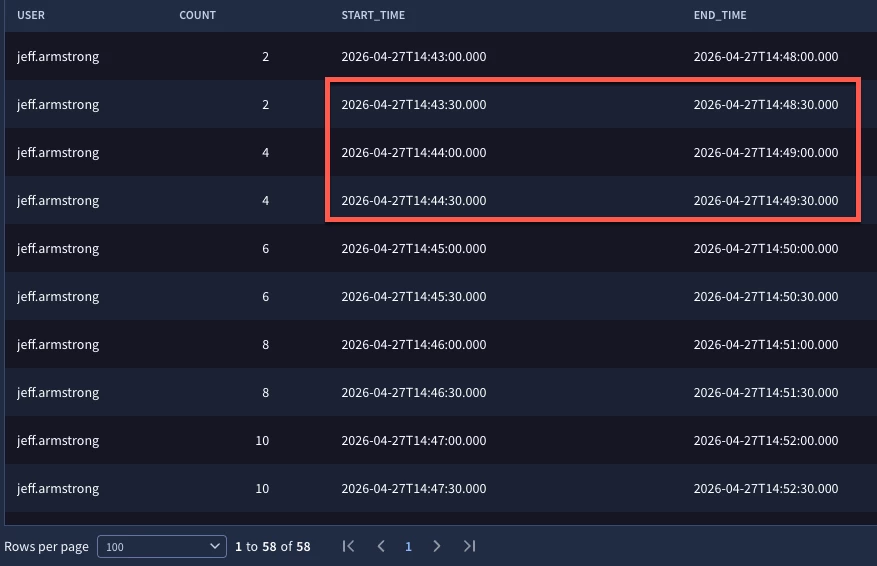
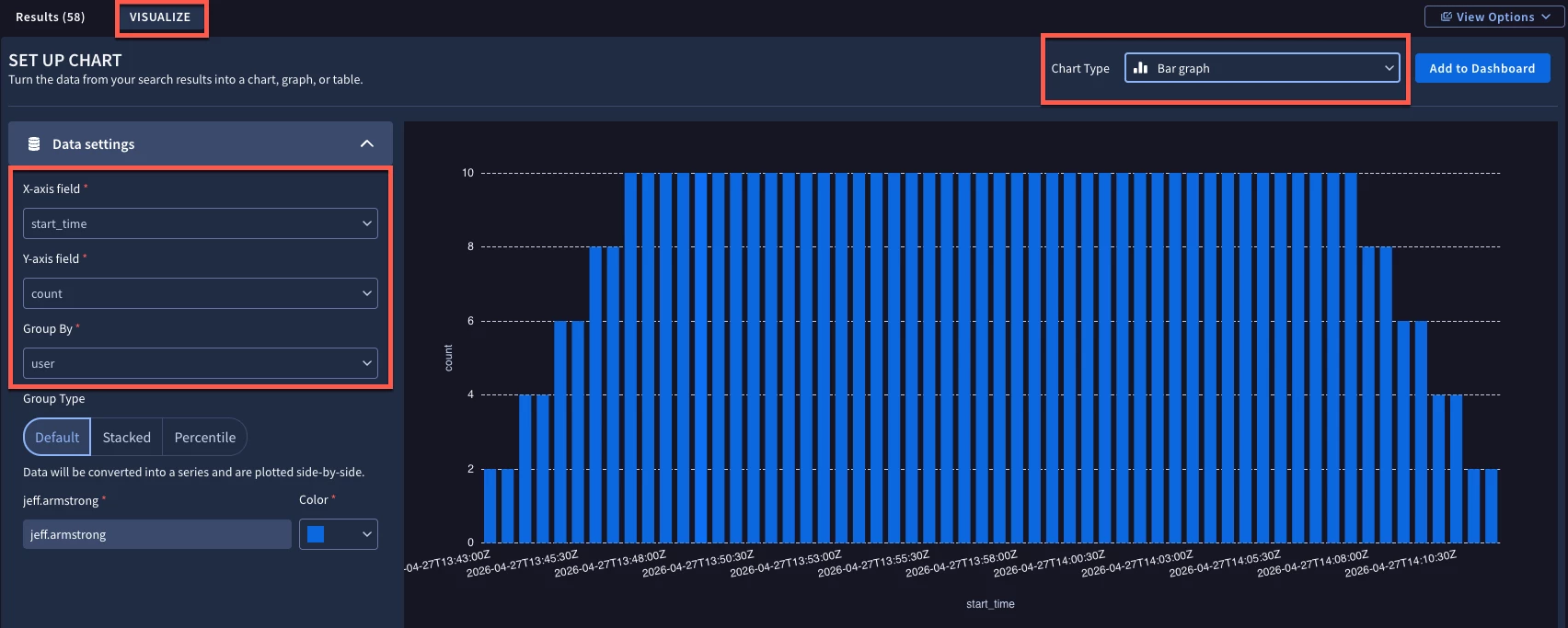
When we apply our results to a bar graph, notice that we have a rising action, followed by a plateau due to the events being ingested and then a drop off as the events fall into the 5 minute buckets.
We often use a hop window in rules and trigger a detection when a value has exceeded some threshold within a time window. In the case of a tumbling window, we need to wait until that window closes to tabulate the threshold. With the hop window, we also need to wait, but between the frequency of windows being created and the fact that an event can exist in multiple windows allows us to get to that threshold and detect behavior that a tumbling window might miss.
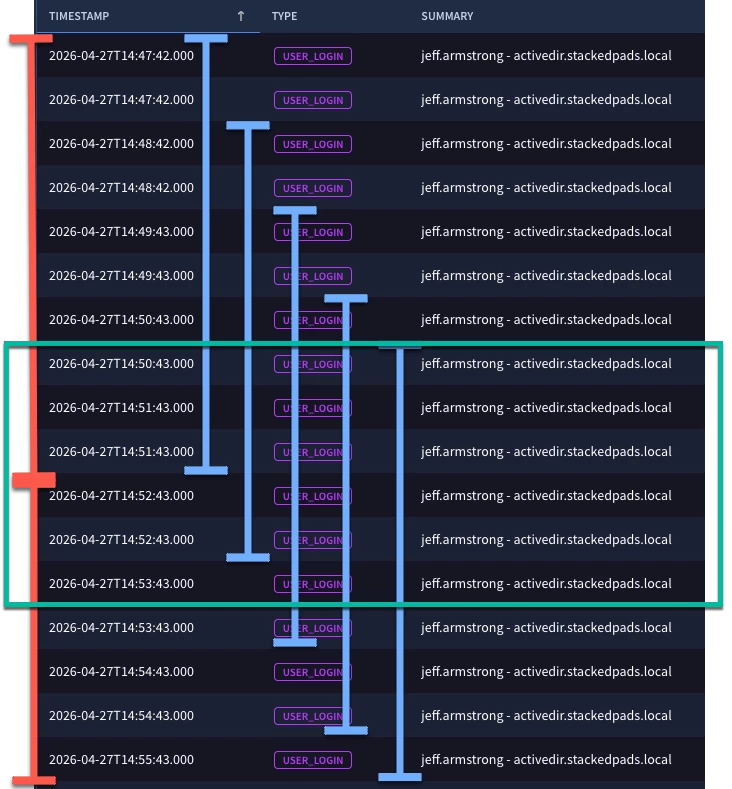
To highlight this, let’s take a look at the underlying events from the search. This is just a subset and we are going to visualize the start of the time windows at the exact same time. The red bar on the left denotes a tumbling window of 5 minutes and the blue bars denote a series of hop windows of 5 minutes. Because these login events are very steady in their logging, this may not be as impactful but if I was hunting for a threshold, tumbling could work if the events lined up exactly in the correct time buckets, but what if the events we received were the ones in the green box? A greater than 5 event threshold with a tumbling window would not be exceeded but the hop windows and their greater frequency would observe that threshold across three hop windows in our example.
Sliding Window
I saved the sliding window for last because it has a bit more complexity and is a more expensive search compared to the others and should be used judiciously. Like the hop window, events can exist within multiple windows and it has a fixed duration. However, the start of that window is dependent upon some event occurring.
We are using the same foundational search that we used in the previous two examples. However, the first difference is that each UDM field is prepended with an event variable. The event variable is required in the match section and is used as the trigger for the sliding window.
Notice the match section contains the placeholder variable that we are aggregating results based on. The keyword of over is used for sliding windows, just like a hop window, but what differentiates the two is that after the time window, the word after or before followed by an event variable is declared. Because of the addition of the event variable, the search will also require a condition section which will contain at the very least that event variable.
$login.metadata.event_type = "USER_LOGIN"
$login.target.hostname = "activedir.stackedpads.local"
$login.target.user.userid = "jeff.armstrong"
$login.target.user.userid = $user
match:
  $user over 5m after $login
outcome:
  $count = count($login.metadata.id)
  $start_time = window_start
  $end_time = window_end
condition:
  $login
order:
  $start_time asc
When we execute this query, we get a count for the 5 minutes after the first login event is seen.
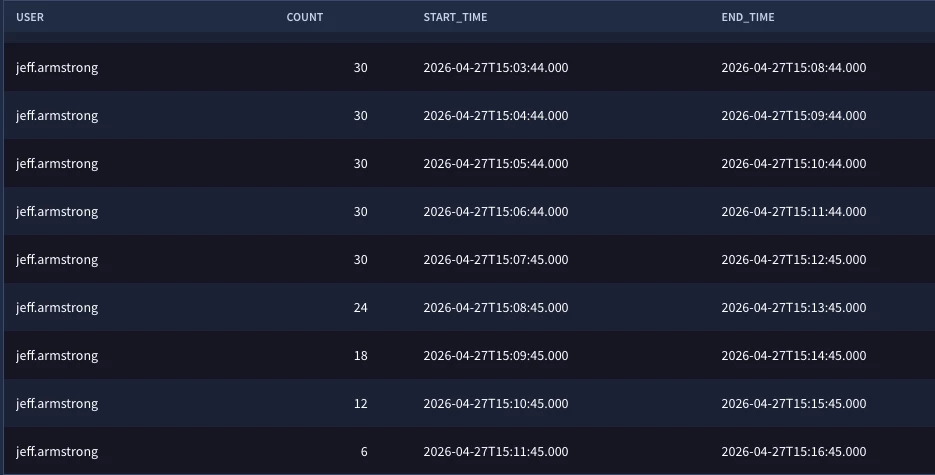
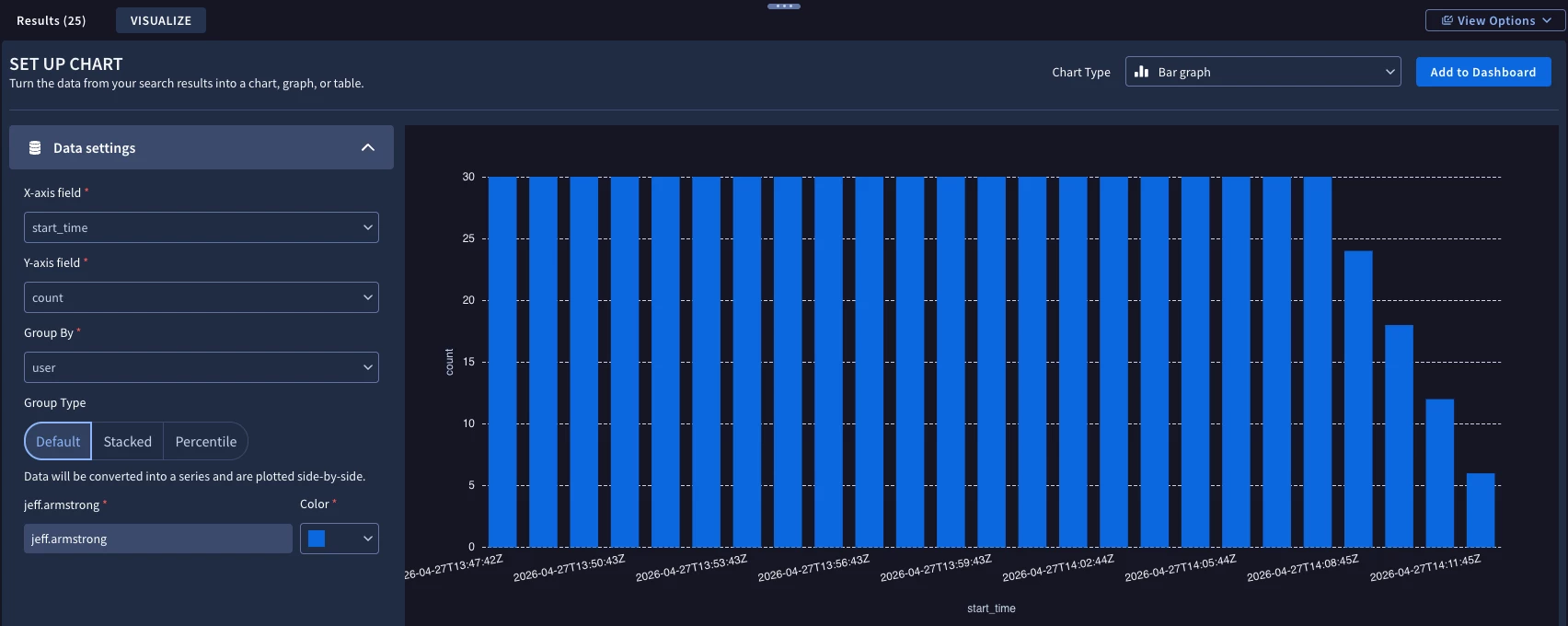
When we visualize this in a bar chart, we are continually seeing bucket sizes of 30 events each because of the number of events within each of those time buckets until the last few buckets where activity tails off and so does the volume in those last few buckets.
Oftentimes, a sliding window will have a join in it because one thing will happen before something else does and there is separate logic for those two actions, but it’s not required.
Here’s a brief summary of the characteristics around each of the time windows.
| Keyword | Fixed Frequency | Overlapping Events? | Example Use Case | |
| Tumbling | by | Yes | No | Hourly logins |
| Hop | over | Yes | Yes | Trend directionality |
| Sliding | over & (before or after) | No | Yes | X and then Y occurrence |
There are numerous use cases that time windows can be applied to so don’t get overly fixated on the example use cases, but do pay attention to the frequency and overlapping events as these will often drive your decisions around what kind of time window to use.
Here’s a few things to keep in mind as you start building searches with time windows:
- While tumbling windows will accept UDM fields and variables in the match section, hop and sliding windows will expect placeholder variables only
- Tumbling windows don’t overlap so events will only be in a single time bucket
- Hop windows have a window creation frequency of 1/10th of the duration of the time window
- Sliding windows must have an event variable to determine what event the window is sliding around and a condition section is required for that event variable as well.
I hope you have a greater understanding of the different time window options available to you. While we used these in a basic search example today, these can be used with rules and in more advanced use cases.
