Question

Alert Overview Widget


dazzlerellis
Forum|alt.badge.img+3

Hi all,

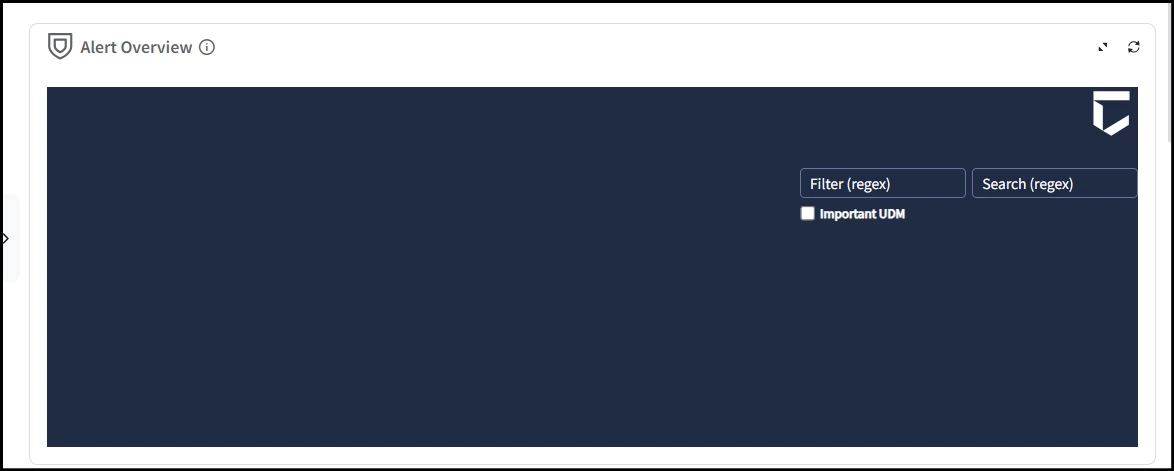
The Alert Overview widget is blank in all views.

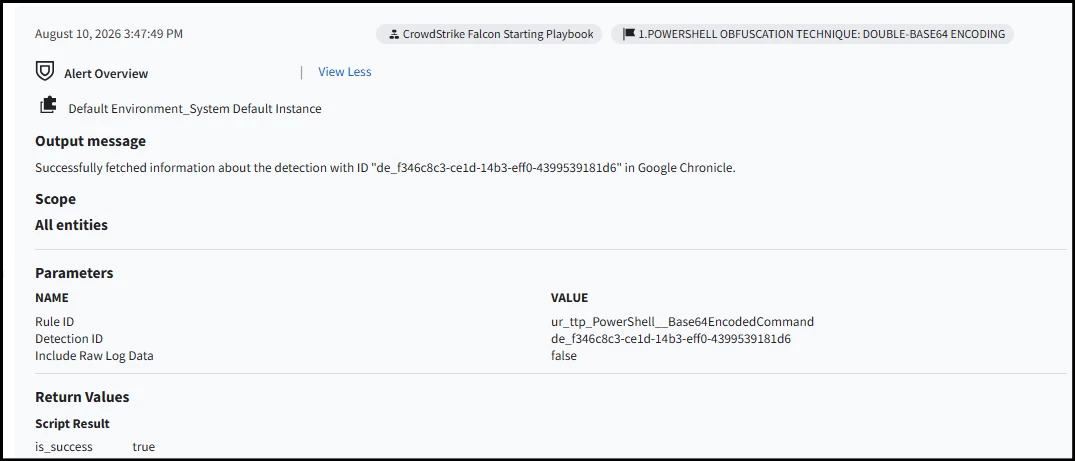
The case wall is showing output from the Alert Overview block.

Anything I am missing to get this working?

4 replies

cmorris
Staff
Forum|alt.badge.img+17
  • Staff
  • August 10, 2026

So in a case, when selecting an alert, and then choosing the Overview tab for the alert - the View is blank? If you go to SOAR Settings > Case Data > Views and choose the Default Alert View, are any widgets configured there?


dazzlerellis
Forum|alt.badge.img+3

This is the widget

Case Wall (Same Case)


dazzlerellis
Forum|alt.badge.img+3

Have found a solution to this, one playbook ran and showed the widget properly.

I copied the Alert Overview block from this playbook and pasted it into all others and it now works as it should.


Not sure why as they had the exact same settings 🤷🏼


thineth_dasun
Forum|alt.badge.img+6

Hi ​@dazzlerellis ,

Good observation — what you’re seeing is a common quirk with Alert Overview blocks in playbooks. Even if two blocks look identical in settings, subtle differences in how they were created or linked can cause one to render blank.

🔑 Why this happens

  • Block initialization → Sometimes a block created in one playbook doesn’t fully initialize its bindings until executed once. Copying from a “working” playbook carries over the initialized state.

  • Context binding → The Alert Overview block must be bound to the correct detection/case context. If the binding is missing, the widget shows blank even though the case wall displays output.

  • Execution order → If the block runs before upstream parameters are populated, it renders empty. In the working playbook, execution order may differ slightly.

01

Validate Block Context

Ensure the Alert Overview block is linked to the correct detection/case parameters.

  • Open the playbook editor

  • Check the block’s input mapping

  • Confirm it references the same detection ID as the case wall

02

Check Execution Order

Blocks must run after upstream parameters are available.

  • Review playbook flow

  • Place Alert Overview after detection fetch blocks

  • Add dependency arrows if needed

03

Compare Working vs Non‑Working Block

Most Common Fix

Copying from a working playbook often carries hidden bindings.

  • Open both playbooks side by side

  • Compare block IDs and parameter mappings

  • If differences exist, re‑bind manually

04

Re‑initialize Block

Sometimes blocks need to be re‑created to refresh bindings.

  • Delete the blank block

  • Add a new Alert Overview block

  • Map parameters again

  • Save and run playbook

Sources: Internal Chronicle playbook behavior notes

👉 In short: the fix you found (copying from a working playbook) works because it carries over initialized bindings. For a cleaner long‑term solution, validate context mapping and execution order, or re‑create the block fresh. That way you won’t need to copy every time.

Kind regards