In modern multi-tenant enterprise architectures, centralizing security operations across distinct Google Cloud Platform (GCP) organizations is a common yet complex challenge. When security teams need to route telemetry from a production environment to a Google Security Operations (SecOps) SIEM tenant running under a completely different GCP organization, they must carefully balance real-time visibility, security boundaries, and cost. Fortunately, GCP offers multiple robust paths to achieve this—ranging from zero-infrastructure native direct ingestion to custom-filtered Cloud Storage and Pub/Sub pipelines—allowing organizations to bridge security perimeters without compromising their defensive posture. Let's see the direct and indirect ways to achieve this goal.
In the screenshots:
Organization A is catmuslabs.joonix.net
Organization B is secops.okkeslab.com
Option 1: Direct Ingestion - Realtime
The below screenshot represents Organization A (catmuslabs.joonix.net). An admin or owner user (in Organization A) must assign the relevant roles to the Organization B admin (okkes@secops.okkeslab.com) as below: (These IAM roles are at the organization level of Organization A. You don't need the Security Center role if you don't have security center in Organization A)
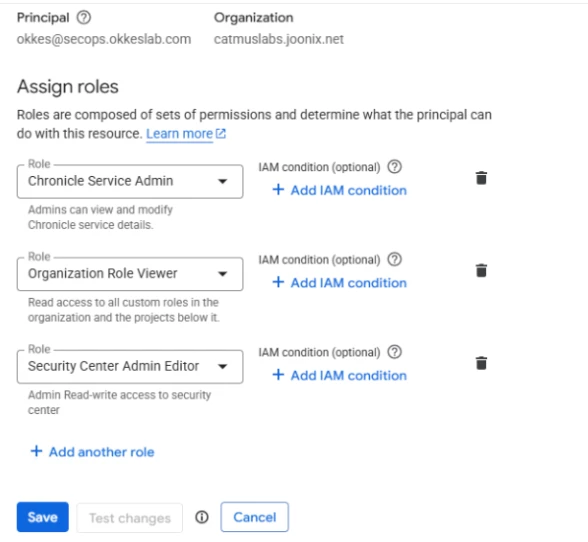
Here, okkes@secops.okkeslab.com is the admin who can modify direct Ingestion Settings on Secops project, and catmuslabs.joonix.net is the organization from which we will export the logs.
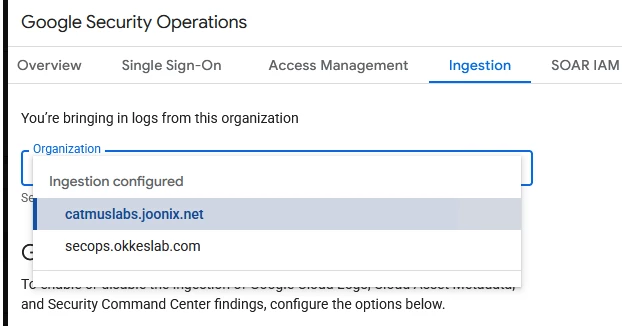
Now the admin user in Organization B, where the Secops is running, can configure direct ingestion from both organizations.
This method is the easiest to configure and maintain by the Secops Admin in Organization B. However, If your policies prevent providing any admin/writer role in Organization A to a user in Organization B, then we will need indirect methods
*****************
Option 2 : Using Google Cloud Pub/Sub (Recommended for Low Latency)
1. Create a Pub/Sub Topic (Organization B)
- Switch your Google Cloud Console to the project in Organization B (where Secops resides).
- In the search bar, type Pub/Sub and navigate to Topics.
- Click + CREATE TOPIC.
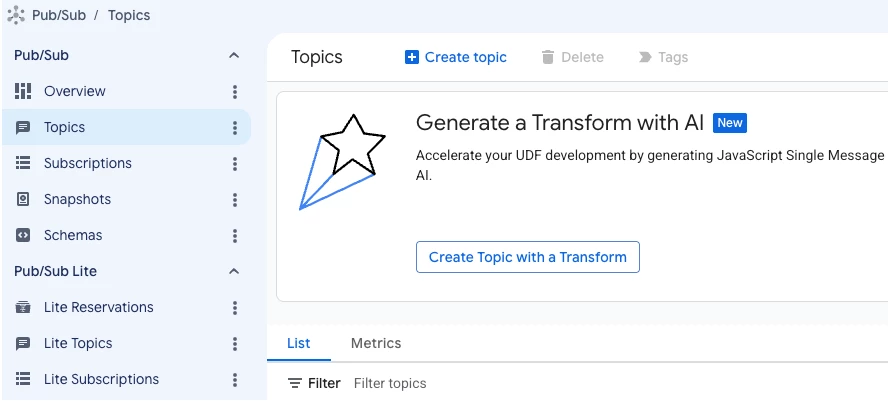
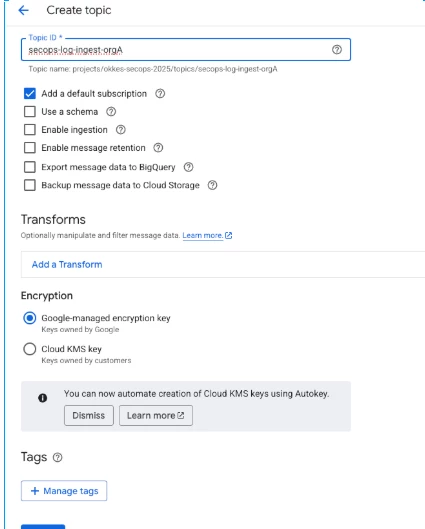
- Enter a Topic ID (e.g., secops-log-ingest-orgA). Leave the default settings as they are, and click Create.
2. Create a Log Sink (Organization A)
- Switch your Google Cloud Console to the project in Organization A (where your logs are generated).
- Navigate to Logging > Log Router.
- Click + CREATE SINK.
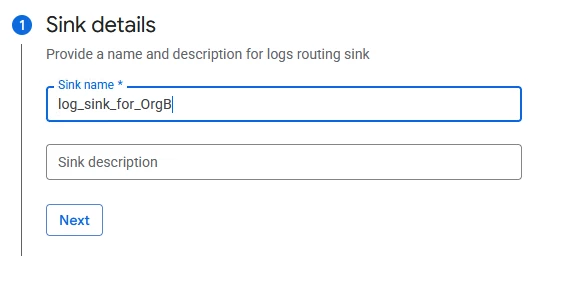
- Sink details: Enter a name and description, then click Next.
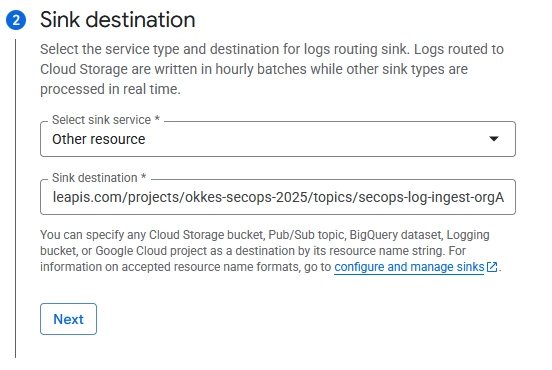
- As sink destination, In the dropdown, choose Enter a Cloud Pub/Sub topic in another project. Enter the destination format: projects/[ORG_B_PROJECT_ID]/topics/[TOPIC_NAME]. We will use the Pub/Sub topic created in Step 1.
- Click Next.
- Choose logs to include: Build your inclusion filter (e.g., Resource Type: gce_instance and Severity: ERROR), then click Next. (If you don't configure any filters, all logs will be sent)
- Click Create Sink.
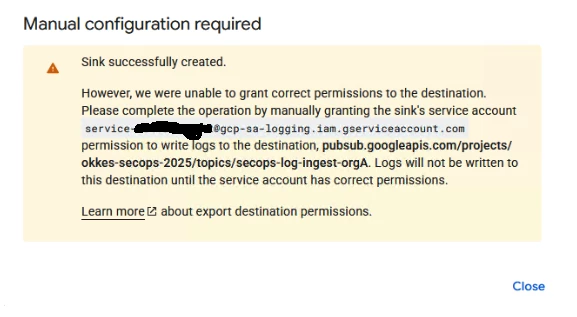
!! Crucial Step: Once created, you will be redirected to the "Manual Configuration Required Window". Find your new sink and copy its Writer identity (it looks like a service account email ending in gcp-sa-logging.iam.gserviceaccount.com).
3. Grant Publisher Permissions (Organization B)
- Switch back to the project in Organization B.
- Navigate to Pub/Sub > Topics and click on your newly created topic.
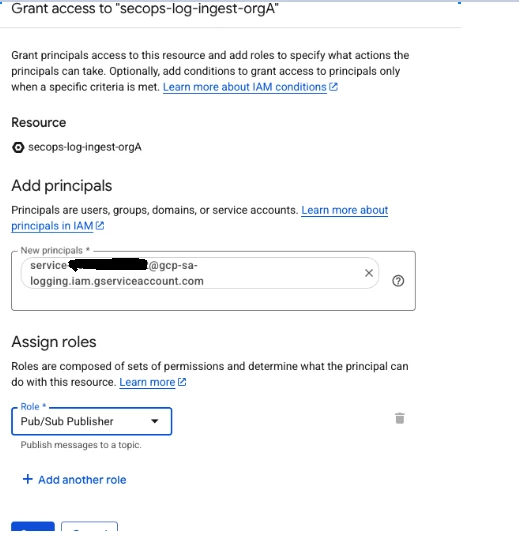
- On the right-hand panel, under the Permissions tab, click + ADD PRINCIPAL.

- In the New principals field, paste the Writer identity you copied from Organization A.
- In the Select a role dropdown, find and select Pub/Sub Publisher.
- Click Save.
4. Create the SecOps Feed
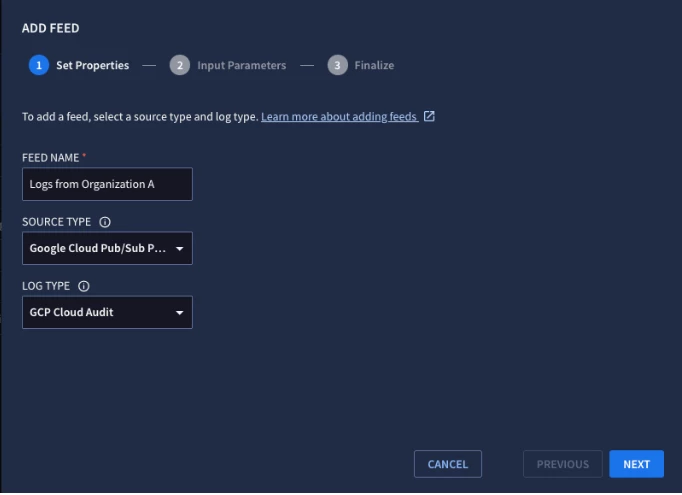
- Log in to Google SecOps and navigate to Settings > Feeds.
- Click Add New Feed.
- Select Google Cloud Pub/Sub Push as the Source type.
- Select the appropriate Log type matching your exported data. (GCP Cloud Audit can be used for Cloud Logging logs)
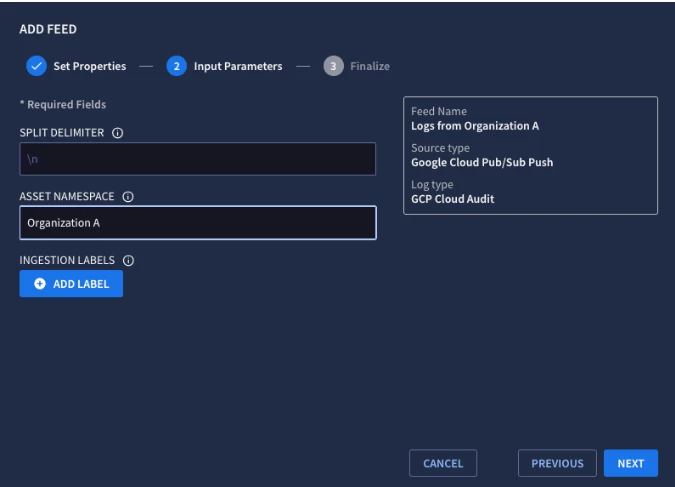
- Copy the endpoint URL form the last screen and click "Done":
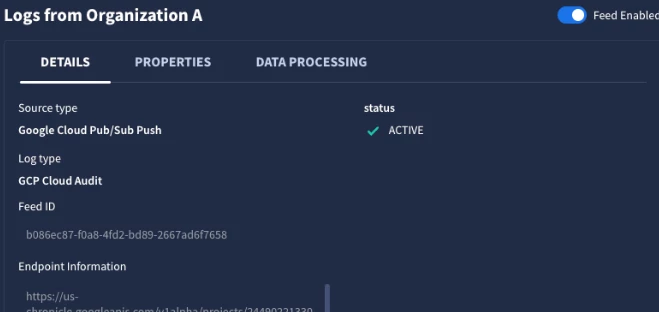
5. Create a service account in Secops Project of Organization B. No roles are required for this service account.
6 - Create a Pub/Sub Subscription
- Navigate to Pub/Sub --> Subscriptions in Organization B.
- Click "Create Subscription"
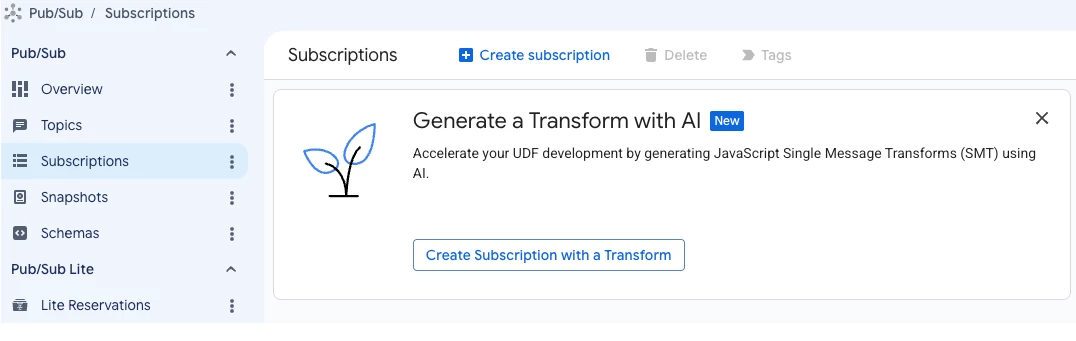
- Type a subsciption ID
- Choose Pub/Sub Topic created in Step1.
- Choose Push as "Delivery Type"
- Paste the endpoint URL from the previous step.
- Check "Enable Authentication" and "Enable payload unwrapping"
- Choose the newly created service account in step 5.
- Click Create
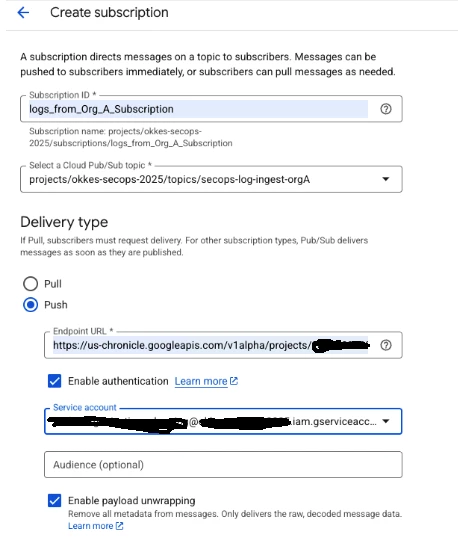
7- You can now check if the log ingestion is working fine
- In the log sinks of Organization B project (Logs of which is being ingested), you must see the traffic:
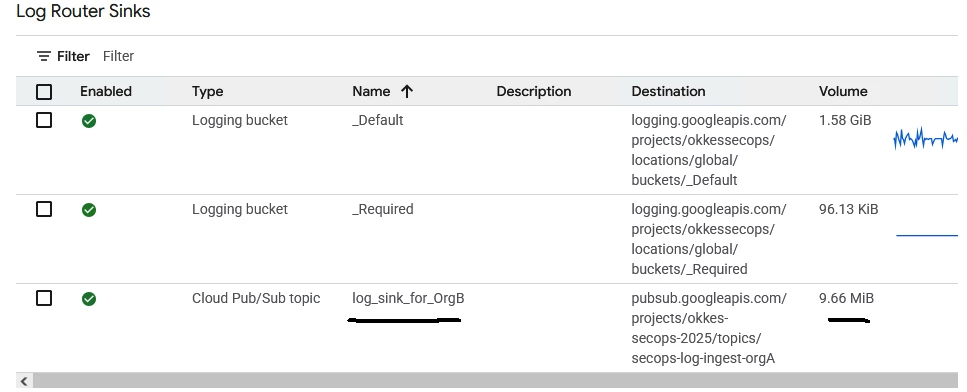
- In the Secops side, in the Feed Run history widget of Data Health Deep Dive curated dashboard:

*****************
Option 3 : Using Google Cloud Storage (Recommended for Batching & Archiving)
1. Create a GCS Bucket (Organization B)
- Switch to your project in Organization B.
- Navigate to Cloud Storage > Buckets.
- Click + CREATE.
- Name your bucket (must be globally unique), select your preferred location/region, and proceed through the prompts leaving defaults or customizing storage classes as needed. Click Create.
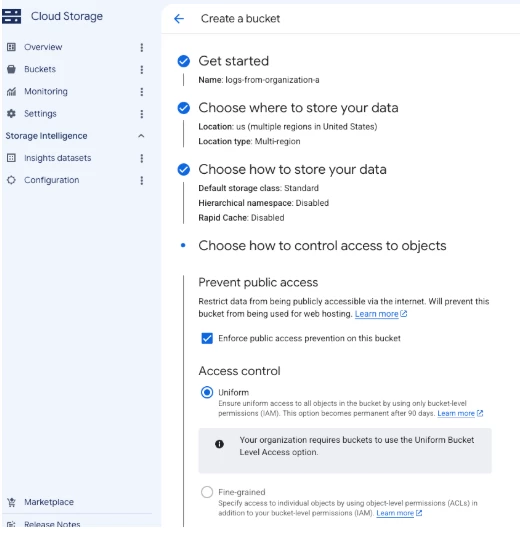
2. Create a Log Sink (Organization A)
- Switch to your project in Organization A.
- Navigate to Logging > Log Router.
- Click + CREATE SINK.
- Sink details: Enter a name and description, then click Next.
- Sink destination:
- Select Cloud Storage bucket as the sink service.
- For the target storage bucket, use the format storage.googleapis.com/[BUCKET_NAME], the bucket name we created on Step 1.
- Choose logs to include: Build your inclusion filter (e.g., Resource Type: gce_instance and Severity: ERROR), then click Next. (If you don't configure any filters, all logs will be sent)
- Click Create Sink.
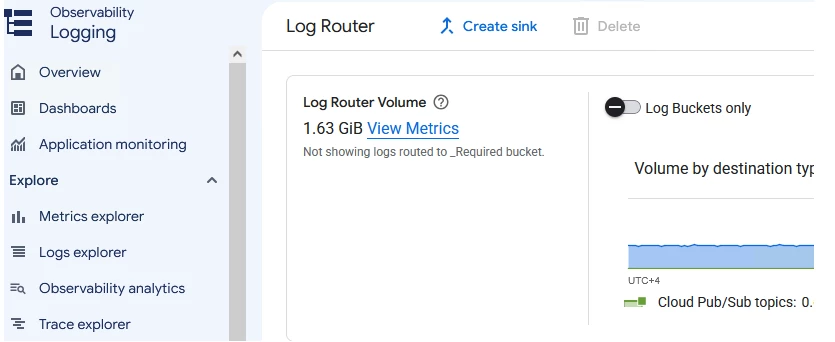
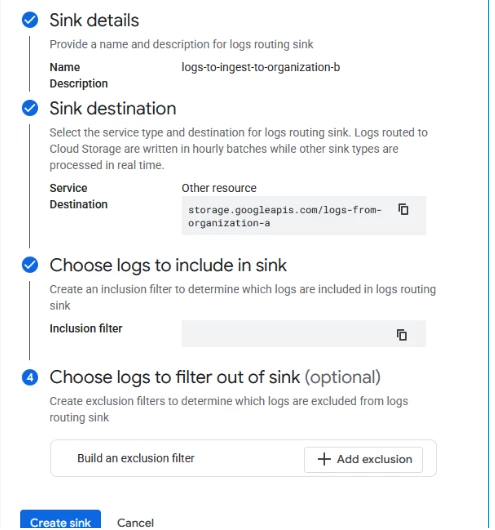
- Just like the Pub/Sub method, copy the Writer identity generated for this new sink on the Log Router page.
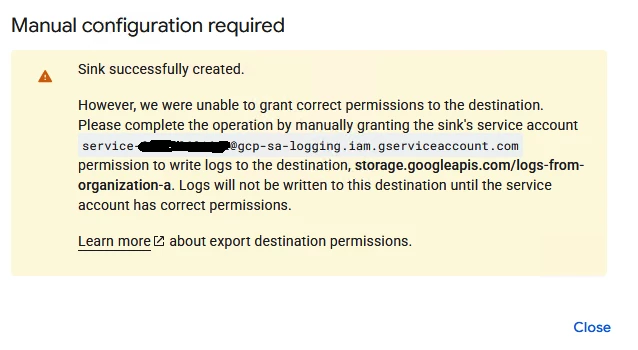
3. Grant Storage Permissions (Organization B)
-Switch back to your project in Organization B.
- Navigate to Cloud Storage > Buckets and click on the name of your bucket.
- Click the Permissions tab near the top.
- Click + GRANT ACCESS.
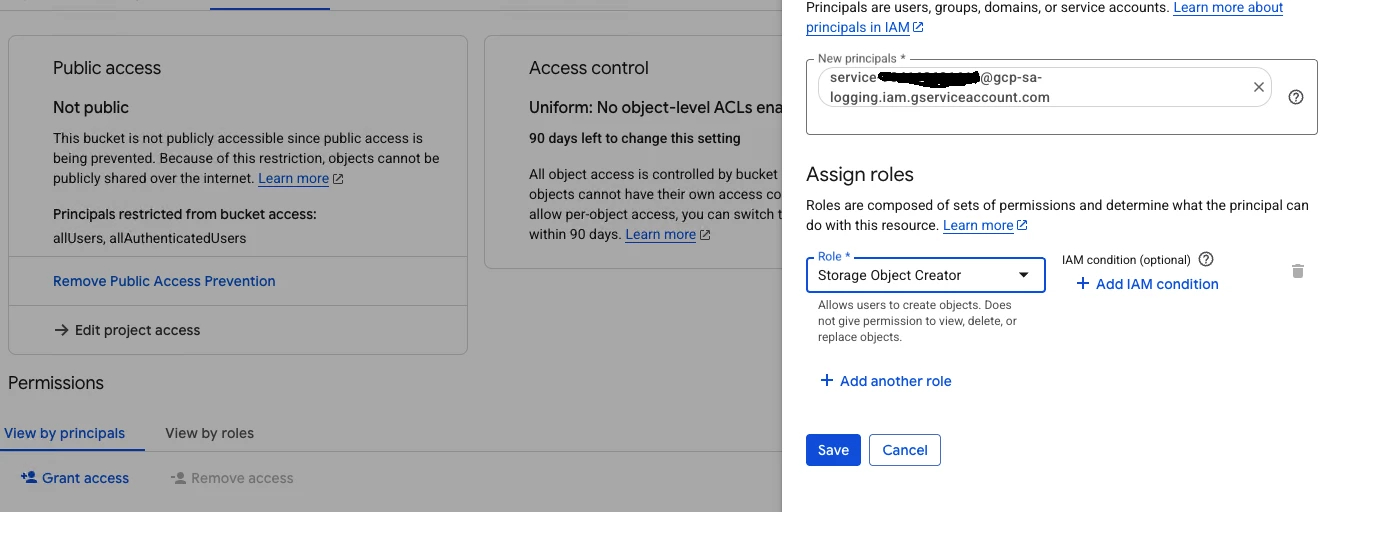
- In the New principals field, paste the Writer identity from Organization A.
- In the Select a role dropdown, select Storage Object Creator (under Cloud Storage).
- Click Save.
4. Configure the Secops Feed
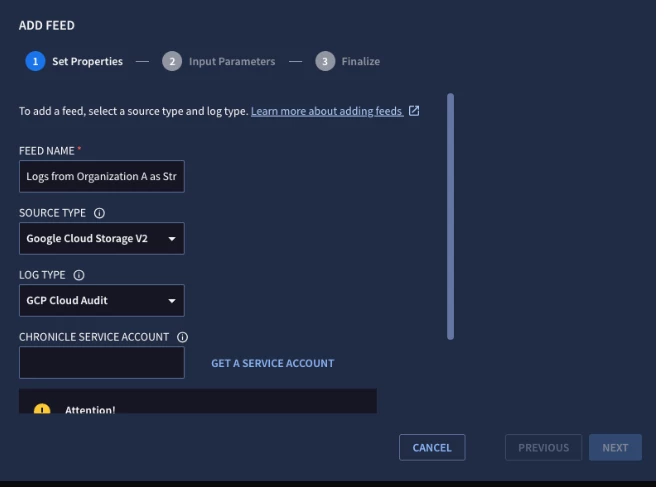
- In Google SecOps, navigate to Settings > Feeds > Add New Feed.
- Select Google Cloud Storage V2 as the Source type and choose your Log type.
- Click Get Service Account. SecOps will generate a unique service account email for this specific instance (e.g., chronicle-12345678@chronicle-gcp-prod.iam.gserviceaccount.com). Copy this.
!!CRITICAL STEP:!!
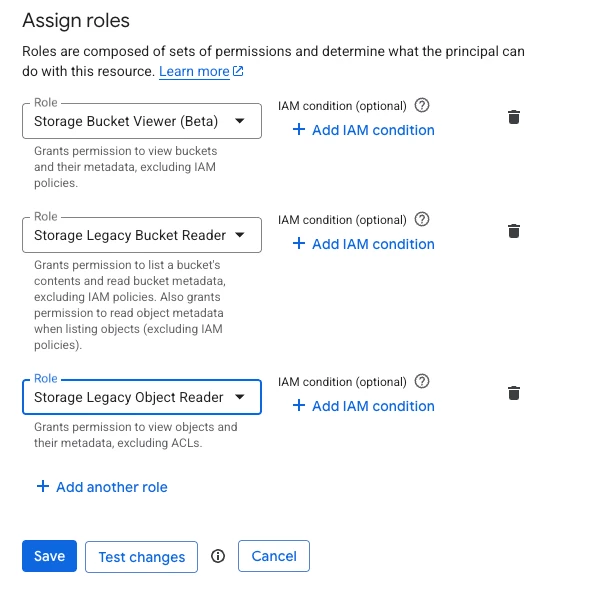
Go back to your Google Cloud Console (Organization B), navigate to your GCS bucket's Permissions tab again, click + GRANT ACCESS, paste the SecOps service account, and grant it the following roles (or Storage Object Admin if you want Secops to delete the files after reading them).
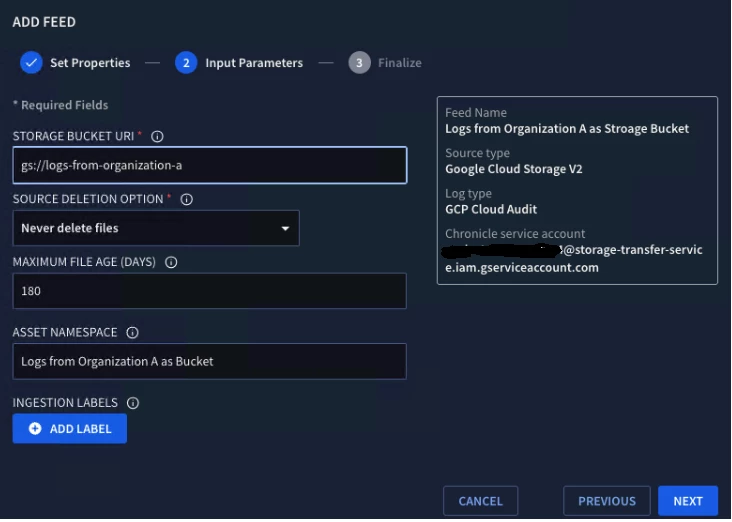
- Return to the Secops UI to finish the feed setup by providing the bucket URI (gs://[BUCKET_NAME]/).
*****************
Summary:
-
Use Direct Ingestion if your organization's cross-project IAM policies allow it.
-
Switch to Pub/Sub when you need near real-time ingestion but face strict cross-domain policy restrictions.
-
Opt for Cloud Storage when immediate log delivery is less critical than infrastructure cost savings and long-term data retention.