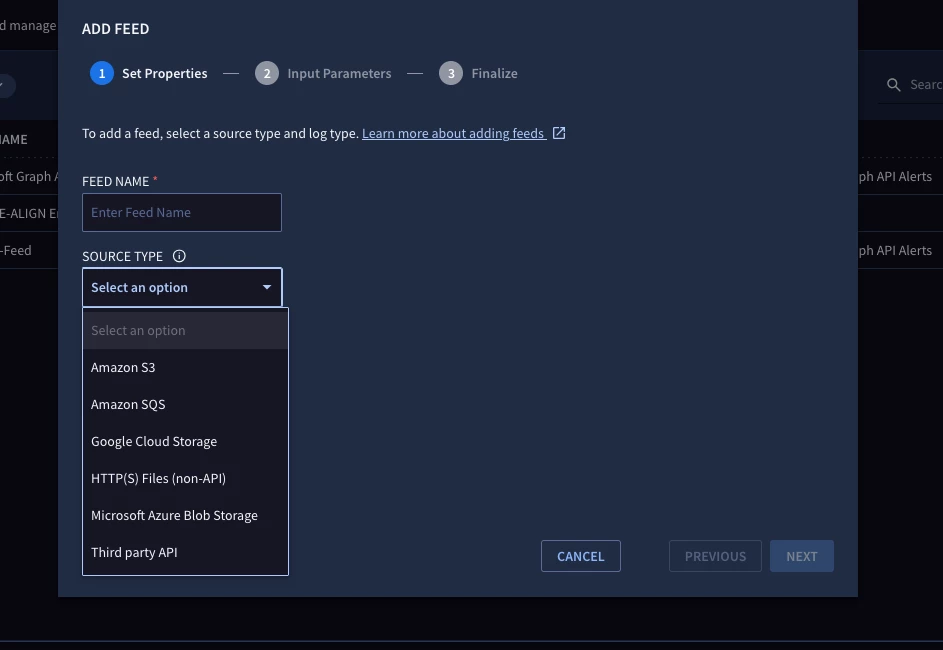
I'm running into a frustrating bug within the feed creation section of our Google SecOps instance and am wondering if anyone else has encountered this or found a workaround while I wait on an official fix.
My primary goal is to create Microsoft Azure Event Hub feeds, but the UI is behaving inconsistently regarding STS V2 feeds. A Google Solutions Delivery Engineer has already taken a look and confirmed this appears to be a bug.
Here are the specific symptoms:
Inconsistent Feed Creation Views: As shown in the attached screenshots, one feed creation view gives me the option to create V2 feeds, while another view completely omits the V2 option.
Missing Event Hub Option: Regardless of which view I use, "Microsoft Azure Event Hub" is completely missing from the available options.
Blank Source Types on Edit: I have one existing Blob Storage feed that is clearly labeled as "V2" in the list view. However, when I click in to edit that feed, the "Source Type" field is entirely blank. (See Screenshots 3 & 4)
Troubleshooting Steps Already Taken:
I worked with a Google Solutions Delivery Engineer who verified that the Omniflow STS Enabled feature is officially turned ON for our SecOps instance.
The engineer attempted to flush/fix the issue by toggling the feature OFF and then back ON, but this did not resolve the UI inconsistencies or bring back the Azure Event Hub option.
Has anyone else experienced this desync with the Omniflow STS/V2 feeds UI? If so, did you find any hidden workarounds to force the Azure Event Hub option to appear so we can get these feeds flowing?
Thanks in advance for any insights!
Best answer by dnehoda
Why "Microsoft Azure Event Hub" is Missing
The most common reason the Event Hub option disappears in the V2/Omniflow view is that Azure Event Hub is not yet a native STS V2 source type in the same way Azure Blob Storage or Amazon S3 are.
While Google is moving many sources to V2, the current architectural workaround for Azure Event Hub often involves Event Hub Capture.
The Recommended Workaround
Since the UI isn't giving you a direct "Event Hub" radio button under the STS/V2 menu, the "official" path forward for high-volume Azure ingestion in the V2 era is to use Azure Blob Storage (V2) as the middleman:
In Azure: Enable Event Hub Capture on your Event Hub. This automatically writes the streaming data into an Azure Blob Storage container in Avro format.
In Google SecOps: Instead of looking for an "Event Hub" source, create an Azure Blob Storage (V2) feed.
Log Type: Point this feed at the container where your Event Hub is capturing data. Google SecOps' V2 engine is optimized to pick up these Avro files from Blob Storage far more reliably than the old V1 Event Hub direct connector.
Addressing the "Blank Source Type" Bug
The blank field you see when editing existing V2 feeds is a known UI artifact during the migration phase.
The Cause: The V2 feeds use a different underlying schema. When the "Edit" modal loads, it often fails to map the backend STS_V2 value back to the frontend dropdown menu.
The Fix: Avoid "Editing" these feeds if possible. If you need to make changes, it is often safer to delete and recreate the feed to ensure the configuration is properly committed to the new Omniflow backend.
Summary of Action Items
Stop waiting for the "Event Hub" button: It may not appear in the V2 UI because the transition strategy favors Event Hub -> Blob Storage -> SecOps (V2).
Verify Permissions: Ensure your Google SecOps service account has Storage Blob Data Reader permissions on the Azure side, as V2 feeds rely on the Storage Transfer Service for the "pull."
Browser Check: As basic as it sounds, the SecOps UI is notorious for caching old CSS/JS bundles. Try a hard refresh (Ctrl+F5) or Incognito mode to see if the "missing" V2 options in certain views reappear.
The most common reason the Event Hub option disappears in the V2/Omniflow view is that Azure Event Hub is not yet a native STS V2 source type in the same way Azure Blob Storage or Amazon S3 are.
While Google is moving many sources to V2, the current architectural workaround for Azure Event Hub often involves Event Hub Capture.
The Recommended Workaround
Since the UI isn't giving you a direct "Event Hub" radio button under the STS/V2 menu, the "official" path forward for high-volume Azure ingestion in the V2 era is to use Azure Blob Storage (V2) as the middleman:
In Azure: Enable Event Hub Capture on your Event Hub. This automatically writes the streaming data into an Azure Blob Storage container in Avro format.
In Google SecOps: Instead of looking for an "Event Hub" source, create an Azure Blob Storage (V2) feed.
Log Type: Point this feed at the container where your Event Hub is capturing data. Google SecOps' V2 engine is optimized to pick up these Avro files from Blob Storage far more reliably than the old V1 Event Hub direct connector.
Addressing the "Blank Source Type" Bug
The blank field you see when editing existing V2 feeds is a known UI artifact during the migration phase.
The Cause: The V2 feeds use a different underlying schema. When the "Edit" modal loads, it often fails to map the backend STS_V2 value back to the frontend dropdown menu.
The Fix: Avoid "Editing" these feeds if possible. If you need to make changes, it is often safer to delete and recreate the feed to ensure the configuration is properly committed to the new Omniflow backend.
Summary of Action Items
Stop waiting for the "Event Hub" button: It may not appear in the V2 UI because the transition strategy favors Event Hub -> Blob Storage -> SecOps (V2).
Verify Permissions: Ensure your Google SecOps service account has Storage Blob Data Reader permissions on the Azure side, as V2 feeds rely on the Storage Transfer Service for the "pull."
Browser Check: As basic as it sounds, the SecOps UI is notorious for caching old CSS/JS bundles. Try a hard refresh (Ctrl+F5) or Incognito mode to see if the "missing" V2 options in certain views reappear.