I am using the latest version of the Default GCP Cloud Audit parser of 2025-11-05.
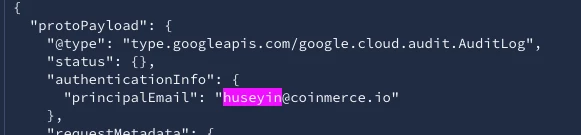
But unfortunately, when I go through the Audit Logs, I get to see values in the UDM which are absolutely not there in the raw json.
event fields:
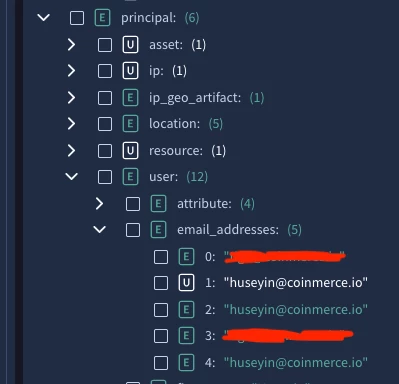
I don’t expect this behavior to happen. Why does the parser add more values to the principal object when my other colleague is not mentioned once in the raw json.
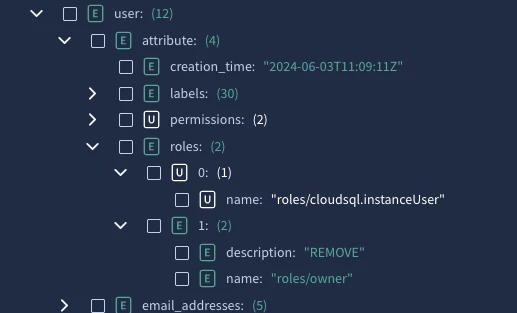
Of course I have tried to find other way around this, but other objects like which IAM roles are being added or removed are also getting mixed up within the principal object. So when I want to create a window with IAM policy changes, then it gets mixed up with principal fields:
Best answer by cmmartin_google
I doubt the low code will work for additionals as thse are a list of dictionaries, i.e., a repeated set of key value pairs.
This would then require a GROK parser extension, but the good news is there are two good resources for this:
AI Experiments - https://docs.cloud.google.com/chronicle/docs/secops/google-secops-labs - we have a Natural Language parser experiment that you can paste in the raw log, and ask it to create the parser extension for you, e.g., “Extract out the key a.b.c.d, e.g., the key d in the example with value z, and then create an additional field called d with the value x”
This is the result of the Aliasing and Enrichment feature in Google SecOps. Note the Green E which represents Enriched.
If you scroll further up you will see under metadata the enrichment source, i.e., the log source the email address in the GCP log is being aliased against (a lookup) and enrichment (additional values being added) come from.
This is the result of the Aliasing and Enrichment feature in Google SecOps. Note the Green E which represents Enriched.
If you scroll further up you will see under metadata the enrichment source, i.e., the log source the email address in the GCP log is being aliased against (a lookup) and enrichment (additional values being added) come from.
Correct me if I am wrong, but the screenshots that I have provided does have unwanted data from the enrichment. How can I work with this? Do I have to disable enrichment from somewhere? Do I have to update the default parser?
Right now in the results of the query, I just want to see the changes that are being made on the IAM policies in GCP but then it also shows the actual role of the user. Or my colleague should have never shown up on the result since the RAW json does not mention his email once.
"policyDelta": { "bindingDeltas": [ { "action": "REMOVE", "role": "roles/owner", "member": "user: [removed by moderator] " } ] }Basically extracting this data and showing it on the result is what I am looking for.
You’d have to look at the context sources to identify why they were aliased but the Email address is likely because there is one context source where there is a join between those two emails results in that user being added, e.g., things like a recovery email, secondary email.
one is you can use a new Enrichment Control API to block source X enriching Y, which is probably your better option, but the UX isn’t launched yet so requires calling via API last I checkedd
Drop the logs via Data Pipeline Processor, a new feature that runs before ingestion and where you can completely drop the logs altogether. If you use BindPlane then this is perhaps easier, and you can request access to the preview
An alternative, I think the default parser may extract roles into additional or about fields for scenarios like this, so you can use those as a source of truth on what happened without worrying about enriched fields
AI Experiments - https://docs.cloud.google.com/chronicle/docs/secops/google-secops-labs - we have a Natural Language parser experiment that you can paste in the raw log, and ask it to create the parser extension for you, e.g., “Extract out the key a.b.c.d, e.g., the key d in the example with value z, and then create an additional field called d with the value x”