Solved

Event Data from GenerateCollaboratorRequest not visible in Cases 2.0

  • August 14, 2026
  • 3 replies
  • 45 views

Chris-N
Forum|alt.badge.img+1

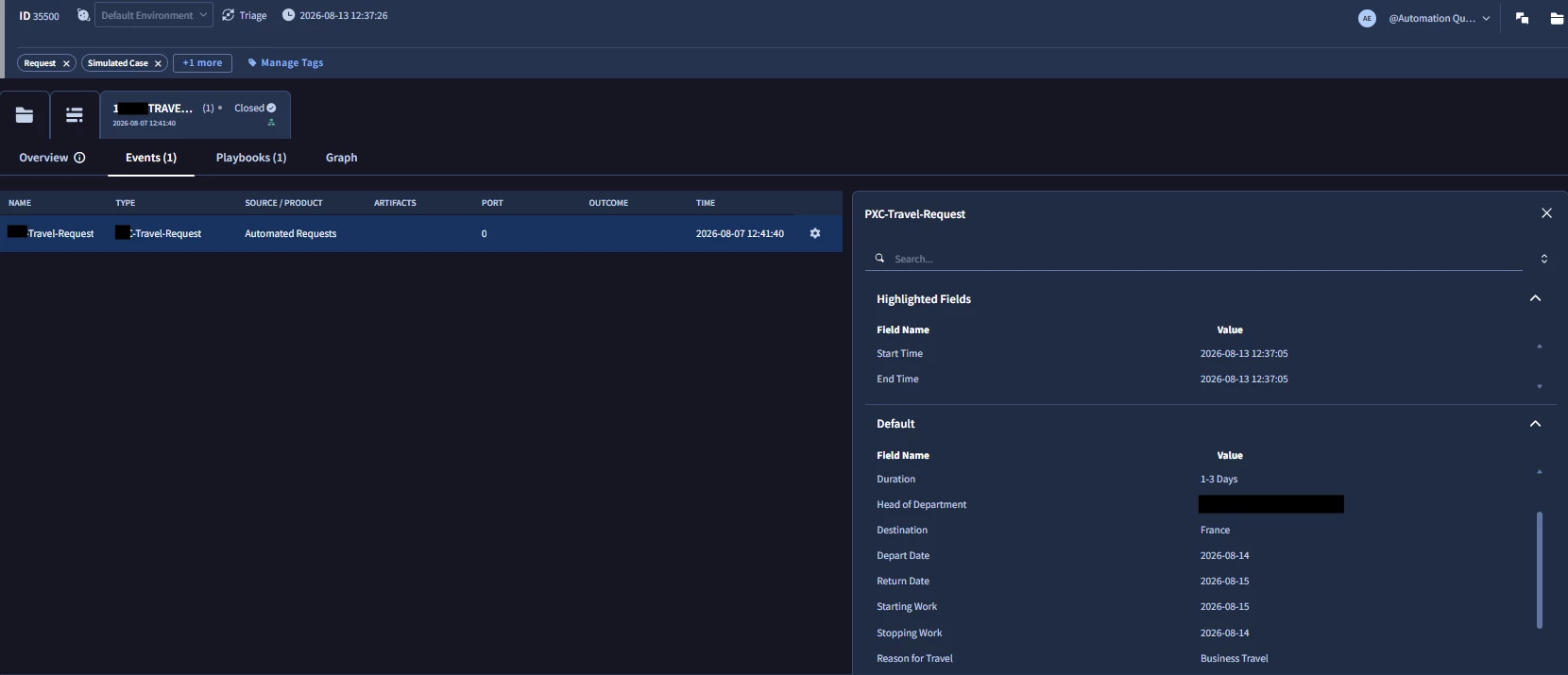
We have an MS form that posts to GenerateCollaboratorRequest for Travel. In the legacy case view, this data is visible in the Event data:-

Can see the custom fields from the form as event data here:-


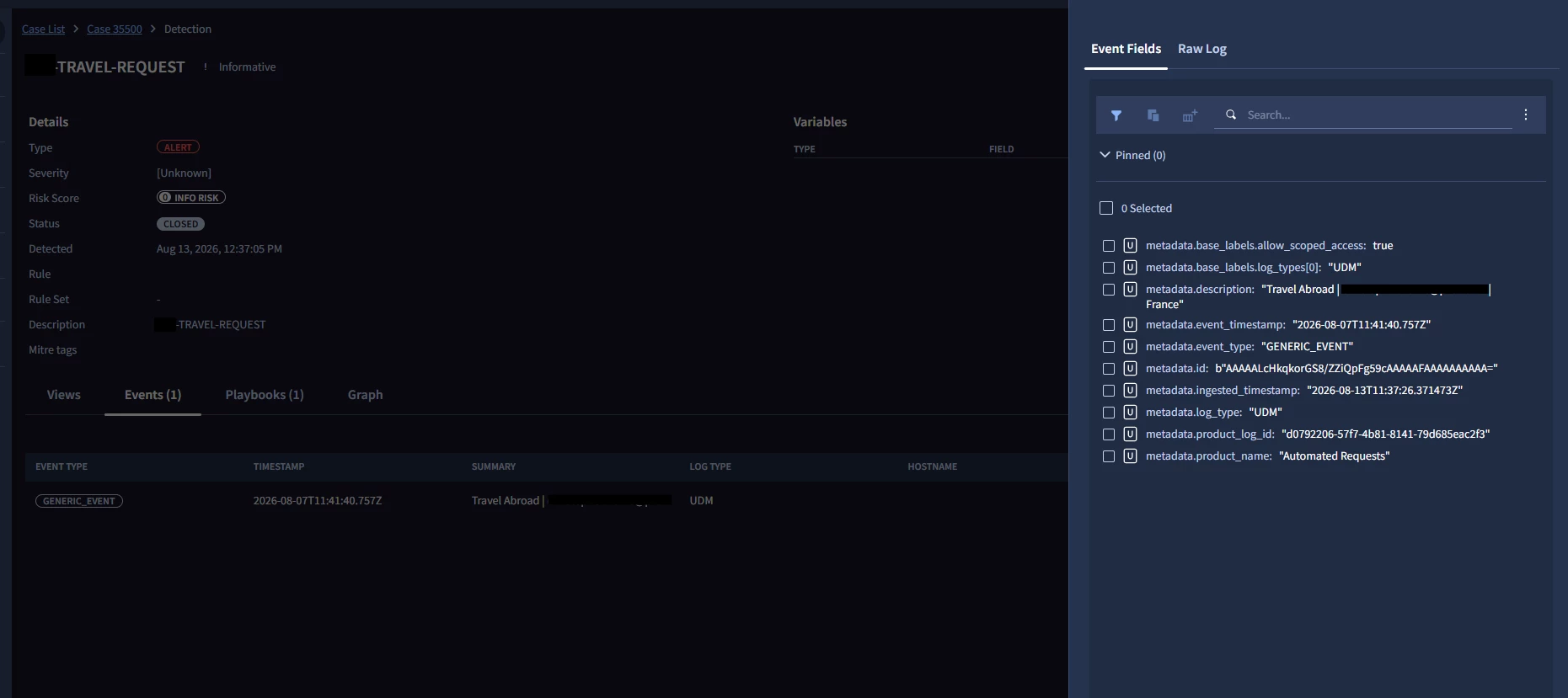
But in the new Cases 2.0 experience, the Event data doesn’t show any of the fields I need:-


Am I looking in the wrong place or do I need to perform a different set of steps to pull this into cases 2.0 as I cannot locate this data. Playbook still operates normally and I can reference the Event data in the normal way, it’s just not visually available for analysts to reference.

Best answer by thineth_dasun

Hi  ​@Chris-N ,

You are not looking in the wrong place—this is due to the architectural difference in how Cases 2.0 (Unified Cases) displays event payloads compared to the Legacy SOAR view.

In Legacy SOAR, the Event tab rendered the raw JSON payload / key-value dictionary directly into custom event UI categories. In Cases 2.0, the UI renders the normalized Unified Data Model (UDM) fields. Custom form fields that aren't mapped directly to standard UDM schema fields won't automatically show up in the default Event Fields pane.

Here are a few ways to make this visible to your analysts:

1. Check the "Raw Log" Tab

In the Cases 2.0 side drawer, switch from Event Fields to the Raw Log tab right next to it. The unmapped custom form attributes (Destination, Dates, Department, etc.) should still reside in the underlying JSON payload.

2. Map Custom Form Fields to additional.fields in the Parser / Webhook Ingestion

If these requests pass through a Parser or Ingestion API, map the MS Form key-values into UDM's additional.fields map (e.g., additional.fields["destination"] = "France"). Cases 2.0 automatically surfaces additional.fields under the Event Fields pane.

3. Surface Data via SOAR Playbook Enrichment (Quickest Fix for Analysts)

Since your playbook still accesses the event data normally:

  • Add a playbook step to extract those specific fields (Destination, Depart Date, Reason, etc.).

  • Write them to Case Custom Fields or add a Case HTML/Markdown Widget on the Overview tab using the Set Case Custom Fields or Create Case Tag/Attachment action.

  • This renders a clean summary card for analysts directly on the Overview view without requiring them to inspect raw events.

Hope this clarifies the Cases 2.0 display change and gives you a good workaround!

3 replies

thineth_dasun
Forum|alt.badge.img+6
  • Bronze 4
  • Answer
  • August 14, 2026

Hi  ​@Chris-N ,

You are not looking in the wrong place—this is due to the architectural difference in how Cases 2.0 (Unified Cases) displays event payloads compared to the Legacy SOAR view.

In Legacy SOAR, the Event tab rendered the raw JSON payload / key-value dictionary directly into custom event UI categories. In Cases 2.0, the UI renders the normalized Unified Data Model (UDM) fields. Custom form fields that aren't mapped directly to standard UDM schema fields won't automatically show up in the default Event Fields pane.

Here are a few ways to make this visible to your analysts:

1. Check the "Raw Log" Tab

In the Cases 2.0 side drawer, switch from Event Fields to the Raw Log tab right next to it. The unmapped custom form attributes (Destination, Dates, Department, etc.) should still reside in the underlying JSON payload.

2. Map Custom Form Fields to additional.fields in the Parser / Webhook Ingestion

If these requests pass through a Parser or Ingestion API, map the MS Form key-values into UDM's additional.fields map (e.g., additional.fields["destination"] = "France"). Cases 2.0 automatically surfaces additional.fields under the Event Fields pane.

3. Surface Data via SOAR Playbook Enrichment (Quickest Fix for Analysts)

Since your playbook still accesses the event data normally:

  • Add a playbook step to extract those specific fields (Destination, Depart Date, Reason, etc.).

  • Write them to Case Custom Fields or add a Case HTML/Markdown Widget on the Overview tab using the Set Case Custom Fields or Create Case Tag/Attachment action.

  • This renders a clean summary card for analysts directly on the Overview view without requiring them to inspect raw events.

Hope this clarifies the Cases 2.0 display change and gives you a good workaround!


Chris-N
Forum|alt.badge.img+1
  • Author
  • Bronze 1
  • August 14, 2026

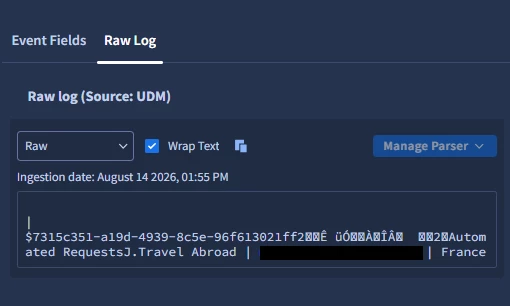
Appreciate the detail provided. Strangely my raw log does not show the full output:


But I have already performed the workaround you’ve described with a separate widget containing the form detail in a specific Alert View. I will look to review point 2 and map additional fields where required going forward. 


Thanks for your help!
Chris ​​​​​​​


thineth_dasun
Forum|alt.badge.img+6

Hi  ​@Chris-N ,

Glad to hear the Alert View widget workaround is working well for your analysts!

Looking at your Raw Log screenshot, it seems the underlying ingestion stream is passing the payload as serialized binary or Protobuf data (indicated by those special non-printable characters like ``), which is why the UI isn't rendering it as clean JSON/Text.

Mapping those extracted parameters explicitly into additional.fields inside the Ingestion Parser (Point 2) will definitely clean that up and make them natively searchable in UDM going forward.

Thanks for sharing the update and best of luck with the Cases 2.0 migration! 🚀