Hi Community!
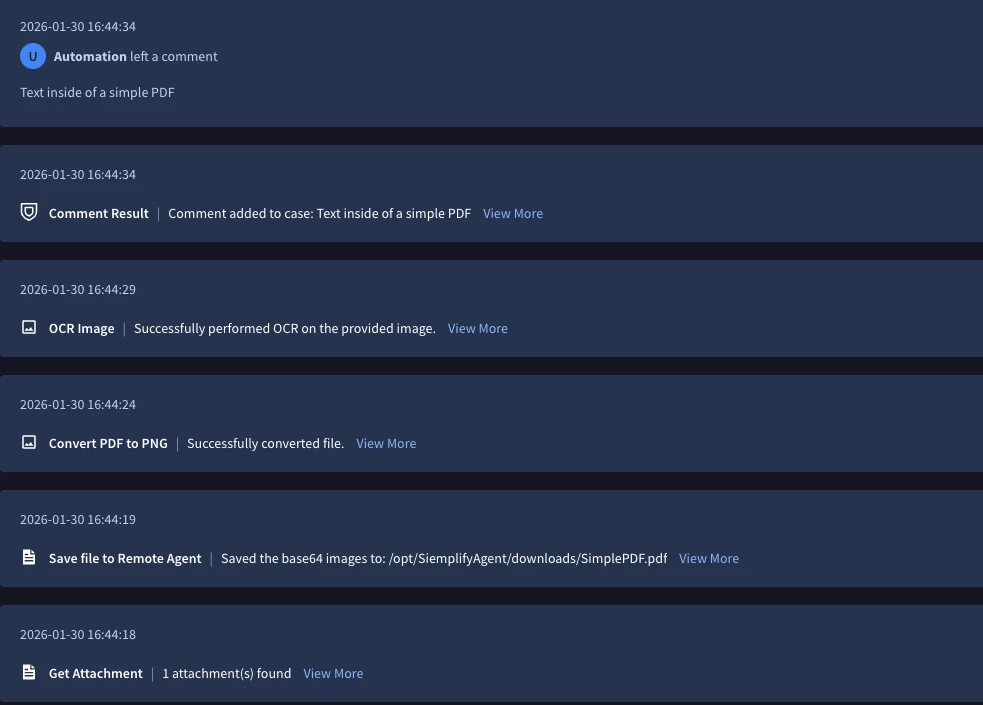
This post explains how to build a SOAR playbook to extract text from PDF files attached to cases. The core idea is to use a Remote Agent to convert the PDF to an image, and then use Optical Character Recognition (OCR) to get the text.
Overview of Solution:
The playbook uses the FileUtilities integration to handle the attachment and save it to the Remote Agent. Then, the ImageUtilities integration, also running on the Remote Agent, converts the PDF to a PNG image and performs OCR to extract the text. The extracted text can then be used in subsequent playbook steps.
Prerequisites:
- Integrations: Install FileUtilities and ImageUtilities from the Marketplace.
- Remote Agent Configuration:
- Ensure you have a Remote Agent set up and running.
-
The instances of FileUtilities and ImageUtilities used in this playbook must be configured to run on this Remote Agent.
-
Install Dependencies on the Remote Agent:
-
For CentOS 7 / RHEL:
-
sudo yum update -y
sudo yum install -y epel-release
sudo yum install -y poppler-utils  # Provides pdftoppm for PDF conversion
sudo yum install -y tesseract     # OCR engine
-
- For Ubuntu:
-
sudo apt-get update
sudo apt-get install -y poppler-utils  # Provides pdftoppm for PDF conversion
sudo apt-get install -y tesseract-ocr # OCR engine
-
-
Playbook Design
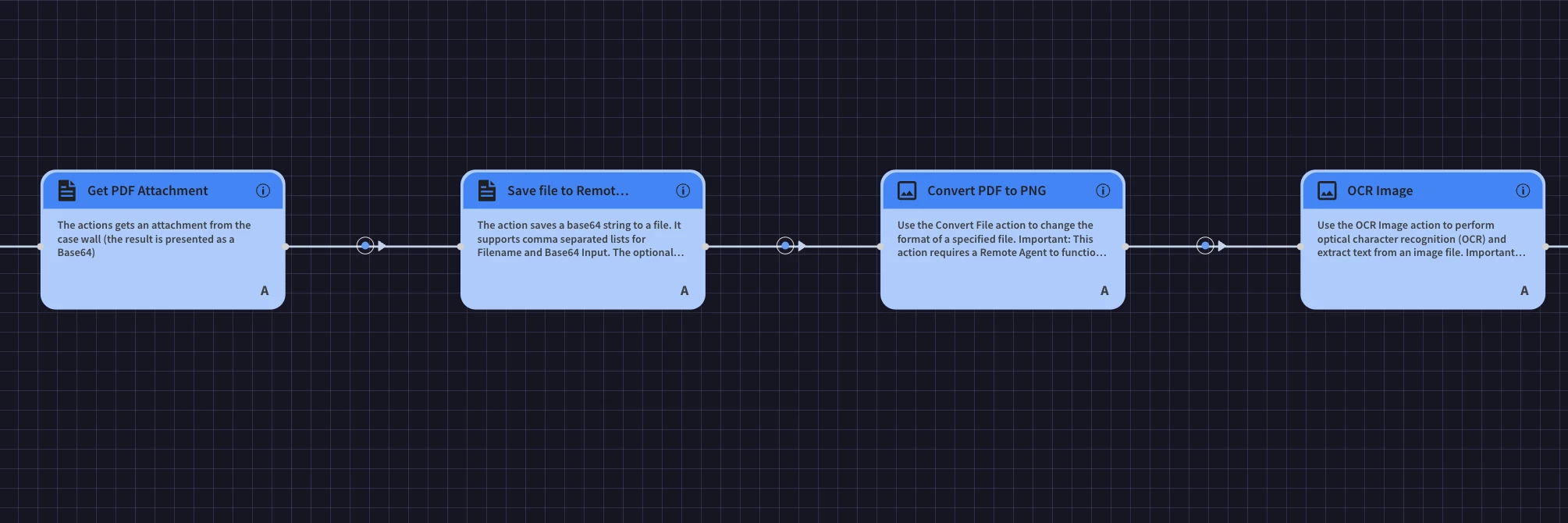
Playbook Steps:
- FileUtilities - Get Attachment
-
FileUtilities - Save Base64 to File
-
File Extension:
.pdf -
Base64 Input:
[Get Attachment.JsonResult| "base64_blob"] -
Filename:
[Get Attachment.JsonResult| "evidenceName"]
-
-
ImageUtilities - Convert File
-
Input File Format:
PDF -
Input File Path:
[Save file to Remote Agent.JsonResult| "files.file_path"] -
Output File Format:
PNG
-
-
ImageUtilities - OCR Image
-
File Path:
[Convert PDF to PNG.JsonResult| "file_path"]
-
-
Siemplify - Case Comment // Any action to print result
-
Comment:
[OCR Image.JsonResult| "extracted_text"]
-
Result: