



Hi Everyone!
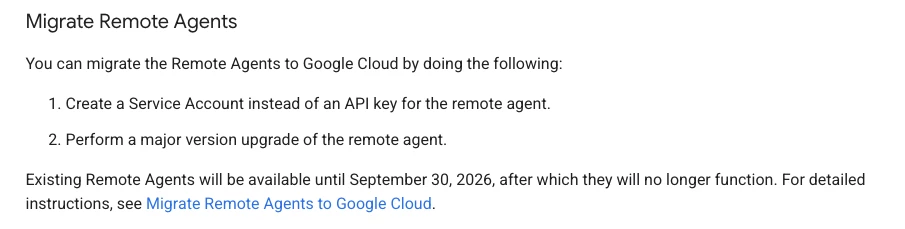
Google SecOps is moving closer to its "OnePlatform" vision by transitioning Google Security Operations (formerly Chronicle) SOAR workloads directly into customer-owned Google Cloud projects. While this Stage 2 migration is great for streamlining identity management and access controls through Google Cloud IAM, it does mean a few engineering updates are required. This post specifically runs through some caveats in the Remote Agent migration. Even though the current documentation contains information about "what we need to do", I found that it was lacking in some areas which is why I put this together.
Permissions Required
For this portion of the migration.The new Service account will need the roles/chronicle.soarRemoteAgent role assigned to it. The role is still in Beta and contains a number of legacy permissions, so expect changes to the permissions model in the coming months.

If you are using Terraform for managing your Service Account permissions, I've included some code which you can modify for your environment below:
Terraform Implementation
Example Serviceaccounts.tf:
resource "google_service_account" "secops_soar_remote_agent_sa" {
  account_id   = "secops-soar-remote-agent-sa"
  display_name = "Grants Remote Agent access to Chronicle SOAR"
  project      = var.name
}
Example Permissions.tf:
# Assign the recommended Google SecOps SOAR role for the remote agent service account (https://docs.cloud.google.com/iam/docs/roles-permissions/chronicle#chronicle.soarRemoteAgent)
resource "google_project_iam_member" "chron_secops_soar_remote_agent" {
  project = var.name
  role    = "roles/chronicle.soarRemoteAgent"
  member  = "serviceAccount:${google_service_account.secops_soar_remote_agent_sa.email}"
}
Configuring the Service Account
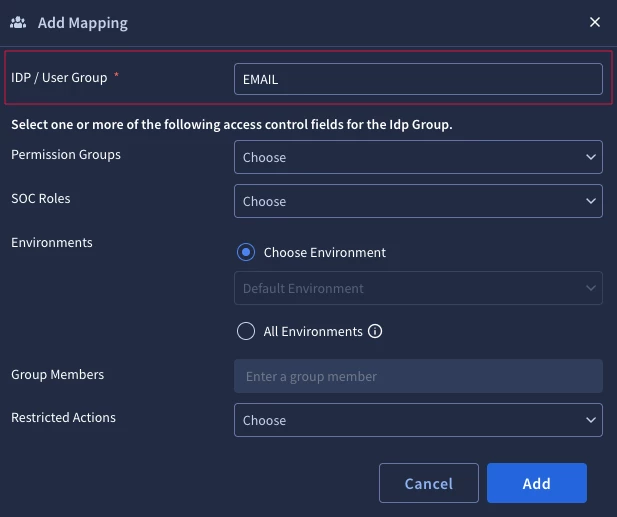
Once your Service account has been created, create a SA key and store it on the host as detailed in the documentation. At this point, you should be able to add the SA's email address to the Group Mapping in the SecOps console. (When you add the mapping, you can leave the Permission Groups and SOC Roles blank).
SOAR Settings → Advanced → Group Mapping
Google SecOps ONE_PLATFORM Information
The rest of the document outlines most of the information pretty well, but the explanation of ONE_PLATFORM and Remote Agent verification is not fantastic.
Note: If you get lost on locating the ONE_PLATFORM information during the setup stage, open the Existing Remote agent in the SecOps UI, click on the Docker Command and paste it into a note file.
SOAR Settings → Advanced → Remote Agents
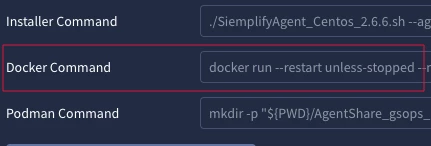
The existing docker command will include the required information:
- ONE PLATFORM URL DOMAIN
- ONE PLATFORM URL PROJECT
- ONE PLATFORM URL LOCATION
- ONE PLATFORM URL INSTANCE
Verifying that the Agents are Working as Expected
In my opinion, one major limitation of the current SecOps UI is that a "LIVE" agent status doesn't necessarily guarantee that data synchronization is fully up-to-date. It also does not ensure that all remote agent integrations are working as expected (hopefully we’ll see a health status for this at some point). To ensure everything is functioning correctly behind the scenes, and for my own peace of mind, this is the process that I followed:
- On the Remote Agent Host:
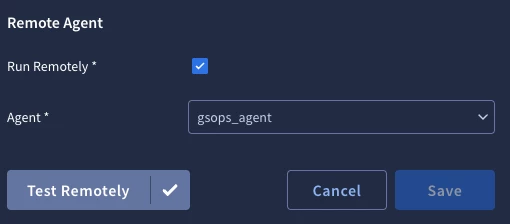
docker ps- should show starting and then healthy. - In the SecOps UI: Navigate into any integration’s settings menu that previously used the remote agent, click Test Remotely (this only works for integrations with Ping functionality). Alternatively, you can test out a Playbook action that uses a Remote Agent integration.
If you were just starting your Google SecOps Phase 2 Migration, I hope this helps! Please let me know if you have found better ways to verify if Remote Agents (and their associated integrations) are running as expected :)
