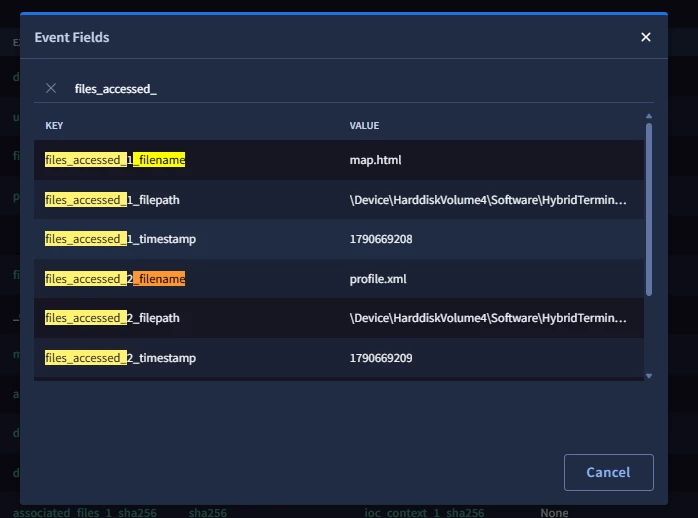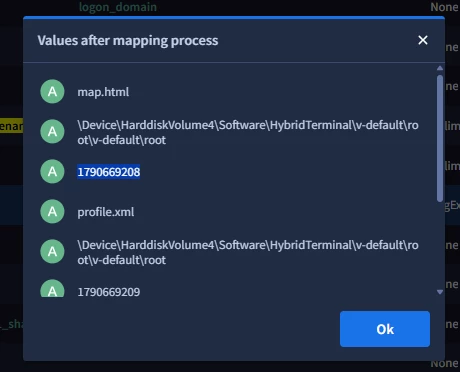
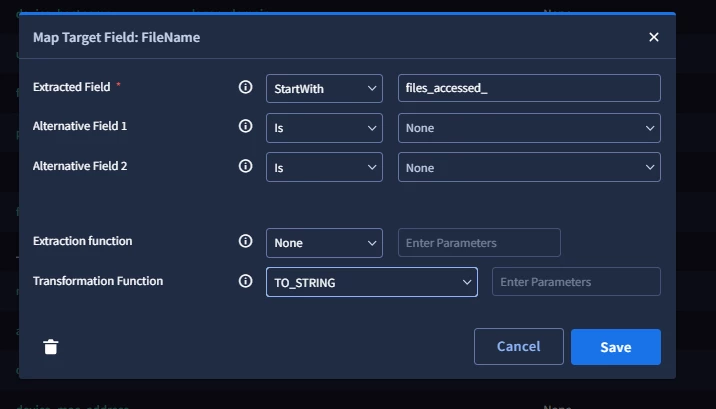
I'm working on modifying an ontology to create entities from UDM properties. My problem is that I am not able to extract fields like files_accessed_1_filename, files_accessed_2_filename and so on without hardcoding each mapping to another 10 rules or extracting some unwanted properties (because I used the contains/startswith/endswith functions). I was hoping that I could do some regex to get the whole list of filenames (or just have all the filenames in 1 single UDM property). Is there any solution to this?
Please look at these images to see the problem:
Thank you!
Best answer by rodajrc
Hi Stefan,
For your use case, you can use the Transformation FunctionEXTRACT_BY_REGEX as a filter. You're almost done! Assuming your fields follow the pattern files_accessed_n_filename, where n is any number, this regex accepts Linux filenames:
^(?!\s)[^\0/]{1,255}(?<!\s)$
Any value that doesn't match the regex is discarded. Keep in mind that this pattern accepts almost any single-line value without a slash. It rejects only values that contain a slash or a null character, or that start or end with whitespace. If the values you want to drop could also look like filenames, tighten the pattern to fit your data. For example, ^[^\0/]+\.[A-Za-z0-9]{1,10}$ accepts only filenames with an extension.
Let me show you an example. The following picture shows some sample event fields similar to your scenario.
Sample event fields with enumerated names
Let's say I want to create a Generic Entity for topic_matches_1_topic_id and topic_matches_2_topic_id, but not for topic_matches_n_value.
Option 1 (easiest): the Ends With comparison
If no other field in this event, or in any event your product sends, ends with topic_id, you can safely configure the mapping as shown below:
topic_id is a safe term because no other field name ends with it. The same check applies to Contains, except the term must not appear anywhere else in any field name.
Option 2 (most likely your scenario): the Transformation Function as a filter
If no comparison type (Equal, Contains, Starts With, or Ends With) can select only the fields you want, select a wider set of fields and filter the results with the Transformation Function. In this scenario, we start with the Starts With comparison, as shown below:
Starts With topic_matches_ selects every field whose name begins with that prefix
This configuration matches four fields and creates four entities, one per field:
Before moving on, here are two tips that make this easier.
Tip: Hover to see field values
Hover over a green extracted field to see the values of the raw event fields it matches. This tells you exactly which strings you're working with, and which strings the ontology will use to create your entities.
Hovering over a green extracted field shows the values of the matched fields
Tip: Use Show Results to preview entities
Each mapping entry has a three-dot menu on the right with three options: Edit Field (the default action), Show Results, and Add Enrichment, which adds extra information to a created entity. Show Results is the important one here, because it lists the entities the mapping will create.
Show Results displays the final entities that are going to be created.
Now try this: edit one mapping, change the Extraction Function from Delimiter to None, and check Show Results. It makes the next part easier to follow.
The Extraction Function controls how the matched value is split into entities. With None, Show Results lists a single entity that contains the values of all the matched fields. With Delimiter (and a comma in this scenario), that value is split at each comma, so you get one entity per field, as expected. The RegEx option extracts the parts of the value that match a pattern.
While Extraction Function works on the raw value, the Transformation Function works on each entity just before it is created but after extraction.
In my case, I want to keep only the topic_id fields. Their values have the form {topic}:{id}, where both parts are lowercase letters and underscores. So I edit the mapping and set:
Transformation Function: EXTRACT_BY_REGEX
Parameter: ^[a-z_]+:[a-z_]+$
Entities are created at each comma split, and then, for each entity, the EXTRACT_BY_REGEX must match for the entity to remain
The Transformation Function checks each entity against the regex. If the entity matches, it keeps the matched part; otherwise the entity is discarded. Because the pattern is anchored to the whole value, it works as a filter. So, an entity is either kept whole or dropped.
Show Results now lists only two entities, as shown below.
Resulting entities after filtering with EXTRACT_BY_REGEX
For your use case, you can use the Transformation FunctionEXTRACT_BY_REGEX as a filter. You're almost done! Assuming your fields follow the pattern files_accessed_n_filename, where n is any number, this regex accepts Linux filenames:
^(?!\s)[^\0/]{1,255}(?<!\s)$
Any value that doesn't match the regex is discarded. Keep in mind that this pattern accepts almost any single-line value without a slash. It rejects only values that contain a slash or a null character, or that start or end with whitespace. If the values you want to drop could also look like filenames, tighten the pattern to fit your data. For example, ^[^\0/]+\.[A-Za-z0-9]{1,10}$ accepts only filenames with an extension.
Let me show you an example. The following picture shows some sample event fields similar to your scenario.
Sample event fields with enumerated names
Let's say I want to create a Generic Entity for topic_matches_1_topic_id and topic_matches_2_topic_id, but not for topic_matches_n_value.
Option 1 (easiest): the Ends With comparison
If no other field in this event, or in any event your product sends, ends with topic_id, you can safely configure the mapping as shown below:
topic_id is a safe term because no other field name ends with it. The same check applies to Contains, except the term must not appear anywhere else in any field name.
Option 2 (most likely your scenario): the Transformation Function as a filter
If no comparison type (Equal, Contains, Starts With, or Ends With) can select only the fields you want, select a wider set of fields and filter the results with the Transformation Function. In this scenario, we start with the Starts With comparison, as shown below:
Starts With topic_matches_ selects every field whose name begins with that prefix
This configuration matches four fields and creates four entities, one per field:
Before moving on, here are two tips that make this easier.
Tip: Hover to see field values
Hover over a green extracted field to see the values of the raw event fields it matches. This tells you exactly which strings you're working with, and which strings the ontology will use to create your entities.
Hovering over a green extracted field shows the values of the matched fields
Tip: Use Show Results to preview entities
Each mapping entry has a three-dot menu on the right with three options: Edit Field (the default action), Show Results, and Add Enrichment, which adds extra information to a created entity. Show Results is the important one here, because it lists the entities the mapping will create.
Show Results displays the final entities that are going to be created.
Now try this: edit one mapping, change the Extraction Function from Delimiter to None, and check Show Results. It makes the next part easier to follow.
The Extraction Function controls how the matched value is split into entities. With None, Show Results lists a single entity that contains the values of all the matched fields. With Delimiter (and a comma in this scenario), that value is split at each comma, so you get one entity per field, as expected. The RegEx option extracts the parts of the value that match a pattern.
While Extraction Function works on the raw value, the Transformation Function works on each entity just before it is created but after extraction.
In my case, I want to keep only the topic_id fields. Their values have the form {topic}:{id}, where both parts are lowercase letters and underscores. So I edit the mapping and set:
Transformation Function: EXTRACT_BY_REGEX
Parameter: ^[a-z_]+:[a-z_]+$
Entities are created at each comma split, and then, for each entity, the EXTRACT_BY_REGEX must match for the entity to remain
The Transformation Function checks each entity against the regex. If the entity matches, it keeps the matched part; otherwise the entity is discarded. Because the pattern is anchored to the whole value, it works as a filter. So, an entity is either kept whole or dropped.
Show Results now lists only two entities, as shown below.
Resulting entities after filtering with EXTRACT_BY_REGEX