
Introduction
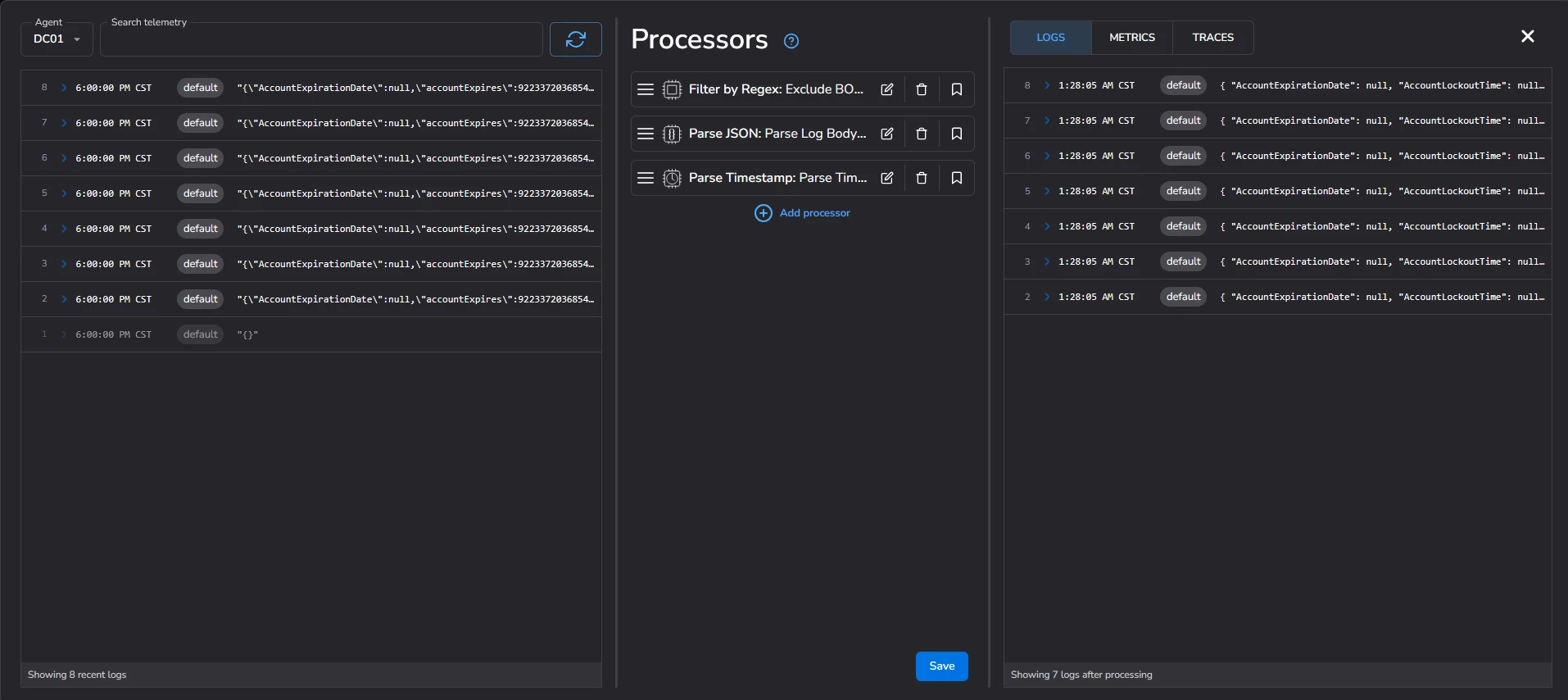
In the world of Security Operations, data is only as good as its metadata. Have you ever encountered events in your SIEM that appear to have occurred decades ago, or thousands of events clustered at the exact same second?
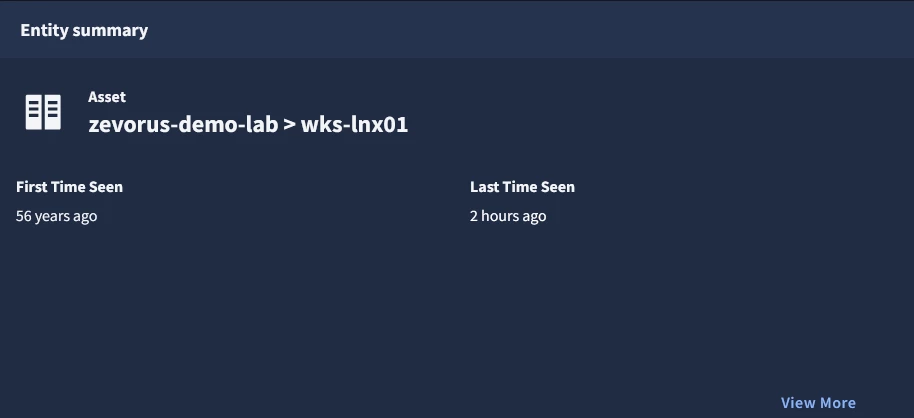
Ingesting logs into Google SecOps SIEM without proper validation often leads to "time-warped" data. This isn't just a visual nuisance—it breaks your detections and complicates investigations.
In this guide, I’ll demonstrate how to use BindPlane to build robust ingestion pipelines that validate data and fix timestamp errors before they ever reach your SIEM.
Why fixing timestamps anyway?
It is easy to overlook timestamp formatting during the rush of onboarding a new log source. However, timestamps are the backbone of security engineering:
- Detection Accuracy: YARA-L rules rely on precise time windows. If your timestamps are off, your "last 24 hours" alerts won't trigger on the right events.
- Incident Reconstruction: When a SOC Analyst builds a timeline of an attack, they need a chronological narrative. Incorrect timestamps turn a clear story into a jigsaw puzzle.
- Engineering Scalability: As you ingest more log types, the risk of "dirty data" grows. Without a standardized workflow for cleaning logs, your SIEM becomes a swamp of unreliable information.
Case Study: Optimizing auditd ingestion
To demonstrate the "Identify, Fix, and Validate" workflow, let’s look at **auditd**. While it is a goldmine for Linux kernel-level monitoring, its default output is often incompatible with direct Google SecOps ingestion.
Warning
The method shown in this post may not work for other log types except for auditd. Different log sources, operating systems, data formats, and log types may require alternative solutions and techniques to identify, extract, parse, and update timestamp issues.
Preparing the source (Ubuntu)
First, we need to get auditd logs into a readable format. Follow these steps to route auditd events through rsyslog into a dedicated file.
- Installation & Rule Configuration: Install the necessary packages and apply a robust ruleset (like the one maintained by Neo23x0.
# Install packages
apt install auditd audispd-plugins rsyslog -y

# Download and apply optimized rules
curl -o audit.rules https://raw.githubusercontent.com/Neo23x0/auditd/refs/heads/master/audit.rules
mv audit.rules /etc/audit/rules.d/
systemctl restart auditd.service
systemctl enable auditd.service
systemctl daemon-reload
systemctl status auditd.service # Verify the service is working- Configure the Output Format: Edit
/etc/audit/auditd.confto ensure the logs are enriched and local events are captured. Below are the entries that you must configure.
local_events=yes
write_logs=no # Optional if you do not want to store log locally
log_format=ENRICHED
name_format=HOSTNAME- Since you cannot ingest log entries directly from
/var/log/audit.logto Google SecOps (because they are written in an unsupported format), enable the syslog plugin in/etc/audit/plugins.d/syslog.confby settingactive=yes.
active=yes # Enable syslog plugin
direction=out
path=/sbin/audisp-syslog
type=always
args=LOG_INFO
format=string
- Create a Dedicated Log Path: To keep your ingestion clean, separate auditd events from general system logs. Create
/etc/rsyslog.d/20-audispd.conf:
if $programname=="audisp-syslog" then {
 action(type="omfile" file="/var/log/auditd.log")
 stop
}
- Restart rsyslog and auditd.
systemctl restart rsyslog.service
systemctl restart auditd.service
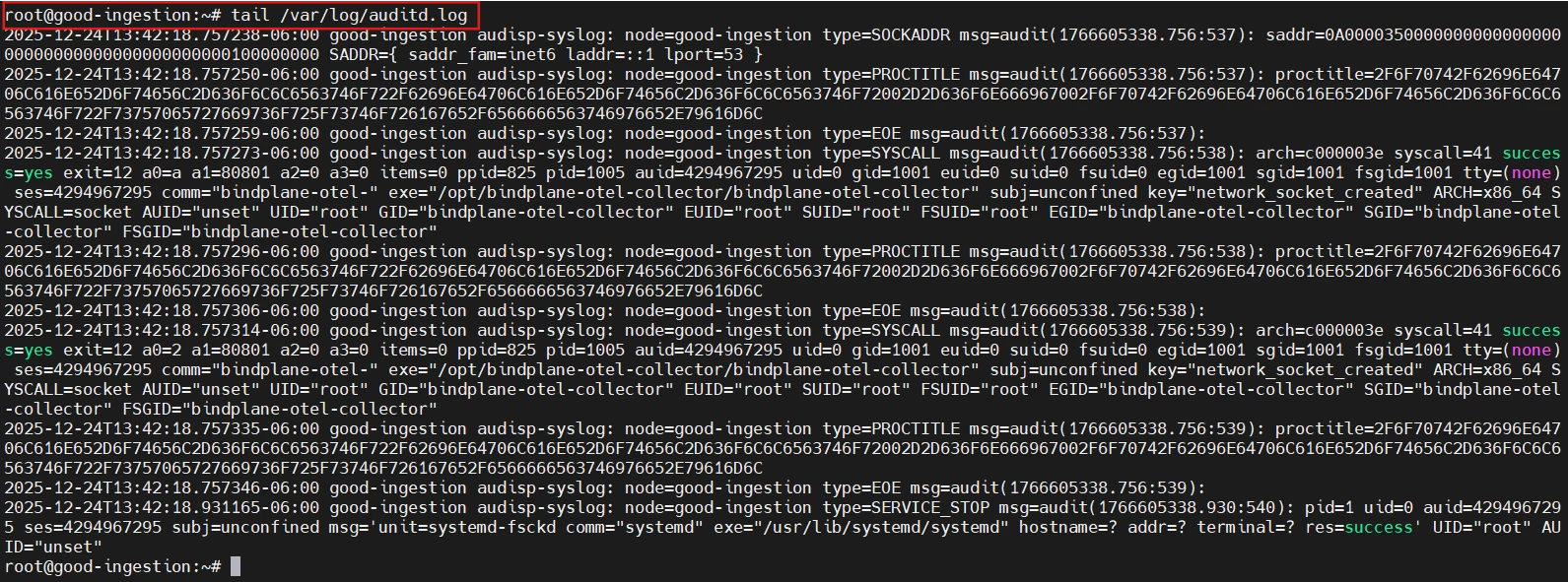
Your logs are now streaming to /var/log/auditd.log, as shown in the picture below.
BindPlane Pipeline Configuration
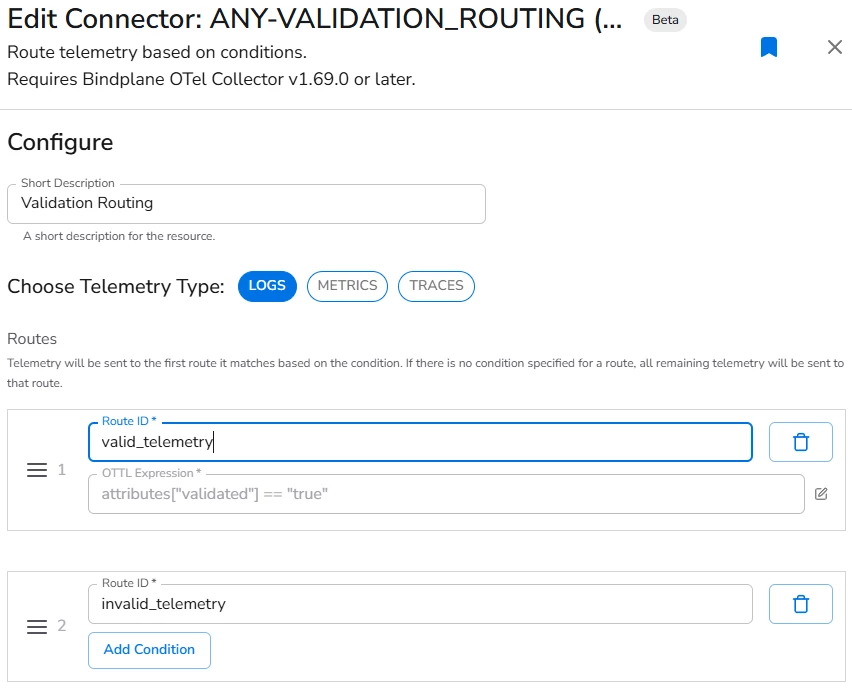
Now that we have a log file, we need a smart pipeline. Instead of sending logs directly to SecOps, we implement a Validation Route.

This is a Safety first architecture. Our BindPlane pipeline uses a routing node to act as a gatekeeper:
- Valid Telemetry: If an event has the attribute
validated: true, it is sent to Google SecOps. - Invalid Telemetry: All other events are routed to a Dev-Null destination for inspection.
This structure allows us to preview logs and fix issues without polluting our production SIEM environment.
Do you like AI and automation?
Ingest invalid telemetry in a secondary storage bucket and inspect the logs with an AI agent
Reading auditd events
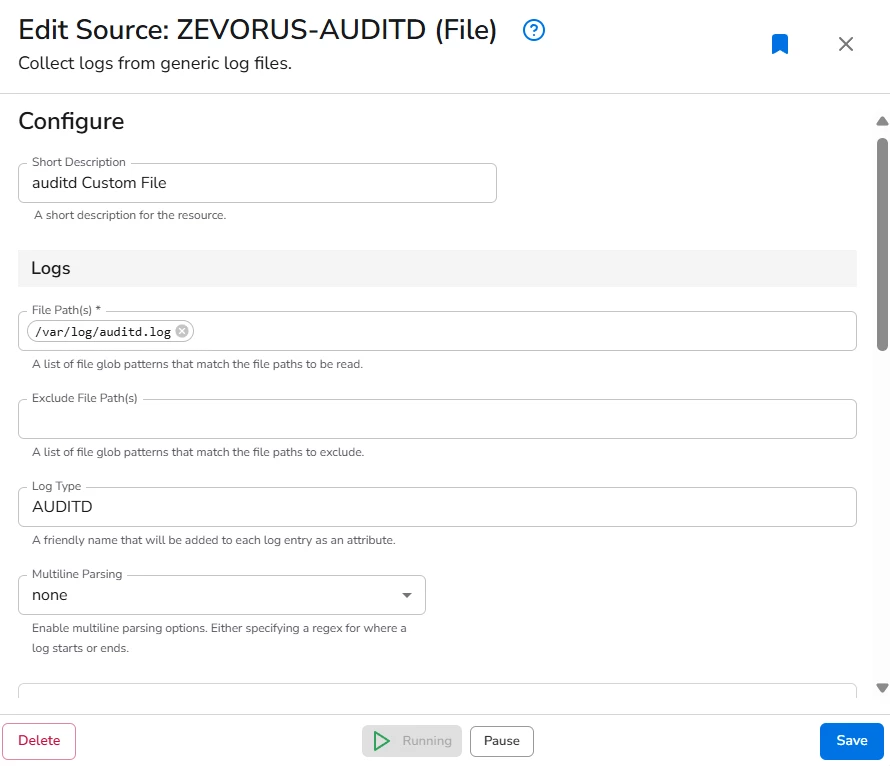
- In the BindPlane agent configuration, add a new source of type FILE.
- Optionally, add a description. E.g.
auditd Custom File - Configure the path of the file that should be read by the agent:
/var/log/auditd.log - Optionally, add the LOG TYPE tag auditd
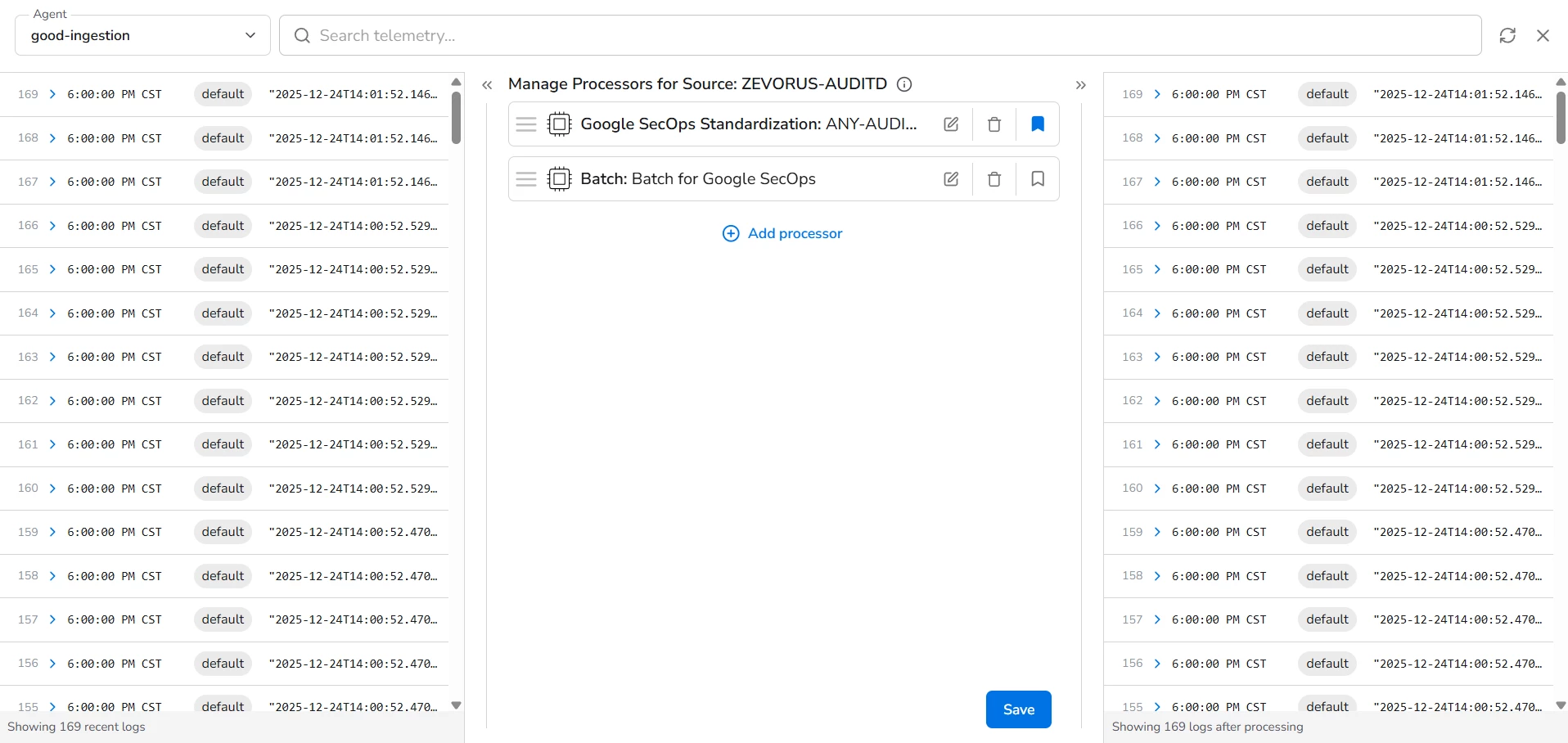
- Configure a Processor: Google SecOps Standardization with LOG TYPE equal to auditd
- Optionally, configure a Processor: Batch to avoid sending events to quickly to Google SecOps
Identifying and fixing timestamps in BindPlane
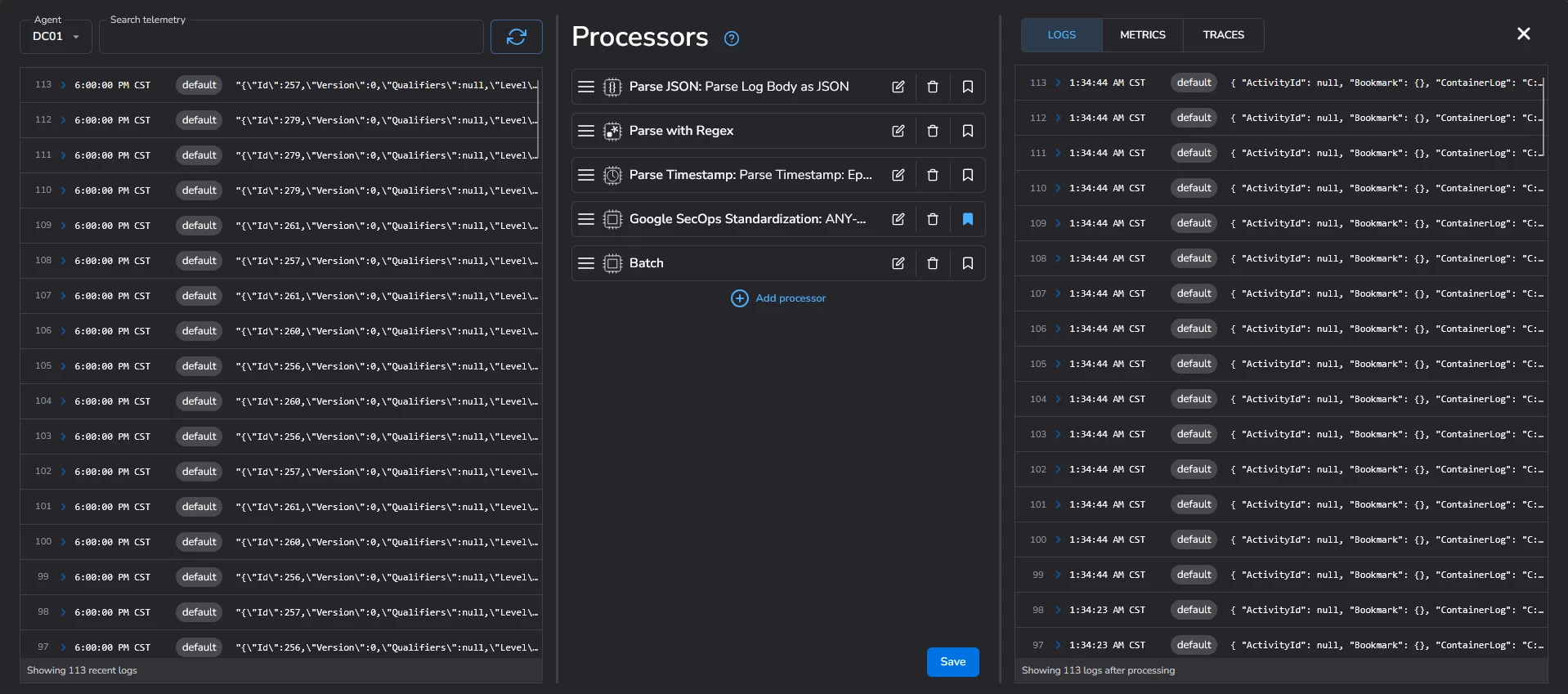
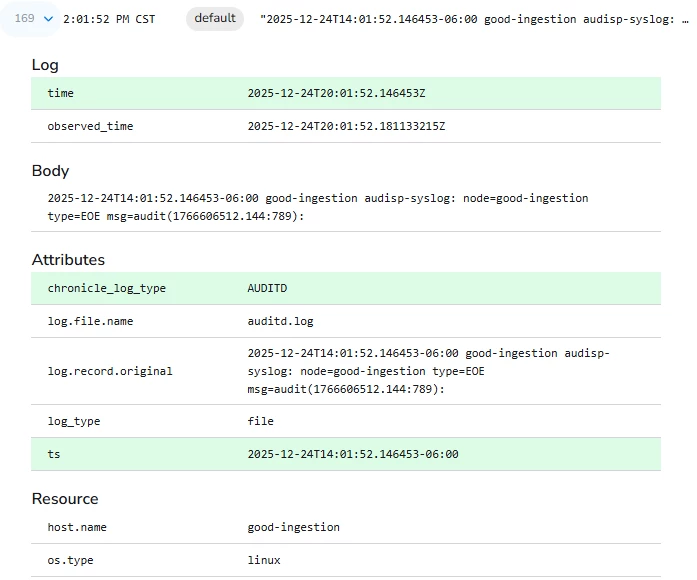
During initial testing, you might notice all events appearing with an incorrect time (e.g., 1970-01-01 or a static hour). Even if your system timedatectl settings are correct, BindPlane may fail to map the log.time field correctly if the format is non-standard.
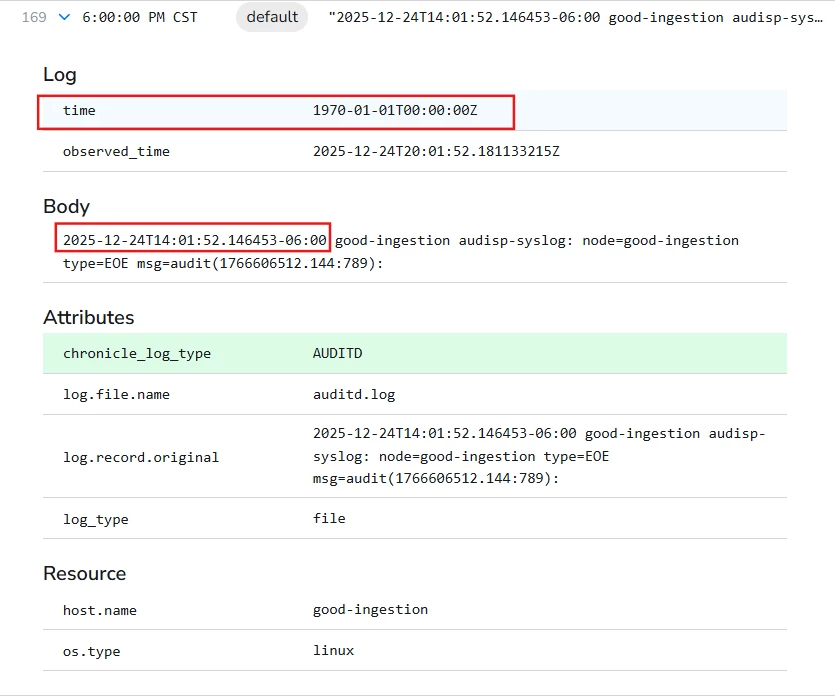
If the raw log contains the correct time in the body, but the log.time metadata is wrong, you can fix it using two specific processors:
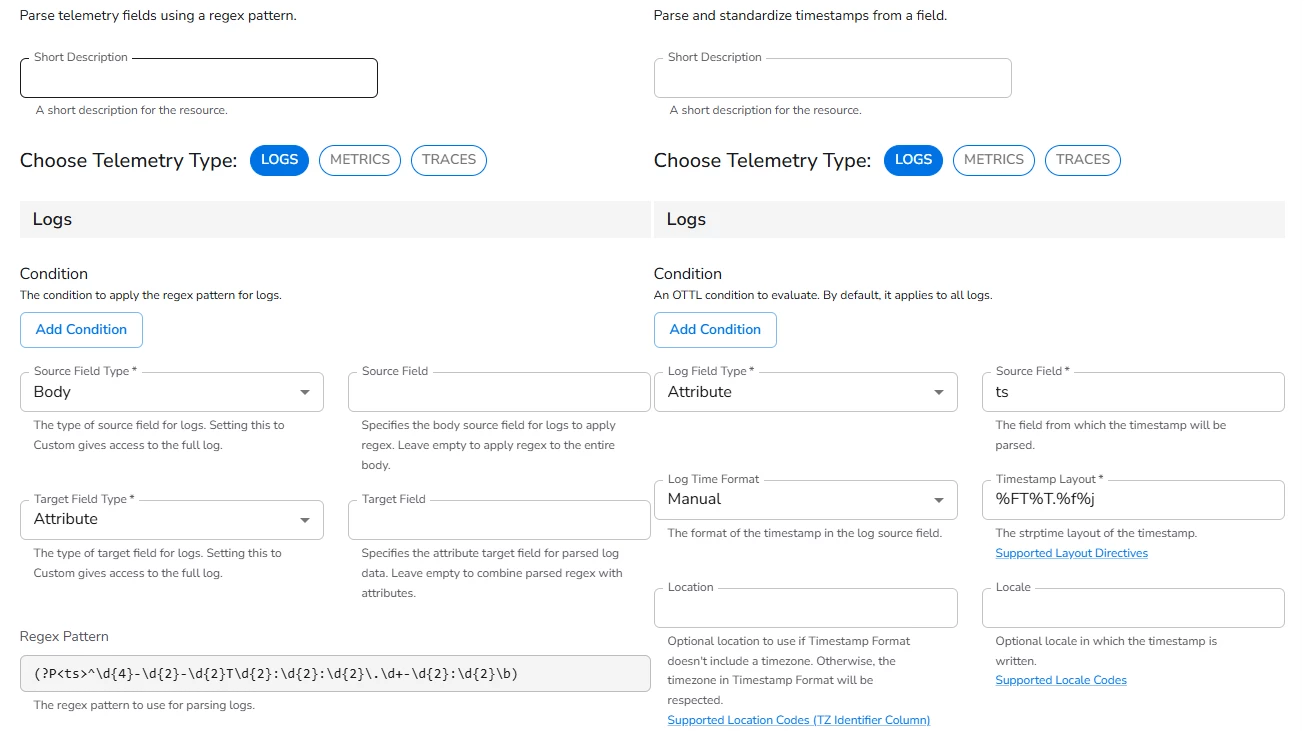
Phase 1: Extraction (Parse with Regex)
Extract the timestamp string from the log body and store it in a temporary attribute ts.
- Source Field Type: Body
- Target Field Type: Attribute
- Regex Pattern:
(?P<ts>^\d{4}-\d{2}-\d{2}T\d{2}:\d{2}:\d{2}\.\d+-\d{2}:\d{2}\b)
Phase 2: Implementation (Parse Timestamp)
Tell BindPlane to use that new ts attribute as the official event time.
- Log Field Type: Attribute
- Log Field:
ts - Format: Manual
- Timestamp Layout:
%FT%T.%f%j
Once these processors are active, the log.time field will update to reflect reality.
Validation
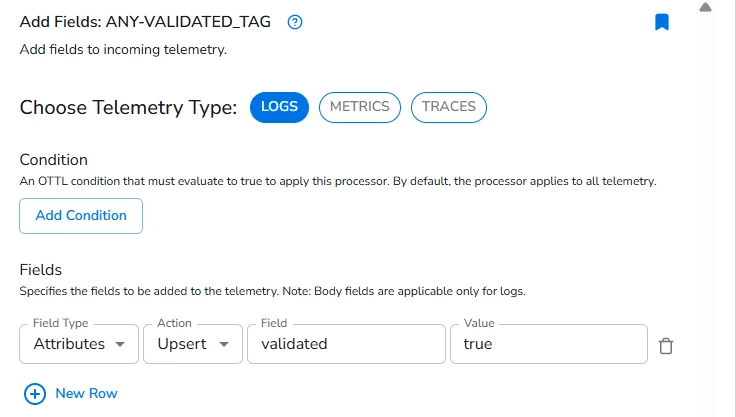
After verifying that the timestamps are accurate in the BindPlane preview:
- Add an Add Field processor to your auditd source.
- Set
validatedtotrue. - The routing node will now automatically permit these logs to flow into Google SecOps SIEM.
Conclusion
Never ingest blindly. Timestamps are frequently broken due to missing timezone info (common in Syslog RFC 3164) or parsing mismatches.
By using a Validation/Dev-Null pipeline, you ensure that only high-fidelity, chronologically accurate data reaches your analysts. Remember: cleaning up a bad ingestion in the SIEM is a painful process—fixing it at the source is engineering excellence.
Appendix
Appendix A: Other well-known log types with timestamp issues