
Hey folks,
As you know, managing credentials in Google SecOps can be quite tedious. To address this, we released a new integration called “Secret Manager”. The purpose of this integration is to allow you to automatically manage all of the credentials associated with Response Integrations, Connectors and Jobs from 1 place.
How it works?
Inside the integration, there is a job called “Sync Integration Credential Job”. This job is responsible for the synchronization of credentials.
As part of the job, you will need to provide a configuration JSON that will map the Google SecOps content to Secret Manager entries.
Authentication
Just like all other Google Cloud integrations, this integration supports authentication via Workload Identity and Service Account key. You will need to assign “Secret Manager Secret Accessor” Role.
Note: for situations, where you have identity created in Project A, but your Secret Manager credentials are located in Project B, you should use parameter Project ID, which will force the integration work in a specific project.
Job Configuration
The Job relies on 2 parameters to understand, which configurations should be updated: “Environment” and “Credential Mapping”.
“Environment” parameter tells the job, in which Google SecOps Environment the job should search for Integration Instances. The job can only update Integration credentials from 1 environment, so if you have a multi-tenant environment, you will need to create multiple job instances.
To work with Shared environment, you must provide “*” in the “Environment Field”.
Unlike Integration Instances, Connectors and Jobs are not assigned to a specific environment. They are identified by their unique names. You can provide all connector and job configuration as part of one config, but the best practice is to still have them separated based on the environment to which the data is being sent and synchronized.
The structure of the mapping JSON looks like this:
{
    "integration_instances": {
        "{Integration Instance Name}": {
            "{Integration Parameter 1}": "{Secret Manager Entry resource name}",
            "{Integration Parameter 2}": "{Secret Manager Entry resource name}"
        }
    },
    "connectors": {
        "{Connector Name}": {
            "{Connector Parameter}": "{Secret Manager Entry resource name}",
            "{Connector Parameter}": "{Secret Manager Entry resource name}"
        },
        "{Connector Name 2}": {
            "{Connector Parameter}": "{Secret Manager Entry resource name}",
            "{Connector Parameter}": "{Secret Manager Entry resource name}"
        }
    },
    "jobs": {
        "{Job Name}": {
            "{Job Parameter}": "{Secret Manager Entry resource name}"
        }
    }
}
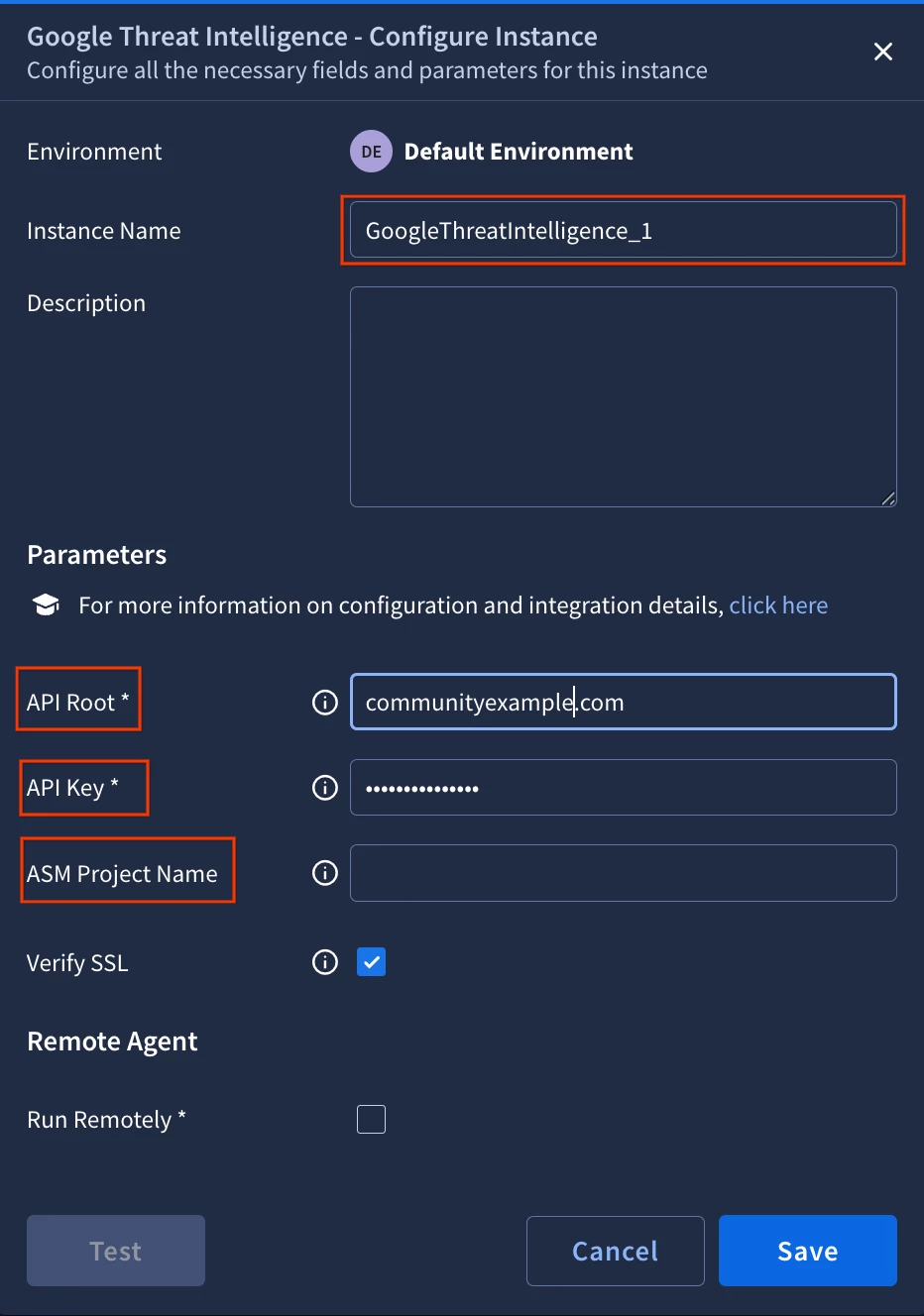
Information about Integration instance is located under “Response” → “Integrations Setup”:
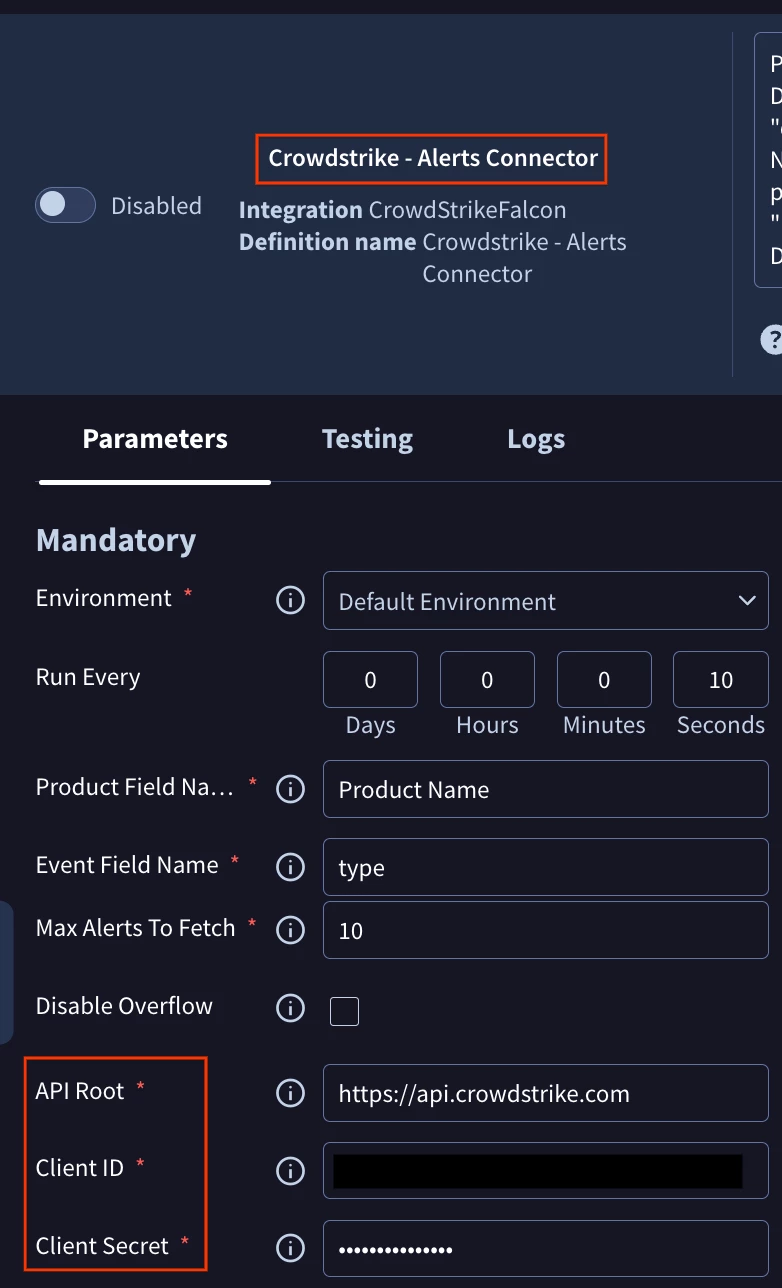
Information about Connectors is under SOAR Settings → “Ingestion” → “Connectors”:
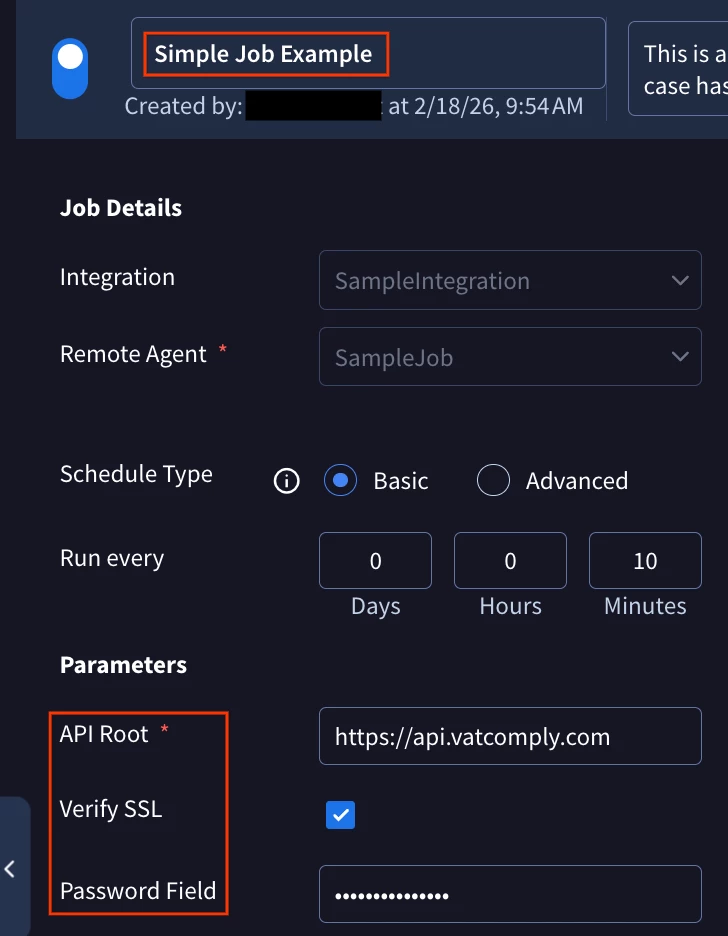
Information about Jobs:
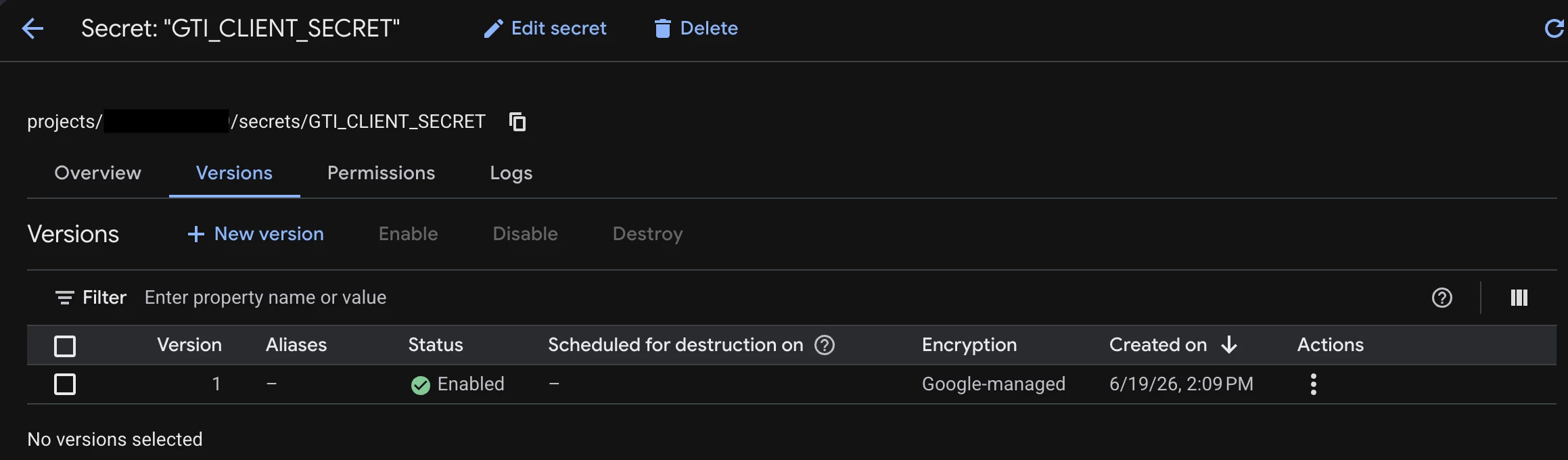
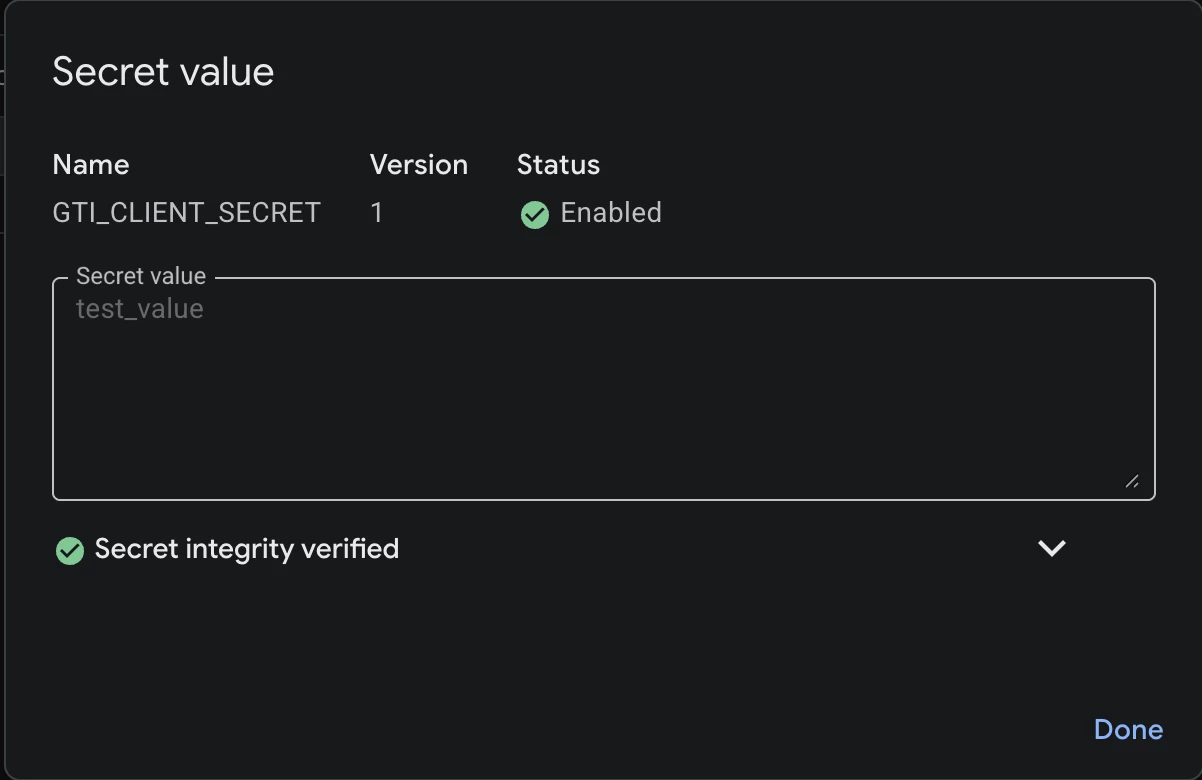
On the side of Secret Manager, you will need to create a new Secret Manager entry per parameter that needs to be tracked. For example, in the screenshot below, I’ve created a Secret Manager entry for the API Key secret.
The input can be provided in 2 formats:
- resource name of the Secret Manager entry. For example: projects/1111/secrets/GTI_CLIENT_SECRET
- resource name of the Secret Manager entry with a version: For example: projects/508138417679/secrets/GTI_CLIENT_SECRET/versions/1
If you provide the input without a version, the job will search for the latest Active version associated with an entry and update the value to it.
If you provide an explicit version, then the job will set the credential to that specific version.
Note: only Active versions can be used by the job.
Only parameters that are provided in the Job will be updated, all other parameters will be left unchanged. Also, if the job encountered an error for a specific configuration item, it will not stop the execution completely, instead it will try to update all entries that are provided in the mapper and then raise an error indicating that not all entries were updated.
Here is an example configuration:
{
    "integration_instances": {
        "GoogleThreatIntelligence_1": {
            "API Root": "projects/1111/secrets/GTI_TEST_API_ROOT",
            "API Key": "projects/1111/secrets/GTI_CLIENT_ID/versions/1"
        }
    },
    "connectors": {
        "Crowdstrike - Alerts Connector": {
            "Client Secret": "projects/1111/secrets/CrowdstrikeConnectorSecret",
            "Client ID": "projects/1111/secrets/CrowdstrikeConnectorID"
        },
        "Microsoft Graph Mail Connector": {
            "Client Secret": "projects/1111/secrets/GraphConnectorSecret",
            "Client ID": "projects/1111/secrets/GraphConnectorID/versions/3"
        }
    },
    "jobs": {
        "Sync Incidents": {
            "API Root": "projects/1111/secrets/API_Root/versions/2"
        }
    }
}
With this configuration the following information will be updated:
- GoogleThreatIntelligence_1 instance (API Root and API Key)
-
Crowdstrike - Alerts Connector (Client Secret and Client ID)
-
Microsoft Graph Mail Connector (Client Secret and Client ID)
-
Sync Incidents Job (API Root)
Summary
With the new Secret Manager integration, you can automatically manage secrets. Moving forward we want to add more products to be supported in the same way. Let us know, what products we should prioritize next!