

In today's rapidly evolving threat landscape, security teams are challenged by a persistent talent shortage and an overwhelming volume of alerts. Every investigation involves the same repetitive steps: pull evidence from multiple tools, read through it, form a hypothesis, write up recommendations, and update the ticket. None of that work is hard, but it is slow, and it pulls analysts away from the alerts that need human judgment.
Google SecOps already brings native AI assistance to investigation, including case summarization and Gemini-backed support inside the platform itself. That covers a lot of ground, but it is scoped to SecOps and to Google's model. Many SOC teams run a heterogeneous stack (multiple SIEMs, EDR, ticketing system, and a mix of AI vendor agreements depending on the business unit) and need their AI-enabled playbooks to reach across all of it.
We’ve built the custom integration AIModelQuery for Google SecOps SOAR to close that gap. It lets any playbook call out to any frontier or local LLM (Anthropic, OpenAI, Gemini, or Azure OpenAI) as a normal action step, with the provider-specific authentication and request handling abstracted away behind a single configuration. The playbook itself never needs to know or care which vendor is on the other end.
By building this as a standalone integration rather than relying on a single embedded model, organizations can swap providers per playbook, keep AI calls inside their existing vendor contracts, and apply the same pattern regardless of which SIEM or ticketing system supplied the underlying data. This is the same integration pattern used in the playbook below, which gathers evidence from QRadar and ServiceNow before ever touching the AI step.
This guide walks through configuring the AIModelQuery integration in Google SecOps SOAR, validating it with a Ping action, and wiring it into an AI-driven investigation playbook. This method requires no external reasoning engine and no dedicated agent platform — it runs entirely as native SOAR actions.
Prerequisites
-
Access to the Google SecOps SOAR IDE with permission to create custom integrations and actions.
-
An API key or credential for at least one supported provider: Anthropic, OpenAI, Gemini, or Azure OpenAI.
-
For Gemini, an API key with the Generative Language API enabled, and the target model name available to call directly in the endpoint URL.
-
For Azure OpenAI, your resource-specific endpoint and the api-version for your deployment.
-
If you want to replicate the full investigation playbook shown below, existing integrations for your SIEM (QRadar, in this case) and ticketing system (ServiceNow, in this case) already configured in your environment.
Step 1: Create the AIModelQuery Integration
In the SOAR IDE, create a new custom integration named AIModelQuery. Once the integration is created, configuring it means creating one or more instances of it. Each instance represents a single provider+model combination that playbooks can target by name.
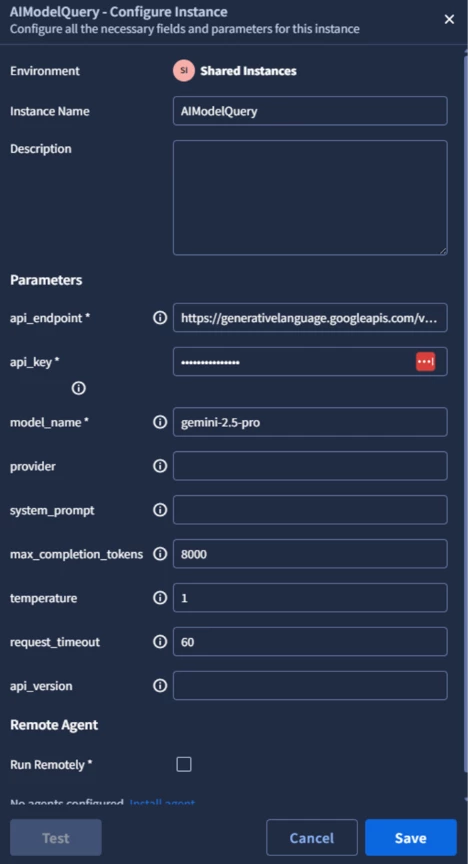
Click "Add Instance" and you'll get the Configure Instance dialog. Give the instance a descriptive name and an optional description noting what the instance is for.
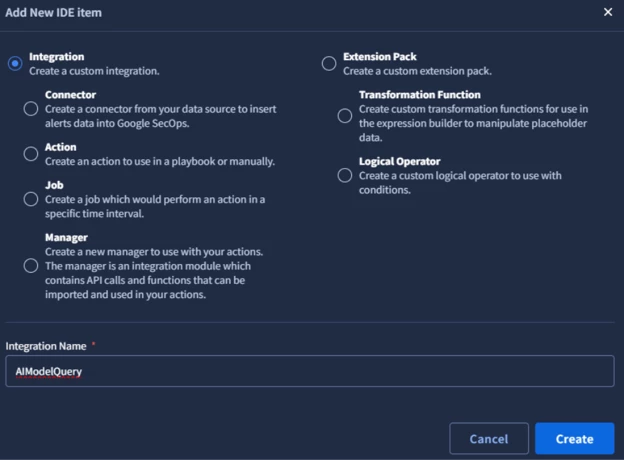
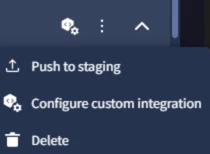
Click on the recently created Integration and choose “Configure custom integration”
Fill in the parameters:
| Field | Type | Mandatory | Value |
| api_endpoint | String | Yes | The provider's completion endpoint, e.g. https://api.anthropic.com/v1/messages, https://api.openai.com/v1/chat/completions, a Gemini generateContent URL with the model name included, or your Azure resource endpoint |
| api_key | Password | Yes | API key or token for the provider — stored as a credential field, masked in the UI |
| model_name | String | Yes | Model identifier, e.g. gemini-3.1-pro |
| provider | String | No | e.g. gemini |
| system_prompt | String | No | Optional. A default system/instruction prompt applied to every call made through this instance — useful for baking in tone or output-format constraints (like the Evidence/Recommendations/Observations structure below) without repeating them in every playbook prompt |
| max_completion_tokens | String | No | Caps response length for this instance. Keep this generous for analysis steps — 8,000–20,000 — since a truncated mid-list response will break the for-each loops downstream |
| temperature | String | No | Lower values (0.1–0.3) for consistent, structured analyst output; higher if you want more varied phrasing |
| request_timeout | String | No | Seconds before the action gives up on the provider call. 60s is reasonable for short prompts; bump to 200s if you're sending large evidence payloads (full QRadar/ServiceNow context) to a slower model |
| api_version | String | No | Required for Azure only, e.g. 2024-02-01 |
A couple of practical notes worth calling out:
-
One instance per provider/model pair, not per playbook. Instances are shared resources and any playbook can reference any configured instance by name. If you want GPT-5-mini for quick triage and Claude Opus for deeper case analysis, that's two instances, and playbooks pick whichever fits the step.
-
Leave fields blank only as placeholders. An empty instance is fine while you're scaffolding, but api_endpoint, api_key, model_name, and provider are all functionally mandatory (the Ping action will fail immediately without them).
-
api_key is masked but still configuration-level, not a playbook parameter — so it never leaks into case context, playbook logs, or the case wall.
Once an instance is saved, move on to Step 2 and run Ping against it to confirm the endpoint, key, and model name all check out before building anything on top of it.
Step 2: Validate the Integration with a Ping Action
Before wiring AIModelQuery into a live playbook, add a Ping action that sends a minimal prompt and confirms authentication is working for the provider you've configured.
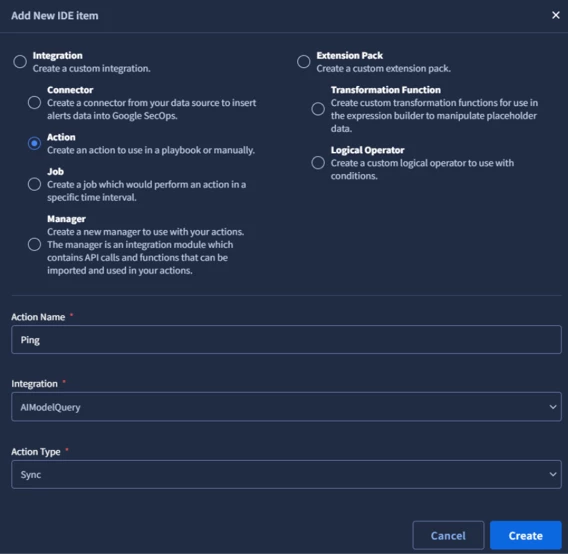
You can Install the ping script from our GitHub repository through the following link
Google-SecOps-Custom-IDE/AIModelQuery/ping.py at main · ghssoc/Google-SecOps-Custom-IDE · GitHub
Deploy the action and run it once against each provider instance you've configured. A clean HTTP 200 with a PING reply confirms the endpoint, key, and model name are all correct before you build anything on top of it.
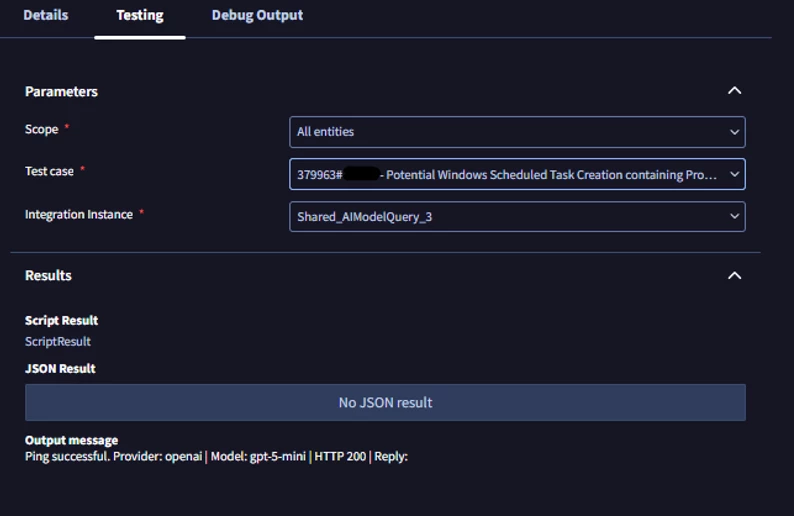
Notes: No parameters are needed for the ping setup.
Step 3: Add a Query Action for Playbook Use
We create custom Action “AI Events Analysis”
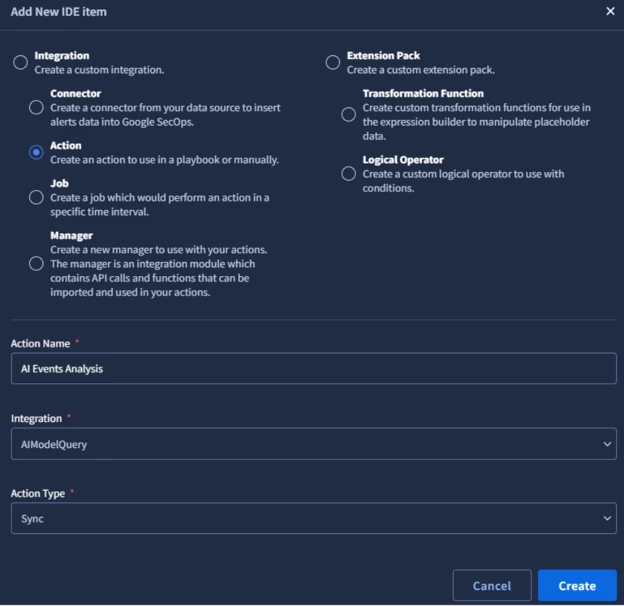
Rather than a generic "Query" action, our deployment uses a purpose-built action — Create AI Investigation Notes — that reads its provider config from the AIModelQuery integration instance and does the evidence assembly itself rather than expecting the playbook to hand it a clean prompt.
It takes three action parameters:
| Parameter | Purpose |
| events_json | The raw evidence blob (required) |
| rule_name | Optional — lets the model orient against what the detection was looking for |
| custom_instructions | Optional free-text analyst context for the case |
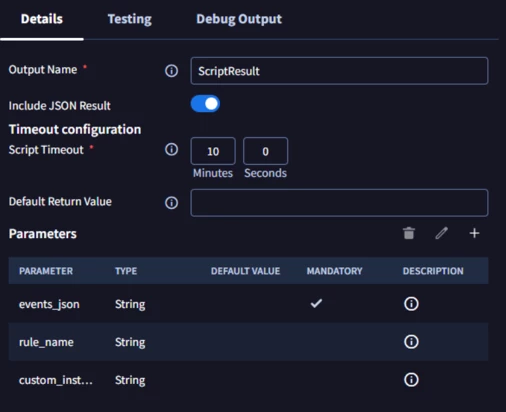
It's deliberately tolerant of whatever shape events_json arrives in — a flat events array, an {events: [...]} wrapper, a single pre-extracted fields object — and normalizes all of it before building the prompt.
A few implementation details worth calling out for anyone adapting this for their own environment:
-
Raw payload fields get special treatment. Anything keyed like raw_payload, message, rawLog, etc. gets an 8,000-character budget instead of the 300-character cap applied to ordinary fields, because that's where the actual Windows Event Message= block or syslog KV string lives — truncating it loses the command line that the verdict depends on. There's also a hard 12,000-character total cap per event so one bloated record can't blow out the whole prompt.
-
SIEM Custom Rule Engine events are separated out automatically. CRE events are rule-firing metadata, not security activity, so the action detects them (Log Source Type = Custom Rule Engine, with a raw-payload fallback check) and feeds them to the model as a "Detection Rule hint" rather than as evidence ( otherwise the model can end up treating the rule's own firing record as proof of compromise). If the dataset is only CRE records, the action falls back to analyzing them directly rather than ending up with an empty evidence set.
-
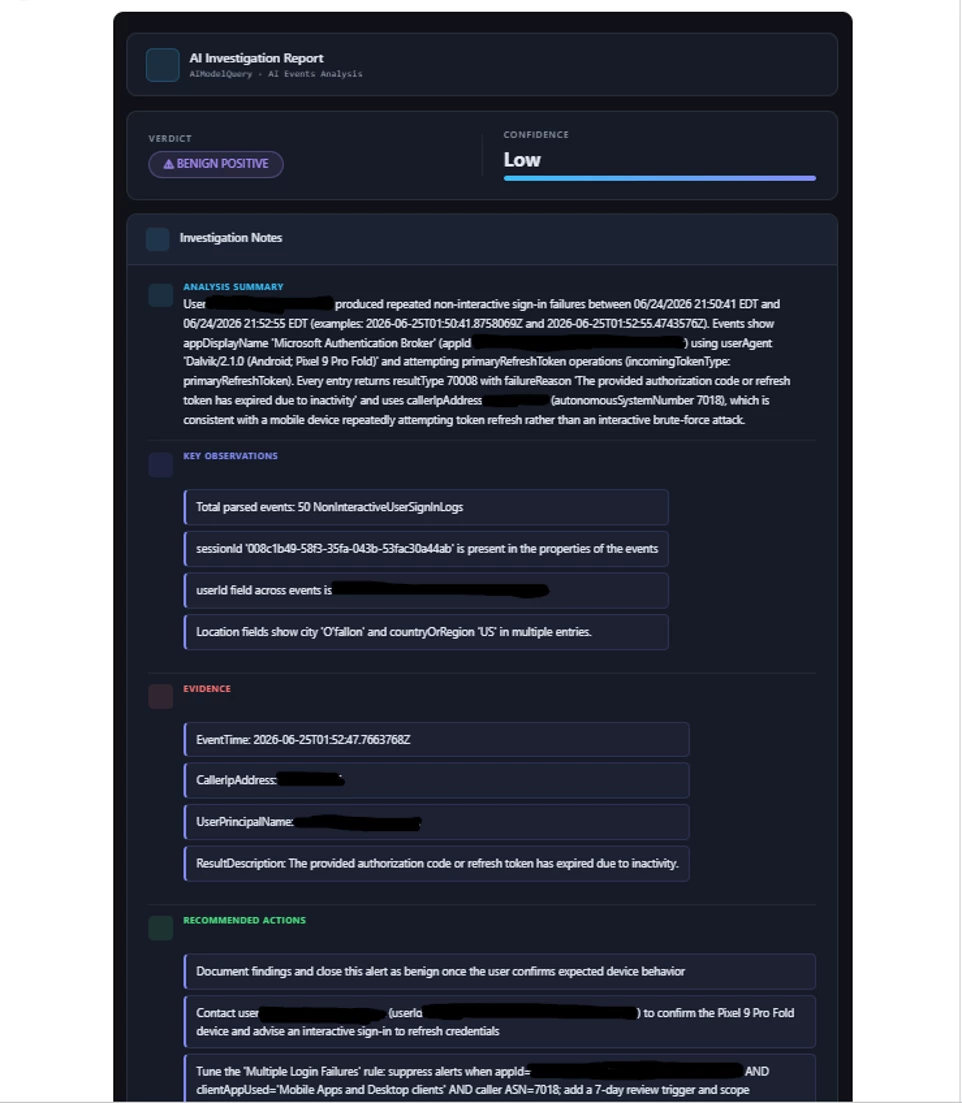
The system prompt is the real engine here. It encodes a tiered evidence model (DEFINITIVE / STRONG / CIRCUMSTANTIAL signals), a benign-explanation gate, explicit confidence-calibration hard caps, and a strict 8-key JSON output contract (verdict, confidence, tp_signals_found, legitimacy_indicators_found, investigation_notes, recommended_actions, key_observations, evidence) — so the for-each loops described in Step 4 can iterate over it predictably. You can override the prompt entirely via the system_prompt field on the integration instance if your SOC wants different calibration; the built-in default ships whenever that field is left blank.
-
Robust failure handling. Auth failures, timeouts, malformed JSON from the model, and Gemini safety-blocked responses each raise a distinct exception type and end the action with a clear, specific message rather than a generic stack trace — useful when you're debugging a playbook run that failed three steps downstream.
Here's the full action code from our GitHub repository:
Deploy this as a new action under the AIModelQuery integration, then move on to Step 4 to wire it into the playbook in place of the generic AI step.
Click on Managed JSON Sample Icon

and import the following JSON sample file
{"summary": "TRUE POSITIVE (High). Activity: 2026-06-25 11:48 UTC (~1 min). Process injection detected involving WebexHost.exe (T1055). HostRDS, user newuser, multiple process accesses including svchost.exe and explorer.exe. Evidence: WebexHost.exe accessed by suspicious processes.", "next_steps": ["Isolate newmachine", "Investigate user newuser's activity", "Analyze WebexHost.exe for malicious behavior", "Check for persistence mechanisms related to process IDs 18948, 25008, 30324, 4224"], "reasons": ["Process accessed: C:\\USERS\\newuser\\APPDATA\\LOCAL\\WEBEX\\WEBEXHOST.EXE", "Process IDs: 18948, 25008, 30324, 4224", "MITRE technique T1055 - Process Injection"], "model": "gpt-4o-mini-2024-07-18", "provider": "openai", "usage": {"prompt_tokens": 2693, "completion_tokens": 223, "total_tokens": 2916, "prompt_tokens_details": {"cached_tokens": 0, "audio_tokens": 0}, "completion_tokens_details": {"reasoning_tokens": 0, "audio_tokens": 0, "accepted_prediction_tokens": 0, "rejected_prediction_tokens": 0}}}
Step 4: Add the integration
Click on the 3 dots icons next to your integration

Select “Push to Staging”
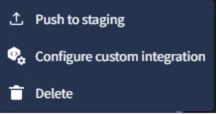
Now go to “Integrations Setup” menu

Click on “+” icon and choose “AIModelQuery”
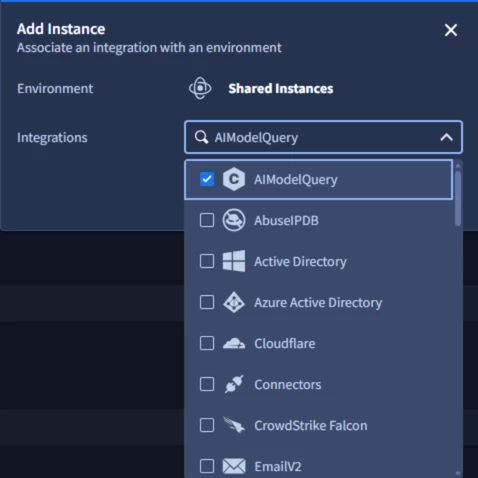
Then clicked “Save” and add your configuration
Step 5: Build the Investigation Playbook
With the integration validated, AIModelQuery can be dropped into a playbook as a normal action step. The example below shows one in production, combining QRadar, ServiceNow, and AIModelQuery in a single flow:
A custom trigger filters incoming cases, followed by a check against an embedded ServiceNow workflow and a condition step that routes based on case, alert, and entity data. Cases already grouped to a prior playbook run, or tied to an incident that cannot be found, get a comment added and exit early.
Cases that pass through continue into the investigation path: a step retrieves the original raw alert JSON, a ServiceNow lookup matches it to an incident by partial description, and an AQL query runs against the QRadar instance to pull supporting data back as CSV. A second condition gates on whether sufficient data came back before continuing further.

The AIModelQuery Query action sits here, labeled as the "AI analyst" step, and takes the assembled context as its prompt. Its output then runs through three sequential for-each loops — over evidence, recommendations, and observations — each followed by a step that aggregates the looped results into a single formatted string. The playbook closes by writing that formatted output back into ServiceNow, both as a case comment and as an incident update.
Step 6: Test the Full Flow
Run the playbook against a sample case end to end before enabling it broadly. Confirm that each condition branch behaves as expected.
Results:
Below is an example of the AI investigation added to ServiceNow for one of the offenses triggered.
Closing out
This guide has demonstrated how to connect Google SecOps SOAR playbooks to any AI provider using a custom AIModelQuery integration, validated through a simple Ping action and extended into a full investigation playbook alongside SIEM and ticketing system. Where SecOps' native AI features give analysts assistance inside the platform, AIModelQuery extends that same AI-assisted triage across whichever SIEM, ticketing system, and model vendor your SOC actually runs on — without locking the playbook into a single provider.
Created by: Khanh Vu, Ayat Kamona, Farzaneh Abazari