



Author: Ivan Ninichuck, Google Cloud, Technical Solutions Engineer
Security Orchestration, Automation, and Response (SOAR) has long promised to alleviate alert fatigue and streamline incident response. However, for many Security Operations Centers (SOCs), the reality of SOAR adoption involves a steep learning curve. Building effective playbooks traditionally requires a deep understanding of proprietary visual editors, JSON payload parsing, and API data structures.
The introduction of the Gemini playbook building assistant in Google SecOps fundamentally shifts this paradigm. By leveraging Google’s security-tuned Large Language Models (LLMs), security engineers and analysts can now translate natural language intent directly into functional, complex automation workflows.
This technical adoption guide provides a blueprint for experienced Google SecOps users to operationalize the Gemini playbook assistant, transition away from manual workflow authoring, and scale their automated response capabilities.
Use case examples:
The Strategic Edge: Moving from Code to Intent
Transitioning to AI-assisted playbook generation is not just a UI update; it is a strategic shift in how a SOC operates. Understanding the core benefits is crucial for justifying the adoption of this new workflow.
-
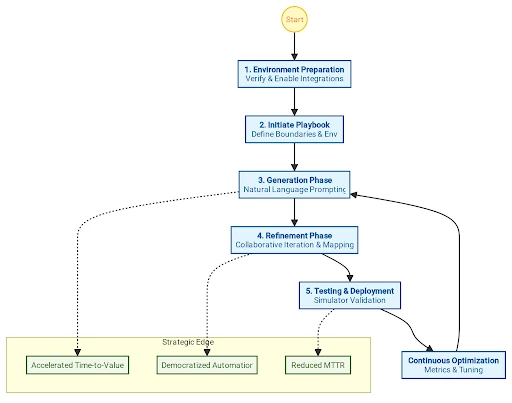
Accelerated Time-to-Value: Building a playbook with dozens of conditional branches and enrichment steps manually can take hours or days. Gemini reduces the initial draft phase to seconds, allowing engineers to focus on logic refinement rather than drag-and-drop configuration.
-
Lowering the Engineering Barrier: Tier 1 and Tier 2 analysts who intimately understand the logic of incident response—but perhaps lack the software engineering background to build complex integrations—can now author their own automation flows using natural language.
-
Automated Integration Mapping: One of the most significant technical hurdles in SOAR is knowing exactly which integration action to call. Gemini intelligently parses your prompt and automatically selects the most appropriate actions from the specific custom and commercial integrations you have already installed and configured in your environment.
-
Seamless Iteration: Threat actor tactics change rapidly. The ability to use the "Edit Playbook with Gemini" feature allows teams to conversationally update workflows—such as swapping a firewall integration or adding a new conditional check—without rebuilding the flow from scratch.
Technical Walk-Through: Building with Gemini
To successfully generate playbooks, you must understand how Gemini interacts with the underlying Google SecOps architecture. Playbooks are fundamentally constructed of Triggers (the initiating event), Actions (operations like data enrichment or isolation), and Flows (conditional logic branching).
Here is the step-by-step technical workflow for generating playbooks with Gemini.
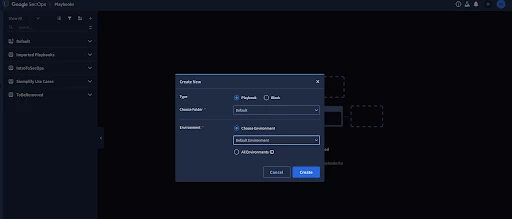
Step 1: Environment Preparation (The Prerequisite)
Gemini cannot hallucinate integrations into existence. It is strictly bounded by the integrations configured in your Google SecOps environment.
-
Navigate to the Marketplace or your IDE module.
-
Verify that the required integrations (e.g., VirusTotal, Active Directory, specific EDRs like CrowdStrike or SentinelOne, and firewalls like Palo Alto Networks) are installed, configured with valid credentials, and enabled.
Step 2: Initiating the Playbook
-
Navigate to Response > Playbooks within the Google SecOps console.
-
Click the Add (+) button and select Create Playbook.
-
Define the administrative boundaries: Select the target folder for organizational purposes and bind the playbook to the specific Environment (or Environment Group) it applies to. Click Create.
Step 3: The Generation Phase
-
In the newly created playbook canvas, bypass the manual trigger setup and click Create Playbook with Gemini.
-
A prompt pane will appear. Here, you will input a structured prompt detailing your intended workflow (see Section III for prompt engineering best practices).
-
Click Generate Playbook. Gemini will process the request and render a visual preview of the Triggers, Actions, and Flows.
Step 4: The Refinement Phase
AI generation is a collaborative process. The initial output serves as a high-fidelity draft.
-
Review the Data Mapping: Click into the generated Action blocks. Verify that Gemini has correctly mapped the data arrays (e.g., ensuring the [Alert.FileHash] parameter is correctly feeding into the VirusTotal enrichment step).
-
Iterative Editing: If the logic needs tweaking, do not discard the playbook. Click Edit Playbook with Gemini. You can issue targeted commands such as:
-
"Replace the existing firewall action with a block action for Checkpoint Firewall."
-
"Add a flow step before the block action to check if the user is in the 'Domain Admins' group."
-
-
Provide Feedback: Use the Thumbs Up/Thumbs Down icons to provide feedback, which helps tune the model's future performance for your environment.
Step 5: Testing and Deployment
-
Click Create Playbook to commit the generated draft to your environment.
-
Never deploy a new automated response block directly to production. Ensure the playbook is toggled to an inactive state.
-
Utilize the Playbook Simulator feature. Run the new Gemini-generated playbook against historical or simulated cases to verify that conditional branches execute as expected and that no unintended destructive actions (like isolating a critical server) occur.
-
Once validated, toggle the playbook to Active.
Example Playbook
Prompt:
"Generate a playbook that triggers on a CrowdStrike malware alert. Automatically isolate the affected endpoint from the network. Extract the file hash and check it against Mandiant Threat Intelligence. Send an email notification to the security team containing the endpoint hostname, the file hash, and the Mandiant intelligence report.
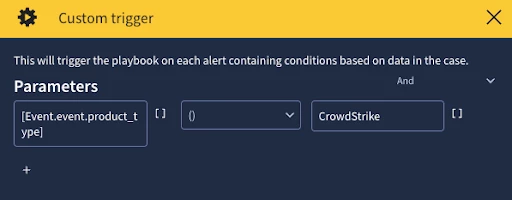
Inspection: Trigger

The custom trigger will not result in the playbook being triggered. This is because ProductName for all rules coming from Google SecOps have the ProductName of Rules. In this instance a generic trigger was created using the specified alert source.
Correction: Manually change it
Trigger should include Event.event.metadata.product_type = CrowdStrike
Inspection: Crowdstrike Contain Endpoint
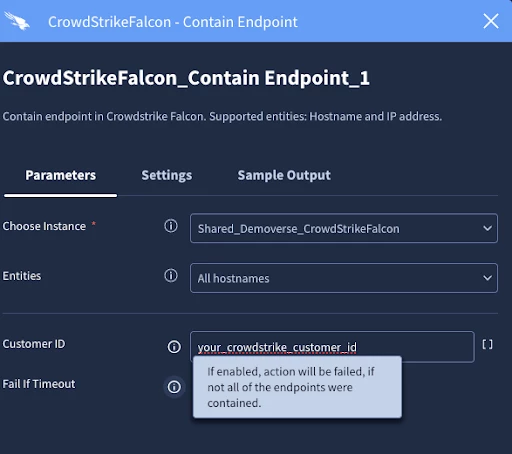
The field Customer ID is not required. The action is made to run on all ip and hostnames automatically. In this configuration it will run on all hostnames which is the best practice setting ( but not the default). Also note that the “Fail if Timeout” option is checked. Here I have hovered over the “i” icon to find out what this means. So leave this checked if you want the action to fail if the endpoint is not contained. This would stop the playbook from executing further steps and require analyst intervention. I personally would not choose this option. Instead I would add a condition that provided the analyst a manual action to check the playbook. But either will provide a notification.
Correction:
Remove the customer_id value
Inspection: Mandiant Threat Intelligence Report and Email Body
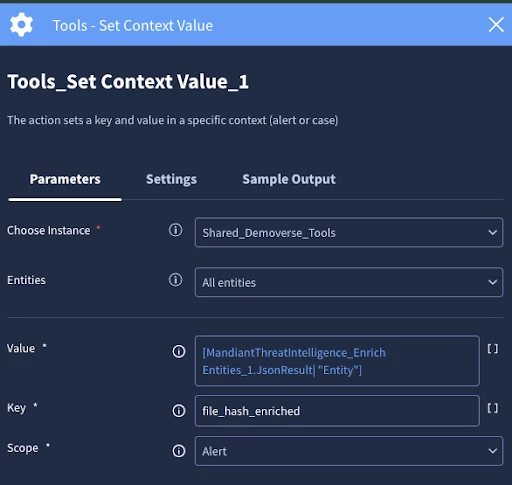
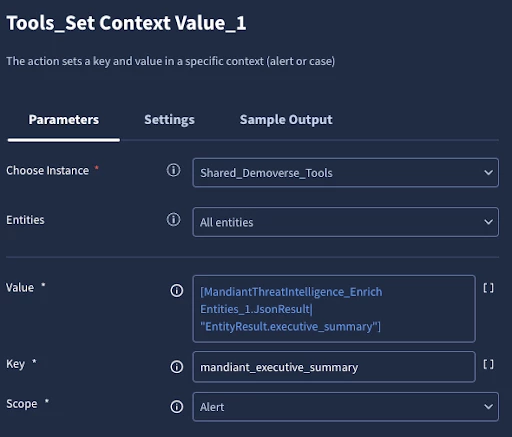
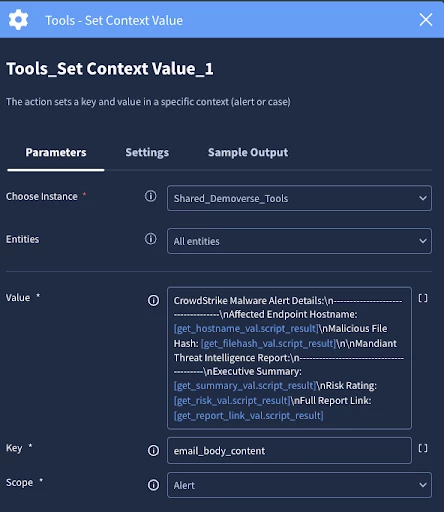
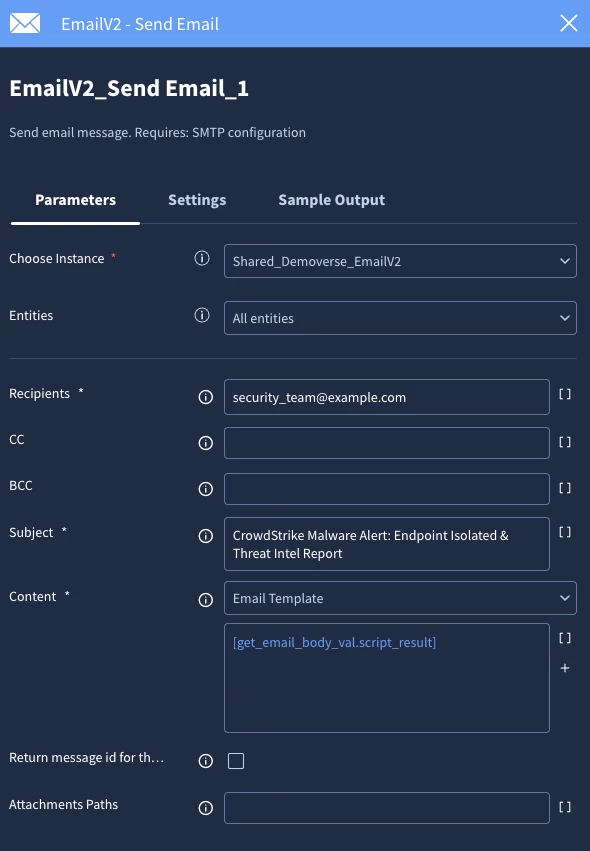
This next part is where Gemini really shines. The prompt specifically instructed gemini to take the report and prepare it and important information for an email. By using context values Gemini takes all the important information from the action and puts it into a structured email response. I will include some of the context values to show how they are set. The final email action then just requires a very convenient single script result reference rather than being manually typed in. Now Gemini could have referenced the context values as [Alert.Key] instead of using the script results. But we usually do this just to save time building the playbook. In fact because of Gemini’s speed this shortcut is not needed. I just wanted to point out the alternative method.
Gemini Editing:
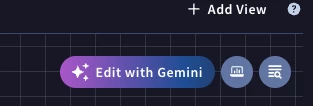
In order to further edit the playbook with Gemini it must first be saved. Then you will see a button called Edit with Gemini. Please keep in mind that this feature is still in preview as of the writing of this guide. Using this feature you can change aspects of the playbook such as actions, ordering and integration choices. If you receive an error message it is most likely a time out on the server side, or at least it was most of the time when I checked the developer tools on my browser. Feel free to use the developer tools on your browser to get the response given to you when you receive an error so you can include it in a support ticket.
Use Case: Phishing Triage and Remediation
Prompt: "Generate a playbook for a phishing alert. Extract the URL and sender email. Enrich the URL with VirusTotal and the sender with an HR system to check for active employment status. If the URL is malicious AND the sender is still an active employee, automatically remove the email from all inboxes using Google Workspace, update the case status to 'Remediated,' and notify the security analyst."
Use Case: Insider Threat Detection (Data Exfiltration)
Prompt: "Generate a playbook for a Large File Transfer alert from a Data Loss Prevention (DLP) system. Check the user's role using Active Directory. If the user is an Executive or Domain Admin, suspend the user's account in IAM, post a notification to the 'Security_Critical' chat channel, and create an approval step for a Tier 3 analyst to review the transfer log before any further action is taken."
Best Practices for Prompt Engineering in SecOps
The quality of the generated playbook is directly proportional to the clarity, specificity, and structure of your prompt. Treat the prompt pane like a highly specific user story or pseudo-code.
Adopt a Structured Syntax
- Do not use vague requests like "Handle a malware alert." Instead, explicitly define the Trigger, the Enrichment Actions, the Conditional Logic, and the Response.
- Example of a High-Quality Prompt: "Write a playbook for phishing alerts. The playbook should extract usernames, URLs, and file hashes from the email payload and enrich them using available sources. If one of the findings is malicious, block the URL in Zscaler, remove the email from all users' mailboxes using Google Workspace, and assign the case to tier 2."
Explicitly Name Integrations
-
If your SOC relies on specific tools, name them. If you do not name them, Gemini will attempt to find the best generic match among your installed integrations, which may not align with your specific SOPs.
-
Good: "Enrich the file hash." (Gemini will choose an available tool). Better: "Enrich the file hash with VirusTotal." (Gemini will map directly to the VirusTotal action block).
Define Conditional Logic Clearly
-
Use strong "If/Then" statements to dictate the flow of the playbook. This tells Gemini exactly where to place purple Flow boxes.
-
Example: "Create a playbook for Anomalous Access alerts. Enrich user account information with Google Cloud IAM, and then enrich the IP information with VirusTotal. If the user is an admin and the IP is malicious, then the user account should be disabled in IAM."
Target Specific Artifacts
-
Instruct the assistant on exactly what entities to extract from the alert payload. Specify if you want it to look at IPs, Domains, URLs, Hashes, or Users.
Contextualize with Security Frameworks
-
When crafting prompts, referencing specific attack behaviors or MITRE ATT&CK techniques helps align the playbook's response actions with established security frameworks, ensuring comprehensive coverage of the threat lifecycle.
Pro-Tip: Never treat AI-generated playbooks as 'ready-to-deploy' right out of the gate. Always treat the initial output as a high-fidelity starting point. Use the Playbook Simulator feature extensively to validate conditional logic against historical data before ever toggling the playbook to 'Active' in production. This practice bridges the gap between AI-driven velocity and operational safety, ensuring that automated responses are as reliable as they are fast.
Measuring Success and Continuous Optimization
Adopting the Gemini playbook assistant should yield measurable improvements in your SOC's efficiency.
-
Tracking Key Metrics: Keep track of the average time engineers spend authoring and debugging playbooks. You should see a sharp decrease in playbook development time. Keep in mind you might need to break those averages up based on the complexity of the playbook.
-
Continuous Tuning: Playbooks are not set-and-forget. Regularly review AI-generated playbooks. As you install new integrations into Google SecOps, use the Gemini edit feature to inject those new capabilities into existing playbooks. Ensure that logic is updated as organizational policies (like approved quarantine procedures) evolve.
Conclusion: Empowering the Future of Incident Response
The integration of the Gemini playbook assistant into Google SecOps represents a transformative shift in how Security Operations Centers (SOCs) approach automation. By moving away from the manual, often labor-intensive processes of legacy playbook construction—which historically demanded deep technical expertise in API orchestration and JSON parsing—security teams can now pivot toward an intent-based operational model. As outlined in this guide, the true value of Gemini lies not just in its speed, but in its ability to democratize automation, allowing analysts across all tiers to codify their expert knowledge into resilient, high-fidelity response workflows.
As you begin implementing these AI-driven playbooks, remember that while Gemini provides the foundation for rapid deployment, your organization's specific security posture and operational requirements remain paramount. The successful adoption of this technology requires a disciplined approach: generate with intent, refine through rigorous testing, and continuously optimize as your environment evolves. By treating the AI assistant as a collaborative partner rather than an autonomous operator, you ensure that your automation strategy remains both agile and strictly aligned with your security compliance frameworks. Embracing this shift will undoubtedly reduce mean time to respond (MTTR) and free your team to focus on the high-value strategic hunting tasks that automation cannot replicate.
Further Learning
To see the Gemini playbook assistant in action, including a visual walk-through of the prompt generation and refinement phases within the Google SecOps console, review this demonstration from Google Cloud Tech:
AI-Powered Security and Gemini Playbook Creation
