



Author: Chris Morris, Technical Solutions Consultant
Reaction Triggers have been released for Google SecOps SOAR to provide security analysts with dynamic, event-driven automation. These features allow for the execution of playbooks post-ingestion, automatically responding to real-time modifications as an active investigation unfolds.
Alert-Scoped Reaction Triggers enable automation based on alert-level telemetry changes and are supported for use cases like:
-
To trigger just-in-time threat intelligence enrichment for newly discovered indicators of compromise (IOCs) that are added to the case.
-
To initiate automated escalation or paging workflows when an alert's severity is upgraded.
-
Drive targeted analytical workflows based on dynamic shifts in alert context as custom fields change.
Case-Scoped Reaction Triggers are integrated with the broader investigation container to monitor lifecycle and governance events. They allow analysts to:
-
Synchronize external ITSM platforms (like Jira or ServiceNow) to maintain alignment when a Case Assignee Changes.
-
Execute ChatOps, evidence parsing, or notification workflows when a Case Comment is Added.
-
Enforce procedural checklists or initiate automated containment actions when a Case Stage or Case Priority transitions.
In this Adoption Guide, we will explore the end-to-end process of scoping and configuring reaction triggers, managing execution modes, leveraging dynamic placeholders for real-time context, and implementing high-impact use cases within live playbooks.
Understanding the Data Model: Alert vs. Case Scope
As outlined above, reaction triggers are divided into two distinct categories. To use them effectively, it is important to understand how Google SecOps structures data and how that impacts the Playbook Designer UI.
In Google SecOps SOAR, a Case acts as the parent container, while Alerts are grouped into Cases based on your Alert Grouping configuration.
When working with Reaction Triggers, playbooks using the Alert Scope look inward at the technical telemetry of a specific detection whereas Case Scope will look outward at the lifecycle, ticketing, and governance of the overarching investigation.
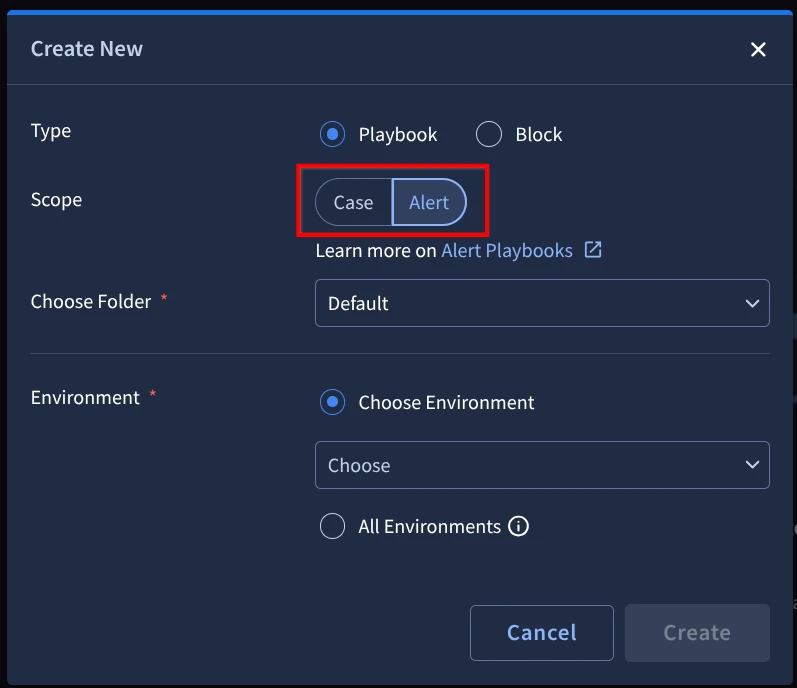
Because of this, reaction triggers are dynamically filtered in the UI. When you create a new playbook, you must explicitly set the playbook's Scope to either Alert or Case before dragging steps onto the canvas. If you set the scope to Alert, the Case-scoped reaction triggers (like Case Assignee Changed) will not appear in your trigger menu, and vice versa.
Configuring Trigger Settings and Guardrails
When dealing with event-driven automation, investigation data can change rapidly. The Settings tab of a reaction trigger allows you to control how the platform provides built-in guardrails to prevent runaway automation.
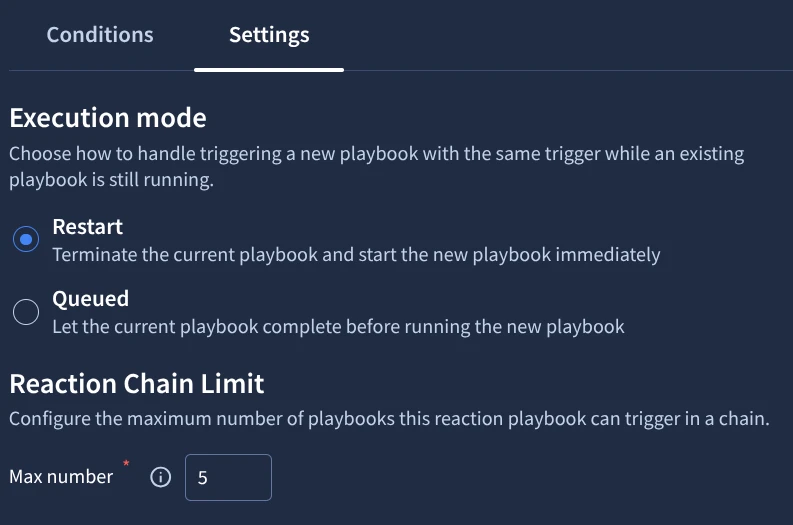
Execution Mode: This setting dictates how the system behaves if the trigger conditions are met again while a previous instance of the playbook is still actively running.
-
Restart: Immediately terminates the currently running playbook and starts a fresh execution with the newest event data. This is the ideal setting for tasks like entity enrichment or state calculations, where you only care about processing the absolute latest information.
-
Queued: Allows the currently active playbook to run to completion before initiating the next execution in the queue. You should use this mode for critical, multi-step workflows that should not be interrupted mid-stream, such as generating external ITSM tickets, sending emails, or isolating a host.
Reaction Chain Limit: This serves as a safety mechanism to prevent infinite loops and runaway execution. Because reaction playbooks can perform actions that might inadvertently trigger other reaction playbooks, this setting caps the maximum number of playbooks that can be sequentially triggered in a single chain (e.g., stopping the automation chain after 5 triggers).
Playbook Simulator Support
The Playbook Simulator also now supports reaction triggers, allowing you to validate your workflows without affecting live cases. Simply select your case in the simulator and if a reaction trigger is in place in the playbook you are simulating, ex. Case Stage Changed for the below example, you can configure the reactions you are trying to trigger on to validate your playbooks.

Deep Dive: Reaction Trigger Use Cases
Let's take a closer look at how to actually build and configure the scenarios mentioned in the introduction.
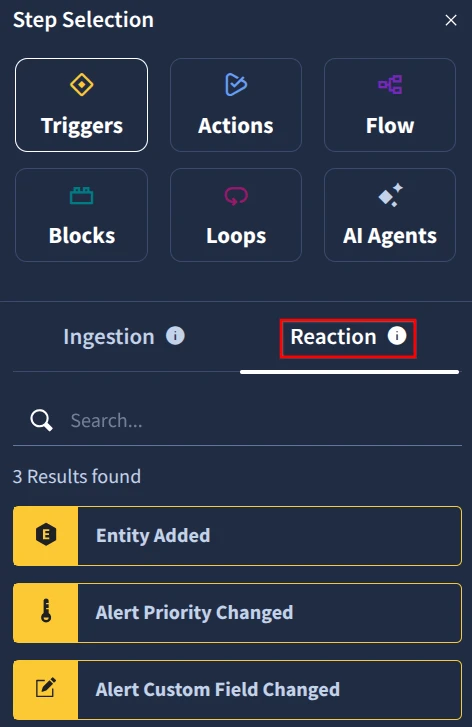
Starting with an Alert based reaction trigger, create a new playbook and choose the Alert scope. From the Triggers tab, select Reaction to see these new triggers:
1. Automating Enrichment for Newly Discovered Entities
Scope: Alert
Trigger: Entity Added
The Challenge: During an investigation, an analyst identifies a new suspicious IP address in a log payload and manually attaches it to the alert. In a traditional SOAR model, the analyst would then need to manually run an enrichment playbook on that new entity.
The Solution: By using the Entity Added trigger, the playbook fires as the analyst attaches the IP.
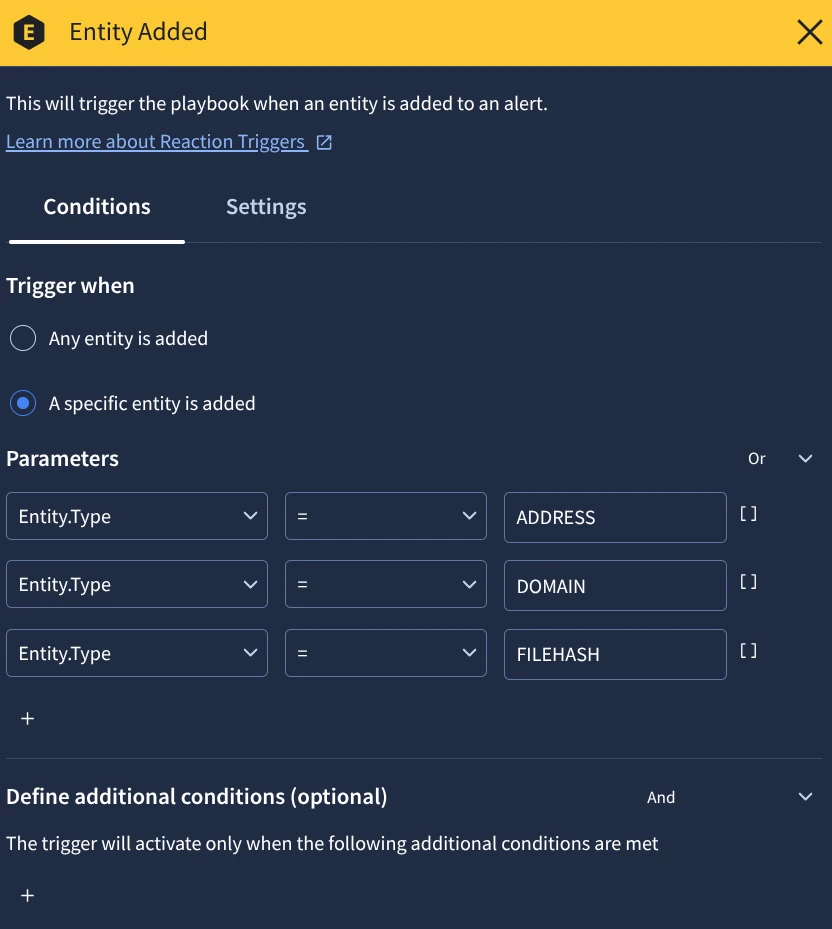
Configuration Tip: You don't want this playbook firing for harmless entity types (like an internal hostname). Double-click the trigger block, check the box for Specific entity, and define the exact entity types (e.g., IP Address, Domain, URL) that warrant threat intel enrichment.
Trigger Config:
We can choose to execute the playbook when any entity is added or we can configure it to run only when specific criteria are met, for example, the Entity Type is an IOC in the form of an address, domain, or hash as I have added below. Like with existing Triggers and Conditions we can also choose to set And or Or logic between these parameters. Finally, we can enter any other conditions that we would like to limit the execution of the playbook.
Example Playbook:
We’ll execute the GTI and SecOps (and any other) enrichment blocks that we would run in our main alert playbook to enrich the entities that have been added to the case.

Now we’ll take a look at Case based reaction triggers.
1. Dynamic Incident Escalation and Notification
Scope: Case
Trigger: Case Priority Changed
The Challenge: During an investigation, an analyst discovers a broader blast radius and bumps the case priority from Medium to Critical. If the analyst forgets to manually notify the right stakeholders, response times are severely delayed.
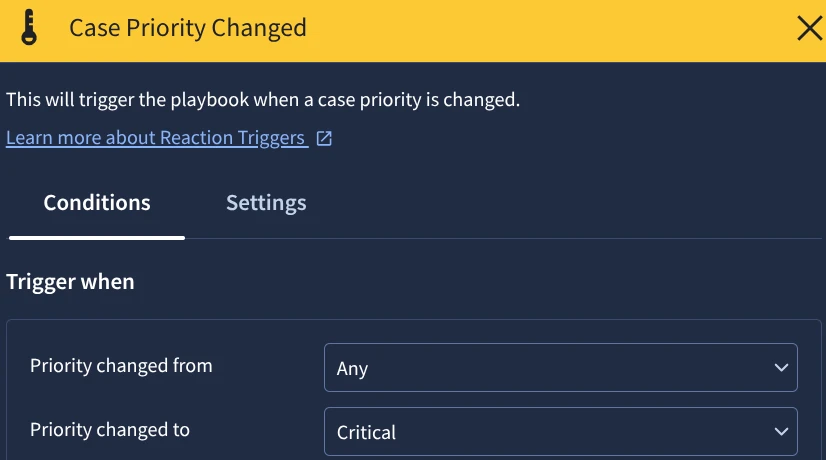
The Solution: The Case Priority Changed trigger detects the escalation immediately. By using the trigger's built-in conditions, the playbook evaluates if the new priority warrants an escalation without the analyst needing to manually attach a playbook or execute actions.
Trigger Config:
Sample Playbook:
We’ll create a new Slack channel, send a message with information about the case, and then create an incident in PagerDuty, as an example.

2. Cross-Platform Ticket Synchronization
Scope: Case
Trigger: Case Assignee Changed
The Challenge: Your SOC utilizes Google SecOps for investigations, but the broader IT organization relies on an external ITSM platform (like Jira or ServiceNow) for global ticketing. When a Tier 1 analyst assigns a SecOps case to a Tier 2 analyst, the external ITSM ticket falls out of sync, breaking SLAs and reporting.
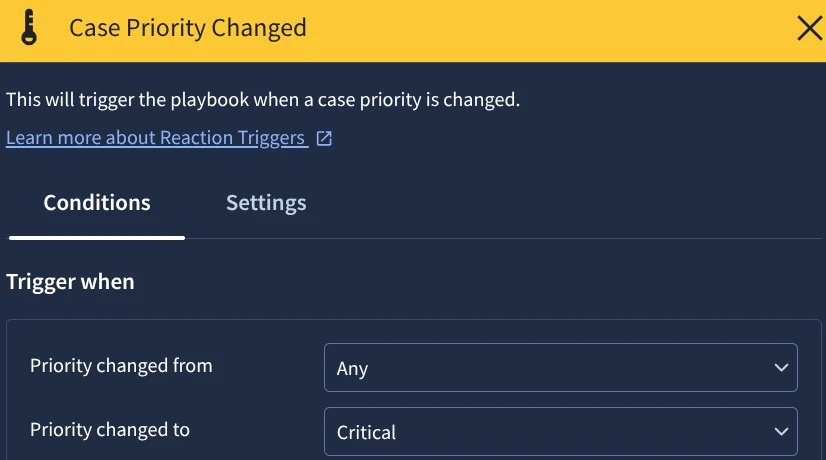
The Solution: The Case Assignee Changed trigger fires the exact millisecond ownership shifts. The playbook extracts the email or username of the new owner and pushes a targeted update directly to the external ITSM ticket, ensuring both systems remain perfectly aligned without manual data entry.
Trigger Config:
Sample Playbook:

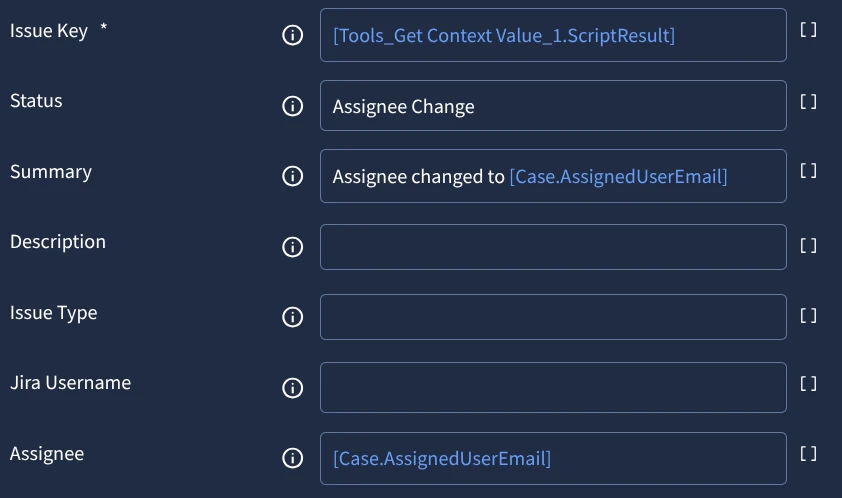
Use the Case Assignee Changed reaction trigger, then use a Get Context Value action to get the Jira issue ID (one way of doing this - requires the Jira issue ID to be set as a Context value in the initial playbook), followed by the Update Issue action to update the issue with the Assignee change.
Jira - Update Issue Action example config:
3. Enforcing Case Staged Change Prerequisites
Scope: Case
Trigger: Case Stage Changed
The Challenge: SOC managers need to ensure that analysts don't move a case into the "Containment" phase without first completing mandatory triage steps.
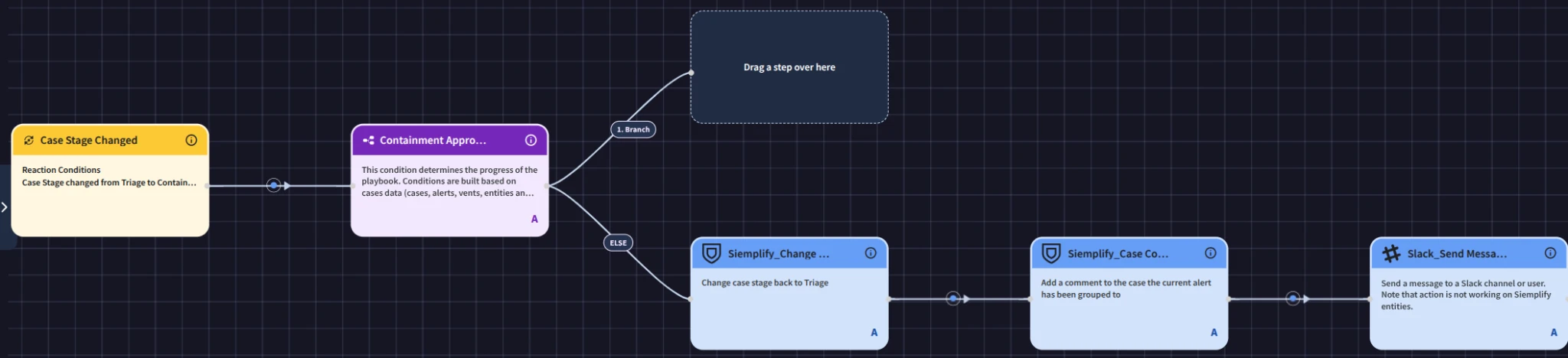
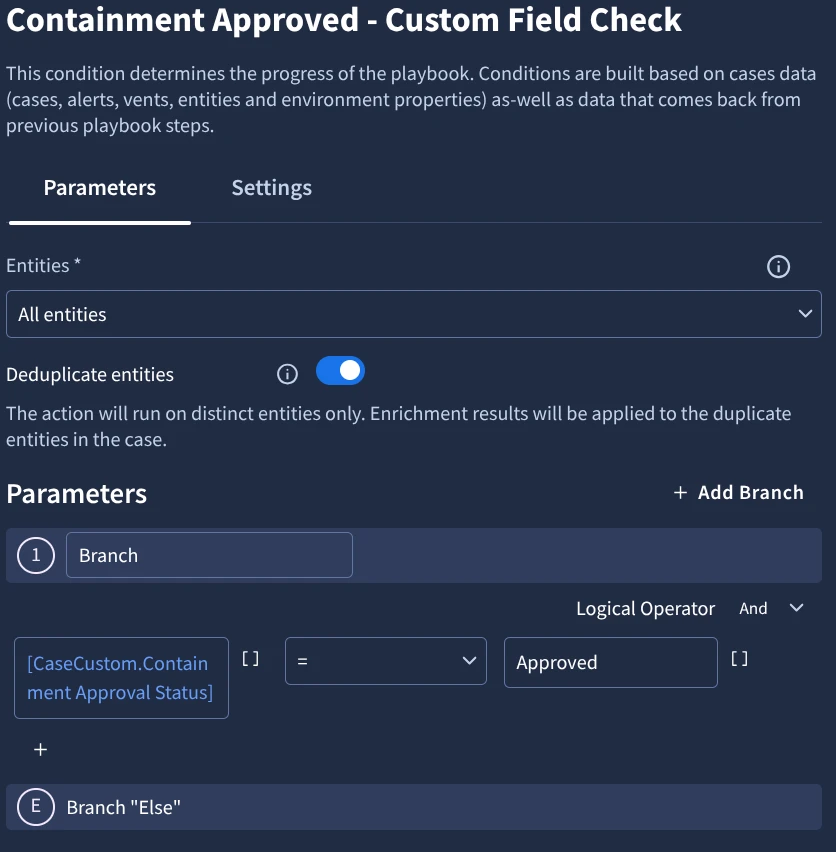
The Solution: When the Case Stage Changed trigger fires, the playbook can check the new stage. If certain custom fields are empty, the playbook can automatically revert the case stage back to "Triage" and send a Slack message as well as add a Case Comment tagging the analyst, reminding them of the missing requirements.
Sample Playbook:
Custom Field Condition - Example Check:
Conclusion
Reaction Triggers introduce event-driven automation to Google SecOps SOAR, allowing you to move beyond static, ingestion-time playbooks and automatically respond to real-time modifications as active investigations unfold.
As demonstrated in this guide, these features empower your security operations in two key ways:
-
Alert-Scoped Triggers: Enable tactical, just-in-time automation based on telemetry changes, allowing you to instantly enrich newly discovered entities or escalate shifting alert priorities without requiring analysts to manually run playbooks.
-
Case-Scoped Triggers: Drive broader investigation governance and lifecycle management. Combined with dynamic placeholders and execution controls, you can enforce procedural checklists, synchronize external ITSM platforms, and route active ChatOps notifications to specific analysts the exact moment case ownership or stages change.
Ultimately, these capabilities empower you to build highly responsive workflows that eliminate manual drag, keep external systems perfectly aligned, and seamlessly enforce your organization's unique incident response procedures.
