



Author: James Elliott, Technical Solutions Consultant
In today's complex digital landscape, safeguarding sensitive data is paramount. Organizations are constantly seeking robust security solutions to protect against unauthorized access and potential breaches. One critical aspect of this defense is Role-Based Access Control (RBAC), and within the Google SecOps platform, Data RBAC offers a powerful and granular approach to managing who can access what data. This blog post will explore the importance of Data RBAC, its core functionalities within Google SecOps, how to configure it within your environment, and best practices for its implementation.
What is Data RBAC?
Role-Based Access Control (RBAC) is a method of restricting system access to authorized users. Data RBAC takes this concept a step further by focusing specifically on access to data itself, rather than just system functionalities. In essence, it defines permissions based on the scopes users hold within an organization, ensuring that individuals only have access to the data necessary for their job functions.
- Controls user access to data according to assigned scopes.
- Labels are used to define the data that a user within a scope has access to.
- Ensures users can access only authorized information.
- Allow and Deny labels allow the ability to grant or deny access to specific information.
- Custom labels allow you to define data access using Yara-L and a UDM Search.
What is Feature RBAC?
Feature RBAC is a method for controlling access to features or functionality within an application. It allows you to determine which features users will be able to access based on their role.
- Uses Identity Access Management (IAM) to assign roles to users/groups for accessing SecOps features.
- Each SecOps role is associated with a SecOps API permission (SERVICE.FEATURE.ACTION), for example: chronicle.dashboards.edit
- When a user or group is assigned a role, they are able to access those features in SecOps
- For SecOps SIEM, there are (4) main predefined roles
- Chronicle API Admin - Full access to Google SecOps application and API services, including global settings.
- Chronicle API Editor - Modify access to Google SecOps application and API resources.
- Chronicle API Viewer - Read-only access to Google SecOps application and API resources.
- Chronicle API Limited Viewer - Grants read-only access to Google SecOps application and API resources, excluding detection engine rules and retrohunts.
- For SecOps SOAR, there are (4) main predefined roles
- Chronicle SOAR Admin - Grants admin access to Chronicle SOAR.
- Chronicle SOAR Service Agent - Give Chronicle SOAR the ability to perform remediation on Cloud Platform resources.
- Chronicle SOAR Threat Manager - Grants threat manager access to Chronicle SOAR.
- Chronicle SOAR Vulnerability Manager - Grants vulnerability manager access to Chronicle SOAR.
For more information on these roles and others, please check out the reference links below.
- https://cloud.google.com/chronicle/docs/onboard/configure-feature-access
- https://cloud.google.com/chronicle/docs/reference/feature-rbac-permissions-roles
- https://cloud.google.com/security-command-center/docs/map-users-in-secops
- https://cloud.google.com/iam/docs/roles-permissions/chronicle
What is the difference between data RBAC and feature RBAC
As we mentioned earlier, data RBAC is used to restrict access to data within an application, while feature RBAC is used to provide access to features and functionalities within SecOps.
Feature RBAC:
- Specific to features and functionalities
- Uses roles and permissions to assign access
- (4) main predefined roles for SIEM and SOAR
Data RBAC:
- Specific to data or information within SecOps
- Uses scopes and labels to define and control access to data
- Can use be used in conjunction with custom roles to specify granularity
Data RBAC and feature RBAC can be used together to provide a comprehensive access control system within SecOps. For example, a user might be allowed access to a specific feature such as Search, and then within that feature, their access to specific data they can search on might be restricted to a specific scope and label.
Data RBAC in Google SecOps
Google SecOps, a comprehensive security operations platform, integrates Data RBAC seamlessly to provide a robust framework for data governance. Within Google SecOps, Data RBAC allows administrators to:
- Define granular data access policies: Specify precisely which data sets, logs, or security events a particular role can view, analyze, or modify.
- Segment data visibility: Control what information is visible to different security teams or individual analysts, preventing information overload and focusing their efforts.
- Enforce least privilege: Ensure that users are granted only the minimum necessary access rights to perform their duties, reducing the attack surface.
Key Components
The implementation of Data RBAC in Google SecOps typically involves defining the following:
- Roles: Collections of permissions that align with specific job functions within your security team (e.g., "SOC Analyst Tier 1", "Incident Responder", "Security Administrator", “Chronicle API Admin”).
- Resources: The data assets themselves, such as specific log sources, entities, rules, or detections within the Google SecOps platform.
- Labels: Metadata assigned to logs during ingestion.
- Scopes: Defines the data that a user has access to within Google SecOps.
Planning for Data RBAC
When planning your Data RBAC deployment, there are a few points to consider:
- Review the predefined Chronicle roles and permissions to see if they will fit your organization’s needs.
- If the predefined roles aren’t granular enough, outline a strategy of what features and data users need access to in the SecOps platform. Identify custom roles that can be created to address your control access requirements.
- When determining what data users will need access to, try to map it to the default labels of namespace, ingestion labels, and/or log types for events.
- If the default labels aren’t granular enough, devise a custom label that will meet the user’s needs. Create the custom label as soon as possible so ingested data can start to be labeled.
- Ensure the Data RBAC administrators have the Role Viewer role to manage scopes.
- Ensure IAM Administrators have Security Admin or Project IAM Admin to assign scopes and roles to users.
- Enabling Data RBAC
- If you enabled Data RBAC before assigning in scopes, only users with global access will be able to view data. Scoped users would not have any access to the data by default.
- If you enable Data RBAC after setting up and assigning scopes, scoped users will immediately have access to scoped data, rules, data tables, detections, etc.
How do I know if I am enabled for Data RBAC
The data RBAC feature is generally available and can be accessed by navigating to Settings > SIEM Settings > Data Access within the Google SecOps platform.
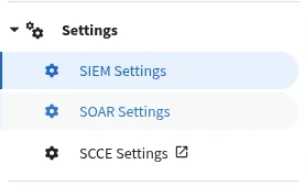
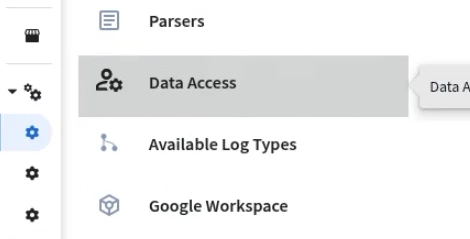
If for some reason you do not have the Data Access menu available in your SIEM Settings, please ensure you have the required permissions. If you still don’t have access, please reach out to your Google Cloud Security Representative, or open a support ticket through the Google Support portal.
On the Data Access page, select the Assignments tab. Before you enable Data RBAC, you should review the scope assignments for the rules and reference lists and set them appropriately. Once you’ve set the scope assignments, select Enforce data access. This will show you the lists and rules that will be scoped once Data RBAC is enforced. If everything looks correct, select Yes, Enforce.
NOTE: If you enable Data RBAC without assigning scopes to users, only users with global data access can see the data, rules, lists, etc.. inside Google SecOps. This may be fine if you want to turn on Data RBAC and build out labels, scopes, and assign them to users as you go. For deployments where data access control must be set up before enabling Data RBAC, ensure you’ve created the labels, scopes, and assigned them to users before enabling Data RBAC.
NOTE: Once Data RBAC is enabled using the Enforce data access button, the only way to turn off Data RBAC is to open a support ticket. Ensure when you turn on Data RBAC, you are ready to turn it on.
Data RBAC (Global, Scoped)
Data RBAC allows users to have either scoped data access or global data access.
- Scoped users have limited access to data based on the scoped assigned.
- Global users have no assigned scope and have unrestricted access to all data within SecOps.
- Global data access overrides scoped data access, if both are assigned.
The following table outlines how predefined and custom roles play a part in Data RBAC within Google SecOps.
| Access Type | Roles | Permissions |
| Predefined Role Global Data Access | Chronicle API Admin Chronicle API Editor Chronicle API Viewer Chronicle API Limited Viewer | Defined in IAM Roles |
| Predefined Role Scoped Read-Only Data Access | Chronicle API Restricted Data Access Chronicle API Restricted Data Access Viewer | Defined in IAM Roles |
| Custom Role Scoped Data Access | User Created Custom Role in IAM | Needs Chronicle API Restricted Data Access Role + Custom Role |
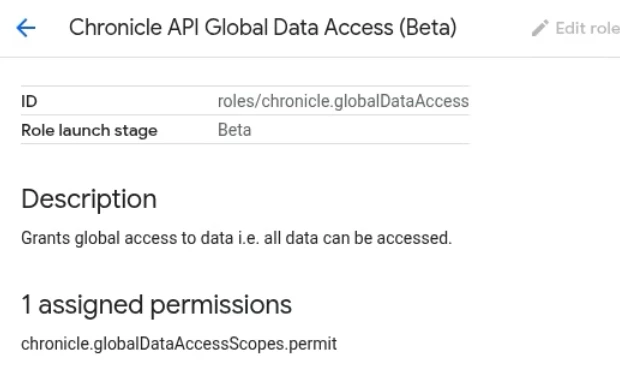
| Custom Role Global Data Access | User Created Custom Role in IAM | Custom Role needs chronicle.globalDataAccessScopes.permit permission or assign Chronicle API Global Data Access role |
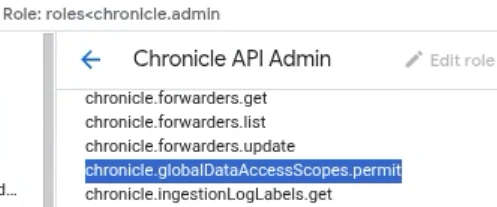
Let's start by discussing the Predefined Roles with Global Data Access. Chronicle API Admin, Chronicle API Editor, Chronicle API Viewer, and Chronicle API Limited Viewer all have global data access. How do we know this? We can verify this by navigating to GCP Console > IAM > Roles and searching for any of these roles. Once you’ve filtered for one of these roles, you can click on the role to see the permissions assigned to the role. All four predefined roles have the permission chronicle.globalDataAccessScopes.permit. So what does this mean? Even though the predefined roles limit access to certain features within SecOps, the chronicle.globalDataAccessScopes.permit permission would allow access to all data via the features the user could access.
Next we’ll take a look at the Predefined Role Scoped Read-Only Data Access. There are two roles that define this access. The Chronicle API Restricted Data Access Viewer defines which features the user could access within SecOps, while the Chronicle API Restricted Data Access defines which data the user could access. Later we will discuss how to create scopes and assign them to roles so they can then be applied to users.
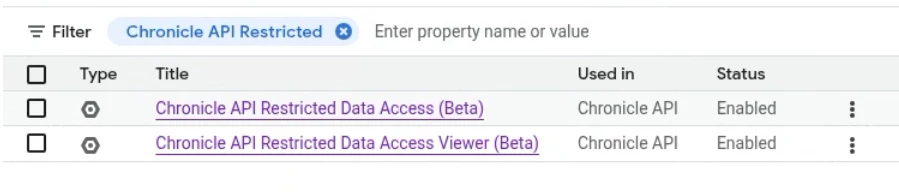
So we’ve talked about predefined roles, but what about custom roles? What if you created a custom role for users in your environment, how do you assign them scoped or global data access? If you have a custom Chronicle role and you need to assign users to a scoped data access role, just assign the user to the Chronicle API Restricted Data Access role and apply the appropriate scope. Again, we will talk about how to create scopes and assign them to roles later.
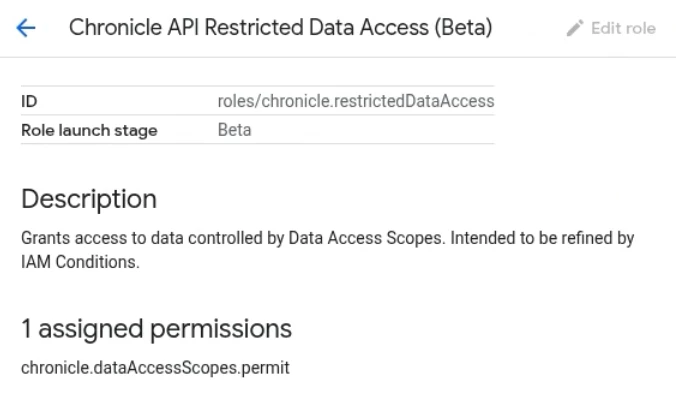
Lastly, if you need to assign users with a custom Chronicle role to have global data access, you can either add the permission chronicle.globalDataAccessScopes.permit to the custom role, assuming everyone in that custom role needs global data access, or you can assign users an additional role of Chronicle API Global Data Access. If you go into GCP Console > IAM > Roles and look at the permissions assigned to Chronicle API Global Data Access, you will find it only has the permission chronicle.globalDataAccessScopes.permit. So two ways to accomplish the same task, it just depends if everyone in the custom Chronicle role needed global data access, or just certain users.
Scopes and Labels
We noted earlier that assigning a scope is the mechanism for connecting a user's role to their permitted data in SecOps. Scopes allow you to control data access for users with the help of labels. Labels define the data that a user within a scope could access. You can think of scopes as a bucket and the labels as tags. You decide which tags go into the user’s bucket, and then give the bucket to the user and they will only be able to see data based on the tags that are in their bucket. When events are ingested, the tags are added to the events as labels, ingestion metadata key/value pairs, or log type.
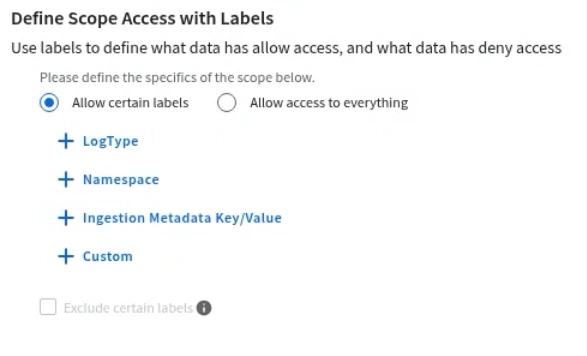
If there’s a case where these types of tags won’t suffice for your use case, Google SecOps does allow you to create your own custom label.
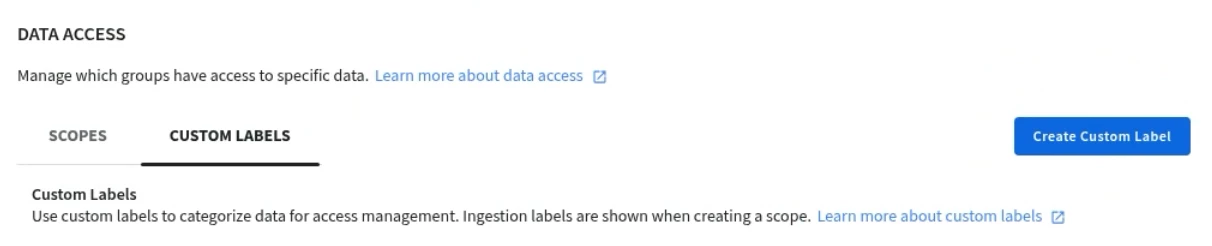
Custom labels are created utilizing Yara-L and a UDM Search. This process allows you the granularity needed to create a custom label that fits your use case.
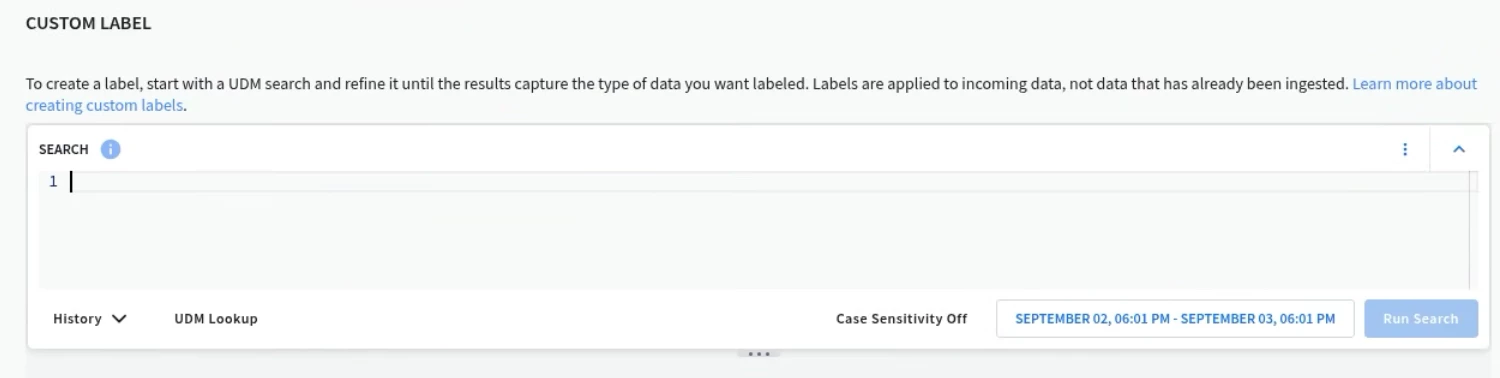
For example, let's say someone needs access to the GCP_CLOUDAUDIT log type, but only for firewall events. You could create a UDM Search similar to the one below that defines that specific dataset.
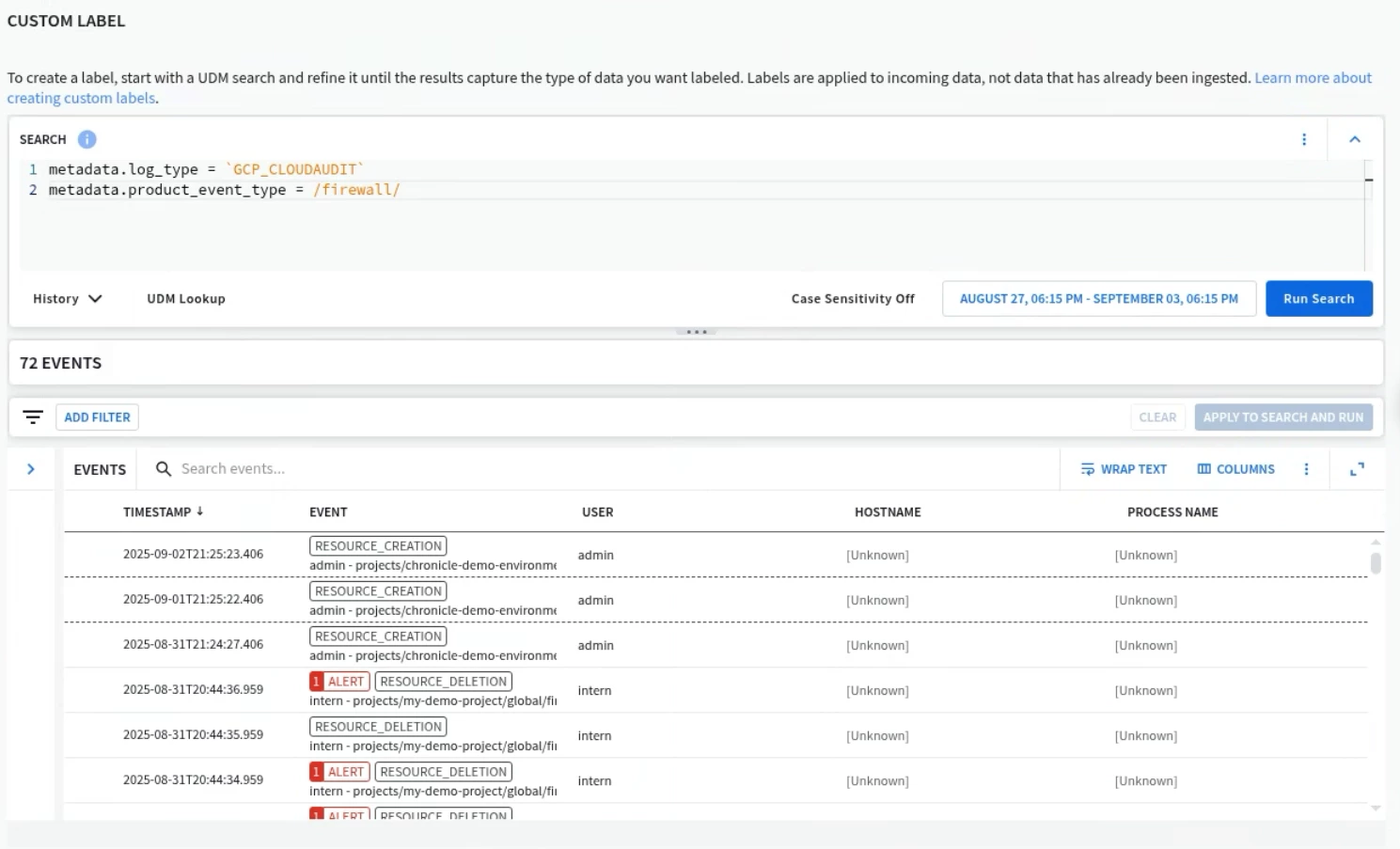
When you create a custom label, that label will be applied to ingested data from that point forward. Any data prior to this label being created that had already been ingested and normalized, will not have this label applied and therefore will not be within scope. Only new data being ingested will have the label applied and be accessible to the user. Hence the need for planning for Data RBAC as early as possible in your deployment.
Data RBAC and Enrichment
Within Google SecOps, ingested events can be enriched with additional information or context beyond what was contained in the raw log. As an example, this could be geo ip data, asset information, additional file information, security results, etc… When Data RBAC is turned on, events that are enriched are accessible within a scope if its base event is accessible within the scope AND any of the enriched labels aren’t included with any of the scope’s deny labels.
Just to provide a quick example, let's say you have a raw log that indicates some kind of resource deletion and that event was enriched with a label of action_risk: high. If a user had a scope with a deny label of action_risk: high, then user’s wouldn’t be able to see resource deletion events with a action_risk of high.
Data RBAC Impact
Search
The impact of Data RBAC on the search functionality is pretty self explanatory. The search results will only return data based on the user’s data access scopes. To put it another way, users will only see data that matches the scopes that are assigned to them. If for some reason the user had multiple scopes assigned to them, the search is executed across the combined data of all authorized scopes. If the user didn’t have access to a specific set of data, then it would not be returned in the results.
Rules
When Data RBAC is configured, rules are broken down into two sets, scoped rules and global rules.
- Scoped rules are associated or binded to a specific scope. They will only operate on data that falls within the assigned scopes definition. If a user has access to a scope, then they can manage and view the rules. A global user can do everything in a scoped rule that a scoped user can do.
- Global rules are used to provide broader access to data across all scopes. Only users with a global scope can create and view global rules. Scoped users cannot create, view, or update global rules.
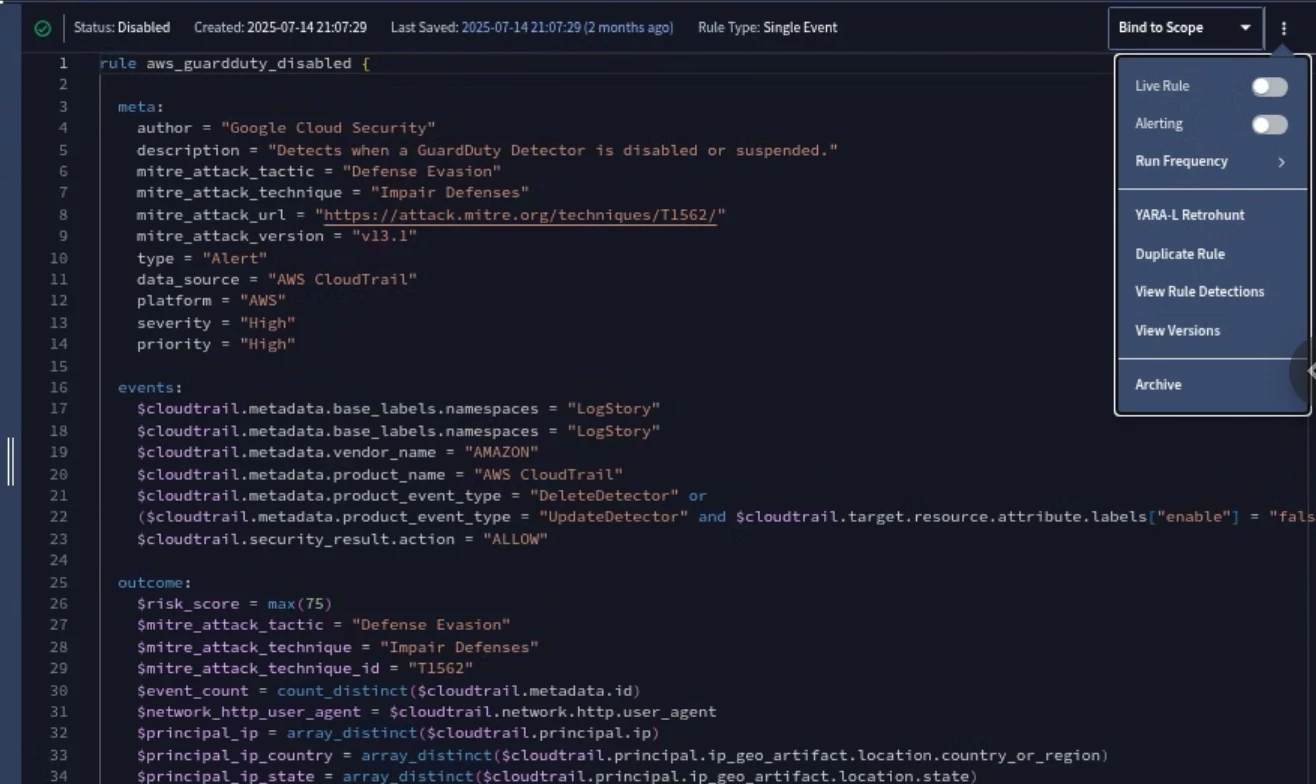
The documentation has a table outlining what a global user can do vs a scoped user when it comes to global and scoped rules.
Detections
When a rule is live and ingested events match the criteria for the rule, a detection is created. If Data RBAC is enabled, scoped users can only see detections that were created from rules associated with their assigned scope. Global users can see all detections. If Data RBAC is not enabled, all users can see all detections.
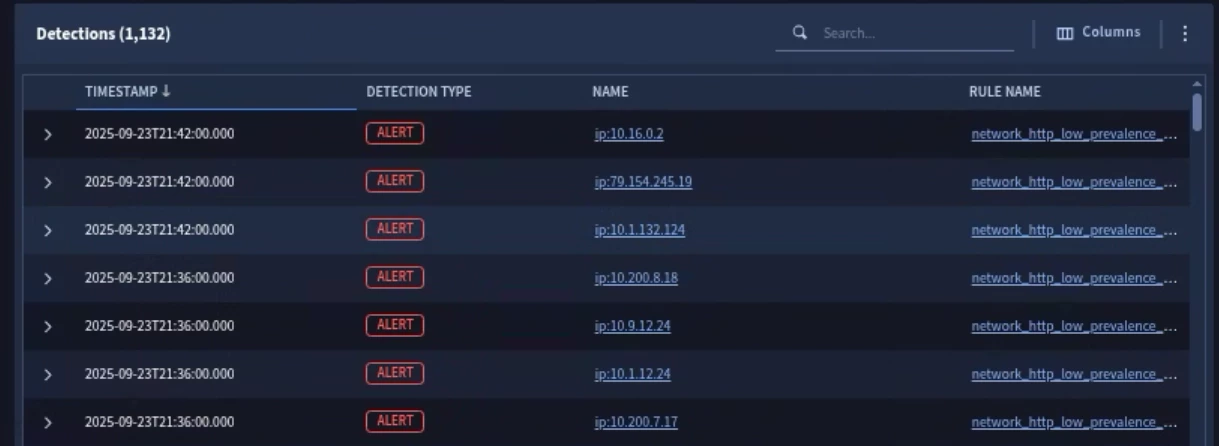
This same logic also applies to Alerts. An alert will be generated based on the rules scope. If a rule doesn’t have an assigned scope, it runs within the global scope.
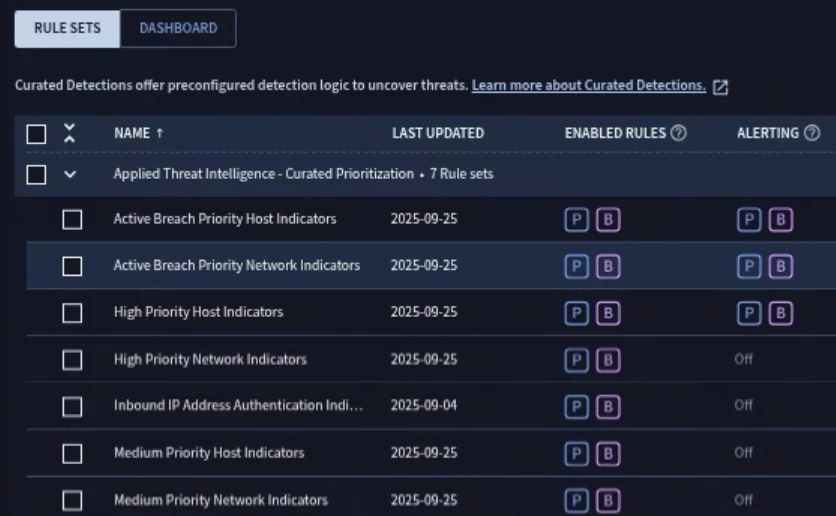
Curated Detections
Curated detections are rulesets that were created by the Google Cloud Threat Intelligence team. Curated detections do not support data RBAC. Users with global scoped assigned can access curated detections.
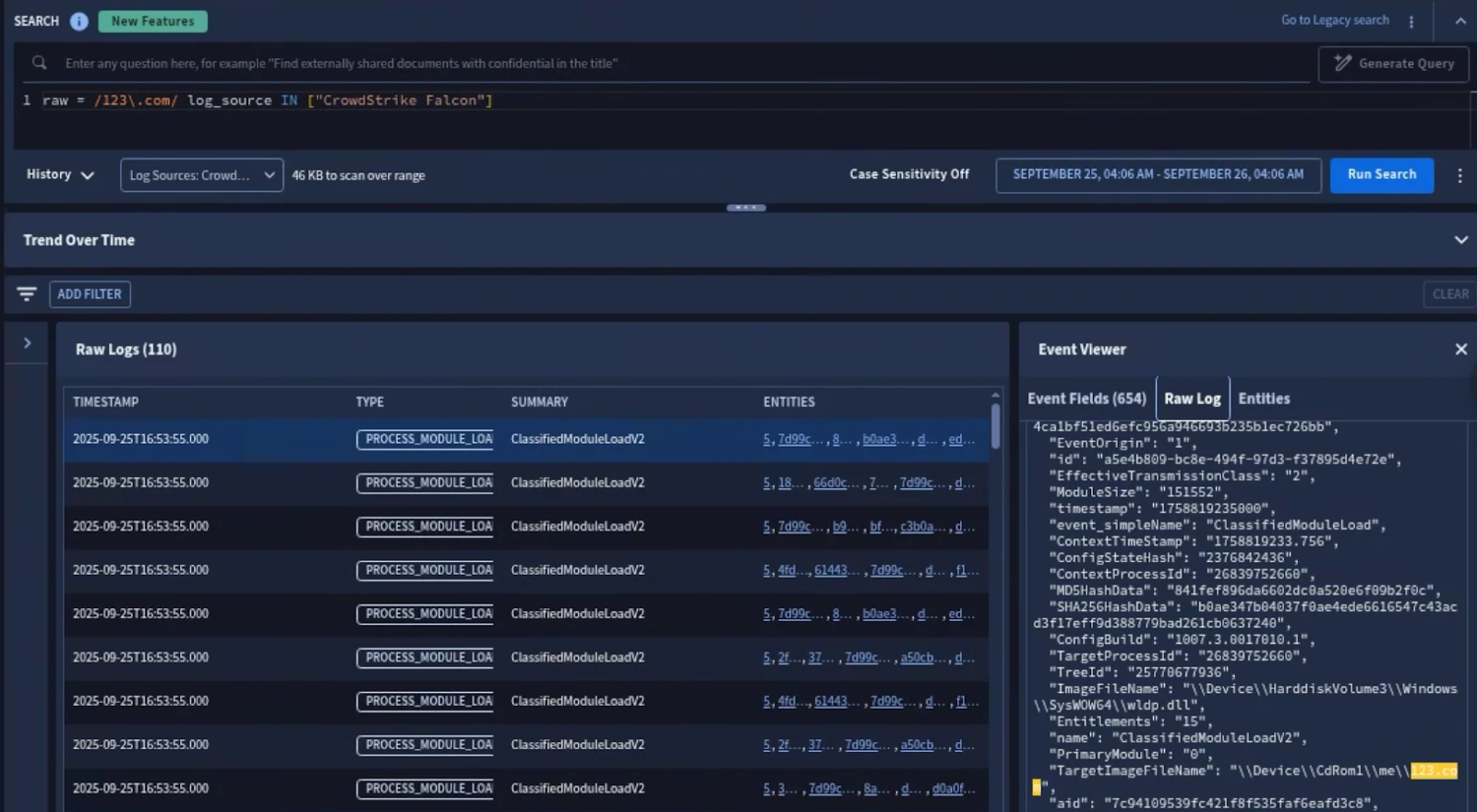
Raw Logs
When logs are ingested into SecOps, a copy of the raw log is saved. You can then search against raw logs to validate fields, values, UDM mapping, etc… When Data RBAC is enabled, only global users can view raw logs.
Data Tables
Data Tables are a data structure within the Google SecOps platform that allows you to store data and use it later as a lookup table. Data RBAC allows you to assign scopes to data tables very similar to how we assign scopes to rules in order to control who can create, view, and update the data tables.
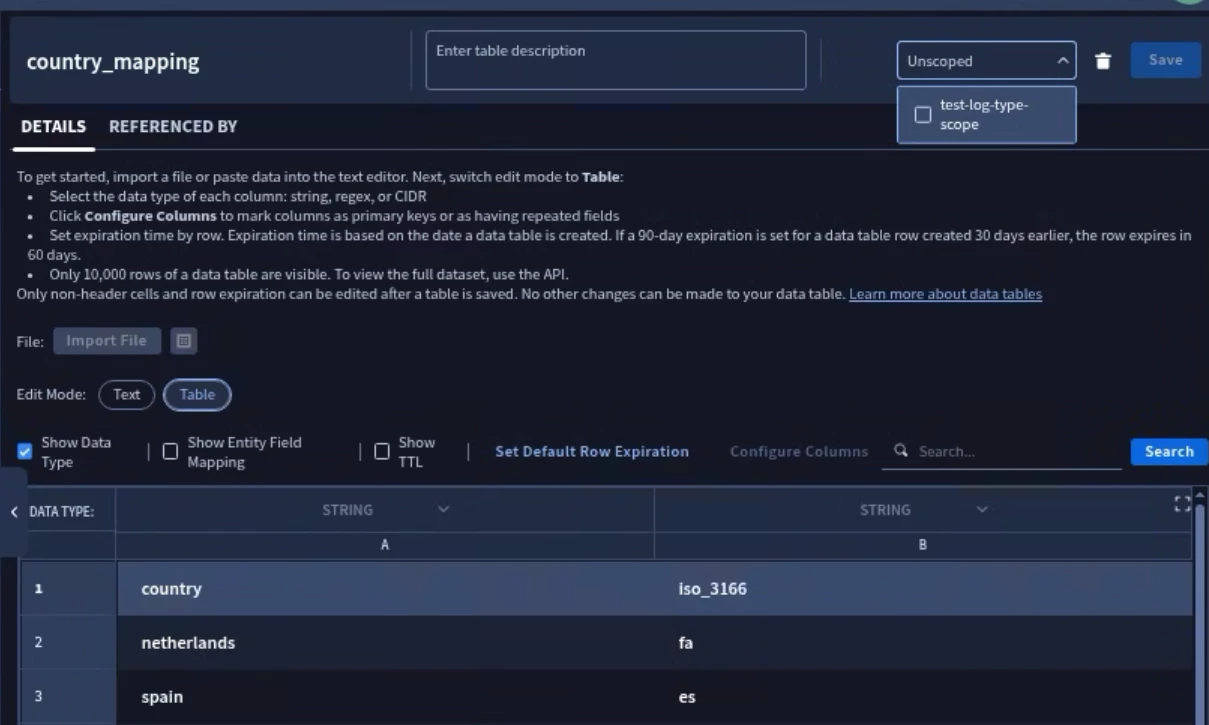
From an overview perspective, both global and scoped users can create, update, and view a scoped data table. Both global and scoped users can view and use unscoped data tables, but only global users can create or update an unscoped data table. The documentation has a table fully outlining what a global user can do vs a scoped user when it comes to global and scoped data tables.
Reference Lists
Reference lists are very similar to data tables except they are a single column of data used to hold a collection of data for matching or filtering. A scoped user cannot create or update an unscoped list, while a global user can create, update, and view any scoped or unscoped Reference list. The documentation has a table fully outlining what a global user can do vs a scoped user when it comes to global and scoped Reference lists.
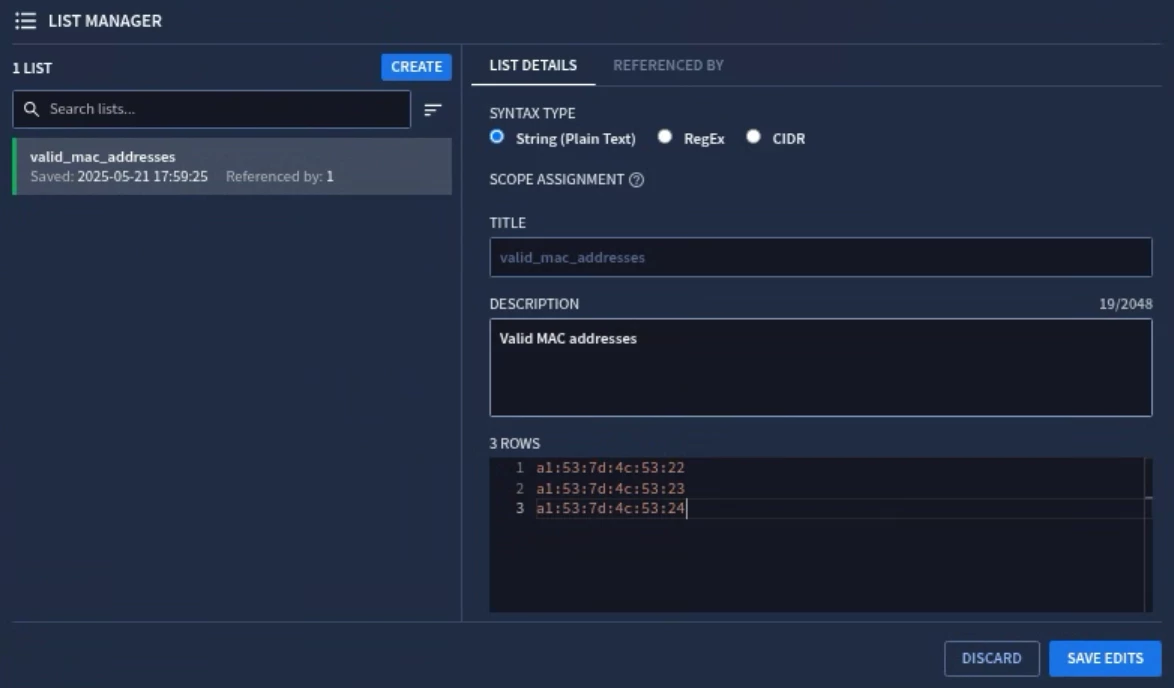
NOTE: According to the Feature Deprecations page, Reference lists will be deprecated in June 2026 and fully shutdown in September 2026. All Reference lists should be migrated to Data tables.
Feeds and Forwarders
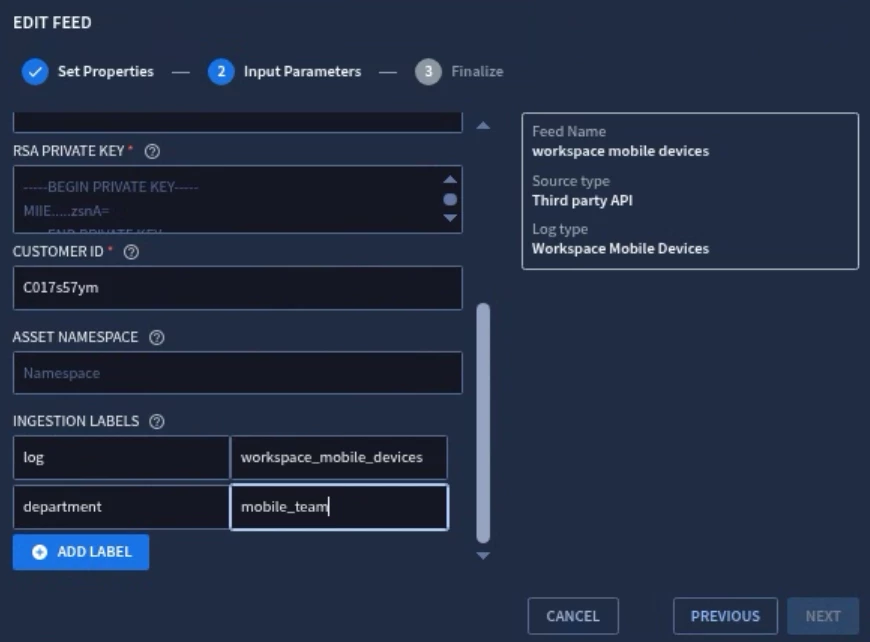
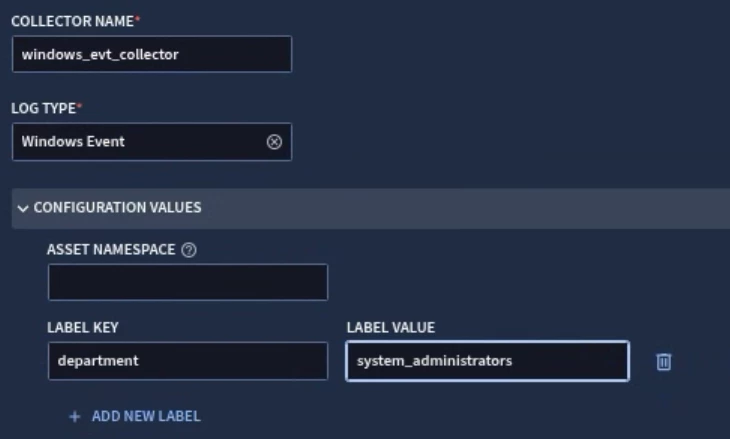
Google Secops uses feeds and forwarders to ingest events into the SIEM. Data RBAC does not impact feeds and forwarders but you can configure feeds and forwarders to add labels (log type, namespaces, ingestion labels) to events as they are ingested. Those labels can then be used to define scopes on which data scoped users can access.
Looker Dashboards
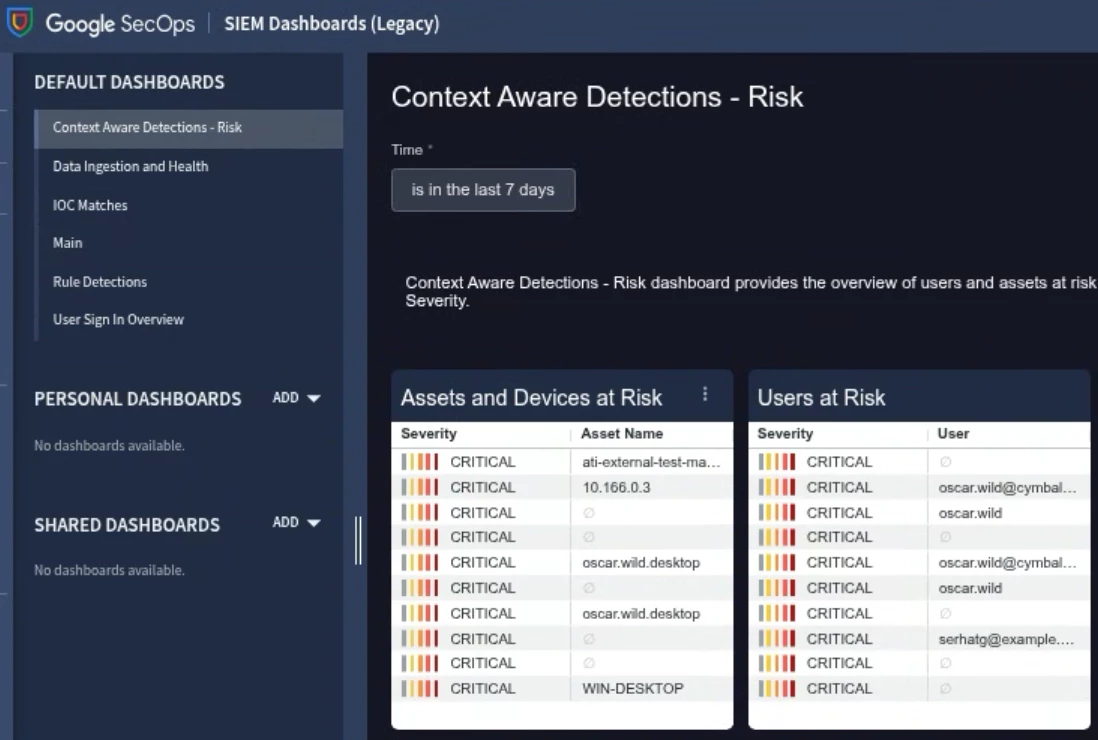
Data RBAC does not support Looker Dashboards and is controlled through feature RBAC in IAM.
Applied Threat Intelligence (ATI) and IOC Matching
Indicators of Compromise (IOC) and Applied Threat Intelligence assist with detecting known malicious activity within your environment. IOC Matching will look at specific UDM fields from ingested events and see if any of the values match known malicious IOC’s. These matches are then populated on the Alerts & IOC page for awareness.
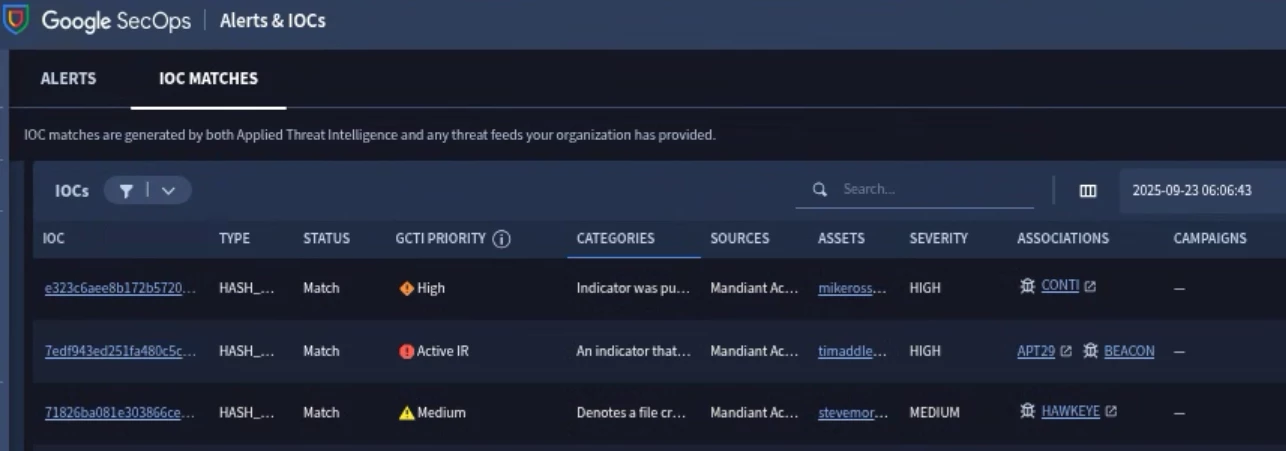
With Data RBAC enabled, users only see matches for ATI and IOC data that pertain to asset entities that are within the user’s scope. Data RBAC doesn’t restrict access to IOCs and ATI data specifically.
User and Entity Behavior Analytics (UEBA) and Risk Analytics
Risk Analytics is a UEBA tool built within SecOps to help identify unusual behavior from entities (Users, Assets). As unusual behavior is detected, a risk score is assigned to the entities. The higher the risk score, the greater risk an entity poses within your environment.
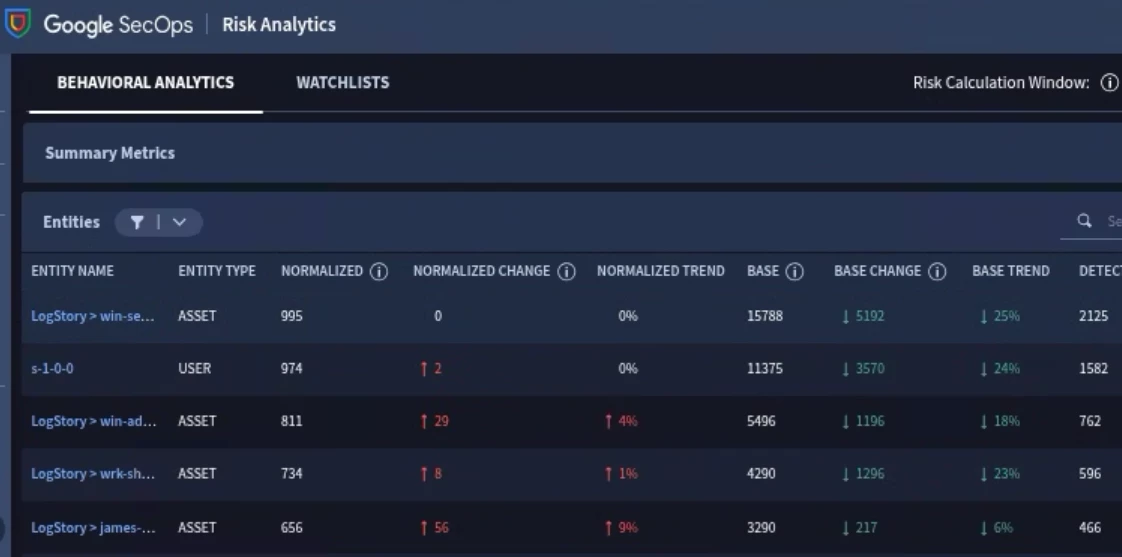
Data RBAC does not support UEBA and Risk Analytics. You will need to be a global user in order to access Risk Analytics.
Entity Details
Entity details describe information about a user or asset. Scoped users can view first/last seen fields of users and assets as long as the fields are calculated from data that is within the user’s scope.
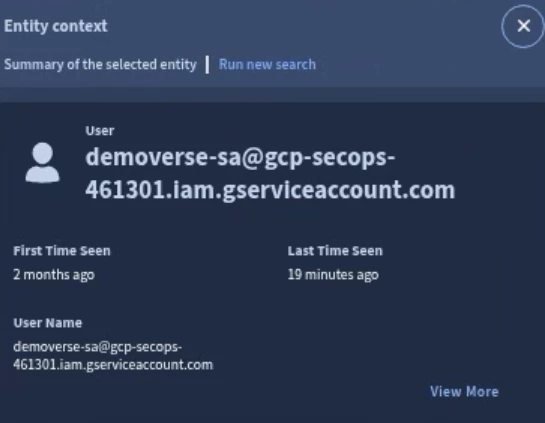
Otherwise the following fields are only available to global users.
- First Seen
- Last Seen
- Prevalence
Configuring Data RBAC (UI)
Data RBAC Custom Labels
Custom labels are metadata that are added to events at ingestion. These labels “tag” the events so that users with assigned scopes can access the data. If ingested data is not tagged with a user’s assigned scope, the user will not be able to see the data.
To configure a custom label, login to the Google SecOps platform and navigate to Settings > SIEM Settings > Data Access
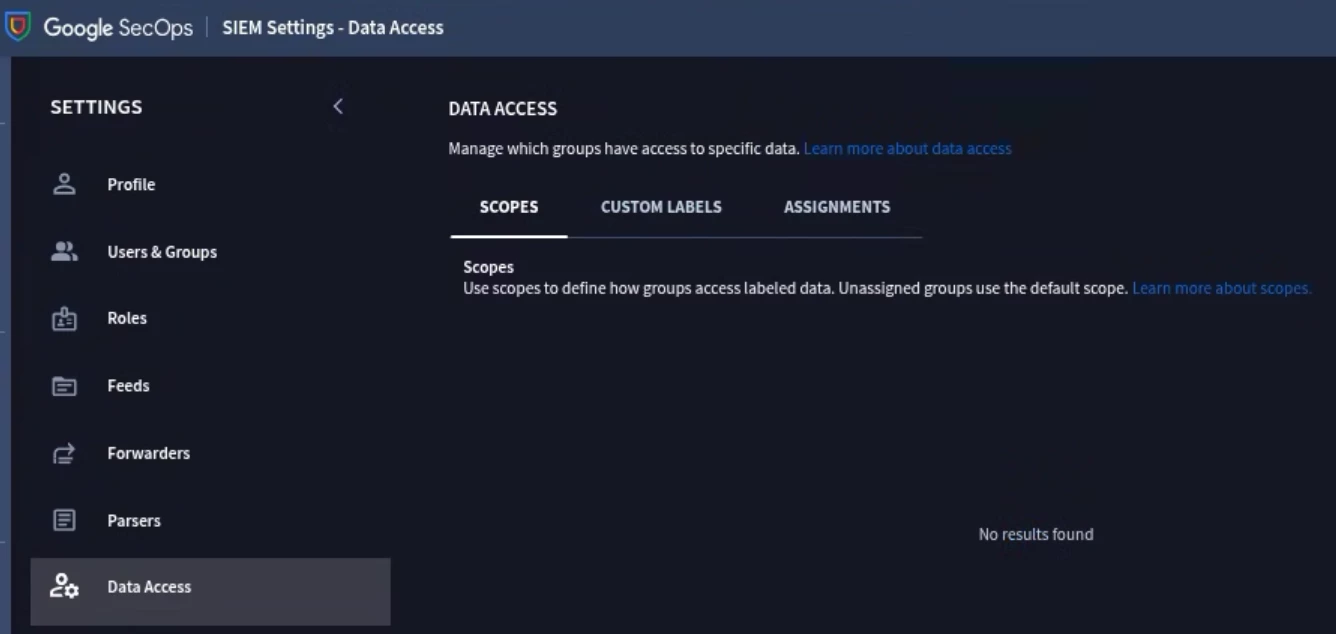
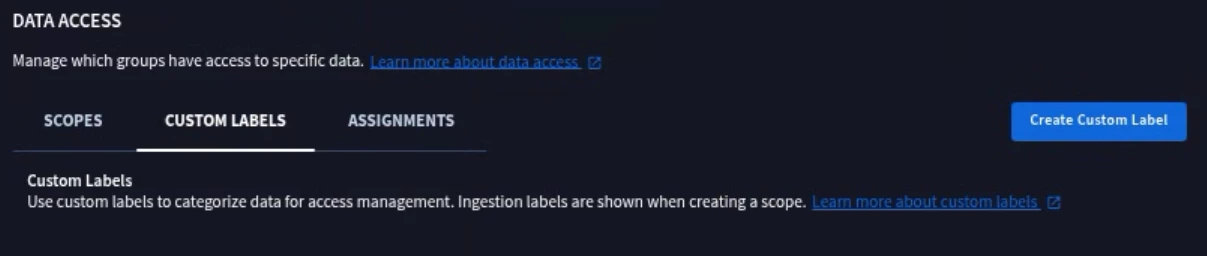
Select the Custom Labels tab and click on Create Custom Label.
You should now be presented with a UDM Search window. This is where you can enter a UDM Search that returns exactly the data you want a scoped user to view. You can continue to refine your search and results until you have the expected results.
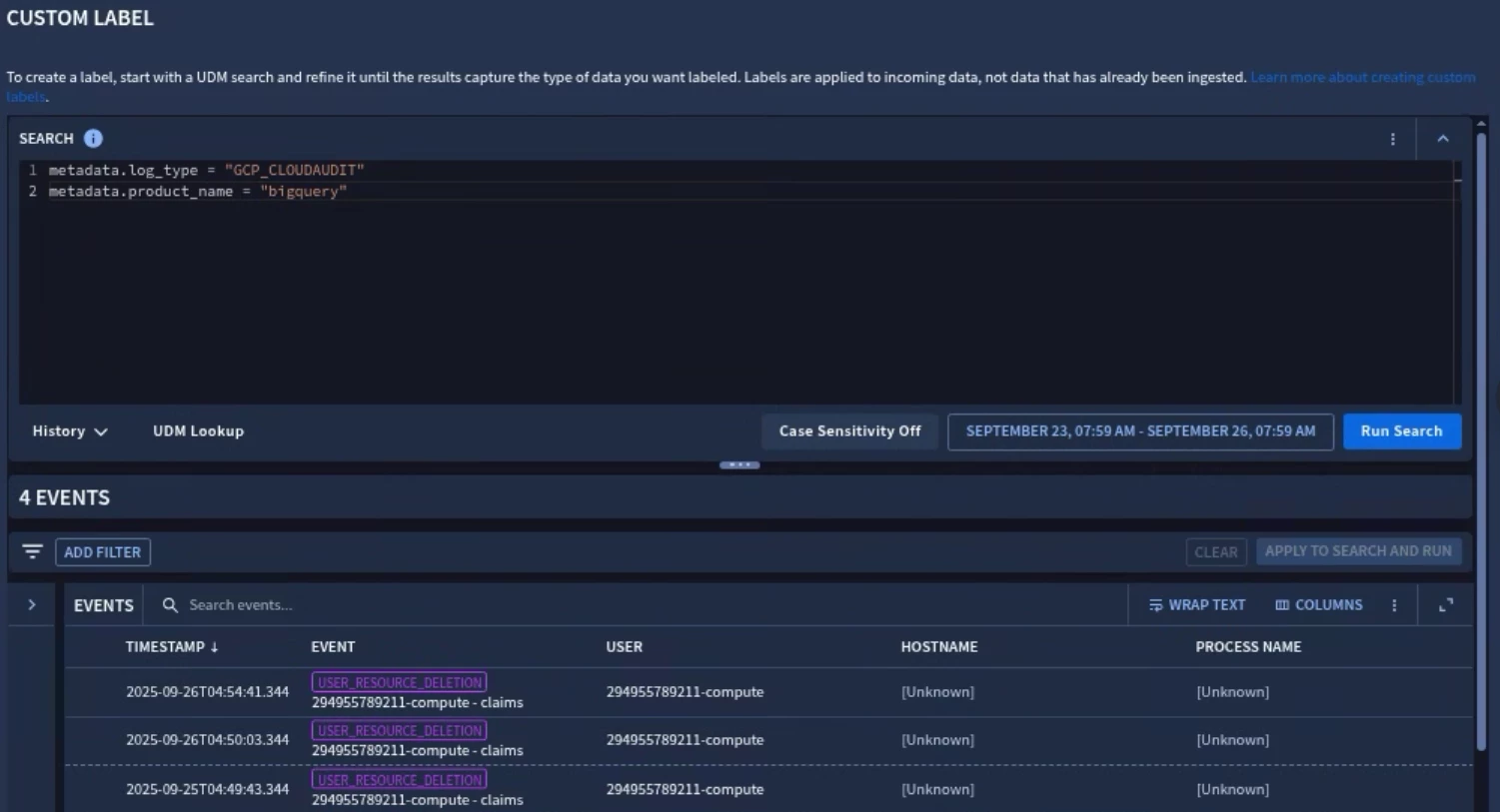
In this example say that Data Analysts need access to BigQuery logs within the platform. Here we specifically filter the GCP_CLOUDAUDIT logs for the product BIGQUERY.
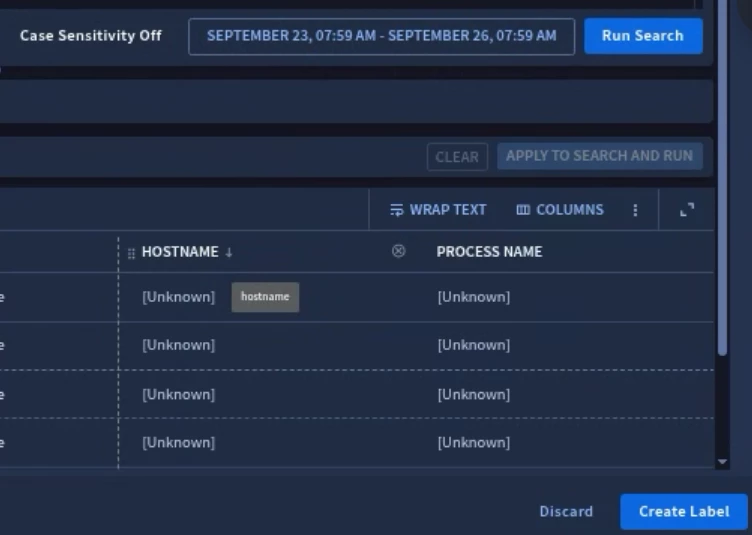
Once you’ve got the expected results, select Create Label.
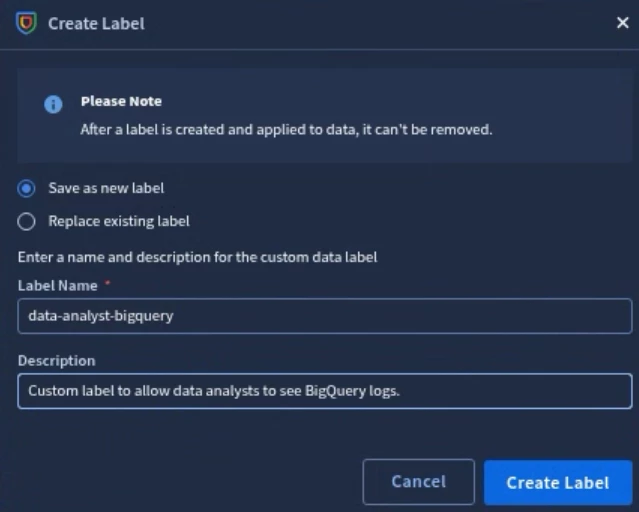
SecOps will prompt you if you want to Replace existing label or Save as new label. If you select Replace existing label, you’ll be required to select the custom label you want to save over. Otherwise, provide a Label Name and a Description for your new label, and select Create Label.
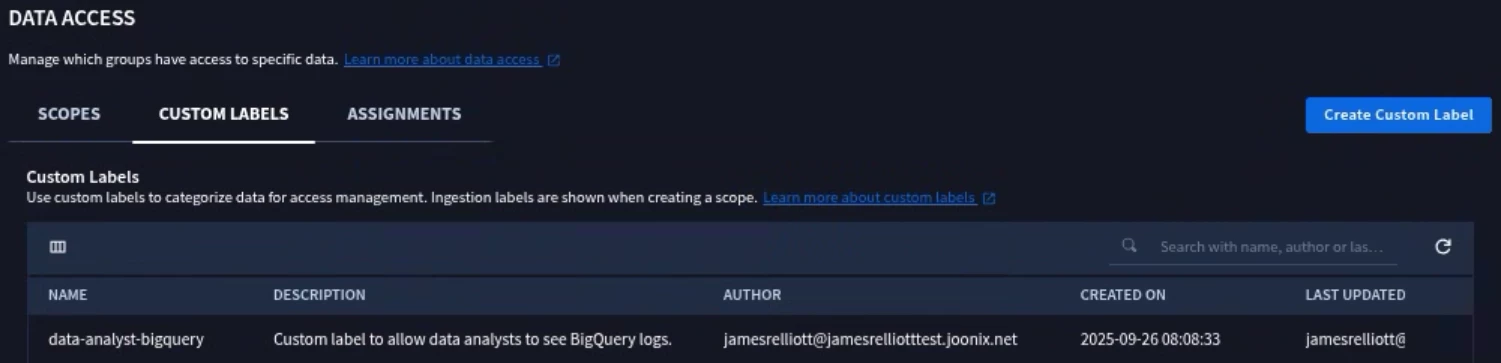
You should now see your newly created label in the list of Custom Labels.
If you want to modify an existing label, select (3) vertical dots menu next for the custom label and select Edit.
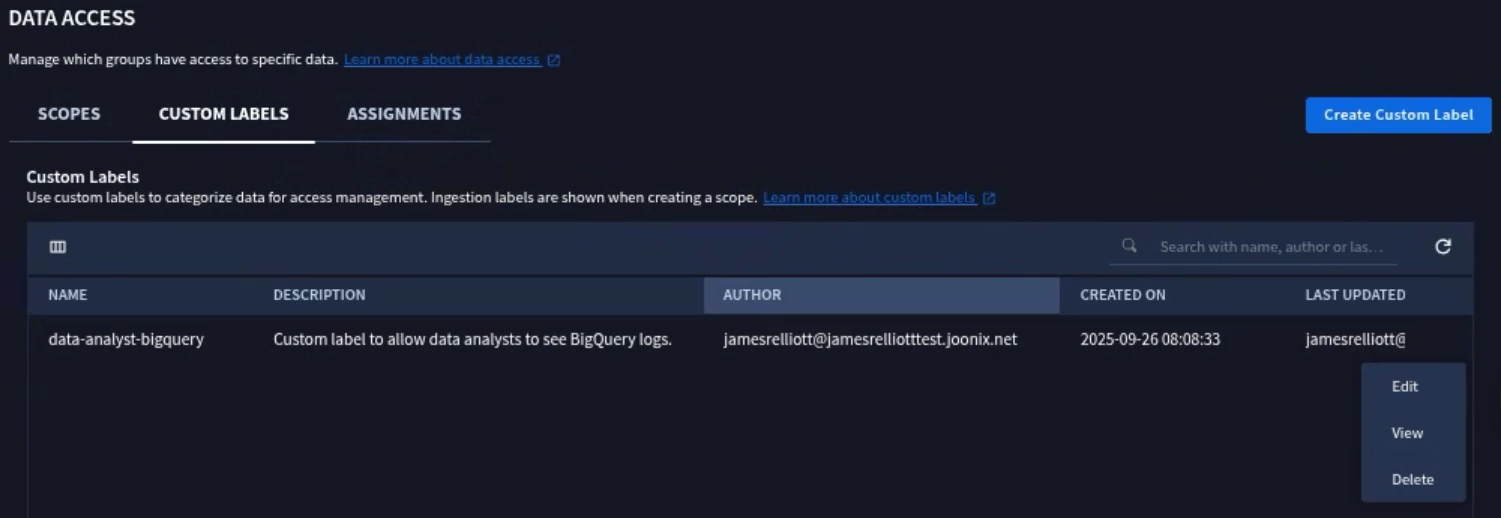
When you edit a Custom Label, you can refine or tune the UDM Search but you cannot change the label name. Also, the changes are applied to new data as it is ingested, not to data that has been previously ingested.
After you’ve made the necessary changes, select Save Changes.
If you want to delete an existing label, select (3) vertical dots menu for the custom label and select Delete.
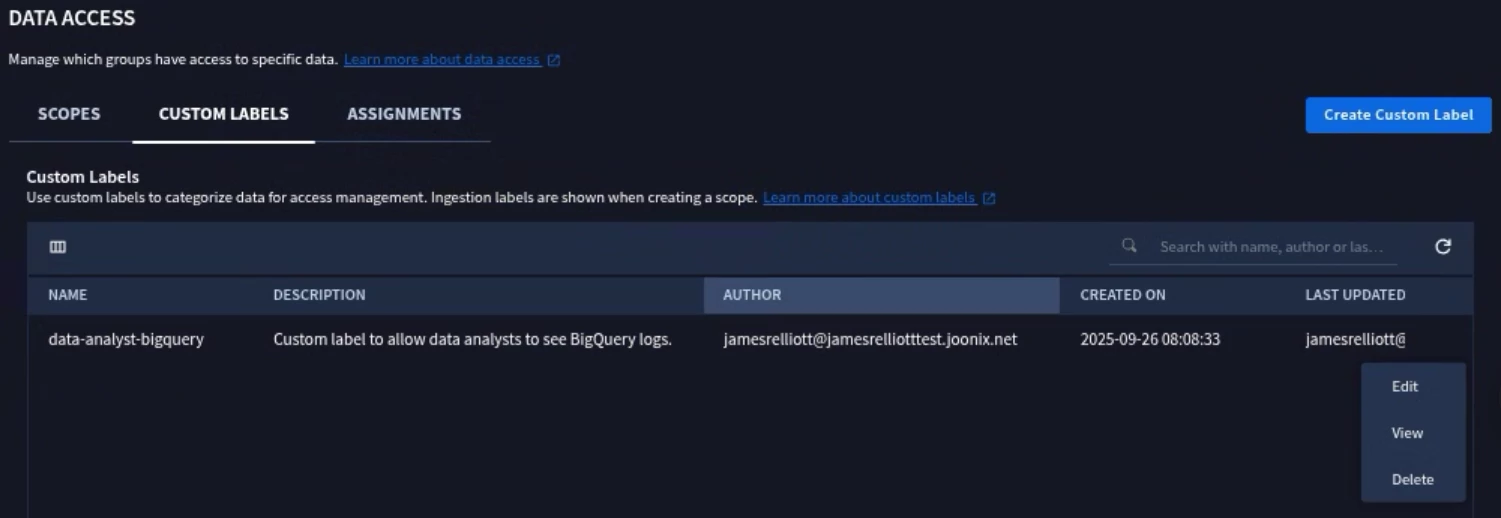
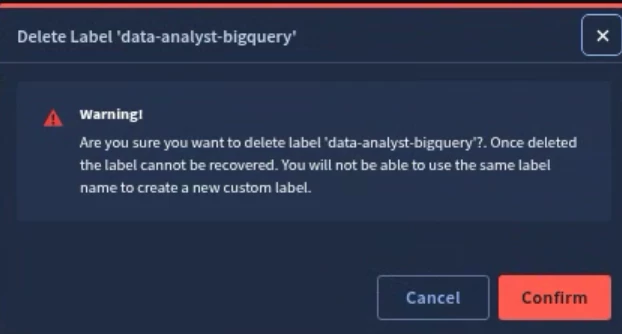
You will be prompted with a confirmation window. Select Confirm, to delete the custom label.
Data RBAC Scopes
Once you’ve created any custom labels needed, we need to assign it to a scope. In order to create a scope, navigate to the Scopes tab and select Create Scope.
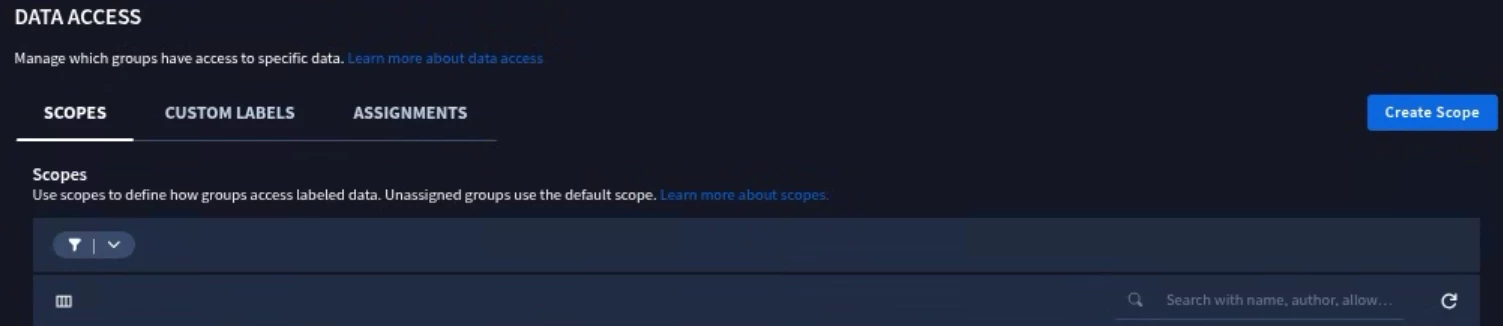
Enter a Scope Name and Description for your scope. It should be something descriptive that will help you and others determine what IAM role it will be assigned to and what labels are being applied to the scope.
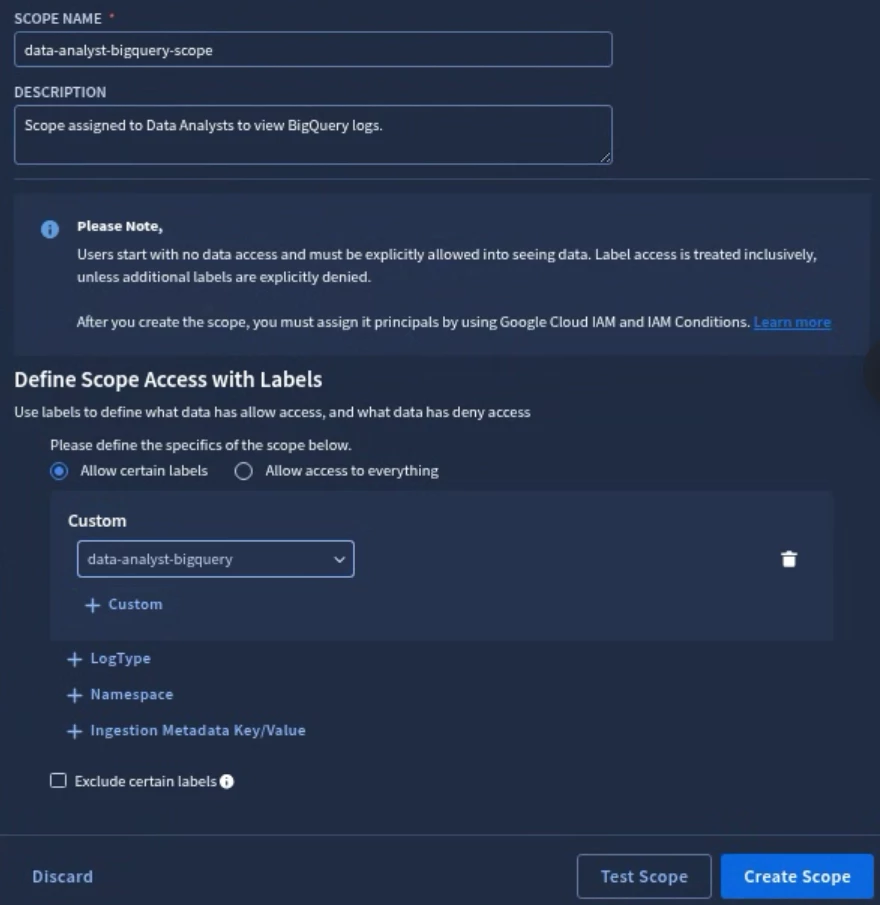
When adding labels to a scope, you can Allow certain labels or Allow access to everything. Add any custom labels, log types, namespaces, and ingestion labels to the scope.
You can also select Exclude certain labels and explicitly deny certain custom labels, log types, namespaces, or ingestion labels.
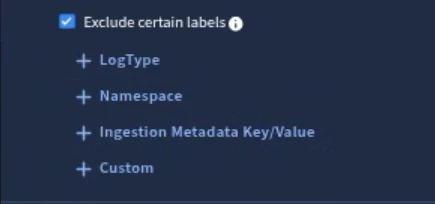
Once you’ve added the necessary labels, select Test Scope. This will present you with a UDM Search window so you can create UDM queries using Yara-L. It is best practice to not only test that you get back the expected events, but you should also create UDM queries that would try and return events the scoped user(s) would not have access to. This will validate that the scope is defined correctly.
NOTE: If you have not ingested any new events since the custom label was created, you may not get any results. There must be ingested events with the new custom label that was created.
After testing the newly created scope, select Create Scope.
Scope Assignment
You need to assign scopes to users to control data access for those with restricted permissions. A user's assigned scopes directly determine which data they can view and interact with. When a user is assigned multiple scopes, they gain access to the combined data from all those scopes.
In order to assign scopes to roles and users, login to the Google Cloud Console and navigate to the IAM page.
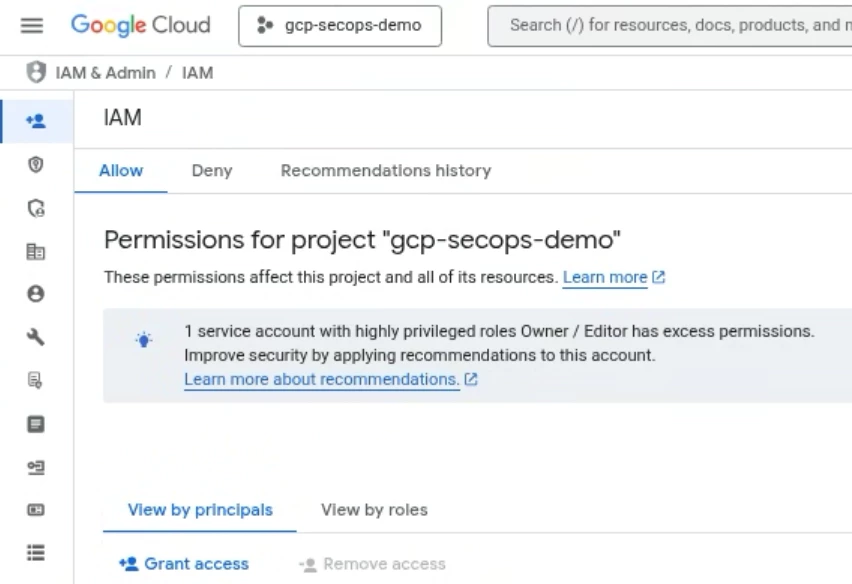
Select the appropriate GCP Project for your SecOps environment, and select Grant Access.
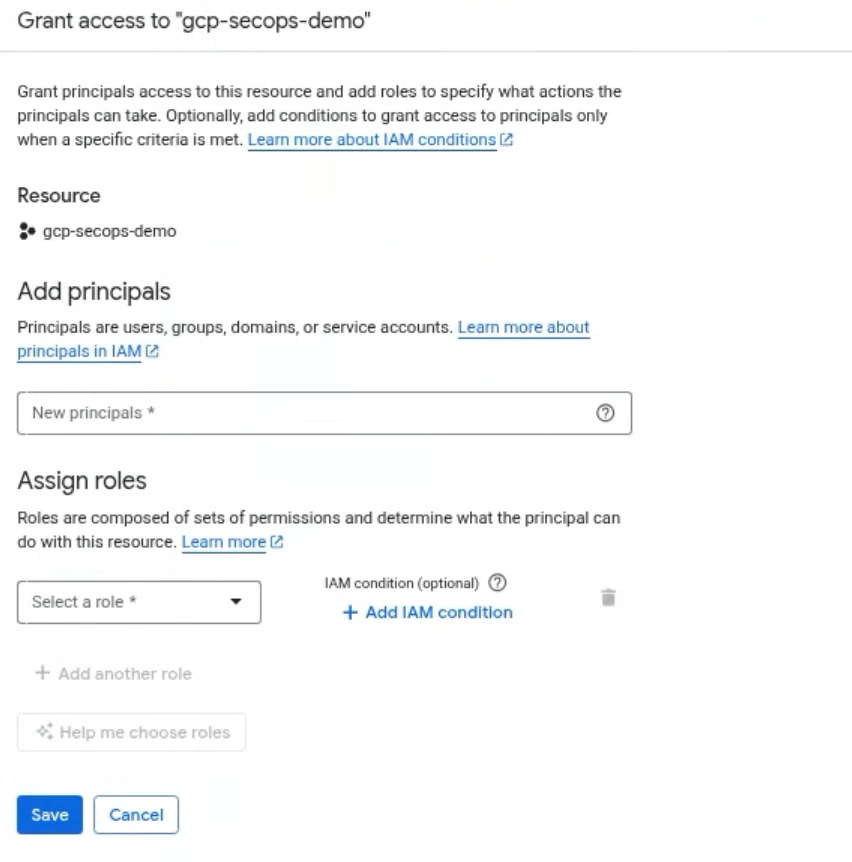
In the Principal field, enter the principal identifier you want to assign the scope to. If you’re using Workforce Identity Federation or a third party authentication, the identifier should look as follows:
principal://iam.googleapis.com/locations/global/workforcePools/POOL_ID/subject/USER_EMAIL_ADDRESS
Where the POOL_ID is the Workforce pool created and USER_EMAIL_ADDRESS is the user’s email address. You can also specify a group instead of a single user.
principal://iam.googleapis.com/locations/global/workforcePools/POOL_ID/group/GROUP_NAME
Next you need to assign it the proper roles. We discussed how you can create custom roles or use predefined roles. We are going to use (2) predefined roles to assign this scope to a role.
- Chronicle API Restricted Data Access Viewer: this will give the minimum feature RBAC permissions for SecOps to a user.
- Chronicle API Restricted Data Access: this is the role to give scoped data access.
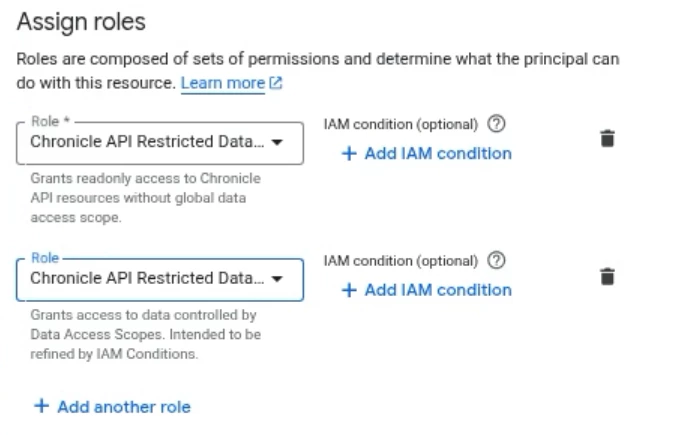
The way we map the scope to the role is by using the + Add IAM Condition. This IAM condition is applied specifically to the Chronicle API Restricted Data Access role.
Select + Add IAM Condition. Provide the condition an appropriate Title and Description that will allow you to determine the condition tied to Data RBAC and a SecOps scope.
In the Condition Builder, create a condition where the NAME will END WITH a value of /scope-name. In our specific use case, our name will end with /data-analyst-bigquery-scope. **Ensure the scope name has a prefix of ‘/’. If you do not add the ‘/’ in front of the scope name, the mapping will not work.
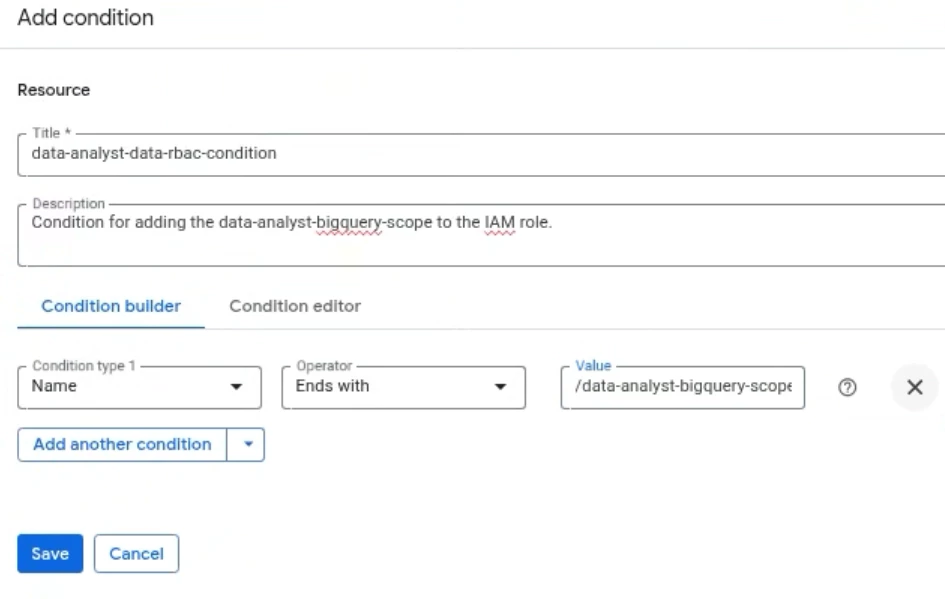
Select Save.
Once you’ve assigned the correct role(s) and IAM condition to the appropriate principal identifier, select Save.
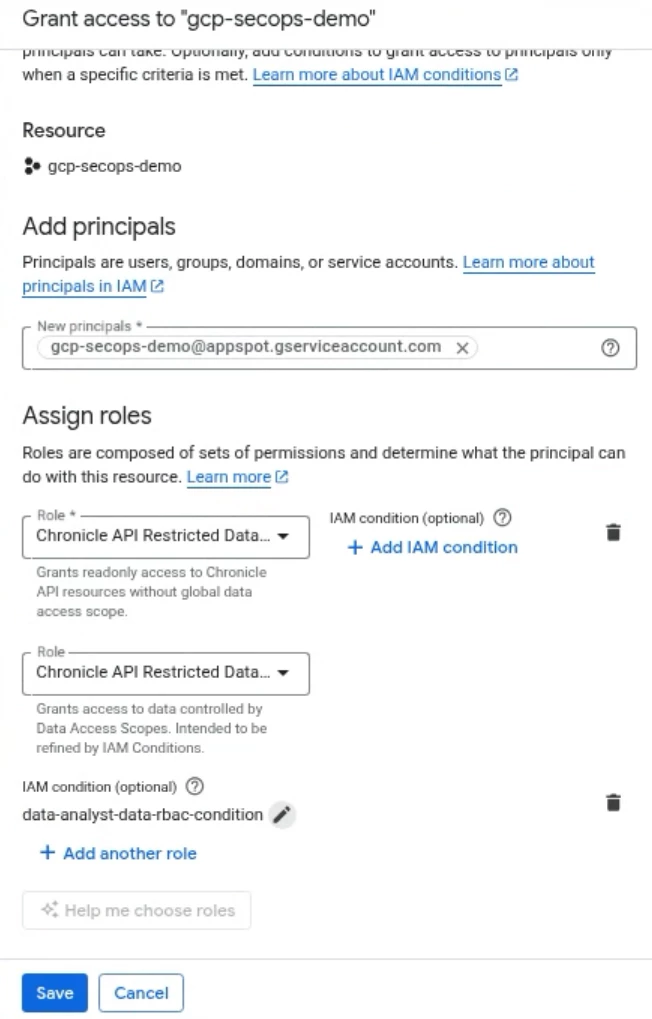
Once the access is saved, user’s assigned to the roles will now have scoped data access within SecOps.
Best Practices for Implementing Data RBAC
Effective Data RBAC implementation in Google SecOps requires careful planning and ongoing maintenance. Here are some best practices to consider:
- Start with a clear understanding of your organizational structure and data requirements: Before defining roles, analyze your teams' responsibilities and the types of data they need to access.
- Follow the principle of least privilege: Grant only the necessary permissions for each role. Avoid over-privileged accounts.
- Regularly review and update roles and permissions: As your organization evolves, so too should your Data RBAC policies. Conduct periodic audits to ensure permissions remain appropriate.
- Test your configurations thoroughly: Before deploying new Data RBAC policies to production, test them in a controlled environment to identify any unintended access issues.
- Document your Data RBAC policies: Maintain clear and comprehensive documentation of all roles, permissions, and their associated data access.
- Integrate with identity management systems: Leverage existing identity providers for user authentication and authorization to streamline the management of user identities.
Conclusion
Data RBAC is an indispensable component of a strong security posture within the Google SecOps platform. By implementing a well-defined Data RBAC strategy, organizations can significantly enhance their data security, streamline operations, and ensure compliance. Taking the time to properly configure and maintain your Data RBAC policies will be a critical investment in protecting your most valuable asset: your data.
For more information and detailed implementation guides, please refer to the official Google SecOps documentation: File
References:
- https://docs.google.com/presentation/d/1arHPqKweorp9irLI9KUVoLPhglV-JPSBGo_i_4RsuzA/edit?slide=id.g35fb0c45b24_2_0#slide=id.g35fb0c45b24_2_0
- https://cloud.google.com/chronicle/docs/administration/datarbac-overview
- https://cloud.google.com/chronicle/docs/administration/datarbac-impact
- https://cloud.google.com/chronicle/docs/administration/configure-datarbac-users
- https://medium.com/@thatsiemguy/data-rbac-in-chronicle-siem-6cb0ea32294e
- https://cloud.google.com/chronicle/docs/reference/rest/v1alpha/projects.locations.instances.dataAccessScopes
- https://cloud.google.com/chronicle/docs/reference/rest/v1alpha/projects.locations.instances.dataAccessLabels
- https://cloud.google.com/chronicle/docs/reference/feature-rbac-permissions-roles
