



Table of Contents
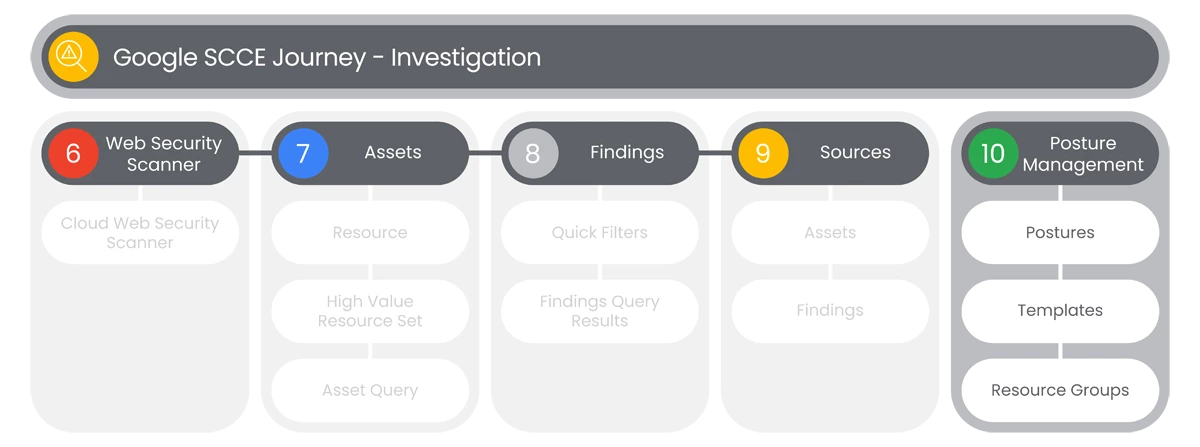
The Security Command Center Enterprise’s Posture Management dashboard helps you define, assess, and monitor the security of your resources. They help uncover policy drift, and detect misconfigurations.
Actions

Postures
The Security Command Center Enterprise’s Posture Management dashboard helps you define, assess, and monitor the security of your resources. They help uncover policy drift, and detect misconfigurations. Maintain your organization’s security standards by applying postures to resources in a folder, project, or across your organization.
- Users will see the Posture Management dashboard, with three tabs available:
- Postures
- Templates
- Resource Groups
- In the Posture tab, users will see a Filter option that will provide users with the following Properties options:
- Name
- Posture Type
- Latest Revision ID
- Status
- Policy Sets
- Policies
- Create Time
- Update Time
- Categories
- At the top-right of the Postures list, users will see a Columns option
 with the same options as the Filters Properties options:
- Name
- Posture Type
- Latest Revision ID
- Status
- Policy Sets
- Policies
- Create Time
- Update Time
- Categories
Relevant Documentation Links
- [All Steps] https://cloud.google.com/security-command-center/docs/security-posture-overview
- [Additional Steps] https://cloud.google.com/security-command-center/docs/security-posture-overview#security-posture

Templates
The Security Command Center Enterprise’s Posture Management dashboard helps you define, assess, and monitor the security of your resources. They help uncover policy drift, and detect misconfigurations. Use posture templates to help adhere to a compliance standard or to Google-recommended best practices.
Steps
- In the Templates tab, users will see a Filter option that will provide users with the following Properties options:
- Name
- Latest Revision ID
- Status
- Policy Sets
- Policies
- Categories
- At the top-right of the Templates list, users will see a Columns option
 with the same options as the Filters Properties options:
- Name
- Latest Revision ID
- Status
- Policy Sets
- Policies
- Categories
- If users select a Template by clicking the Display Name, they will see a Posture Template Details page of the selected Template with the following:
- Template Details
- Policy Sets
- In the Policy Sets section, users will see a Filters option that will provide users with the following Policy Sets options:
- Policy Sets
- Policy Name
- Type
- Description
- Enforcement Type
- Standard
- In the Policy Sets section, users will see the following Columns:
- Policy Sets
- Policy Name
- Type
- Description
- Enforcement Type
- Standard
- Constraint
- Under the Constraint column, users will be able to View Constraint Details.
- The Constraint Details panel that appears is a Read Only JSON version.
Relevant Documentation Links

Resource Groups
The Security Command Center Enterprise’s Posture Management dashboard helps you define, assess, and monitor the security of your resources. They help uncover policy drift, and detect misconfigurations. A resource group is a collection of related cloud data resources across different services and resource hierarchies that are grouped together based on sensitivity, intended use, location, resource type, and tags etc.
Steps
- In the Resource Groups tab, users will see a Filters option that will provide users with the following Resource Groups options:
- Name
- Data Assets
- Created On
- Created Before
- Created After
- At the top-right of the Resource Groups list, users will see a Columns option
 with the same options as the Filters Properties options:
- Name
- Data Assets
- Posture
- Created On
- If users select a Resource Group, by clicking the Display Name, they will see a Resource Group Details page of the selected Resource Group, with the following:
- Resource Details
- Data Assets
- At the top of the Resource Group Details page users will see the following options:
- Remove From Posture
- Delete
- In the Data Assets section, users will see a Filters option that will provide users with the following Data Assets options:
- Name
- Project
- Location
- Asset Type
- At the top-right of the Data Assets list, users will see a Columns option
 with the same options as the Filters Properties options:
- Name
- Project
- Location
- Asset Type
Relevant Documentation Links
Next Step: Security Command Center Enterprise: Step 4 - Remediation Overview
Previous Step: Security Command Center Enterprise: Step 3.4 - Investigation | Sources
