



Defend against leaked service account keys with SCC MCP and Agent Skills
While the Security Command Center (SCC) MCP server and Agent Skills are available to all SCC customers including SCC standard, the specific data and telemetry returned depend on your SCC tier. Please note that querying Issues and Attack Paths requires an active SCC subscription (Premium or PAYG) activated at the Organization level.
A user-managed service account key is a password for a machine identity that you can download as a file. It's convenient, and that's exactly the problem.
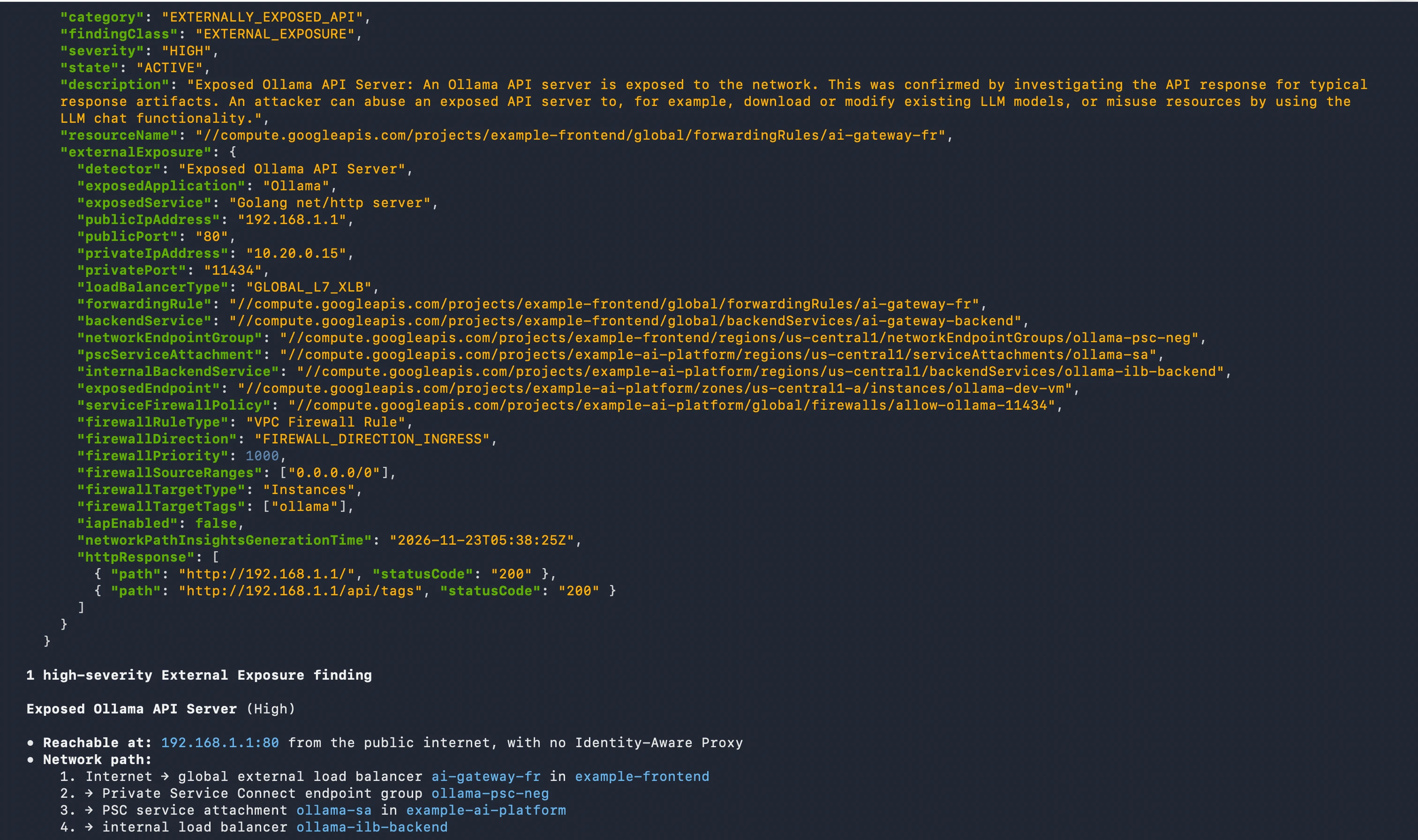
Not every stolen credential starts as a leaked key file. An AI agent, notebook or model server, such as Jupyter, Ray or Ollama, left open to the internet can give an attacker the same access through the service account attached to it. Security Command Center External Exposure finds these internet-exposed workloads so you can lock them down.
Why is a leaked key so dangerous?
Keys leak in ordinary ways: committed to a public repository, left in a CI log, baked into a container image, or copied to a laptop that gets compromised. Whoever finds a leaked key can:
- Sign in as the service account from anywhere. There's no password prompt, no MFA and no device check. The key file is all they need.
- Keep access until someone revokes it. User-managed keys don't expire by default, so a key that leaked a year ago can still work today.
- Do anything the service account can do. Read or exfiltrate data, change IAM policies, impersonate more powerful service accounts, or take over VMs and use them for cryptomining.
- Dig in. Create new keys or new service accounts, so revoking the original key no longer locks them out.
- Spend your money. Spin up expensive computers or call AI models on your bill.
The longer a key lives, the more chances it has to be copied, shared or leaked. The more access its service account has, the more damage a leak can do.
LLMjacking: stolen cloud credentials turned into AI bills
A fast-growing use for stolen cloud credentials is LLMjacking: attackers are using abused cloud accounts to run large language models for themselves, or resell that access, and leave the compromised victim with the bill. Google Threat Intelligence Group has reported on LLMjacking seen in Mandiant incident response. In those cases, attackers harvested valid credentials from public GitHub repositories, created new credentials to keep access, and ran up fraudulent charges of more than USD 100,000 in a single day.
A leaked key for a service account that can call Vertex AI is all an attacker needs to start.
Key files aren't the only risk. Some API keys act as a service account, including the keys that Vertex AI express mode creates, so a leaked API key can also run up AI charges. Security Health Analytics in Security Command Center helps you find risky API keys: keys that can call any API (API key APIs unrestricted), keys that work from any app or website (API key apps unrestricted), and keys older than 90 days (API key not rotated). Restrict or delete API keys that can call Vertex AI or the Gemini API, and rotate the ones you keep.
Attackers now move at machine speed
Attackers are also using AI agents. GTIG has observed threat actors using multi-agent offensive frameworks in live intrusions. These frameworks chain reconnaissance and exploitation together automatically. The weaknesses they exploit are familiar, such as compromised credentials and unpatched systems, but they move far faster than a human operator. The time between a key leaking and someone using it keeps getting shorter.
Clean up keys with SCC MCP and Agent Skills
You can hunt down and clean up risky service account keys directly from Google Antigravity or any other agentic harness, or step through the Google Cloud console below.
Connect the Security Command Center MCP server
- Enable the API in your project (gcloud services enable securitycenter.googleapis.com) and make sure your identity has the roles/mcp.toolUser role plus SCC read permissions.
- Point your agent harness to the SCC investigate endpoint:
https://securitycenter.googleapis.com/mcp/investigate
- This gives your agent read-only tools including list_findings, group_findings, and list_attack_paths governed by your existing IAM permissions and VPC Service Controls.
(Authenticate with Application Default Credentials or OAuth, not a user-managed service account key.)
Install the SCC Agent Skills (standalone or alongside MCP)
Run npx skills add google/skills and select:
- google-cloud-scc-query — guides the agent on accurate SCC filters, finding classes, and regional endpoints.
- google-cloud-scc-remediation — includes playbooks for USER_MANAGED_SERVICE_ACCOUNT_KEY, SERVICE_ACCOUNT_KEY_NOT_ROTATED, excessive IAM permissions, and toxic combinations, with a built-in approval gate before any change runs
Start with prompts like:
List all active External Exposure findings in organizations/ORG_ID, starting with exposed AI agents and model servers, and summarize the recommended next steps.
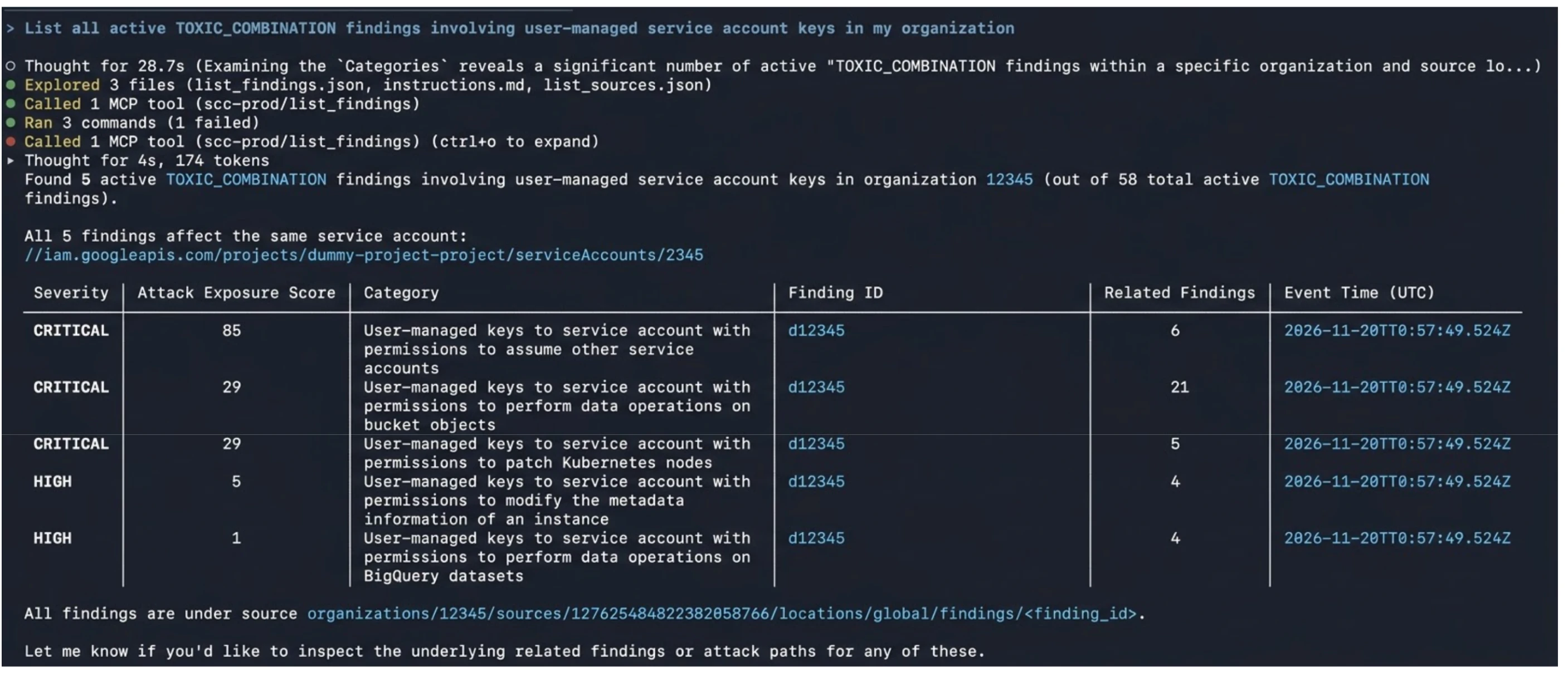
List all active TOXIC_COMBINATION findings involving user-managed service account keys in organizations/ORG_ID
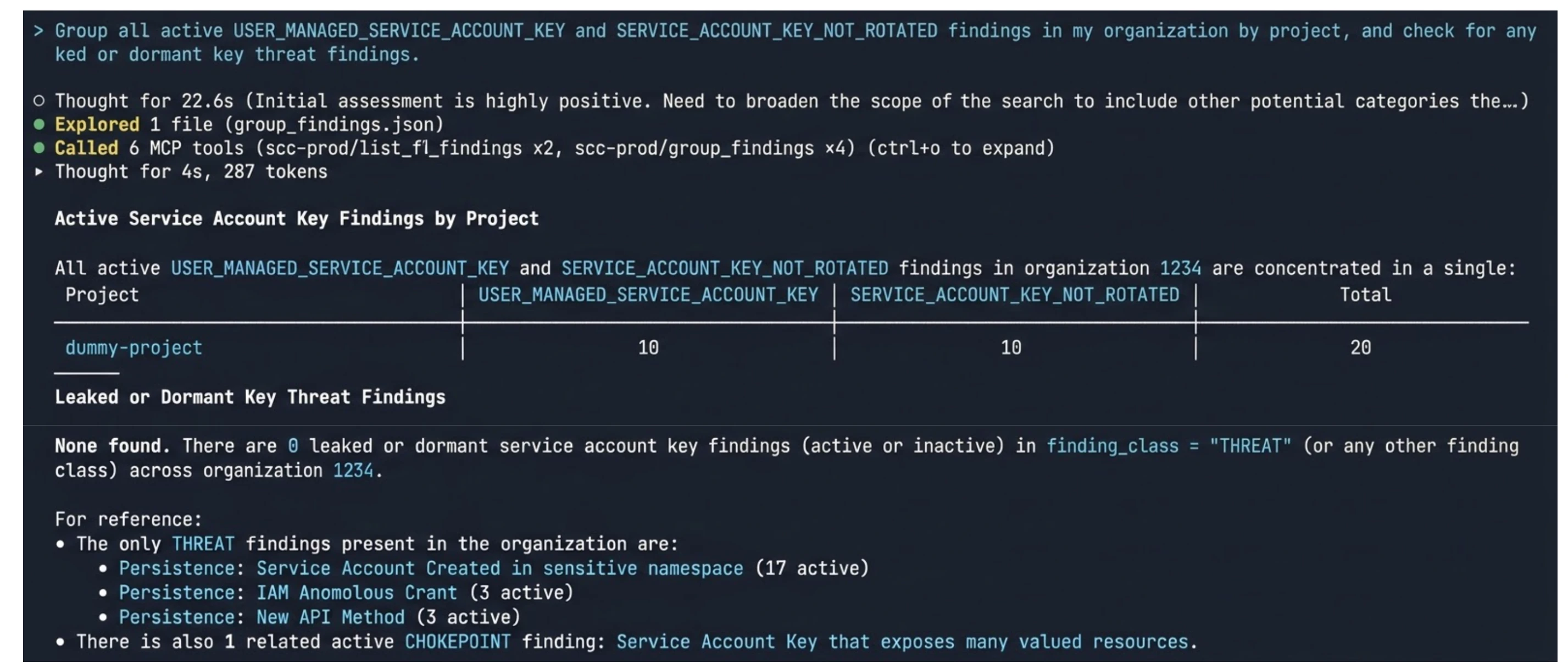
Group all active USER_MANAGED_SERVICE_ACCOUNT_KEY and SERVICE_ACCOUNT_KEY_NOT_ROTATED findings in organizations/ORG_ID by project, and check for any leaked or dormant key threat findings.
The SCC MCP server currently provides read-only access to findings and simulated attack paths. To browse prioritised Issues or run graph search across every key, follow the console steps below.
Use the Google Cloud console
Security Command Center console helps you deal with this risk in four steps:
- Prioritize with Issues: see which keys open an attack path to your most valuable resources.
- Investigate with graph search: list every risky key across your organization and see what it unlocks.
- Detecting abuse with Event Threat Detection: get alerted when a key is leaked or misused.
- Prevent with Compliance Manager and organization policy: keep key hygiene in check and stop new keys from being created.
Prioritize with Issues
Security Command Center combines findings with context about your environment to show where they add up to real risk. Issues are rated medium, high or critical and appear on the Risk overview and Issues pages in the SCC console, with steps to fix them.
On the Issues page, filter by Detection and select titles starting with "User-managed keys to service account…" (or filter by Resource type: Service Account), then start with Critical and High severity.
Chokepoints: fix many paths at once
A chokepoint is a shared resource where several attack paths meet. Fixing it closes all of those paths in one action. If several paths run through the same over-privileged service account, deleting its keys or trimming its roles can remove a whole group of toxic combinations at once.
Note: Issues, toxic combinations and chokepoints are available in the Premium tier and require organization-level activation. Issues highlight the most dangerous combinations.
Investigate with graph search
Graph search lets you query your whole organization for risky keys and see how they connect to other resources. In the Google Cloud console, go to Security Command Center > Graph search and build these queries.
Which service account does each risky key unlock?
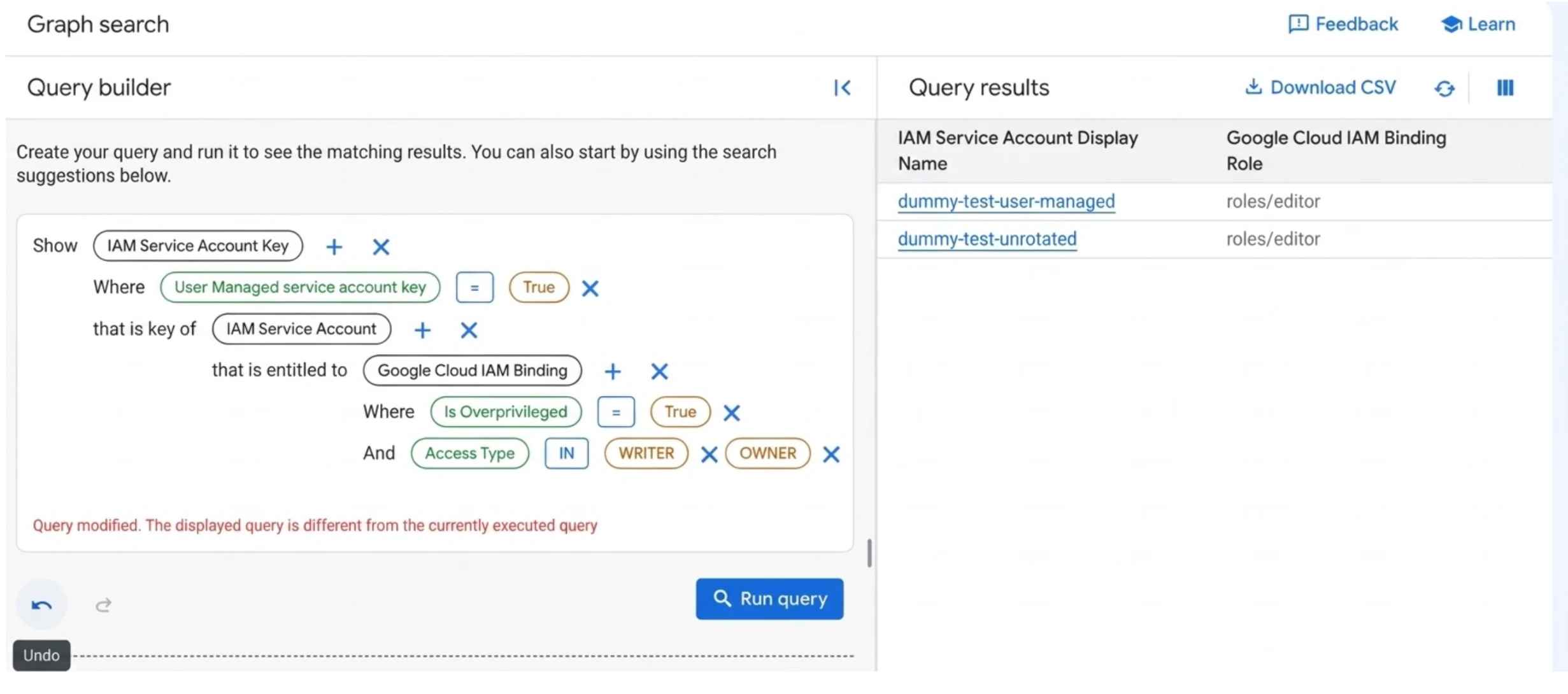
Tip: Start with keys whose service accounts hold Owner, Editor or other broad roles. Those are the ones an attacker would want most.
Detect abuse with Event Threat Detection
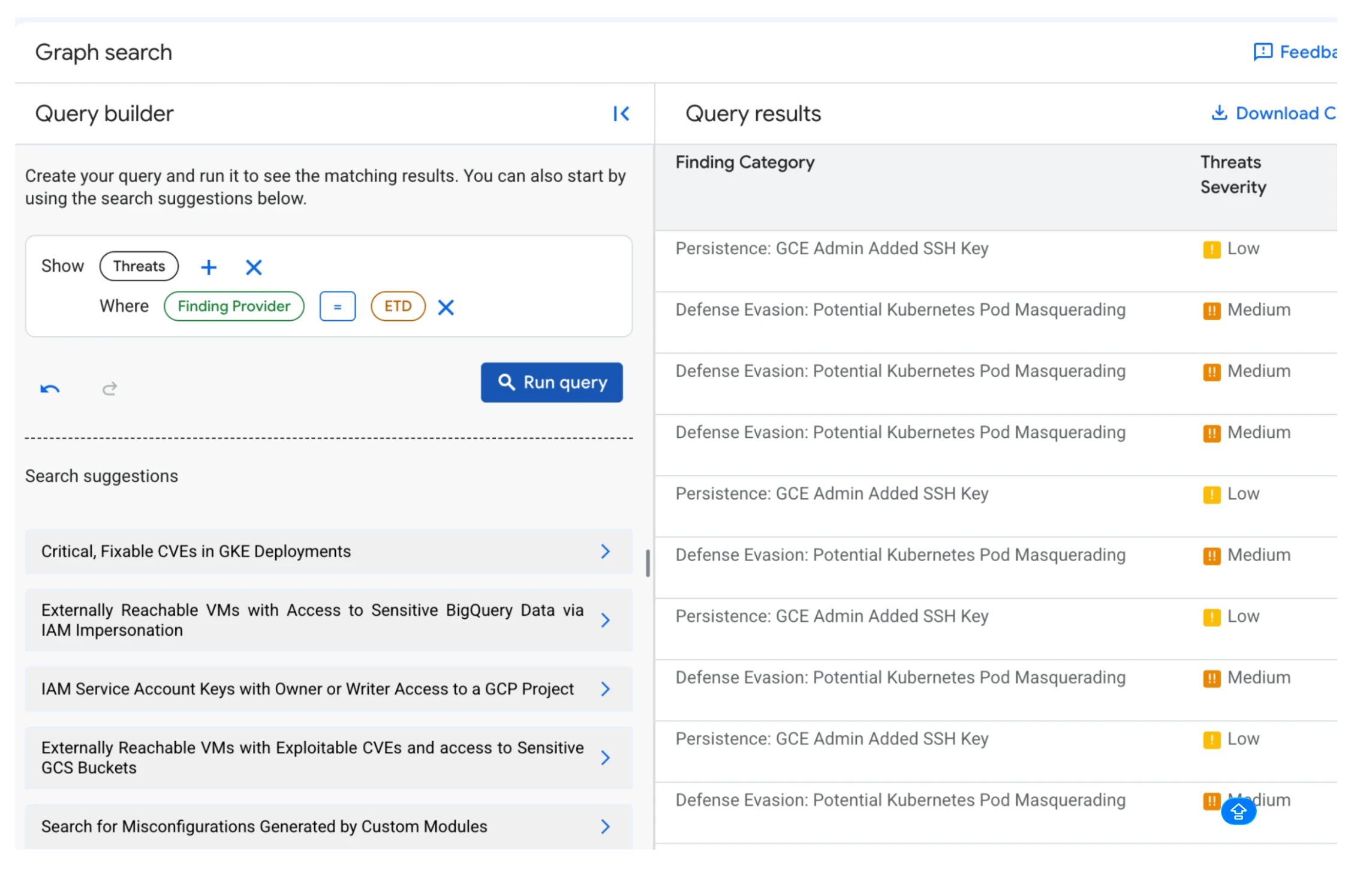
Event Threat Detection watches your audit logs for signs of key misuse. Set up notifications for these findings:
| Finding | Why it matters |
|---|---|
| Initial Access: Leaked Service Account Key Used | A key that was posted publicly was just used against your environment. |
| Initial Access: Dormant Service Account Key Created | Someone created a key for a service account that had been idle for more than 180 days. That's a classic persistence move. |
| Initial Access: Dormant Service Account Action | A long-idle service account suddenly became active. |
| Persistence: Service Account Key Created | A new key appeared. Confirm that it was expected. |
SCC also reports Account has leaked credentials when Google finds one of your service account keys exposed publicly, for example on GitHub. If one of these fires, disable the key first, then review the service account's recent activity in Cloud Audit Logs.
Prevent with Compliance Manager and organization policy
Compliance Manager includes built-in cloud controls for service account keys. When a key or policy doesn't meet a control, Compliance Manager creates a finding, so you always have an up-to-date list of what to fix.
| Cloud control | Finding category | What it flags |
|---|---|---|
| Restrict User Managed Service Account Keys | USER_MANAGED_SERVICE_ACCOUNT_KEY | Any user-managed (downloadable) key |
| Require Service Account Key Rotation | SERVICE_ACCOUNT_KEY_NOT_ROTATED | User-managed keys older than 90 days |
| Disable Service Account Key Creation | (organization policy check) | Whether the iam.disableServiceAccountKeyCreation policy is enforced |
To get started, apply a framework that includes these controls, or add them to your own framework, at the organization or folder level.
Reduce your reliance on keys
- Delete keys you don't need, and rotate the ones you do.
- Go keyless: use Workload Identity Federation for workloads outside Google Cloud, and attached service accounts inside it.
- Block new keys: enforce the iam.disableServiceAccountKeyCreation organization policy, and allow exceptions only where they're truly needed. The Disable Service Account Key Creation control confirms the policy stays enforced. Also enforce the iam.managed.disableServiceAccountApiKeyCreation policy so API keys can only be tied to a service account for the services you allow.
Build a broader security baseline: Service account key controls are part of Google's Google Cloud minimum viable secure platform checklist. Use the Authentication and authorization guidelines to roll out these controls in stages starting with blocking new external keys (Basic), then enforcing 90-day rotation and Workload Identity Federation (Intermediate) and use Compliance Manager to monitor ongoing compliance.
Join the conversation
How do you track service account keys today? Share your queries and tips below.
