


Author: Robert Basomingera, Solutions Engineer
Managing Google Cloud Security Command Center (SCC) at scale requires an operational strategy that prevents alert fatigue from masking real security threats. While SCC provides robust detection capabilities out of the box, optimizing your triaging and downstream automation pipelines requires a concrete understanding of finding lifecycles, state transitions, and propagation latencies.
This guide provides practical, hands-on strategies to help Security Operations Center (SOC) analysts, security engineers, and compliance teams navigate finding states, configure mute rules effectively, and debug real-world synchronization delays.
How the Finding Lifecycle Works for You
Think of an SCC finding as a persistent, living record. It isn't just a static notification; it's a dynamic profile of a risk that evolves alongside your environment. Crucially, SCC attempts to update the deterministic Finding ID rather than generating a duplicate record, but if the finding has passed its retention window (e.g., 7 days for inactive vulnerabilities), it will be recreated.
Finding States vs. Mute Status
To build accurate API queries and downstream automation, it is critical to understand that a finding's physical state and its visibility are managed by two completely separate, orthogonal attributes:
-
state (ACTIVE / INACTIVE): Reflects the physical presence or resolution of the security issue.
-
mute (MUTED / UNMUTED / UNDEFINED): Functions as a visibility and notification overlay.
A muted finding does not transition to a new state; it remains state="ACTIVE" but has mute="MUTED". By default, the SCC findings page and alerting pipelines filter out muted findings using the query: state="ACTIVE" AND NOT mute="MUTED"
The ACTIVE State
This is your active work queue. A finding starts here when a scanner identifies a risk that needs your attention. If it's ACTIVE, it means the security gap still exists or requires a human to verify the fix.
Use the ACTIVE state to drive your primary alerts into tools like Google SecOps or Splunk. By default, the SCC dashboard focuses here to keep your team eyes-on-target.
The INACTIVE State
This is your goal state. INACTIVE means the security gap is no longer present; either the vulnerability was patched, the misconfiguration was corrected, or the resource was removed. However, how Security Command Center (SCC) handles resource deletion depends entirely on the finding class, introducing several critical operational nuances:
-
Vulnerabilities and Misconfigurations (Auto-Inactivation): Built-in scanners like Security Health Analytics (SHA), VM Manager, and the Compliance Evaluation Service (CES) are designed to automatically transition resolved issues to INACTIVE.
-
The Soft-Delete Buffer: If you delete a resource instead of fixing it, the associated findings will still persist as ACTIVE until the resource's underlying "soft-delete" or recovery window has fully closed (such as the 30-day grace period for deleted Service Accounts, or the 30-day shutdown window for GCP Projects). Once this window elapses and the resource is permanently purged, the backend Findings Lifecycle Management pipeline will mark the finding as INACTIVE.
-
GKE Configuration Audit Latency: If GKE workloads or entire clusters are deleted, the associated GKE Workload Configuration Auditing findings can take up to 7 days to transition to INACTIVE. This delay occurs because background sync pipelines require time to reconcile the cluster's teardown state.
-
-
Threats and Events (The Immutable Forensic Ledger): Threat detectors like Event Threat Detection (ETD), Container Threat Detection (CTD), or VM Threat Detection (VMTD) do not perform automatic lifecycle management. Because threats represent point-in-time exploits (such as a reverse shell or brute-force attempt), these findings remain ACTIVE even if you delete the compromised host or container. This is a deliberate security guardrail to prevent an attacker from hiding their tracks by deleting an asset. SOC analysts must investigate and manually set these to INACTIVE.
A Note on Resource Reassignment: When an asset (such as a VM or storage bucket) is deleted, SCC may reassign the parent path of the corresponding finding to the Organization level (e.g., organizations/ORGANIZATION_ID). Because the resource no longer exists in the project hierarchy, SCC bubbles the historical finding up to the organization parent to ensure long-term audit compliance.
The Mute Overlay (mute="MUTED")
Muting is your primary tool for noise cancellation. It does not alter the finding's physical state (meaning a muted active finding still retains state="ACTIVE"), but it suppresses the finding from your primary dashboards and default alerting channels. Use this for accepted risks or known issues that do not require immediate action. This keeps your SOC's notification pipeline clean while preserving the finding telemetry for audit logs, compliance reports, and retrieval via specific queries (e.g., mute="MUTED").
| Attribute | Valid Values | Operational Meaning | Default Findings page visibility | Triggers Pub/Sub? | Auto-Inactivation Eligible? |
| state | ACTIVE | Security gap is present or unresolved. | Yes (unless muted) | Yes (unless muted) | Yes (scanners auto-inactivate vulnerabilities/misconfigs upon remediation) |
| state | INACTIVE | Condition remediated or resource deleted. | No (requires explicit filter) | No | N/A |
| mute | MUTED | Suppressed alert (can be active or inactive). | No (requires explicit filter) | No (by default) | Yes (if the issue is fixed, a muted active finding still auto-inactivates) |
| mute | UNMUTED / UNDEFINED | Default state for active alerting. | Yes (if state is active) | Yes (if state is active) | Yes |
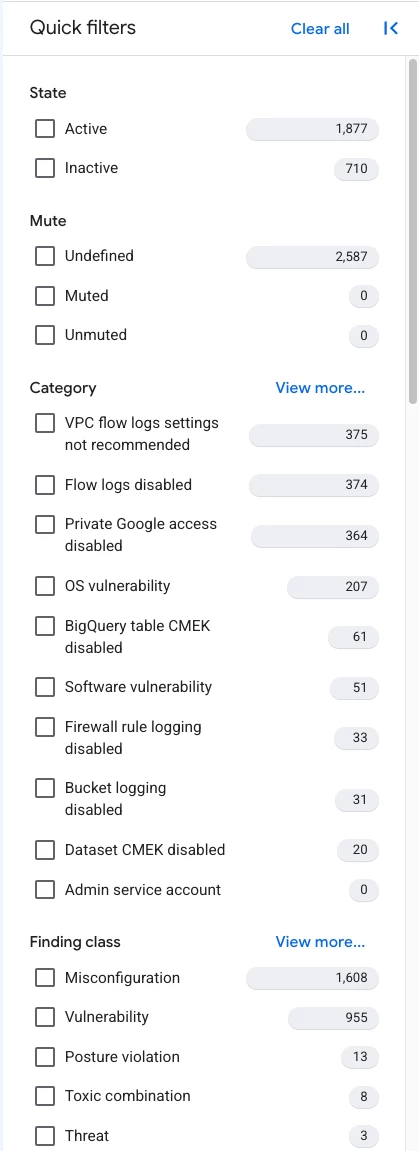
Figure 1: Quick filters in the Security Command Center dashboard.
| Note on Timestamps: Accurately investigating findings requires understanding the difference between eventTime, createTime, and muteUpdateTime. For a deep dive on how to use these timestamps for forensic timelines and SIEM pipelines, see our dedicated guide: [TBD Link to Timestamps Guide Here]. |
Operational Mechanics: Auto-Inactivation vs. Manual Resolution
| Pro-Tip: Distinguishing these two paths is the key to SCC efficiency. Vulnerabilities are handled by the system; Threats require your expertise. Never manually close what the system is designed to automate. |
Operationalizing SCC means knowing which findings will fix themselves and which require a human touch.
Findings fall into two categories: auto-managing vulnerabilities and misconfigurations, and immutable threat logs.
Vulnerabilities and Misconfigurations: The Auto-Inactivation Engine
For misconfigurations like open firewall rules or unpatched VMs, scanners like Security Health Analytics (SHA), VM Manager, and the Compliance Evaluation Service (CES) in Compliance Manager handle the lifecycle for you.
Once you apply a patch or restrict an IAM policy, the engine will detect the change during its next poll and automatically transition the finding to INACTIVE. No manual closure is required.
This also applies to resource deletion. When a resource is deleted, findings do not immediately disappear because SCC relies on Cloud Asset Inventory (CAI) state updates, which are not instantaneous. Furthermore, some resources have intentional life cycle buffers: deleted GCP Projects enter a 30-day soft-delete recovery period (keeping findings ACTIVE during that window), and Artifact Registry container vulnerabilities may remain ACTIVE for 7 days after image deletion if the image was not scanned recently.
The Reality of Scan Latency
Manage expectations around scan intervals. While some detections are real-time, others follow batch schedules. Check the SCC Latency Guide to understand your tier's specific timing. In some situations, latency depends on the service tier:
-
Premium Tier: Batch scans have a typical maximum interval of 24 hours.
-
Standard Tier: Batch scans typically run every 48 hours, though initial discovery in new environments can have a typical maximum latency of up to 72 hours.
Web Security Scanner runs weekly after initial execution. Patches may remain ACTIVE in the console until the next scheduled scan completes.
| Pro-Tip: Even if a scanner detects a configuration change in real-time, the actual resolution (transitioning the finding state to INACTIVE) often experiences latency as it depends on state updates propagating through downstream products like Cloud Asset Inventory (CAI). |
Threats and Events: The Immutable Ledger
Threat findings (from ETD or CTD) are different; they are an immutable ledger of an event that happened.
Because these represent point-in-time exploits (like a reverse shell), they never auto-inactivate. Even if you delete the affected resource, the finding stays ACTIVE.
This is critical for forensics. It ensures the evidence of a breach isn't erased just because a VM was recycled.
Analysts must manually set these to INACTIVE once the investigation and containment are complete.
Toxic Combinations and Chokepoints: The Risk Engine
Toxic combination findings are generated during periodic attack path simulations by the Risk Engine. Analysts cannot manually close or remediate these findings directly. Instead, they must remediate the underlying vulnerabilities or misconfigurations along the attack path, after which the Risk Engine will automatically transition the toxic combination finding to INACTIVE during its next simulation run.
| Service / Scanner Type | Finding Class | Lifecycle Management Status | Resource Deletion Behavior | Example Services |
|---|---|---|---|---|
| Configuration & Compliance Scanners | Misconfiguration, Vulnerability | Supported (Auto-inactivates upon remediation) | Automatically sets findings to INACTIVE (after soft-delete / recovery window elapses). | Security Health Analytics (SHA), VM Manager, Compliance Evaluation Service (CES), Artifact Registry Assessment, GKE Workload Configuration Auditing |
| Behavioral & Event Scanners | Threat, Event, Observation | Not Supported ( must manually resolve or mute) | Findings remain ACTIVE to preserve the forensic audit trail. | Event Threat Detection (ETD), Container Threat Detection (CTD), VM Threat Detection (VMTD), Web Security Scanner, Sensitive Actions Service, Cloud Armor |
Decoding the UI: Where to Look for Truth
When you're deep in an investigation, knowing where to click can save minutes. The Findings detail pane is your primary workstation.
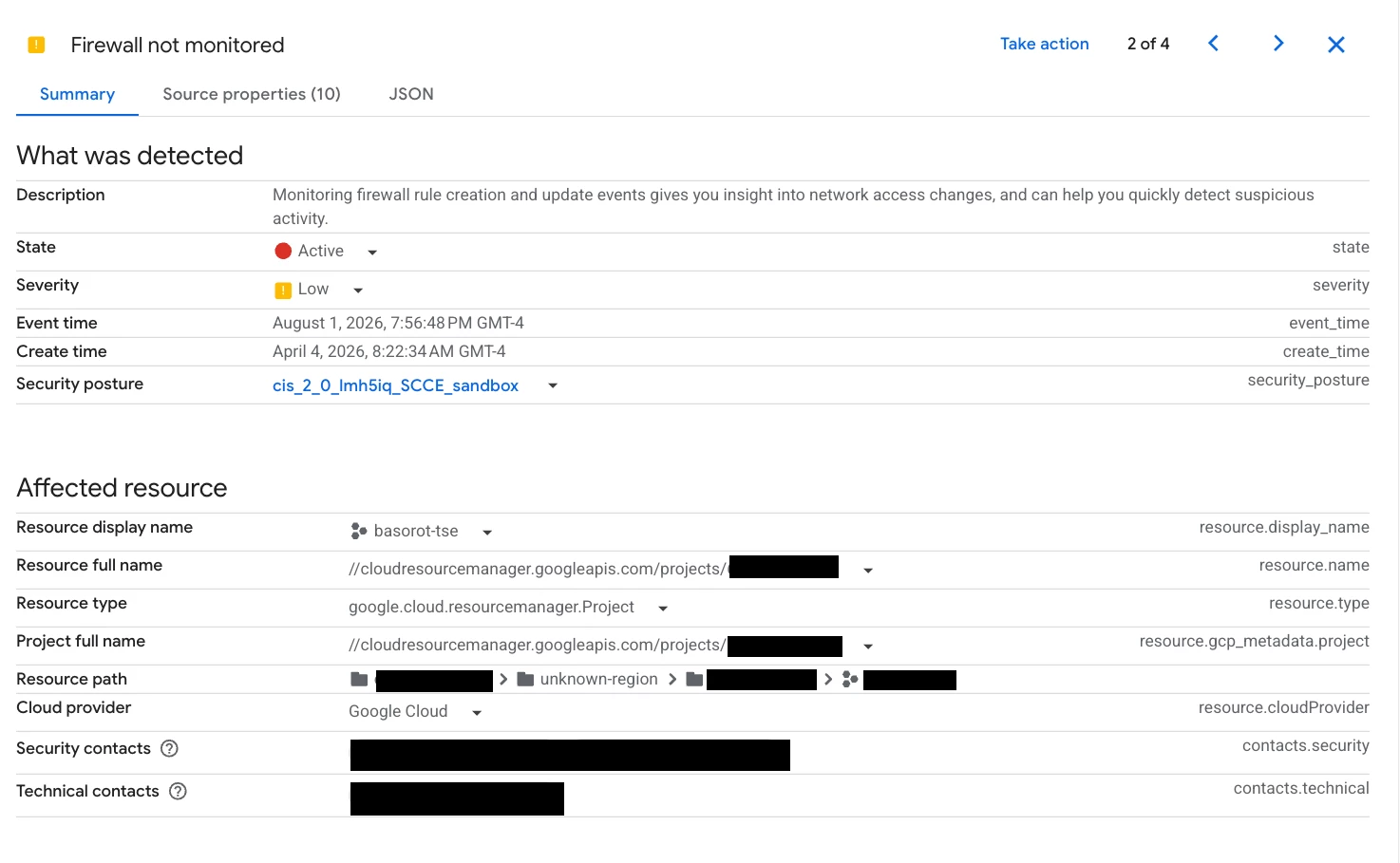
Figure 2: The Findings detail summary pane.
The Finding Detail Summary
Use the Summary tab for a "first look." It gives you the severity, resource path, and remediation steps needed for quick routing.
It aggregates CVE data (ID, CVSS score, impact) for operational routing and risk assessment.
The JSON Tab: The Definitive Source of Truth
The JSON tab is your forensic source of truth. While the Summary provides a high-level view, the JSON reveals exactly why a finding triggered, providing the unfiltered technical evidence required for debugging complex detections and establishing definitive audit trails.
Look inside the sourceProperties object. It holds the telemetry; like package versions or specific evaluation logic; that isn't summarized elsewhere.
This is also where you'll find the audit trail for triage actions, including who muted a finding and when (muteInitiator and muteUpdateTime).
Comparing granular timestamps and CVE IDs helps distinguish lingering states from new occurrences. Triage audit data (muteInitiator, muteUpdateTime) is also recorded.
Triage Tools: Mute Rules and Security Marks
Dynamic Mute Rules: Suppressing Visibility, Retaining Auditability
Muting suppresses notifications but keeps the data for audits. For best results, use Dynamic Mute Rules. They let you set an expiration date so that accepted risks are automatically brought back to your attention for periodic re-evaluation.
SCC provides two mute configurations:
-
Static Mute Rules: These rules indefinitely mute future findings that match a specific filter criteria. Once applied, a static rule remains in effect perpetually until an administrator manually deletes it. Static rules take absolute precedence over dynamic rules.
-
Dynamic Mute Rules: These rules automatically silence matching findings, but they include the crucial capability to set an expiration date. Once the calendar date is reached, the dynamic mute rule automatically expires, and the finding's mute property is reset to UNDEFINED, instantly returning it to the active alerting queue.
Organizations should favor Dynamic Mute Rules to ensure periodic re-evaluation of accepted risks.
Mute actions are audited via muteInitiator and muteUpdateTime in the JSON payload.
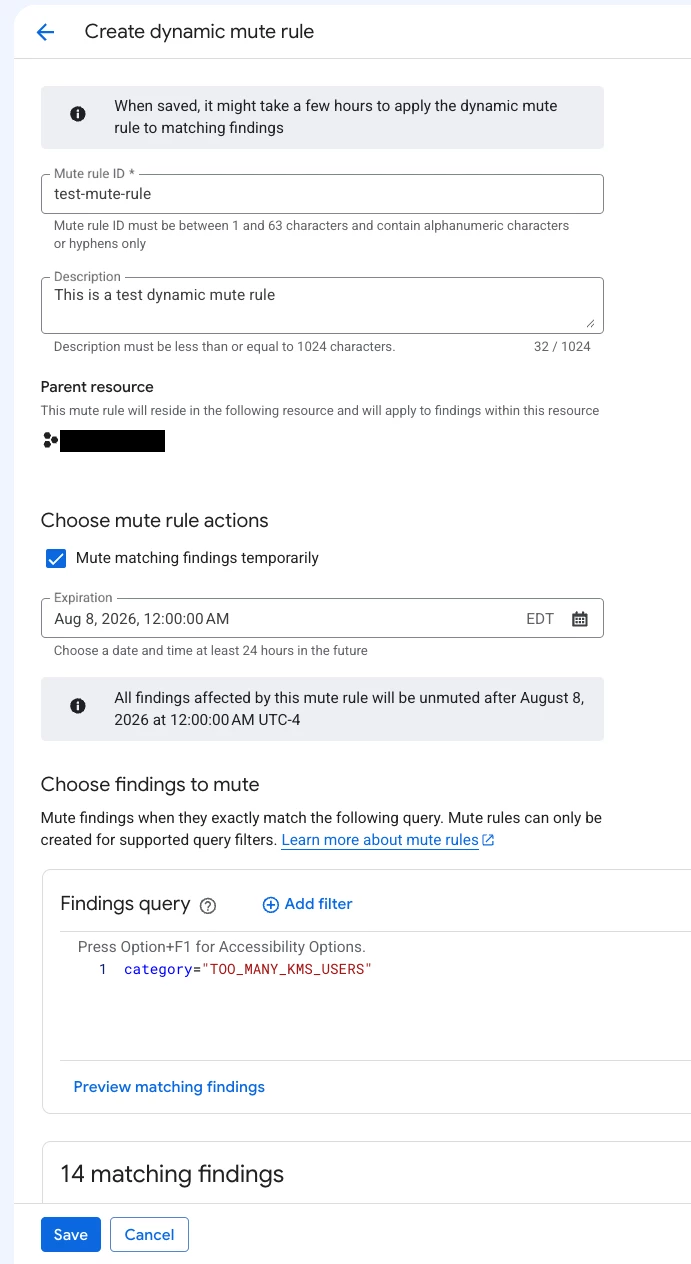
Figure 3: Interface for creating a dynamic mute rule with expiration.
Security Marks: Enriching Business Context
Security Marks are your primary tool for adding custom, IAM-controlled metadata to your resources. They allow you to attach critical business context; such as labeling resources as "Production," "PCI-Scoped," or "Owner: Team-Alpha"; directly to the assets within SCC.
Unlike Mute Rules, Security Marks do not impact the underlying scanning engine or the visibility of findings. They are designed for filtering, grouping, and organizational reporting rather than alert suppression.
It is important to note that modern SCC implementations rely exclusively on Mute Rules for suppressing findings. Legacy bypass methods are deprecated; Security Marks should now be used strictly for classification, ensuring that all risks remain visible unless explicitly handled by a Mute Rule.
-
Triage Fast-Lane: Security Marks are your secret weapon for triage speed. By labeling assets (e.g., env=prod, owner=team-alpha), you stop asking 'What is this?' and start asking 'What is the priority?', allowing you to instantly filter for the assets that demand your immediate attention.
| Feature | Primary Function | Scanning Impact | Compliance & Audit Trail | Expiration Capability |
| Dynamic Mute Rule | Suppress visibility and alerts | Asset continues to be scanned | Preserved backend logging | Yes (via calendar date) |
| Security Mark | Resource labeling and classification | Asset continues to be scanned | Enriches finding telemetry for audits | No (Requires manual removal) |
Navigating Real-World Scenarios
The following scenarios demonstrate that faster triage is a direct result of understanding the underlying lifecycle mechanics.
Let's apply these concepts to common SOC headaches.
Scenario A: The "Ghost" Finding (Persistent OS Vulnerabilities)
The Issue: An engineer deploys a patch to resolve a critical CVE on a fleet of Compute Engine instances. However, two hours post-deployment, the SCC findings page still displays the corresponding findings as ACTIVE. The SOC team assumes either the patch failed to apply or the scanner is generating duplicate alerts.
Technical Context: This delay is typically caused by scan latency rather than a failure of the remediation patch. Scanners like Security Health Analytics (SHA) and VM Manager run on specific batch intervals (typically every 24 hours for Premium Tier and up to 48 hours for Standard Tier).
Recommended Action Plan:
-
Validate Pipeline Timelines: Before declaring a patch failed, check the SCC Latency Guide to confirm if the next scan window has closed.
-
Examine the JSON Payload: Open the finding's JSON tab and locate the vulnerability object. Note the package version and CVE ID. Compare this metadata against your local package manager execution logs to ensure the patch applied successfully.
-
Compare Event Timestamps: Match the finding's eventTime against your internal deployment logs. If the eventTime precedes the patch completion timestamp, the console is simply waiting on the next scheduled scan cycle to automatically transition the state to INACTIVE.
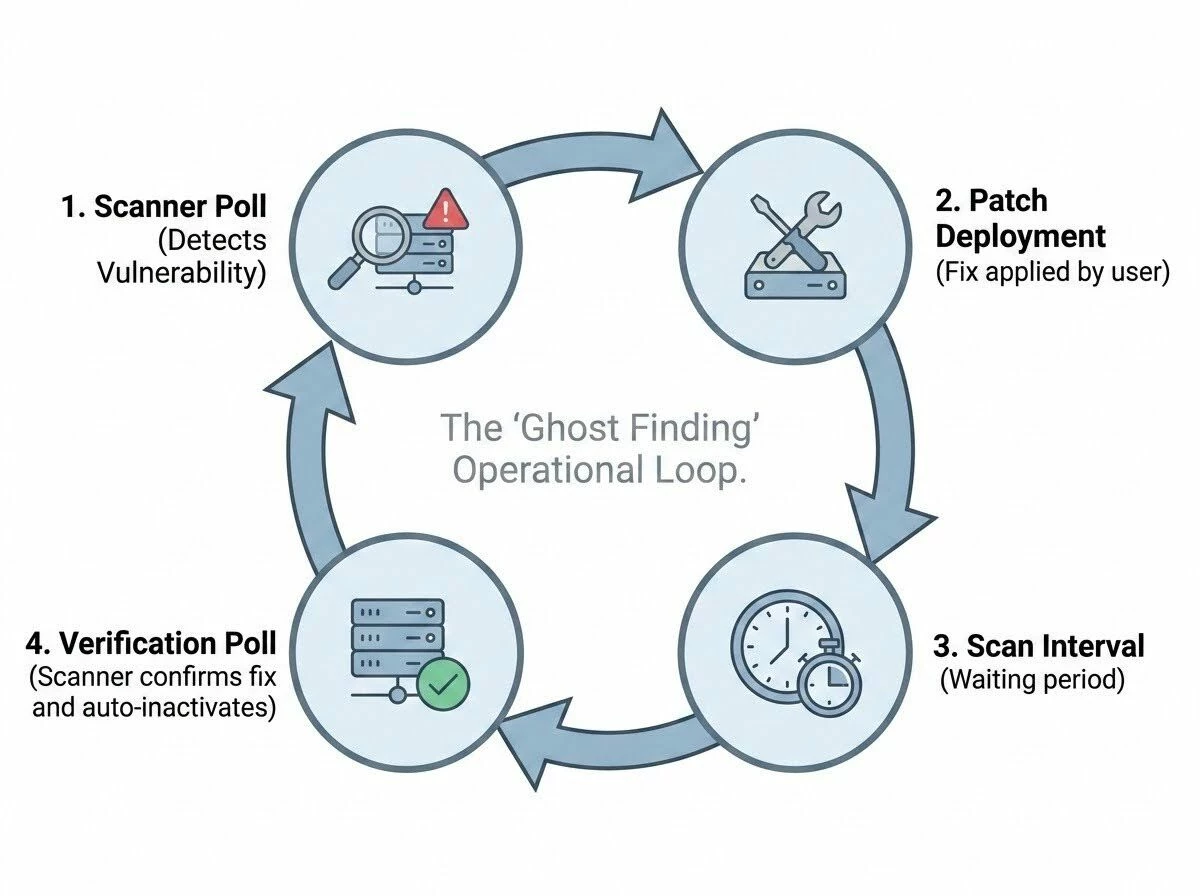
Figure 4: The 'Ghost Finding' operational loop showing the relationship between scanner polls and patch deployment.
Scenario B: The "Tidal Wave" (Retrohunting API Keys)
The Headache: You log in to find 500+ "new" ACTIVE findings for unrestricted API keys. At first glance, it looks like a massive, simultaneous compromise of your entire cloud environment overnight.
Expert Analysis: Massive spikes in findings often indicate that a new detection rule or a backfill scan has been enabled across your organization. By analyzing the gap between when the resource was originally created and when the alert was generated, you can distinguish systemic technical debt from a live security incident.
The Action Plan:
-
Check Release Notes: Cross-reference the finding category with the SCC Release Notes to see if a new detector was released, check logs if a new scan was recently enabled across your organization or project.
-
Perform Temporal & Asset Analysis: Contrast the finding's createTime with the Resource Creation Date in Cloud Asset Inventory.
-
Apply Dynamic Mute Rules: Deploy a mute rule with the filter parameter category = "API_KEY_APIS_UNRESTRICTED" and a 30-day expiration to clear the active queue while engineering teams rotate keys, ensuring the findings return for verification.
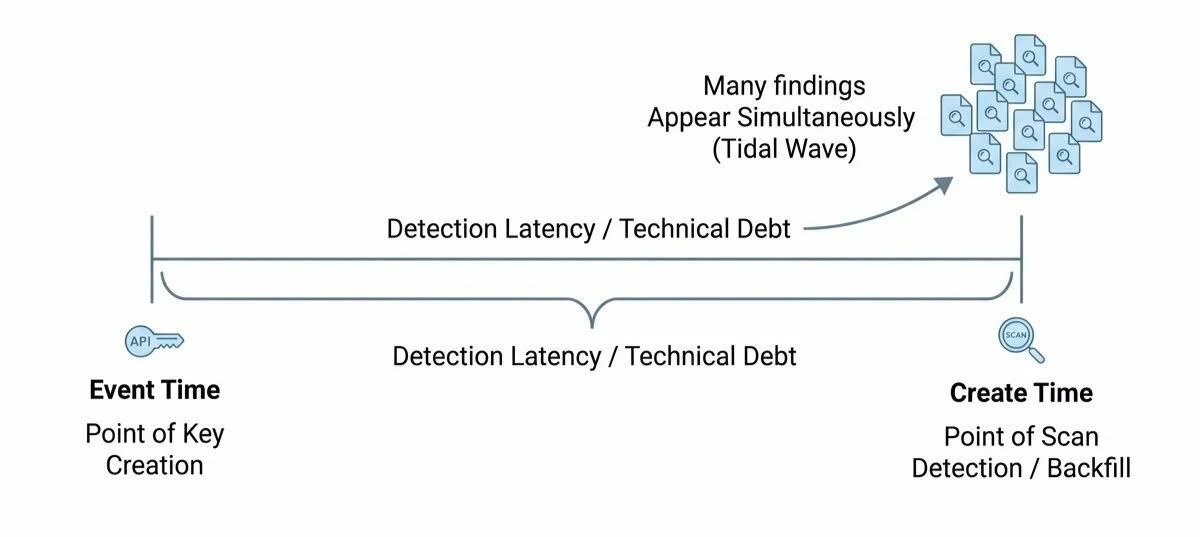
Figure 5: Detection latency represented as the gap between event creation and scan detection.
By observing that the API keys were created across the past year but all flagged simultaneously today, the analyst can confidently deduce that this is not a live compromise. The SOC can then pivot from emergency incident response to a methodical, prioritized remediation campaign.
Scenario C: The Eraser Dilemma (Stale Compliance Scores)
The Headache: To prepare for an audit, you deleted non-compliant VMs to fix a failing HIPAA score. Two days later, the compliance report still shows the old VMs, and your auditor is asking for an explanation.
Expert Analysis: Compliance dashboards are downstream from multiple data pipelines (Asset Inventory, Security Health Analytics, and Compliance Manager). Each step introduces its own processing window, meaning your real-world security posture and your reported score will always have a calculated propagation delay.
The Action Plan:
-
Track Asset Ingestion: Confirm the deletion in Cloud Asset Inventory (CAI). Tip: Check the CAI console directly to verify resource deletion and ensure the first step of the compliance pipeline has been updated.
-
Calculate Recalculation Windows: Account for the technical refresh process, which takes roughly 40 hours across the CAI, SHA, and Compliance Manager pipelines.
-
Verify Framework Version: Check whether your Compliance Posture is running the latest version of the target regulatory framework (such as CIS or HIPAA) in Compliance Manager, as framework updates can alter evaluation criteria and compliance scores.
-
Issue a Stance to Auditors: Formally state that compliance dashboards operate with a recommended 72-hour buffer as a worst-case estimate to account for end-to-end pipeline propagation and prevent urgent escalations during audit cycles.
Therefore, the "Eraser Dilemma" is a matter of architectural patience. Security architects must educate compliance officers that SCC compliance dashboards function as trend-analysis tools with a built-in architectural buffer. While the technical refresh takes roughly 40 hours, communicating a 72-hour buffer provides a reliable worst-case timeline for changes to fully reflect in CAI, SHA, and Compliance Manager reports.
Scenario D: The "Cry Wolf" Loop (Noisy Behavioral Alerts)
The Headache: A Threat finding (like ETD's Persistence: New User Agent or Discovery: Service Account Self-Investigation) repeatedly triggers for a legitimate automated admin script, causing analyst fatigue.
Expert Analysis: Behavioral detections are probabilistic by nature. While effective at catching anomalies, they cannot inherently distinguish between a malicious actor and a high-privilege automation script. Strategic silencing is required to maintain the signal-to-noise ratio without disabling the detector entirely.
The Action Plan:
-
Deconstruct the Payload: Open the JSON tab and extract principalEmail and methodName.
-
Audit & Confirm: Validate the script's legitimacy with the DevOps team.
-
Tame the Noise: Create a targeted Dynamic Mute Rule filtering specifically by that principalEmail and action. Set the expiration date to align with the service account's credential rotation schedule (e.g., 90 or 365 days) to ensure this exception is periodically reviewed.
Scenario E: The "Whack-A-Mole" Firewall (Repeated Configuration Drift)
The Headache: An OPEN_FIREWALL finding auto-inactivates when closed, but reappears as a 're-opened/re-activated' ACTIVE finding every few days due to automated pipeline conflicts or manual changes.
Expert Analysis: Repeated auto-inactivation and reactivation is a classic symptom of configuration drift. This cycle suggests that while the security fix is being applied, an underlying automation tool or manual process is reverting the change, creating an endless loop of vulnerability and remediation.
The Action Plan:
-
Identify Drift Patterns: Compare createTime timestamps across recurring findings.
-
Audit Infrastructure as Code (IaC): Check if manual console edits are fighting Terraform/automation runs.
-
Fix at the Source: Resolve the configuration drift in the IaC codebase or restrict manual IAM permissions rather than triaging repeated alerts in SCC.
Scenario F: The "Dev Environment Fog" (Prioritization Paralysis)
The Headache: High-severity findings in non-production/test environments drown out critical alerts in Production.
Expert Analysis: Not all environments carry the same risk weight. Without clear environmental scoping, the sheer volume of development alerts can mask critical production vulnerabilities. Effective triage requires partitioning your dashboard to reflect the business impact of the affected resources.
The Action Plan:
-
Scope with Tags: Apply Resource Tags or Security Marks (e.g., env: dev vs env: prod).
-
Save Custom Views: Create saved SCC views filtered to Production for daily SOC triage.
-
Folder-Scoped Suppression: Apply Dynamic Mute Rules scoped exclusively to Dev folders for non-critical vulnerability types.
Scenario G: The "Ghost" Resource (Deleted but Active)
The Headache: An analyst deletes a vulnerable container image or shuts down a project, but the critical findings remain ACTIVE on the dashboard days later. The SOC assumes SCC is broken.
Expert Analysis: SCC relies on Cloud Asset Inventory (CAI) to verify resource destruction. Furthermore, certain resources have intentional lifecycle buffers—projects have a 30-day soft-delete recovery period, and Artifact Registry vulnerabilities may linger for 7 days if the image wasn't recently scanned prior to deletion.
The Action Plan:
-
Verify Soft-Delete States: Check if the affected resource (like a GCP Project) is in a pending deletion or recovery state. SCC will not clear findings until deletion is permanent.
-
Account for CAI Latency: Confirm the resource is fully purged from Cloud Asset Inventory.
-
Use Mute Rules for Decommissioned Assets: If an asset is intentionally deleted but stuck in a TTL or recovery window, apply a targeted Dynamic Mute Rule to hide the findings while waiting for the automated pipeline to catch up.
Best Practices for Operational Excellence
-
Adopt the 'Inactivity' Standard: Don't delete resources to clear alerts; fix the underlying issue to trigger the native auto-inactivation engine. Trust the pipeline.
-
Dynamic Mute over Static: Always prefer Dynamic Mute Rules with expiration dates to ensure "temporary" exceptions don't become permanent blind spots.
-
JSON is the Single Source of Truth: When in doubt, bypass the UI summary and go straight to the JSON tab. It’s the easiest place to see the complete, uncompressed telemetry and triage audit trail (muteInitiator/muteUpdateTime).
-
Focus on Environmental Scoping: Partition your dashboard with Security Marks (e.g., 'env: prod', 'env: pci') to prioritize high-risk environments and reduce triage noise.
Conclusion
Aligning your SOC's triaging workflows with the native mechanics of the Security Command Center ensures high-fidelity alerting and clear audit trails. By leveraging programmatic attributes like state and mute, establishing dynamic mute rules with hard expiration dates, and accounting for downstream pipeline propagation latencies, you can build automation that reduces noise while ensuring critical risks remain visible.
Primary Takeaways
-
Decouple States and Muting: Never mix the physical presence of a risk (state) with its visibility overlay (mute) in downstream automation or SIEM/SOAR queries.
-
Audit through JSON: Use the JSON payload as your definitive source of truth to track telemetry changes, evaluation logic, and triage history.
-
Plan for Latencies: Account for the 24-to-72-hour propagation buffers across CAI, SHA, and Compliance pipelines when assessing audit readiness.
