




In our last blog, we reviewed how users could set row based expirations using a time to live (TTL) value in data tables and applied this to a rule based example. These concepts can also be applied to dashboards and searches.
Everything we did last time was using the UI and as I was writing that blog, I realized that some readers might like to explore TTLs beyond the UI, and see how we could work with these values via the API. So, I decided to write this follow-on that takes a look at TTLs and data tables but uses the API. My intent is to provide you some insight and some curl commands that you can take and apply to your own environments to work with TTLs via the APIs if you wish.
In the blog titled Creating Large Reference Datasets and Using Them In Rules, I shared how you can load a data table via the API. We also have previously discussed writing data into data tables using search and rules with the write_row function, so if you need a refresher on getting data into the data table beyond using the UI, those are great places to start.
Rather than just throw a bunch of curl commands at you, let’s set the stage. We have a data table named spreader_host_hash which contains the following columns:
- hostname
- sha256
- file_name
- last_seen
The data table has a default row expiration of seven days. In fact the rows in the data table also reflect the full seven days of TTL as they were added at data table creation. Viewing the data table in the UI highlights this and provides us a starting point to use the API.
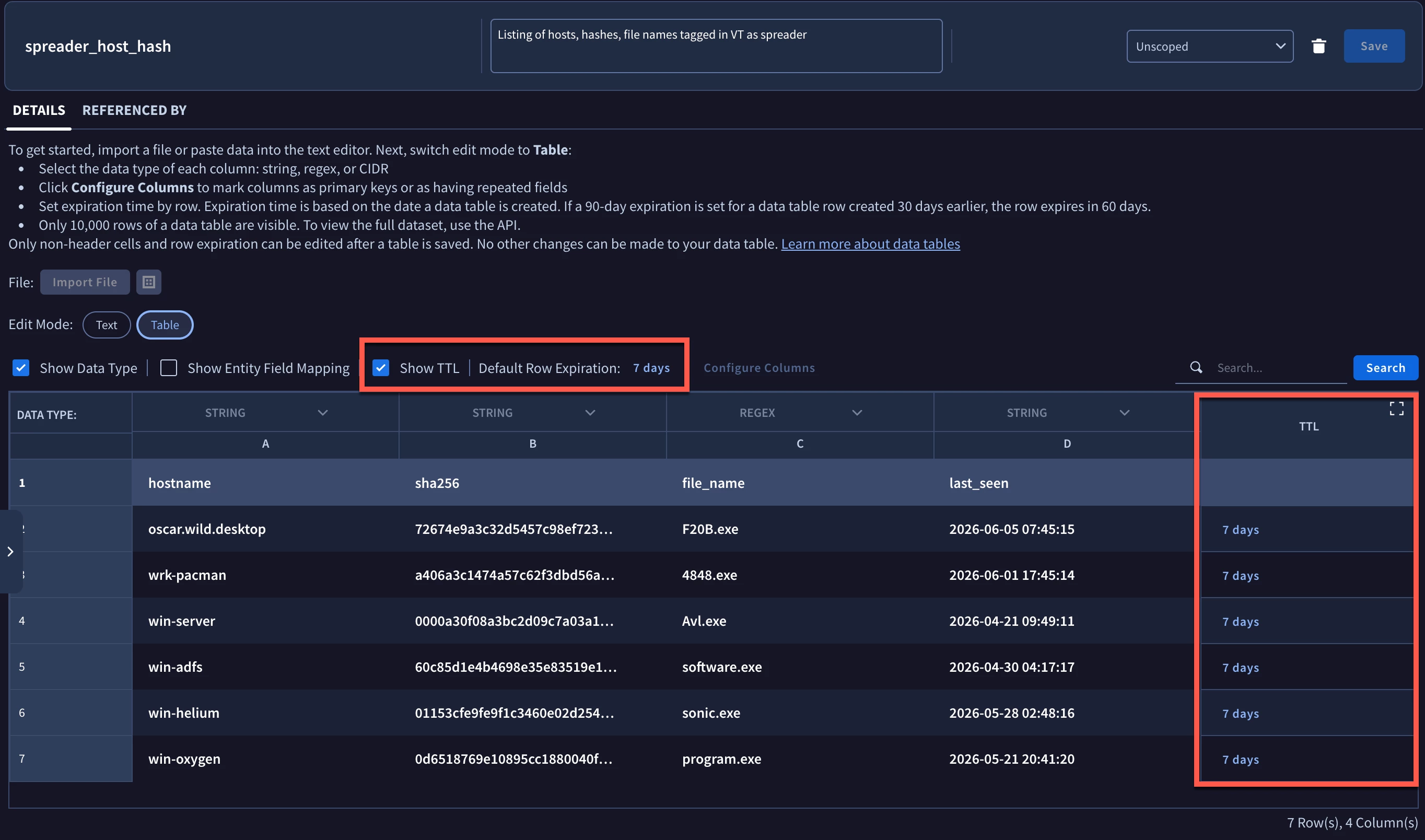
If we want to view the data table attributes via the API, we could call the dataTables endpoint. Notice in these curl commands that I have removed my project, region and instance. Just a quick reminder, if you need to quickly find your instance and project, one place you can find this is under SIEM Settings - Profile - Organization Details under Customer ID and GCP Project Number, respectively.
curl -X GET \
-H "Authorization: Bearer $(gcloud auth print-access-token)" \
-H "Content-Type: application/json" \
"https://us-chronicle.googleapis.com/v1beta/projects/{PROJECT}/locations/{REGION}/instances/{INSTANCE}/dataTables/spreader_host_hash"
The result of this GET method includes the column names and type as well as when the data table was created and updated. Scrolling through the response, we can also see that there are two rules associated with the data table, the approximate number of rows in the data table, and the default row expiration (rowTimeToLiveUpdateTime) for the data table.
{
  "name": "projects/{PROJECT}/locations/{REGION}/instances/{INSTANCE}/dataTables/spreader_host_hash",
  "displayName": "spreader_host_hash",
  "description": "Listing of hosts, hashes, file names tagged in VT as spreader",
  "createTime": "2025-03-31T19:49:10.898263Z",
  "updateTime": "2026-06-05T14:09:19.402139Z",
  "columnInfo": [
    {
      "originalColumn": "hostname",
      "columnType": "STRING"
    },
    {
      "columnIndex": 1,
      "originalColumn": "sha256",
      "columnType": "STRING"
    },
    {
      "columnIndex": 2,
      "originalColumn": "file_name",
      "columnType": "REGEX"
    },
    {
      "columnIndex": 3,
      "originalColumn": "last_seen",
      "columnType": "STRING"
    }
  ],
  "dataTableUuid": "b2f6c2af377e40fc8b6dd0ae89b3e124",
  "rules": [
    "projects/{PROJECT}/locations/{REGION}/instances/{INSTANCE}/rules/ru_20f08150-499c-4b97-a8e1-0135752492b0",
    "projects/{PROJECT}/locations/{REGION}/instances/{INSTANCE}/ru_271821ec-5738-4570-9584-77209f3e4b6c"
  ],
  "ruleAssociationsCount": 2,
  "rowTimeToLive": "168h",
  "approximateRowCount": "6",
  "updateSource": "RULE",
  "rowTimeToLiveUpdateTime": "2026-05-22T14:42:35.121578Z"
}
To gain additional insight into the rows within the data table, the dataTableRows endpoint can be called using the data table name.
curl -X GET \
-H "Authorization: Bearer $(gcloud auth print-access-token)" \
-H "Content-Type: application/json" \
"https://us-chronicle.googleapis.com/v1beta/projects/{PROJECT}/locations/{REGION}/instances/{INSTANCE}/dataTables/spreader_host_hash/dataTableRows"
This results in the output of each row, each with its own data table row name, as well as the column values in the table and their creation and update times.
{
  "dataTableRows": [
    {
      "name": "projects/{PROJECT}/locations/{REGION}/instances/{INSTANCE}/dataTables/spreader_host_hash/dataTableRows/08470582fa869925ce9ae01d1c646f2c",
      "values": [
        "wrk-pacman",
        "a406a3c1474a57c62f3dbd56aa15d5d732e6a0fe8bbfd7bce9425b132204da8b",
        "4848.exe",
        "2026-06-01 17:45:14"
      ],
      "createTime": "2026-06-05T14:04:19.469887Z",
      "updateTime": "2026-06-05T14:04:19.469887Z"
    },
    {
      "name": "projects/{PROJECT}/locations/{REGION}/instances/{INSTANCE}/dataTables/spreader_host_hash/dataTableRows/4a1a6bf87b7785f1f20ffbe18d07d4db",
      "values": [
        "win-oxygen",
        "0d6518769e10895cc1880040fb0680520cb179d37624bd2685368414b4a6e4eb",
        "program.exe",
        "2026-05-21 20:41:20"
      ],
      "createTime": "2026-06-05T14:04:19.477759Z",
      "updateTime": "2026-06-05T14:04:19.477759Z"
    },
    {
      "name": "projects/{PROJECT}/locations/{REGION}/instances/{INSTANCE}/dataTables/spreader_host_hash/dataTableRows/8a2e9996a8589a5f5705841af5e60240",
      "values": [
        "win-helium",
        "01153cfe9fe9f1c3460e02d254bbe49b7b07c343061b7630234d95948d8f6106",
        "sonic.exe",
        "2026-05-28 02:48:16"
      ],
      "createTime": "2026-06-05T14:04:19.478895Z",
      "updateTime": "2026-06-05T14:04:19.478895Z"
    },
    {
      "name": "projects/{PROJECT}/locations/{REGION}/instances/{INSTANCE}/dataTables/spreader_host_hash/dataTableRows/b996b7e019d50099705e414f59fa3c0f",
      "values": [
        "win-adfs",
        "60c85d1e4b4698e35e83519e16025aa11b6f79a69f02e483a8baf5e97cd04752",
        "software.exe",
        "2026-04-30 04:17:17"
      ],
      "createTime": "2026-06-05T14:04:19.591679Z",
      "updateTime": "2026-06-05T14:04:19.591679Z"
    },
    {
      "name": "projects/{PROJECT}/locations/{REGION}/instances/{INSTANCE}/dataTables/spreader_host_hash/dataTableRows/cfff396e9a2c87cad4e937f11f52bd5f",
      "values": [
        "win-server",
        "0000a30f08a3bc2d09c7a03a12a03c85bc6f01f264652170c49826dd944dc018",
        "Avl.exe",
        "2026-04-21 09:49:11"
      ],
      "createTime": "2026-06-05T14:04:19.583999Z",
      "updateTime": "2026-06-05T14:04:19.583999Z"
    },
    {
      "name": "projects/{PROJECT}/locations/{REGION}/instances/{INSTANCE}/dataTables/spreader_host_hash/dataTableRows/f7eac2c7483f8aa66c47c687ddb64958",
      "values": [
        "oscar.wild.desktop",
        "72674e9a3c32d5457c98ef723b938abc0295329c7ec58f9e07a0cb1e99631f48",
        "F20B.exe",
        "2026-06-05 07:45:15"
      ],
      "createTime": "2026-06-05T14:04:19.585167Z",
      "updateTime": "2026-06-05T14:04:19.585167Z"
    }
  ]
}
Notice that at this point there are no additional attributes associated with TTL because these rows are all using the default row expiration.
What if we wanted to make a data table change and modify the default row expiration from seven days to five. The dataTables endpoint will accept the PATCH method to modify the default row expiration.
curl -X PATCH \
-H "Authorization: Bearer $(gcloud auth print-access-token)" \
-H "Content-Type: application/json" \
-d '{ "rowTimeToLive":"5d" }' \
"https://us-chronicle.googleapis.com/v1beta/projects/{PROJECT}/locations/{REGION}/instances/{INSTANCE}/dataTables/spreader_host_hash?updateMask=rowTimeToLive"
When executed, the response includes the time the data table was updated, the columns as well as the updated time to live and the time to live update time.
{
  "name": "projects/{PROJECT}/locations/{REGION}/instances/{INSTANCE}/dataTables/spreader_host_hash",
  "updateTime": "2026-06-05T14:22:31.480807016Z",
  "columnInfo": [
    {
      "originalColumn": "hostname",
      "columnType": "STRING"
    },
    {
      "columnIndex": 1,
      "originalColumn": "sha256",
      "columnType": "STRING"
    },
    {
      "columnIndex": 2,
      "originalColumn": "file_name",
      "columnType": "REGEX"
    },
    {
      "columnIndex": 3,
      "originalColumn": "last_seen",
      "columnType": "STRING"
    }
  ],
  "dataTableUuid": "b2f6c2af377e40fc8b6dd0ae89b3e124",
  "rowTimeToLive": "120h",
  "rowTimeToLiveUpdateTime": "2026-06-05T14:22:31.480803545Z"
}
A quick refresh of the UI will show how this is now aligned with what we executed in the API.
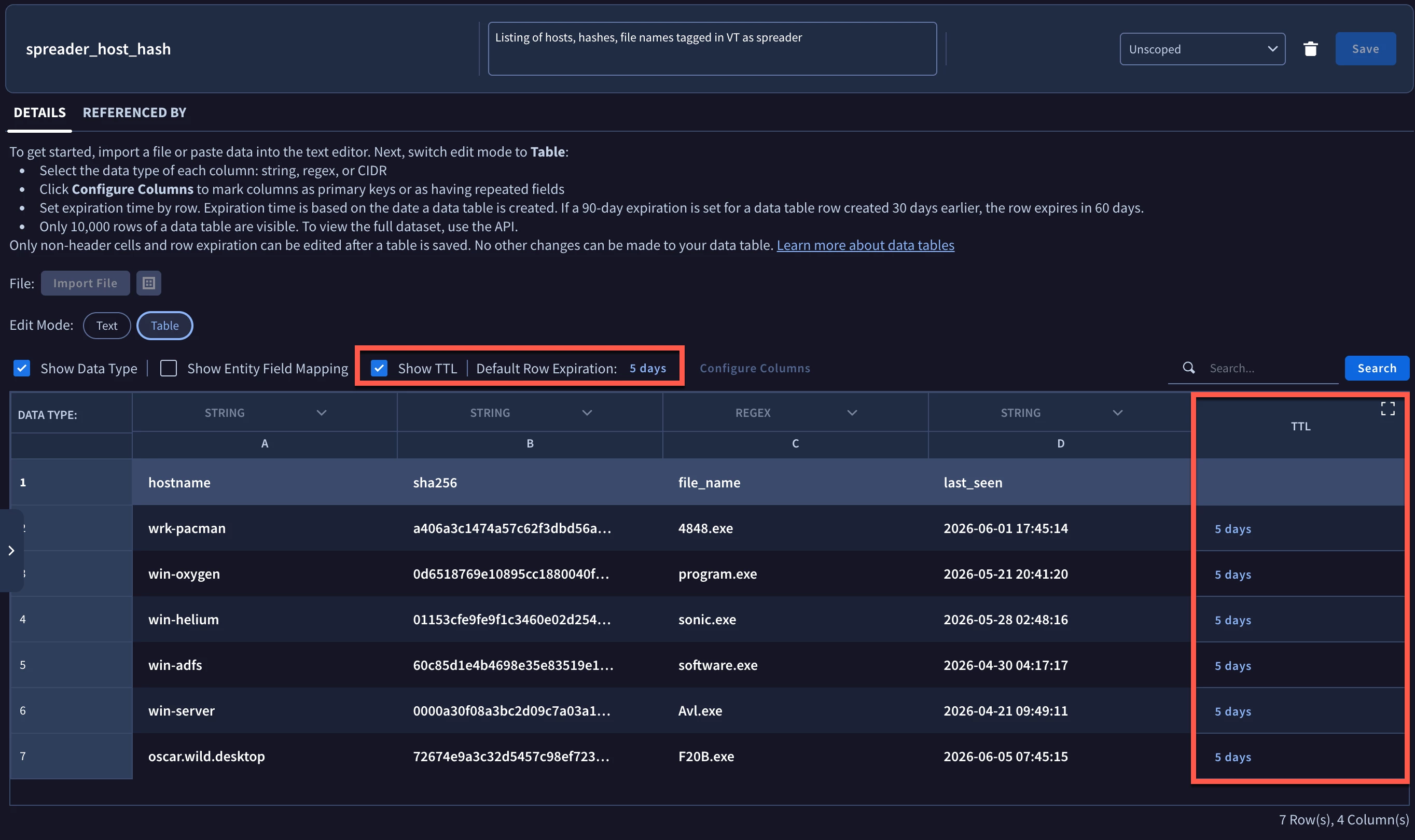
Let’s move away from modifying the TTL at the table level and move to the row level. There may be times when we want to shorten or lengthen the TTL for a specific row.
While dataTableRows.bulkUpdate or dataTableRows.patch may look appealing, currently these API calls will not change TTL settings for rows. Setting aside the UI, another method to modify the row is to read the row of interest, delete it and then add (re-create) the row in question with a row based TTL.
I started going down this route but then realized that primary keys can play a role in this and depending on how they are defined for the data table, the process of adding TTLs at the row may be a bit simpler. Let’s take a look.
When you create a new data table, you have the opportunity to define a primary key for the table. Primary keys can be one or many columns across a data table and when no columns are defined as primary keys, all of the columns will make up that primary key. This means that when data is written and all columns make up the primary key, a create request to dataTableRows will function more like an update because the columns that make up the primary key won’t change. Let’s take a look.
In the current data table, we did not specify a primary key at data table creation. So if we perform a GET to dataTableRows and identify the row of interest, we could take those row values and create a POST like the one below.
curl -X POST \
-H "Authorization: Bearer $(gcloud auth print-access-token)"  \
-H "Content-Type: application/json" \
-d '{  "values": [
        "win-adfs",
        "60c85d1e4b4698e35e83519e16025aa11b6f79a69f02e483a8baf5e97cd04752",
        "software.exe",
        "2026-04-30 04:17:17"
      ],
      "rowTimeToLive": "4d" }' \
"https://us-chronicle.googleapis.com/v1beta/projects/{PROJECT}/locations/{REGION}/instances/{INSTANCE}/dataTables/spreader_host_hash/dataTableRows"
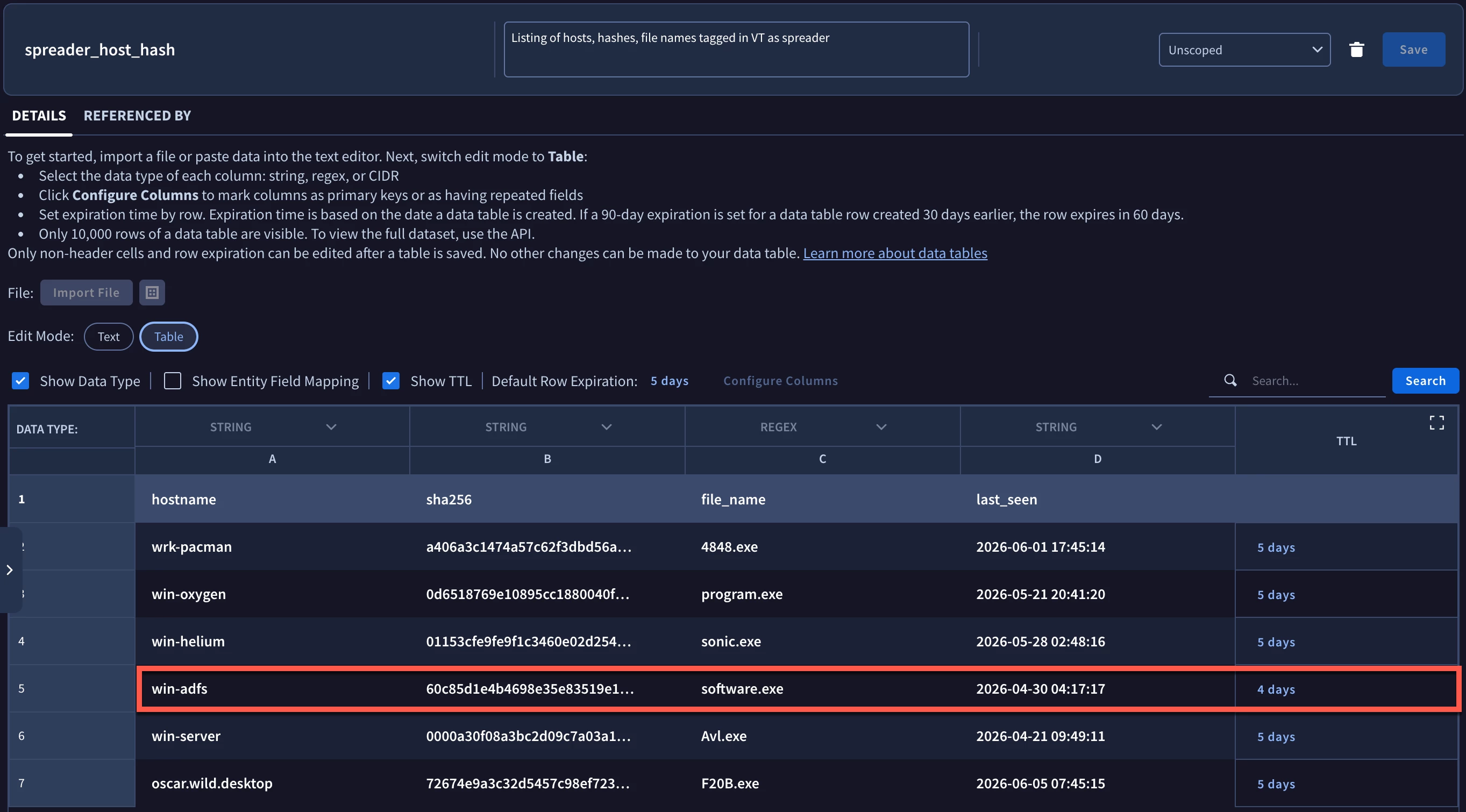
The result is that a new row with the same values is written to the data table. However, because the primary key is all four columns, we can’t actually add a new row with those exact same values. This results in the row that contains those values having an updated TTL of four days, the value we specified in the POST above.
{
  "name": "projects/{PROJECT}/locations/{REGION}/instances/{INSTANCE}/dataTables/spreader_host_hash/dataTableRows/b996b7e019d50099705e414f59fa3c0f",
  "values": [
    "win-adfs",
    "60c85d1e4b4698e35e83519e16025aa11b6f79a69f02e483a8baf5e97cd04752",
    "software.exe",
    "2026-04-30 04:17:17"
  ],
  "createTime": "2026-06-05T15:27:05.235946566Z",
  "rowTimeToLive": "4d"
}
Again, a quick UI refresh results in the same number of rows that we previously had in the data table, but the row in red has an updated TTL of four days.
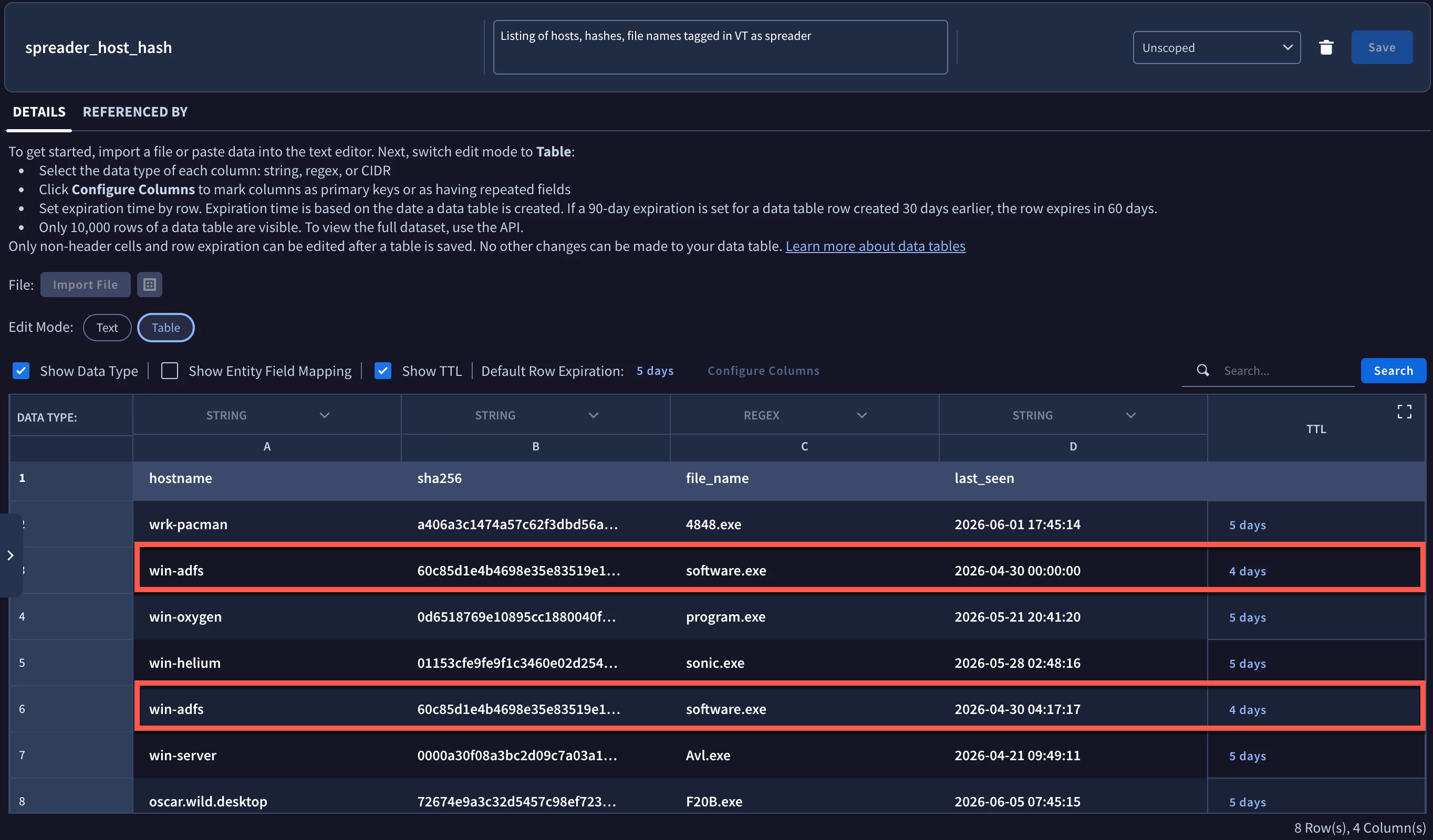
Now, if we perform this same type of POST but change one or more values in the columns so that they no longer align to the primary key, a new row will be created. To highlight this, I’ve got essentially the same curl command except that I’ve changed the timestamp to 00:00:00.
curl -X POST \
-H "Authorization: Bearer $(gcloud auth print-access-token)" \
-H "Content-Type: application/json" \
-d '{  "values": [
        "win-adfs",
        "60c85d1e4b4698e35e83519e16025aa11b6f79a69f02e483a8baf5e97cd04752",
        "software.exe",
        "2026-04-30 00:00:00"
      ],
      "rowTimeToLive": "4d" }' \
"https://us-chronicle.googleapis.com/v1beta/projects/{PROJECT}/locations/{REGION}/instances/{INSTANCE}/dataTables/spreader_host_hash/dataTableRows"
When this runs, we get a second row with the same host, hash and file_name but a different last_seen and the TTL of four days.
With these two additional rows added, let’s run the GET against the dataTableRows again to see the contents of the rows in the data table. Since this can get a little long, I’m going to just display three rows here.
{
  "dataTableRows": [
    {
      "name": "projects/{PROJECT}/locations/{REGION}/instances/{INSTANCE}/dataTables/spreader_host_hash/dataTableRows/08470582fa869925ce9ae01d1c646f2c",
      "values": [
        "wrk-pacman",
        "a406a3c1474a57c62f3dbd56aa15d5d732e6a0fe8bbfd7bce9425b132204da8b",
        "4848.exe",
        "2026-06-01 17:45:14"
      ],
      "createTime": "2026-06-05T14:04:19.469887Z",
      "updateTime": "2026-06-05T14:04:19.469887Z"
    },
    {
      "name": "projects/{PROJECT}/locations/{REGION}/instances/{INSTANCE}/dataTables/spreader_host_hash/dataTableRows/1c8971b92b222992419524ab31a40642",
      "values": [
        "win-adfs",
        "60c85d1e4b4698e35e83519e16025aa11b6f79a69f02e483a8baf5e97cd04752",
        "software.exe",
        "2026-04-30 00:00:00"
      ],
      "createTime": "2026-06-05T15:31:16.670527Z",
      "updateTime": "2026-06-05T15:31:16.670527Z",
      "rowTimeToLive": "4d"
    },
    {
      "name": "projects/{PROJECT}/locations/{REGION}/instances/{INSTANCE}/dataTables/spreader_host_hash/dataTableRows/b996b7e019d50099705e414f59fa3c0f",
      "values": [
        "win-adfs",
        "60c85d1e4b4698e35e83519e16025aa11b6f79a69f02e483a8baf5e97cd04752",
        "software.exe",
        "2026-04-30 04:17:17"
      ],
      "createTime": "2026-06-05T15:27:05.144943Z",
      "updateTime": "2026-06-05T15:27:05.144943Z",
      "rowTimeToLive": "4d"
    },
  ]
}
Notice that the first row does not have a specific rowTimeToLive value so it uses the data table’s default row expiration. The other two rows that we read in have a rowTimeToLive of four days.
BTW, if you have individual rows with a TTL like we do, these will take precedence over a change to the default row expiration being modified. If we issued the PATCH method like we did earlier to adjust the default row expiration, the TTL for the rows that have not been modified will all move with the data table but those rows that have their own specific TTL will not change.
At the start of this blog, I showed you the attributes for the data table we used in our example. Let’s view the attributes using that same GET statement, but for a table where I’ve defined the primary key as being the hostname, sha256 and file_name columns. The idea with that combination is that if we identify events with those three values being the same, we could update the last_seen field for that data table row.
Here are the attributes for that data table. Notice in the column info, in addition to the column name and type, keyColumn is set to true for those three fields.
{
  "name": "projects/{PROJECT}/locations/{REGION}/instances/{INSTANCE}/dataTables/spreader_test",
  "displayName": "spreader_test",
  "createTime": "2026-05-22T16:36:35.815812Z",
  "updateTime": "2026-06-05T16:50:21.104437Z",
  "columnInfo": [
    {
      "originalColumn": "hostname",
      "keyColumn": true,
      "columnType": "STRING"
    },
    {
      "columnIndex": 1,
      "originalColumn": "sha256",
      "keyColumn": true,
      "columnType": "STRING"
    },
    {
      "columnIndex": 2,
      "originalColumn": "file_name",
      "keyColumn": true,
      "columnType": "STRING"
    },
    {
      "columnIndex": 3,
      "originalColumn": "last_seen",
      "columnType": "STRING"
    }
  ],
  "dataTableUuid": "af2a1c3d5c40452985252024c6fb155c",
  "rowTimeToLive": "336h",
  "rowTimeToLiveUpdateTime": "2026-05-22T16:36:36.349477Z"
}
With that, let’s bring this blog to a close. I hope you have a better understanding of how you can use the API to work with data tables. Here are a few things to keep in mind:
- Row level TTLs take precedence over Default Row Expirations
- While an update or PATCH API call doesn’t exist to add a row level TTL, reading the row and creating a new one can provide a similar method to adding a row TTL
- Pay attention to the primary key for the table so that you don’t inadvertently end up creating additional rows in the data table
Whether you use the UI or the API, TTLs at the data table and row level can be very useful to an analyst. Hopefully this blog and the previous one provides you with additional information that you can apply to your data tables!
