




A few months ago we discussed calculating Z-scores and median absolute deviations within a multi-stage search. These are some hearty examples that I would encourage you to review as they are good strategies to employ for conducting outlier analysis. Recently, I received a question asking how we can identify user logins that are deemed excessive based on the average of their logins over the past seven days. Today, we are going to circle back to multi-stage searches and build a search to help address this question.
Let’s start by determining the data we need. As previously discussed, a good way to build multi-stage searches is to make sure that data from each of the stages in the search is able to return results before you assemble the stages.
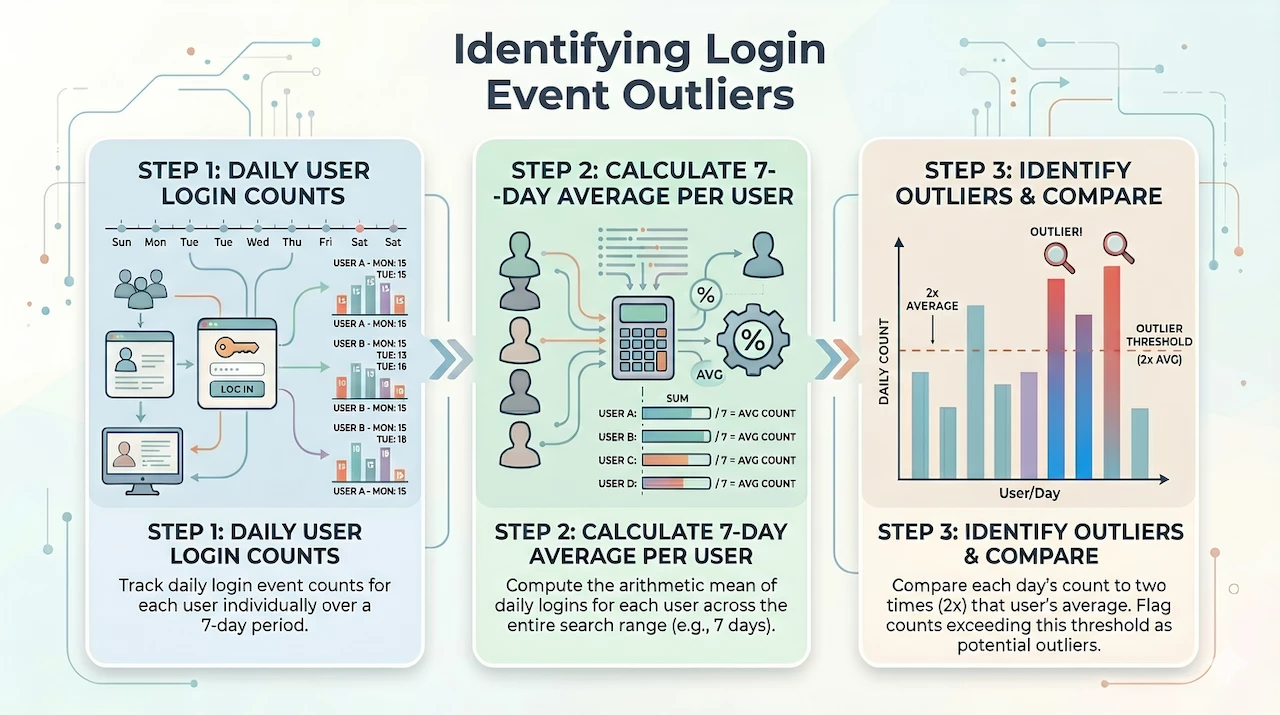
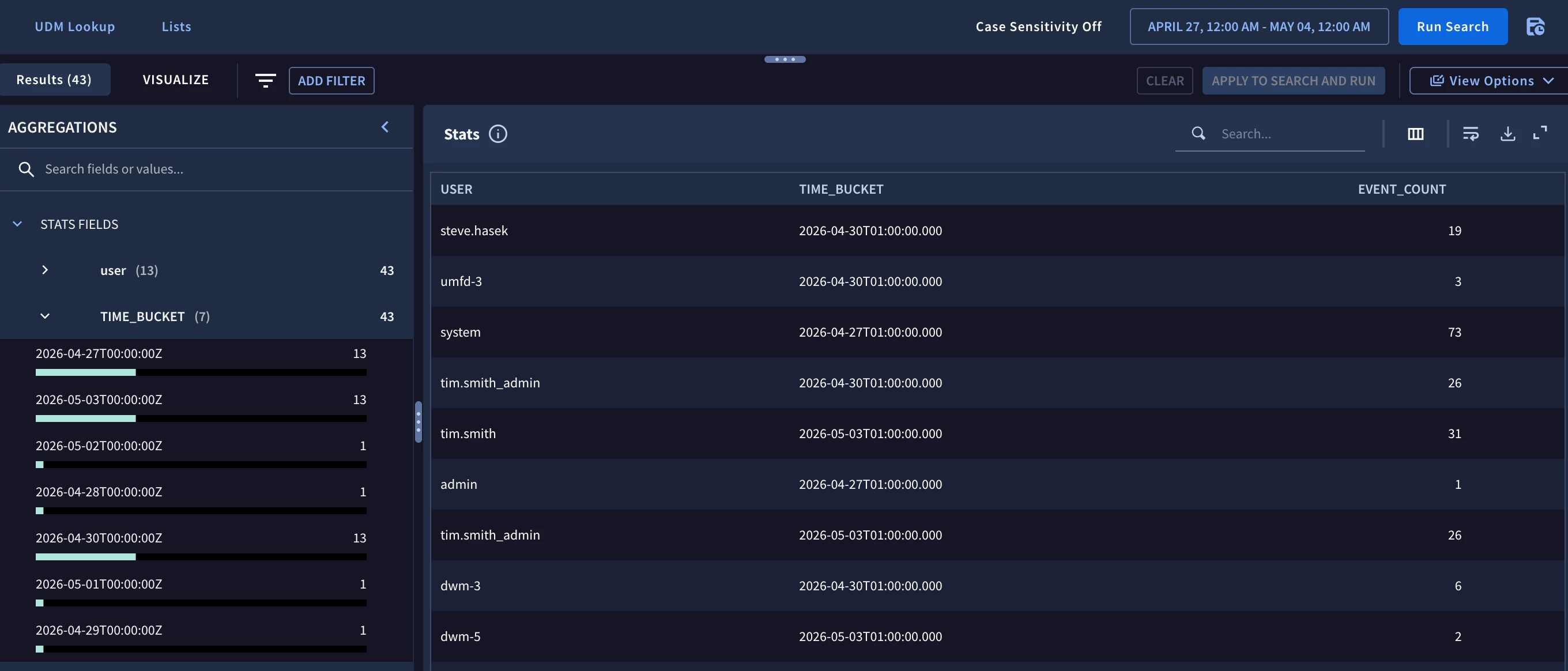
The first data set I need contains the event count of the target.user.userid for user login events grouped by the user and each day within the search range. In this example, the search range is seven days and I’m going to focus on Windows login events but the concept and structure of the search can be applied to other event sources as well.
metadata.event_type = "USER_LOGIN"
target.user.userid != /\$$/
target.user.userid != ""
security_result.action = "ALLOW"
metadata.product_event_type = "4624"
target.user.userid = $user
match:
  $user by day
outcome:
  $event_count = count(metadata.id)
Because we are going to compare each day to the seven day average, we need to set the time range to a full seven day window. With the tumbling window defined in the match section (using the keyword by), we get a listing of users by day and their associated event counts.
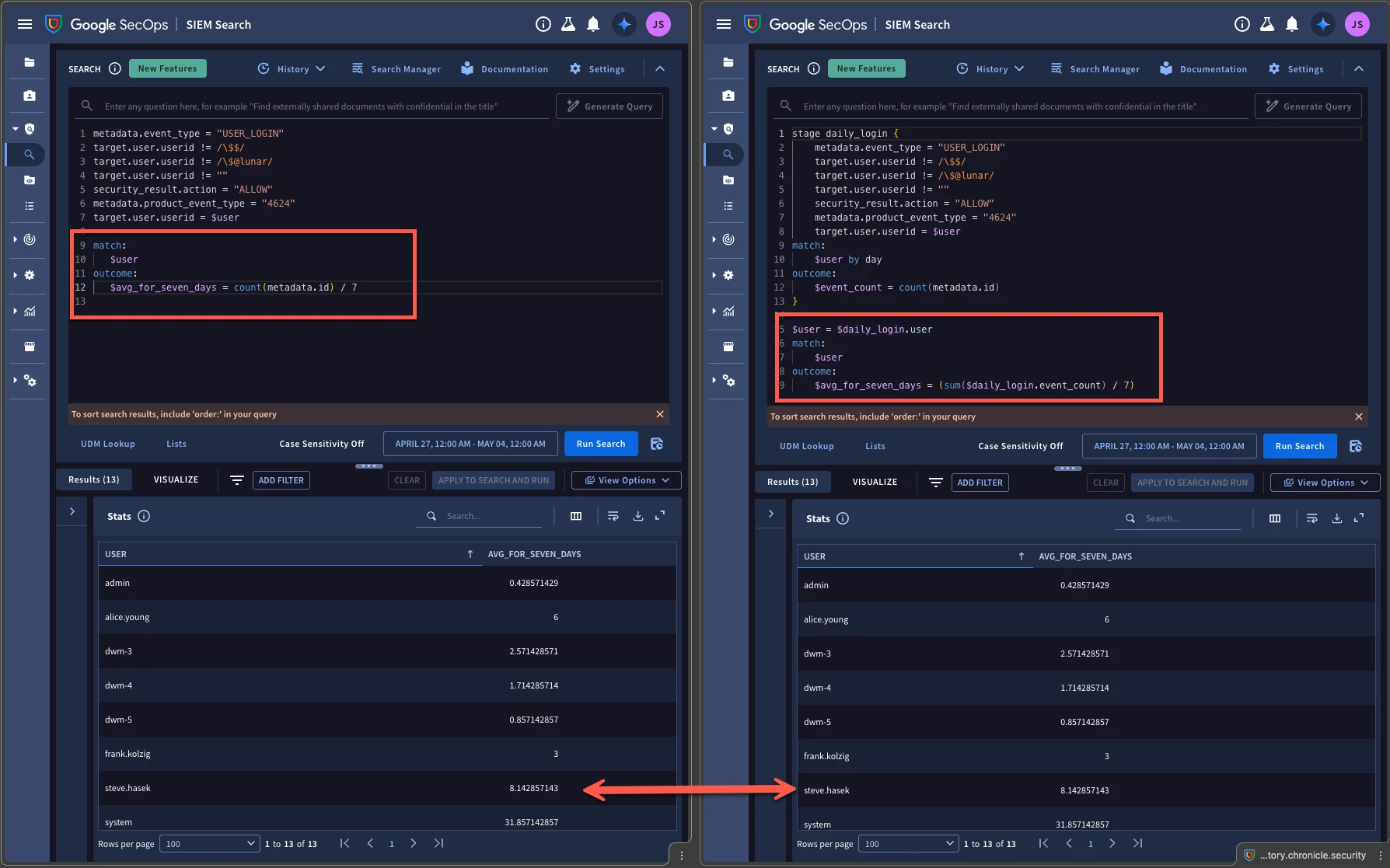
The next component that we need is the seven day average per user. If we were to write a stand-alone search for the seven day average, it would look like this.
metadata.event_type = "USER_LOGIN"
target.user.userid != /\$$/
target.user.userid != ""
security_result.action = "ALLOW"
metadata.product_event_type = "4624"
target.user.userid = $user
match:
  $user
outcome:
  $avg_for_seven_days = count(metadata.id) / 7
We start with the same filtering logic that we used in the first query but we are matching on the user without a time window. Why? To calculate the average, we don’t need each day’s individual values, we just need all the events divided by seven days. The outcome section in this search is counting all the events during the time range and dividing by 7 to get an average.
Alternatively, if we wanted to build this averaging component directly into the multi-stage search, we could do that as well.
stage daily_login {
  metadata.event_type = "USER_LOGIN"
  target.user.userid != /\$$/
  target.user.userid != /\$@lunar/
  target.user.userid != ""
  security_result.action = "ALLOW"
  metadata.product_event_type = "4624"
  target.user.userid = $user
match:
  $user by day
outcome:
  $event_count = count(metadata.id)
}
$user = $daily_login.user
match:
  $user
outcome:
  $avg_for_seven_days = (sum($daily_login.event_count) / 7)
The stage named daily_login contains the initial search of the daily user logins. The root stage is the logic after the braces and utilizes the user and event_count from the daily_login stage to calculate a seven day average. Notice that we are using sum instead of count since we have 7 days of counted values and we want to add it up.
As you are building these searches, you can use either method that I just demonstrated, but the key is that if you separate them into different queries to start, the filtering logic needs to be the same in both queries because in a multi-stage search, we are taking results from earlier stages and bringing those results to later stages to be used.
Since Chrome has this fun side-by-side tab functionality, I figured I would run both queries and show you that the output for both is the same for each user.
Alright, we now have a daily bucket for each user and a seven day average. It’s time to put them together. The calculation for the average will become its own stage, so we are going to name it weekly_login and place it within its own braces.
stage daily_login {
  metadata.event_type = "USER_LOGIN"
  target.user.userid != /\$$/
  target.user.userid != /\$@lunar/
  target.user.userid != ""
  security_result.action = "ALLOW"
  metadata.product_event_type = "4624"
  target.user.userid = $user
match:
  $user by day
outcome:
  $event_count = count(metadata.id)
}
stage weekly_login{
$user = $daily_login.user
match:
  $user
outcome:
  $avg_for_seven_days = (sum($daily_login.event_count) / 7)
}
Now we need to build the root stage that brings these two stages of search together. We are going to define variables using the event variable from the two stages and the fields found in the match and outcome sections of these named stages.
$user = $weekly_login.user
$avg = $weekly_login.avg_for_seven_days

$user = $daily_login.user
$day_count = $daily_login.event_count
$day_start_window = timestamp.get_timestamp($daily_login.window_start)
$day_end_window = timestamp.get_timestamp($daily_login.window_end)
The variable $user joins the stages together so that the user in the $weekly_login stage is the same as the user in the $daily_login stage. Additionally, we will get the seven day average and the event count for the user from each stage. Finally, because I want a time reference for each of these users and their daily login, I am going to get the time window that the counts are associated with. These system generated fields, window_start and window_end, are automatically created when using a time window in the search and we can use the event variable of $daily_login (the named stage) to get those values and use them in the root stage.
The last thing in the filtering statement of the root stage is a piece of logic to compare the daily event count from the $daily_login stage with the average from the $weekly_login stage. In our example we are interested in the users whose daily count is more than twice the seven day average. This calculation could be based on standard deviations or other statistical calculations or with other multipliers and could also identify values not just above average but below average as well. I will leave that up to you to tune as your use case sees fit.
$day_count > $avg * 2
At this point, we want to aggregate the results and we will do this by the user, the daily event count and the starting time of each day’s window in the search. The outcome section will contain the seven day average and just for fun, I calculated the difference between the daily event count and the seven day average and rounded it to two decimal points.
match:
  $user, $day_count, $day_start_window
outcome:
  $user_average = max($avg)
  $user_count_avg_diff = math.round(max($day_count) - $user_average, 2)
The results of this are that for the seven day time range from April 27- May 4 the user frank.kolzig had three days where his daily login count was two times his seven day average of three user logins. We can see which days those are as well.
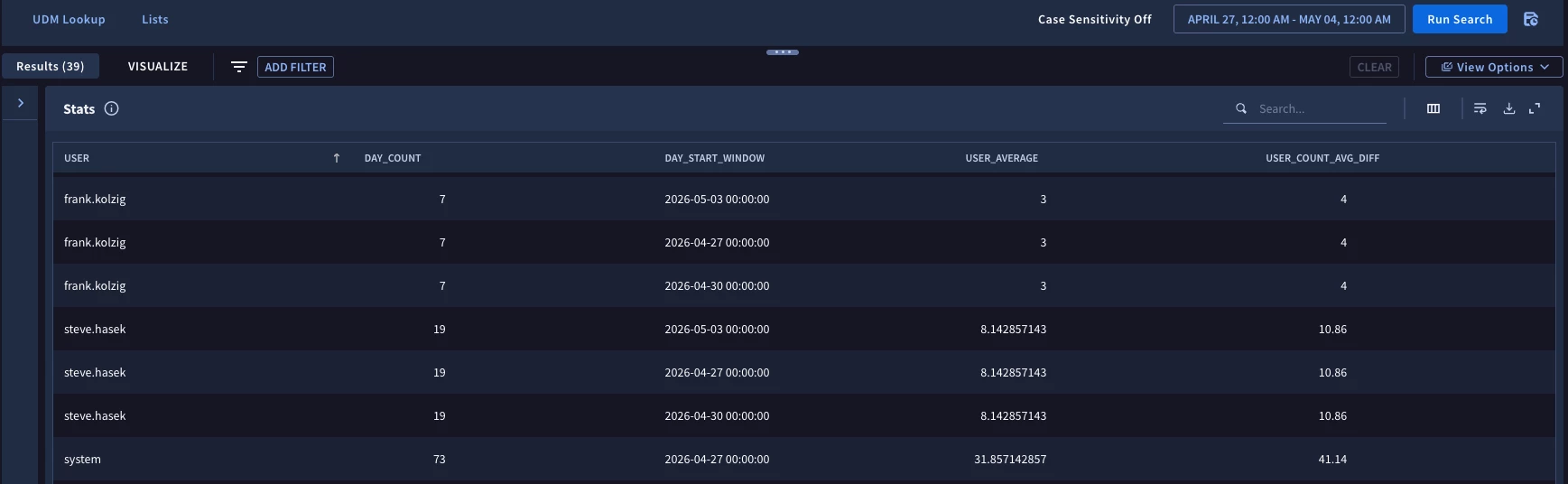
Here is the entire query assembled that renders the above result.
stage daily_login {
  metadata.event_type = "USER_LOGIN"
  target.user.userid != /\$$/
  target.user.userid != ""
  security_result.action = "ALLOW"
  metadata.product_event_type = "4624"
  target.user.userid = $user
match:
  $user by day
outcome:
  $event_count = count(metadata.id)
}
stage weekly_login{
  $user = $daily_login.user
match:
  $user
outcome:
  $avg_for_seven_days = (sum($daily_login.event_count) / 7)
}
$user = $weekly_login.user
$avg = $weekly_login.avg_for_seven_days

$user = $daily_login.user
$day_count = $daily_login.event_count
$day_start_window = timestamp.get_timestamp($daily_login.window_start)
$day_end_window = timestamp.get_timestamp($daily_login.window_end)

$day_count > $avg * 2

match:
  $user, $day_count, $day_start_window
outcome:
  $user_average = max($avg)
  $user_count_avg_diff = math.round(max($day_count) - $user_average, 2)
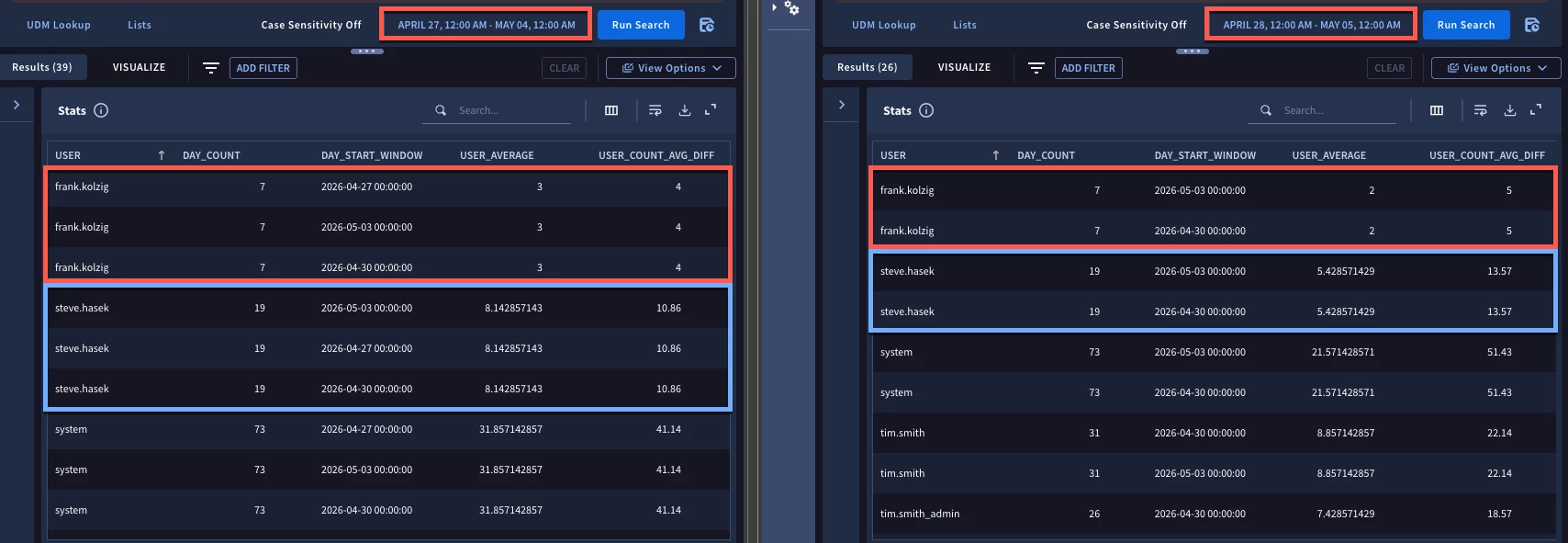
I went ahead and used Chrome’s split pane a second time but this time I ran the complete search in the second pane for one day later on another seven day time range. Notice that we have a different average for that seven day window and we have a slightly different set of results due to the time range we are searching against shifting.
We are going to stop there but I hope that this serves as another recipe that you can adapt to your own use case as you start building multi-stage searches. Here are a few things to be mindful of:
- Define the components you want to bring together for the multi-stage search
- Build and test these searches so you know they work individually before bringing them together as stages
- Use the system fields window_start and window_end to describe any windows that are defined in earlier stage searches to provide context. If you identify an outlier of interest, you want to know which day it occurred on!
I hope this blog and the concepts shared will help you identify excessive login behavior in your tenant!
